
Advanced Link Manager for Jira provides additional features directly from the work item view, allowing users to manage links, create new work items with existing links, and clone work items with their related information.
1. Accessing Advanced Link Manager
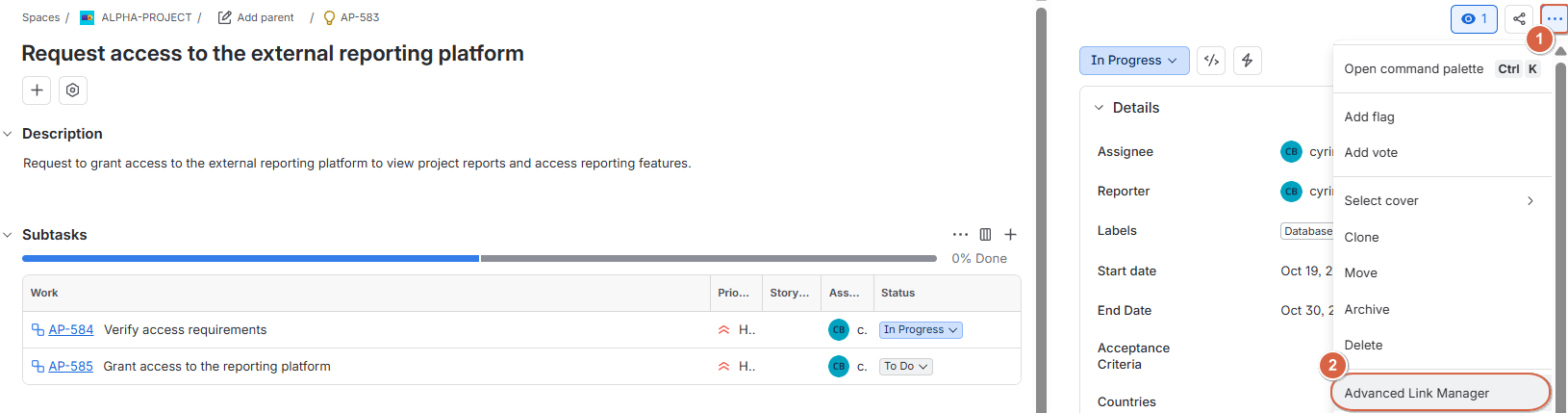
To access these features:
-
Open the work item you want to manage.
-
Click the More actions (three dots) menu.
-
Select Advanced Link Manager.
-
A dialog appears, providing access to the following features:
-
Move / Copy Links
-
Create Work Item with Current Links
-
Clone
-
2. Move / Copy Links
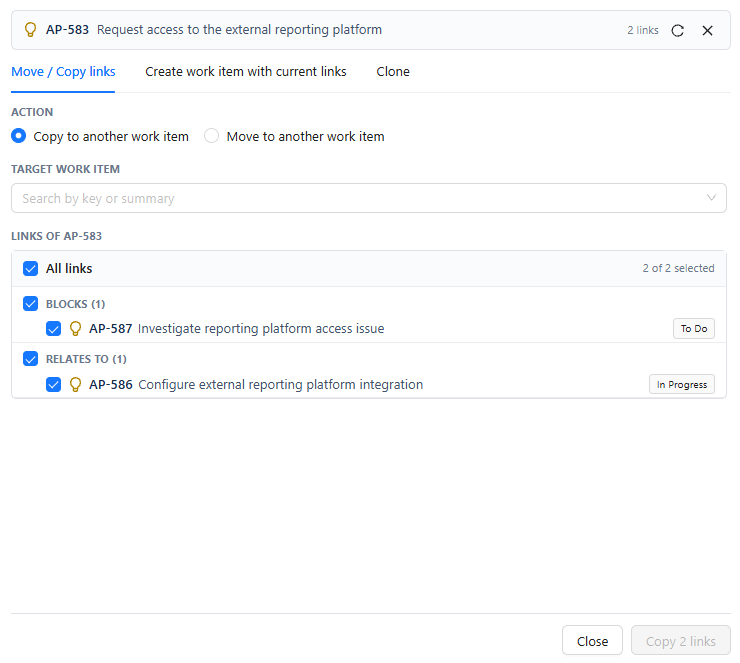
This feature allows you to move or copy selected links from the current work item to another work item.
How to Move or Copy Links
-
Open Advanced Link Manager from the work item.
-
Select Move / Copy Links.
Configure the following options:
-
Action: Choose one of the following:
-
Copy to another work item: Copies the selected links to the target work item while keeping the original links.
-
Move to another work item: Transfers the selected links to the target work item.
-
-
Target work item: Search by work item key or summary, then select the work item to which the links will be copied or moved.
-
All links: Displays the available links. Select or deselect individual links to specify which ones you want to copy or move.
Once you have configured the options and selected the required links, perform the action to apply the changes.
3. Create Work Item with Current Links
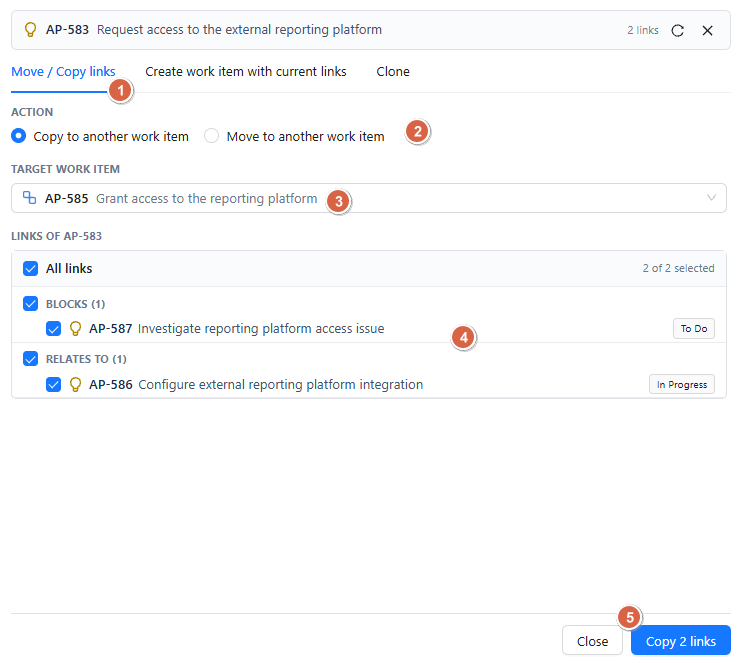
This feature allows you to create one or more new work items using the current work item as a starting point. You can select which fields to copy and which existing links to associate with the new work items.
Configuration Options
Project : Select the project in which the new work item will be created.
Work Type : Select the work item type, such as Task, Bug, or Story, depending on the project configuration.
Summary : The summary is prefilled with the summary of the current work item. You can use it as the starting point for the new work item.
Fields
Select the fields whose values you want to include in the new work item. Available fields include:
-
Priority
-
Labels
-
Due Date
-
Start Date
-
Assignee
-
Reporter
-
Fix Version
-
Components
When a field is selected, its existing value is displayed if available. If the field has no value, you can enter one as needed.
Number : Specify how many work items you want to create.
Links to Copy to the New Work Item : This section displays the links available from the current work item. Select the links you want to associate with the newly created work item .
After configuring the project, work type, summary, fields, number of work items, and links, click Create to create the work items.
4. Clone
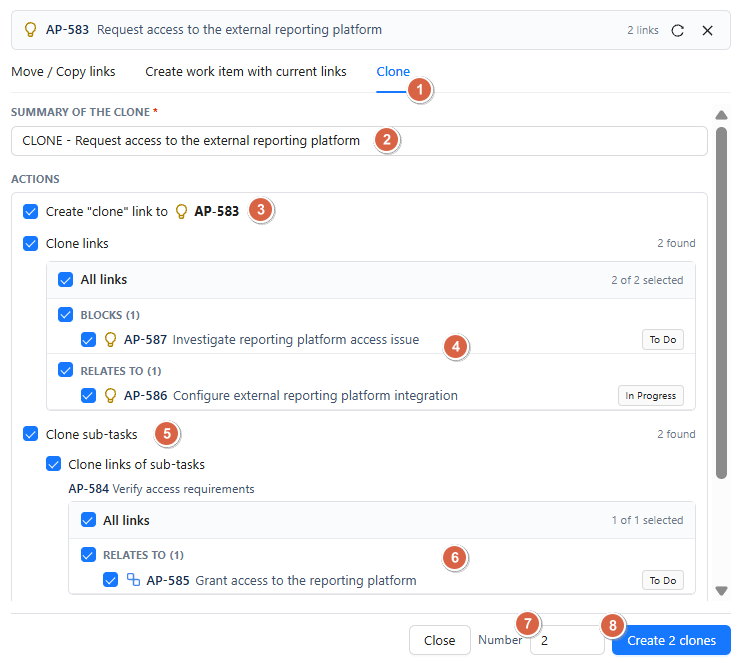
The Clone feature allows you to create copies of the current work item, with options to customize the clone summary and select which related links and subtasks to duplicate.
Configuration Options
Summary of the Clone
Enter the summary for the cloned work item. By default, it follows the format:
Clone - [Current Work Item Summary]
You can modify the summary as needed.
Actions
Configure the following options to determine what should be included in the clone:
-
Create "clone" link to the current work item: Creates a link between the newly cloned work item and the original work item.
-
Clone Links: Select the links from the current work item that you want to clone and associate with the new work item.
-
Clone Sub-tasks: Select the subtasks you want to clone and associate with the new work item.
-
Clone Links of Sub-tasks: Select the links associated with the subtasks that you want to clone.
Number : Specify the number of clones you want to create.
Once you have configured the summary, selected the required actions, and specified the number of clones, proceed with the cloning operation.
Conclusion
Advanced Link Manager makes it easier to manage work item relationships directly from the Jira work item view. With Move / Copy Links, Create Work Item with Current Links, and Clone, users can transfer links, create work items with selected fields and relationships, and clone work items along with their selected links and subtasks.