
Managing work item links can become complex as projects grow. Advanced Link Manager provides AI-powered Help and Insights to make link management easier, faster, and more intelligent.
1. AI Help Get Answers From the Documentation
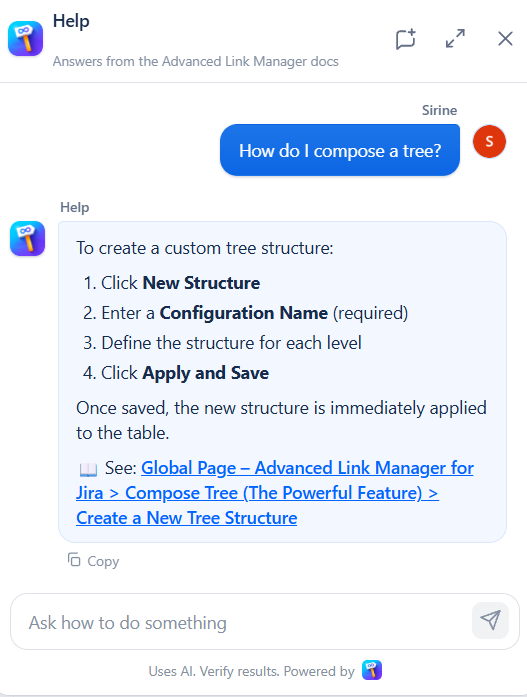
The Help feature is an AI assistant that answers your questions using the Advanced Link Manager documentation.
Simply ask a question in natural language, and the assistant provides the steps to complete the task. When available, it also provides the specific documentation page for more details.
How to use Help
-
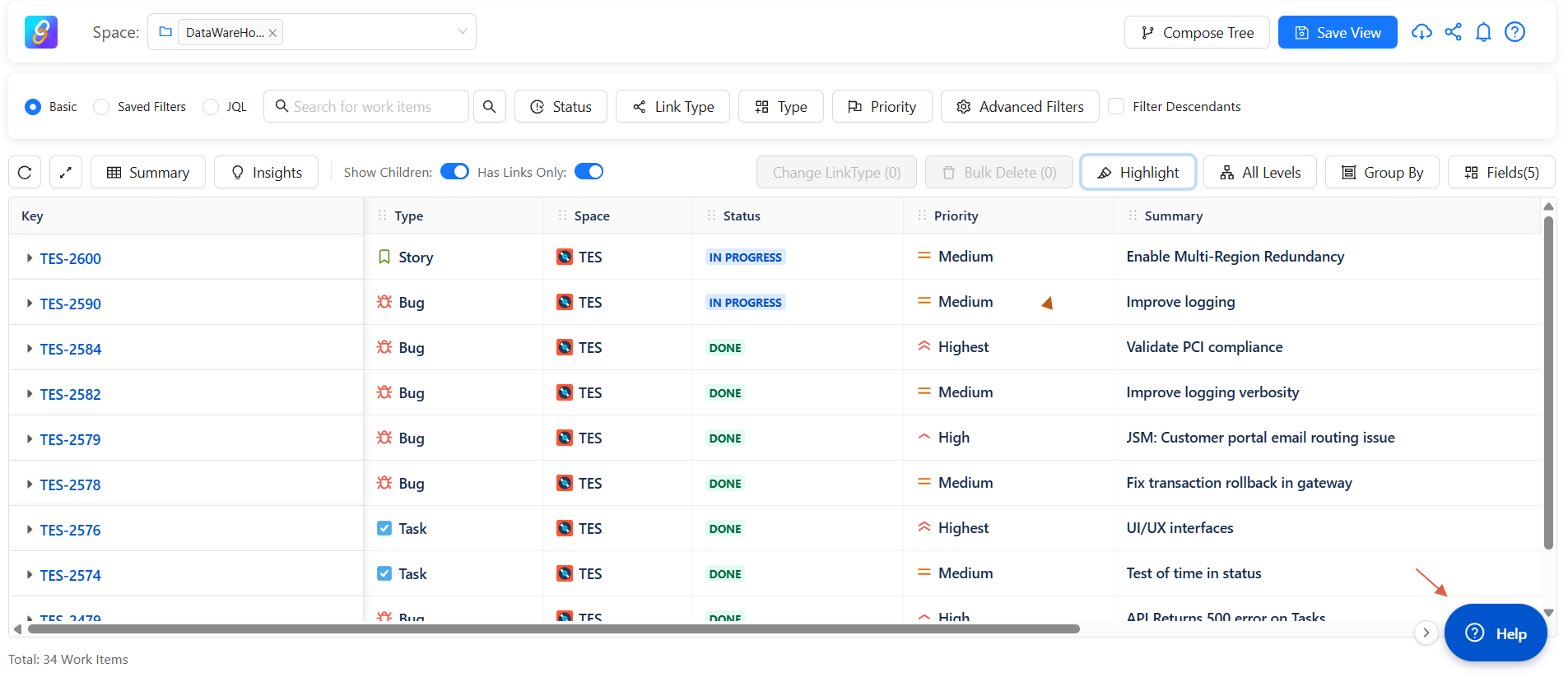
Open Advanced Link Manager.
-
Click Help.
-
Ask your question.
-
Follow the suggested steps or open the provided documentation.
For example:
-
How do I compose a tree?
-
How do I create a saved view?
-
How do I filter linked work items?
Use Help when you want to know: “How do I do this?”
2. Link Insights Understand Your Links
-
Click Insights to analyze the work items and links in the currently selected project.
-
The assistant analyzes the available data and generates findings and recommendations. No changes are made automatically.
You can choose from three analyses:
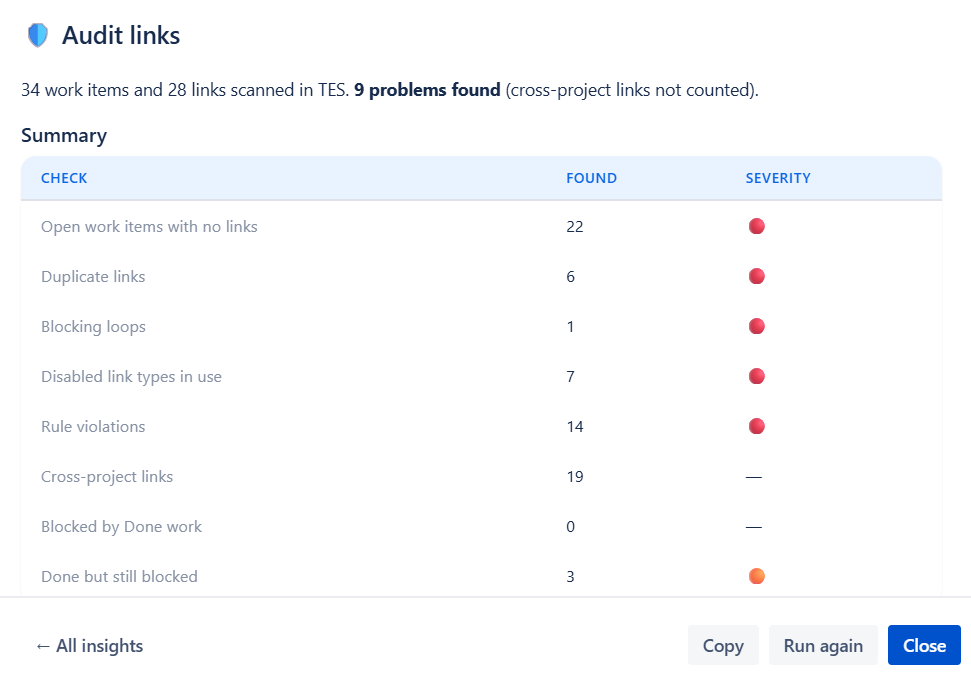
Audit Links
Identify potential link problems, including:
-
Open work items with no links
-
Duplicate links
-
Blocking loops
-
Disabled link types still in use
-
Link rule violations
-
Cross-project links
-
Done work that is still blocked
Each finding includes the affected work items, severity, and a suggested action.
Links You Need
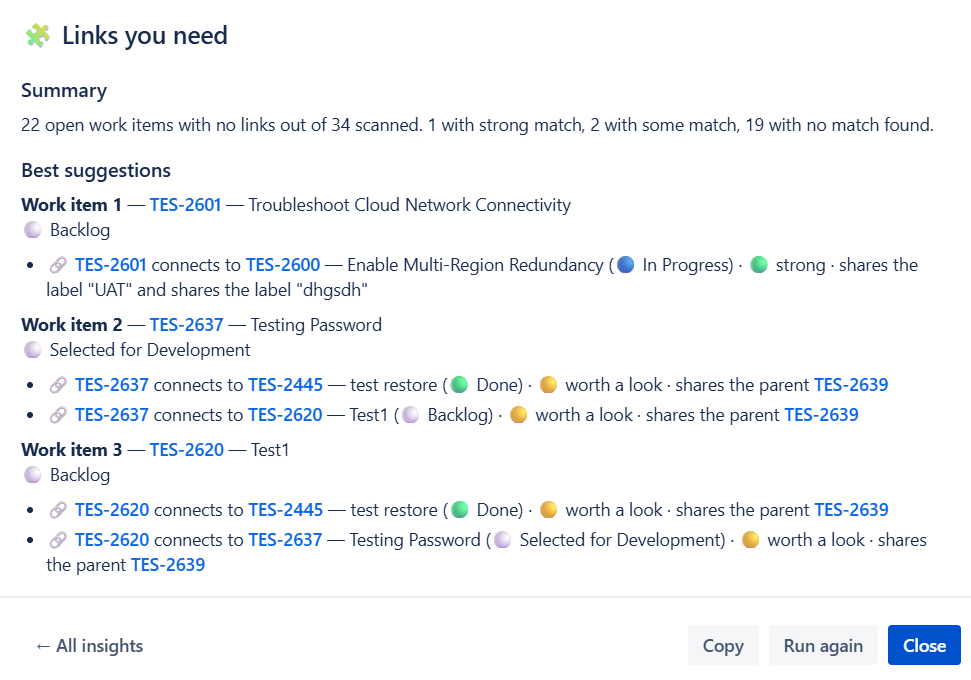
Find open work items with no links and identify potential relationships with other work items.
Suggestions are ranked by relevance, such as:
-
Strong match
-
Worth a look
-
No match found
The assistant also explains why a work item was suggested, for example because it shares labels or a parent.
These are suggestions only. You can review them and create the appropriate link from the work item's link panel.
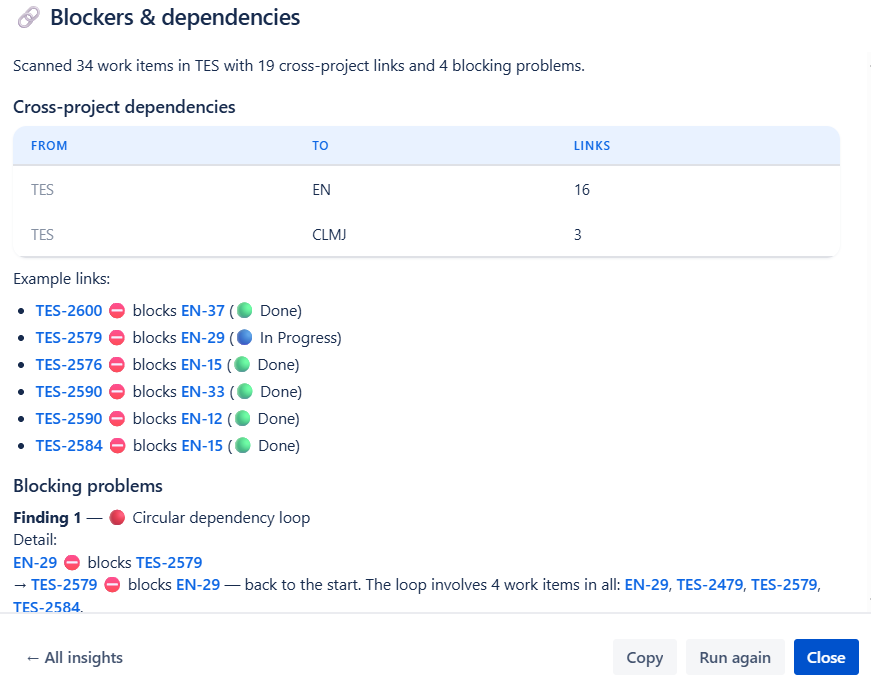
Blockers & Dependencies
Analyze dependencies that may affect your project, including:
-
Cross-project dependencies
-
Circular blocking relationships
-
Done work still blocked by open work
-
Other blocking risks
The analysis shows the affected work items and explains the recommended action, helping you identify dependency risks before they impact your work.
3. Work With the Results
After generating an Insights analysis, you can:
-
Copy : copy the results for documentation or team discussions.
-
Run Again : generate a new analysis using the latest data.
-
Close : close the results and return to the application.
Help or Insights?
|
Feature |
Purpose |
|---|---|
|
Help |
Learn how to use Advanced Link Manager |
|
Audit Links |
Find link problems and configuration issues |
|
Links You Need |
Discover potentially missing links |
|
Blockers & Dependencies |
Understand dependencies and blocking risks |
Conclusion
-
With AI-powered Help and Link Insights, Advanced Link Manager makes it easier to understand your link configuration, discover missing relationships, and identify dependency risks.
-
Ask Help when you need guidance. Use Insights when you need to know what needs attention.