
Validate all issue links in one place including manually created, automation-managed, and externally created links.
Prevent invalid relationships and rule conflicts with instant warnings and guided corrections.
Clearly identify system-managed links and control them with flexible global or project-level settings.
Automation-managed links
The Automation feature allows links to be created automatically between issues when they are generated from an external tool (outside of Jira).
1. Enabling Automation
To activate automatic link creation:
-
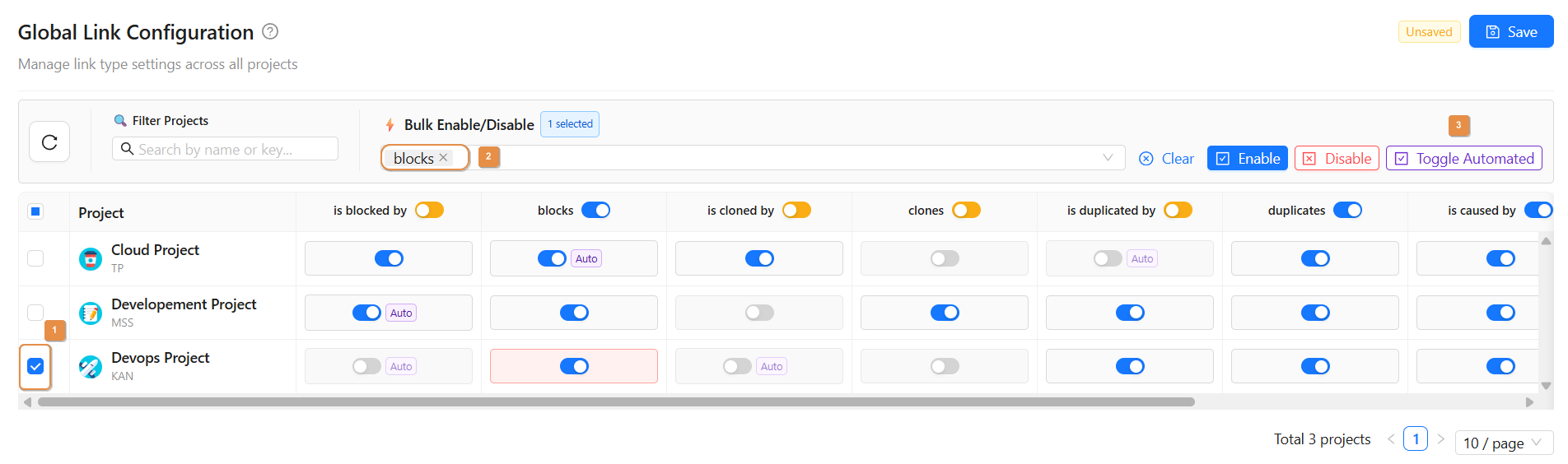
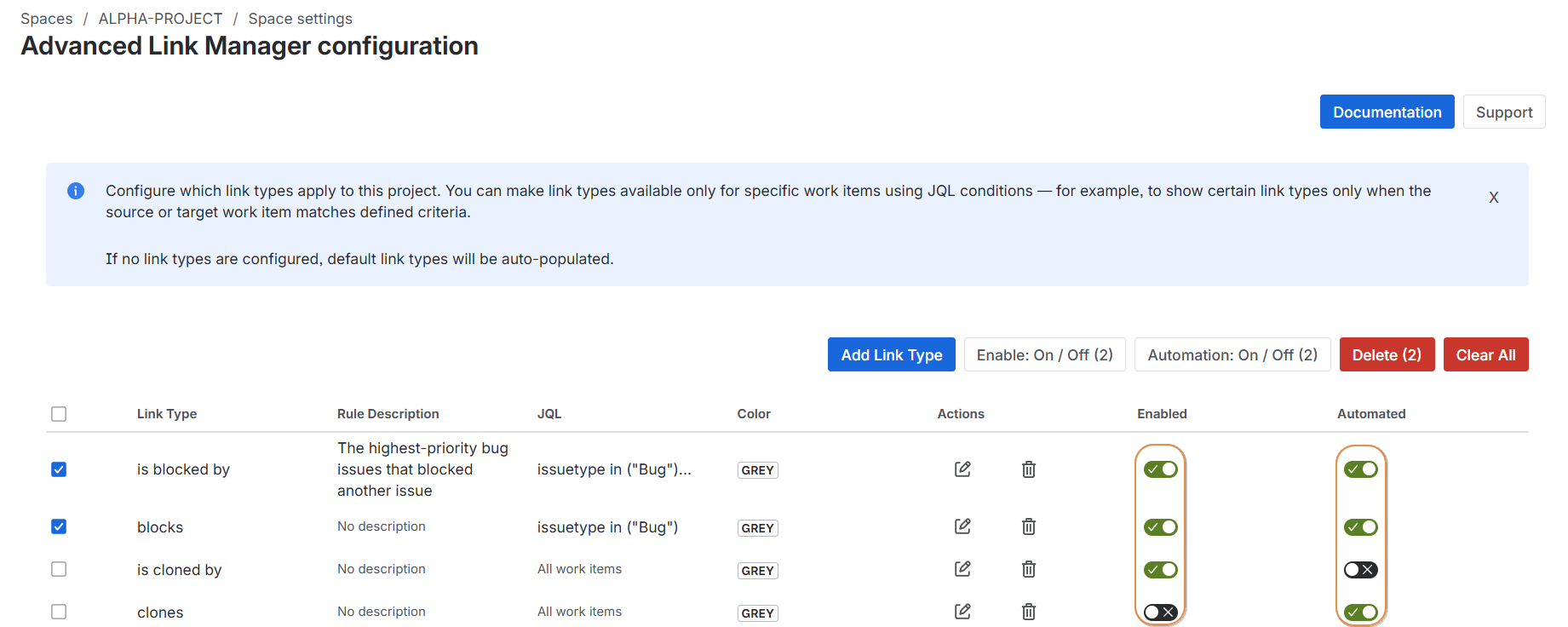
Go to the Configuration Level (project or global level ) .
-
Enable the Automation toggle.
-
Save the configuration.
Configuration in global level :
Configuration in project level :
2. How It Works
When an issue is created from an external tool:
-
The issue is created in Jira through the integration.
-
The related link is automatically created.
-
No manual action is required.
-
No warning is displayed during the process.
3. Automation Identification
-
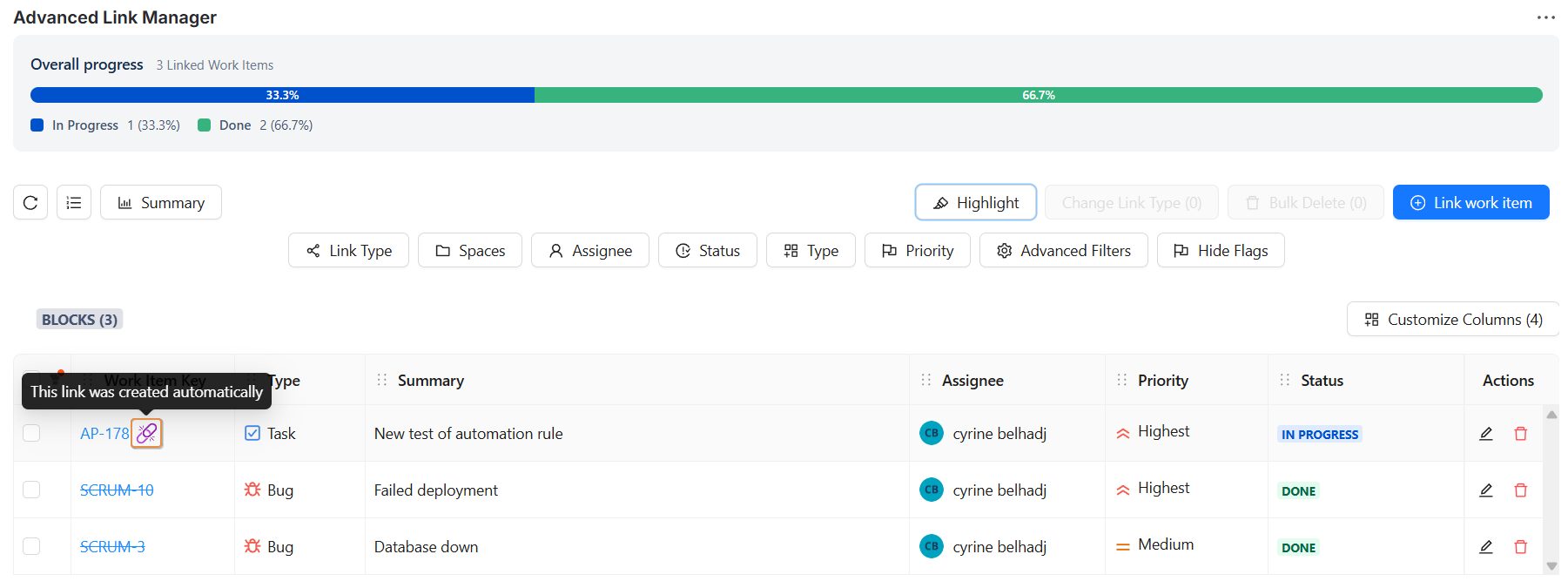
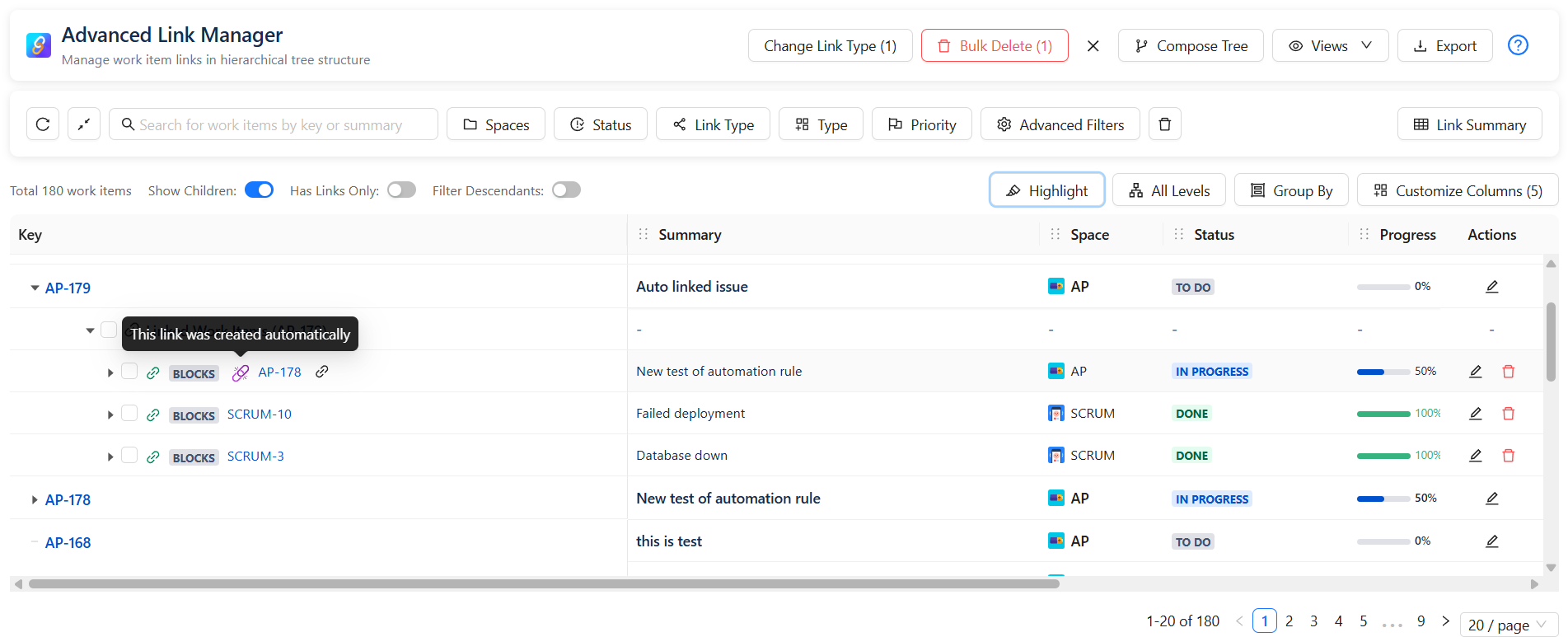
Automatically created links are clearly indicated as created by an external tools.This allows users to:
-
Identify that the link was generated automatically
-
Differentiate automated links from manually added links.
-
Ensure full traceability of integrations.
-
Work item level view :
Global level view:
Using Jira Native Links with the Advanced Link Manager
-
Many teams already create issue links directly from Jira’s native interface. The Advanced Link Manager fully supports this, and you don’t need to worry about losing visibility or consistency.
-
All native Jira links are automatically detected and displayed inside the Advanced Link Manager as long as the link type is already configured in your link management rules.
When the Link Type Is Already Configured
-
If the link type exists in your configuration (“is blocked by”) and the issues match your rules, it will appear normally inside the table.
When the Link Type Is Not Yet Configured or disabled
-
If a user creates a Jira link from the native Jira UI using a link type that does not exist in your Link Manager configuration, the system will detect it instantly or the link type is already disabled on your configuration page .
-
When you open the Advanced Link Manager, a popup warning appears:
-
🔔 Link Configuration Warning : The link type ‘merged into’ isn’t allowed in this project.
Please use one of the permitted link types: …
-
This warning tells you that the link type has not been set up in your configuration rules.
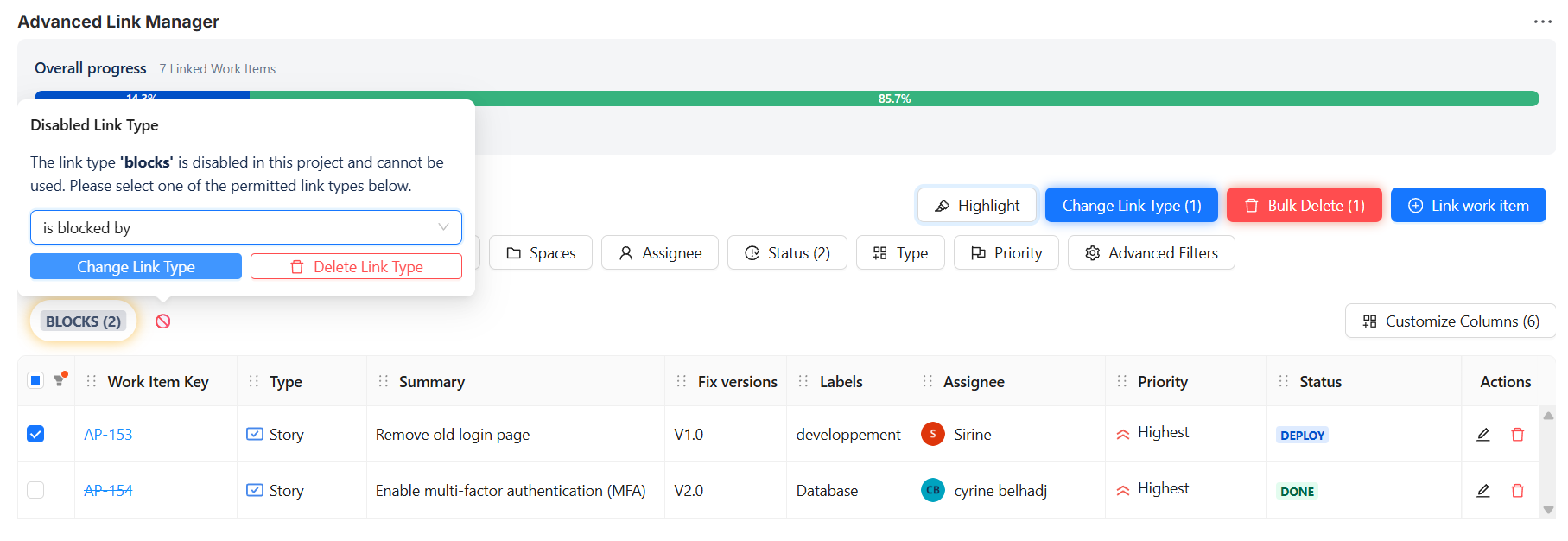
You have three options to resolve this situation:
1. Select Another Valid Link Type
-
Choose a permitted link type from the list of link types already configured in the app.This updates the relationship and keeps your dependency rules clean.
2. Delete the Unallowed Link
-
If the relationship doesn’t make sense anymore, simply delete it.This removes invalid or unapproved links from your dependency structure.
3. Configure the New Link Type if it’s not configured
-
If the link type (for example, “merged into”) is relevant to your project, you can add it directly from the Link Manager Configuration page.
4.Enable the link type
-
If the link type is marked as disabled, an error will appear. To resolve this issue, you need to enable the link type from the configuration page.
Once fixed:
-
The link type becomes valid
-
No warnings will appear
-
All matching issues will be correctly displayed and validated
This gives teams full flexibility to expand or adjust their link rules over time.
How Jira Link Validation Works
-
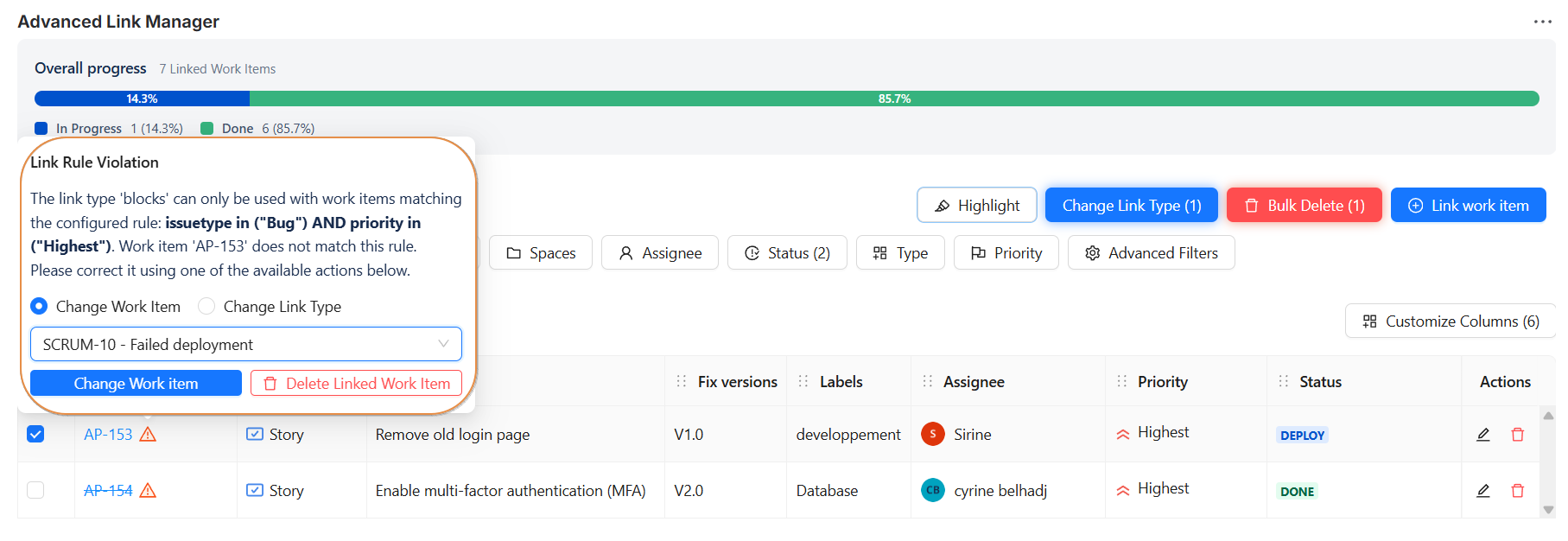
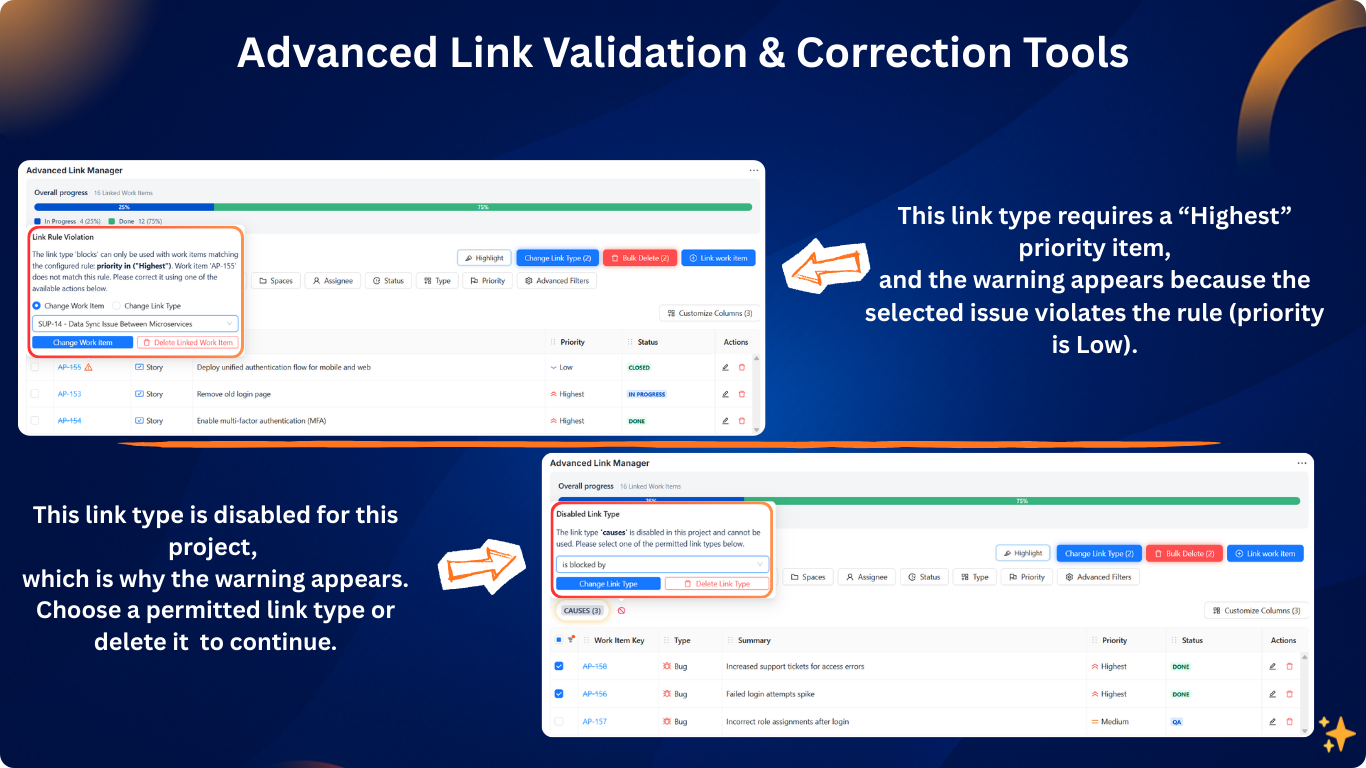
Whenever you edit a Jira link type or modify an issue so it no longer matches the configured rule, the system automatically detects it and displays:
-
A warning icon on the affected link
-
A popup notification describing the conflict
-
A list of valid replacement issues
This prevents hidden or unnoticed inconsistencies in Jira issue links.
Example Scenario :
-
From the previous configuration:
Link Type: is blocked by
Project: ALPHA-PROJECT
Issue Type: Bug
Status: In Progress / QA
Priority: Highest
Change Introduced:
-
Priority of an issue changes from Highest → High
Result in Jira
The issue no longer respects the Jira link rules, so the system displays:
-
Warning icon
-
Popup message:
“The link type ‘is blocked by’ is not permitted for issue ‘AP-13’.
Only highest-priority Bug issues are allowed to block another issue.”
-
This helps prevent incorrect Jira blocked issues.
How to Fix the Conflict
-
You have two options:
1. Select a Valid Work Item
-
From the list of allowed issues filtered according to your rule.Click Change Work Item.
2. Delete the Invalid Link
-
If the relationship is no longer meaningful.Click Delete Work Item.
This keeps your Jira link tables clean and accurate.
Conclusion
-
The Link Validation Engine keeps all Jira dependencies reliable by catching invalid or unapproved links immediately.
-
Clear alerts and easy corrections let your teams maintain accurate relationships, whether links come from Jira, automation, or external tools.
Need help?
💡 We're here for you! If you have questions or need to report a bug, visit our Help Center and raise a support ticket. Our team is ready to assist you