
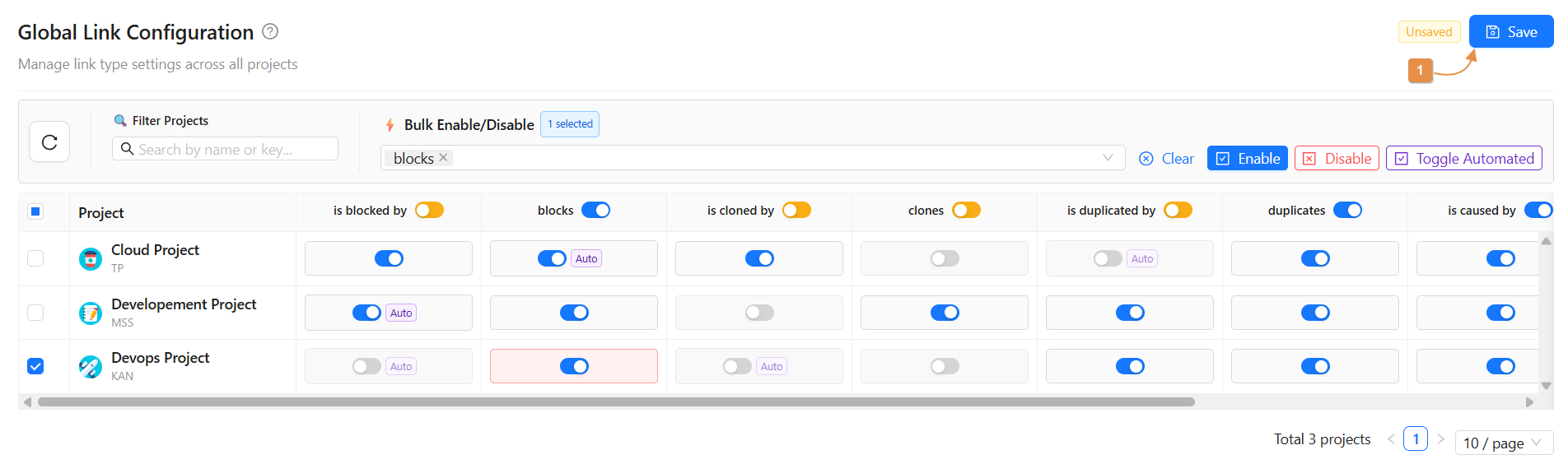
The Global Link Configuration page allows administrators to centrally manage issue link types across all projects.
Instead of configuring link behaviors project by project, this page provides a unified interface to:
-
Enable or disable link types
-
Automate specific link types
-
Apply changes in bulk
-
Control link settings per project or globally
This ensures consistency, efficiency, and better governance across all Jira projects.
How to Access Global Link Configuration
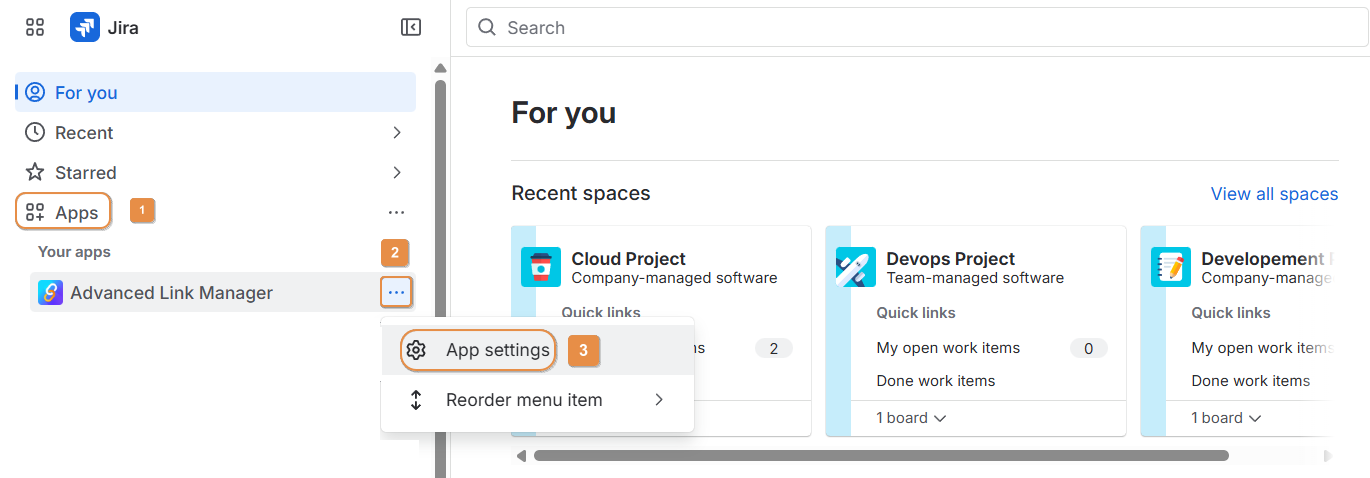
Follow these steps to navigate to the Global Link Configuration page:
-
Click on Apps
-
Locate your app in the Apps list
-
Click on the ⋯ (three dots) next to the app
-
Select App Settings
-
Open Global Link Configuration
You will then be redirected to the global configuration page where you can manage link types across all projects.
Page Structure
The table displays:
-
Projects (Cloud Project, Development Project, DevOps Project, etc.)
-
Link Types:
-
is blocked by
-
blocks
-
is cloned by
-
clones
-
is duplicated by
-
duplicates
-
is caused by
-
causes
-
relates to
-
Each link type can be configured per project.
Available Features
1. Refresh Table
The Refresh button reloads the table to display the latest configuration state.
Use this when:
-
Changes were made recently
-
You want to ensure you are viewing updated data
2. Filter Projects
The Filter Projects search bar allows you to quickly find a specific project.
-
Type the project name
-
The table dynamically filters matching projects
This is useful when managing environments with many projects.
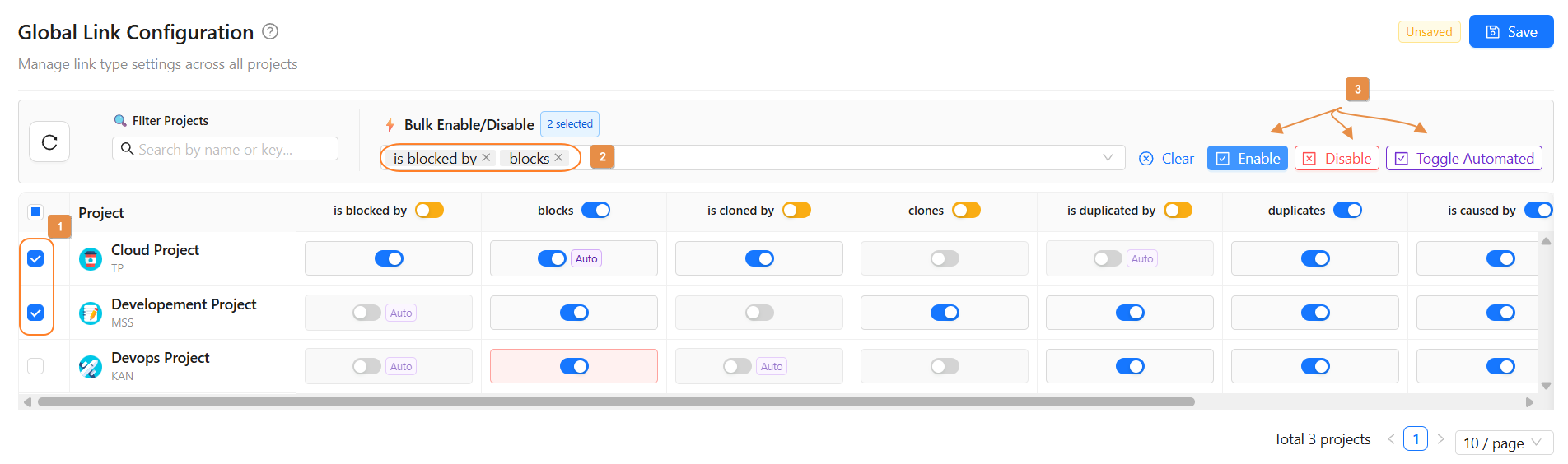
3. Bulk Enable / Disable Link Types
This feature allows you to configure multiple projects at once.
Steps:
-
Select one or multiple projects
-
Select one or multiple link types
-
Choose:
-
Enable
-
Disable
-
-
Optionally mark them as Automated
-
Click Save
This reduces repetitive manual configuration and ensures consistency.
4. Per-Project Link Toggle (On/Off)
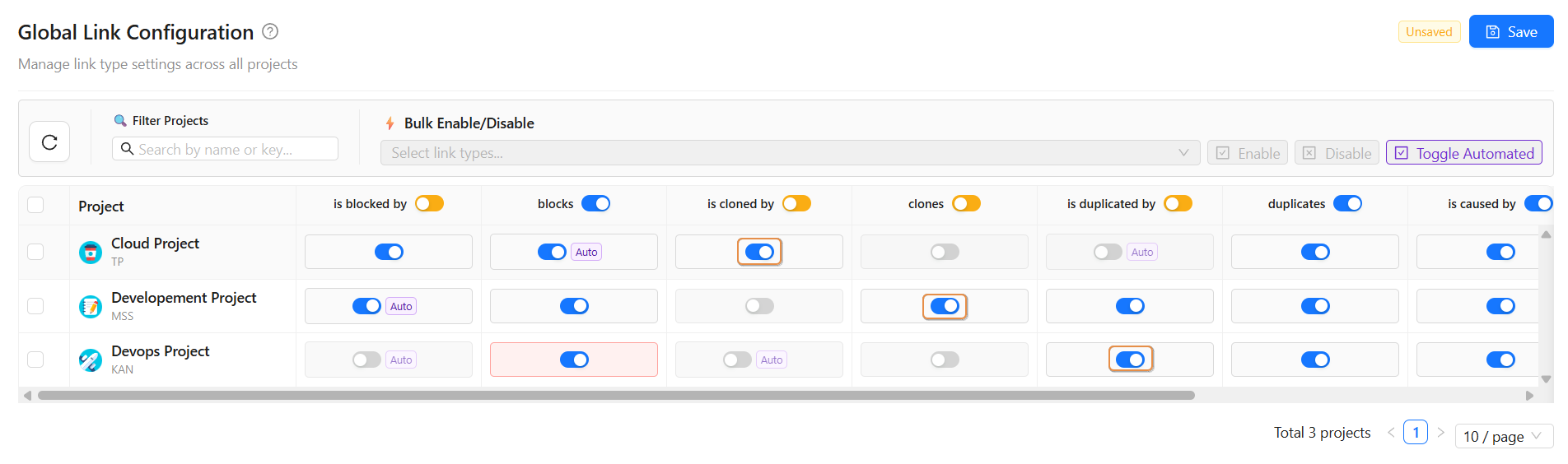
Each link type can be individually controlled per project using a toggle:
-
ON → Link type is enabled
-
OFF → Link type is disabled
5. Automated Link Types
Each link type can also be marked as Automated.
When enabled:
-
The system can automatically create or manage links
-
Reduces manual linking effort
Automation can be applied:
-
Per project
-
Globally across all projects
6. Save Configuration
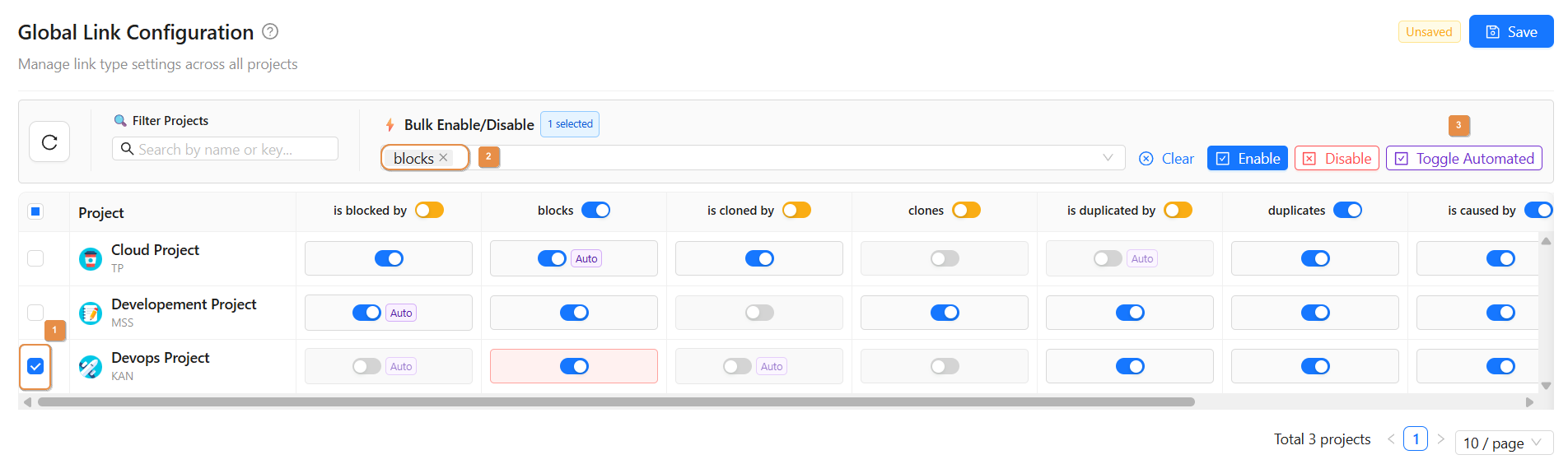
After making changes, you must click Save.
Important:
-
Changes are not applied until saved.
-
Leaving the page without saving will discard modifications.
Best Practices
-
Use Bulk Enable/Disable for large-scale updates
-
Use Filter Projects when managing many projects
-
Always click Save after configuration
-
Regularly use Refresh to validate updates
Conclusion
The Global Link Configuration page provides a powerful and centralized way to manage issue link types across all projects.
By combining:
-
Project filtering
-
Bulk operations
-
Individual toggles
-
Automation settings
It ensures scalable, consistent, and efficient link management across your Jira environment.
Need help?
💡 We're here for you! If you have questions or need to report a bug, visit our Help Center and raise a support ticket. Our team is ready to assist you