
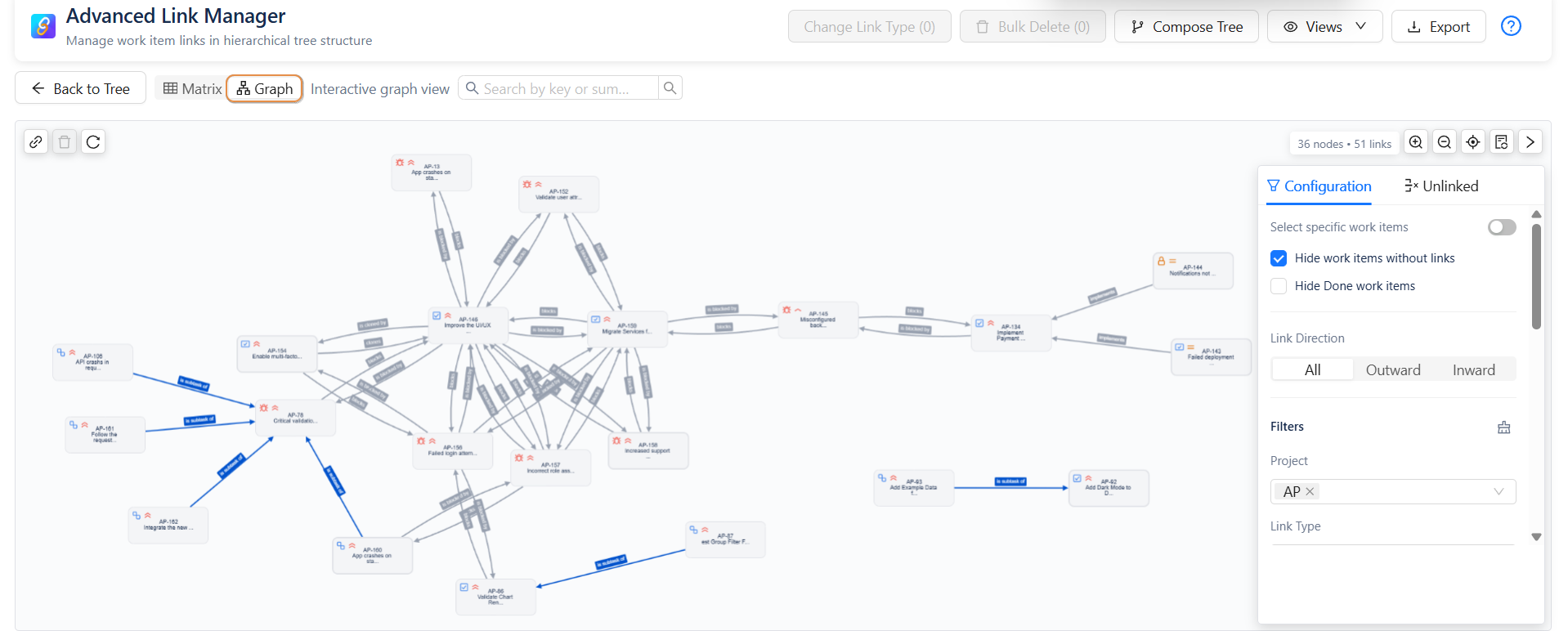
The Global Interactive Graph provides a visual and dynamic way to explore issue relationships across Jira projects. Instead of navigating through multiple issue pages to understand dependencies, users can visualize and manage linked issues directly from a single interface.
Searching Issues in the Graph
-
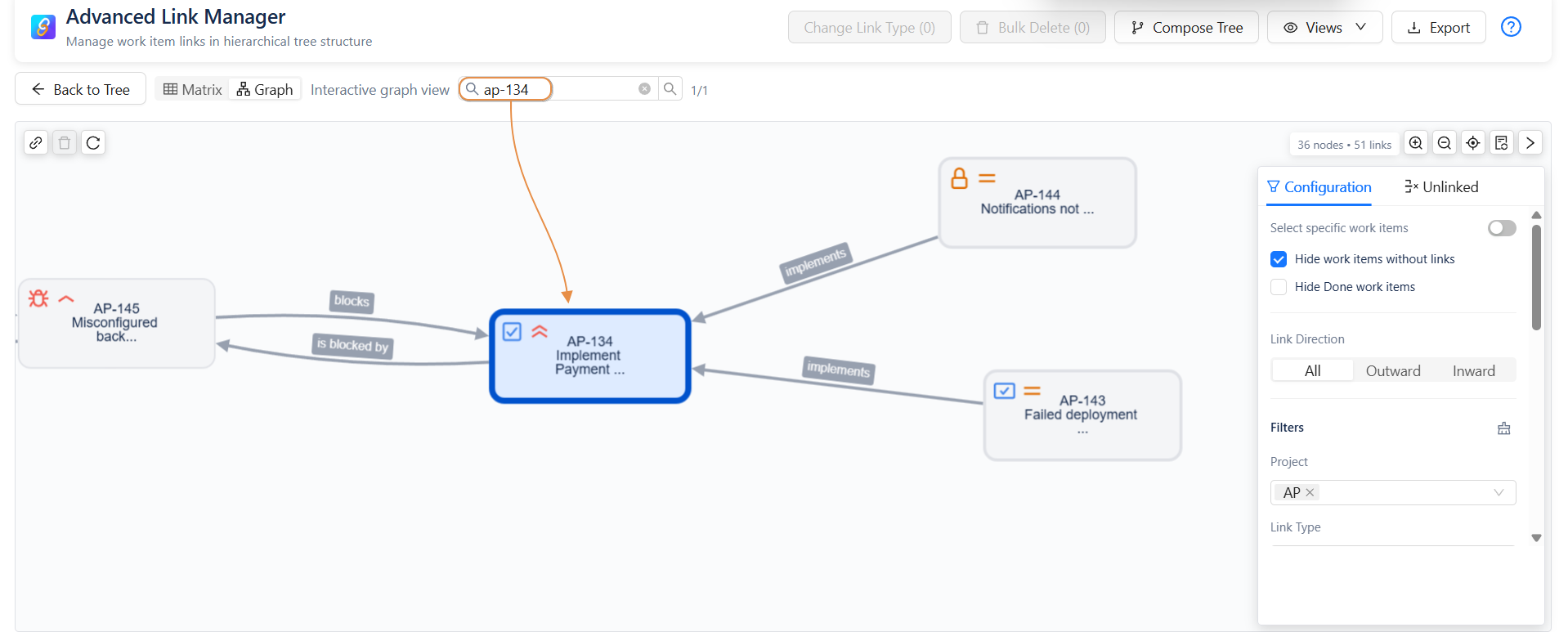
The graph includes a search bar that allows users to quickly locate specific issues.
You can search by:
-
Issue Key (
TP-33) -
Issue Summary
Once an issue is selected, it appears in the graph along with its linked dependencies, allowing users to easily explore its relationships with other work items.
Filtering and Customizing the Graph
-
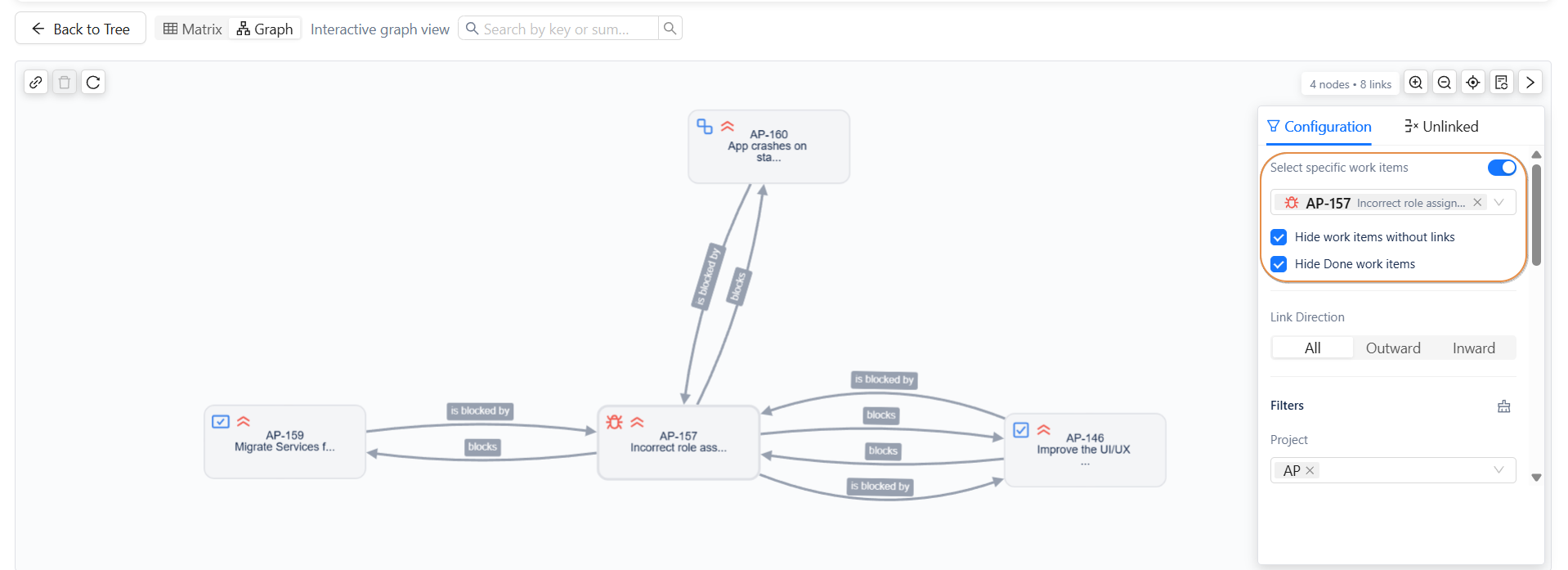
To help users focus on relevant issues, the Global Graph provides advanced filtering and customization options.
Work Item Selection
Users can control which issues appear in the graph using the following options:
-
Select specific work items : Manually choose which issues to display.
-
Hide work items without links : Show only issues that have dependencies.
-
Hide Done work items : Exclude completed issues from the visualization.
Link Direction
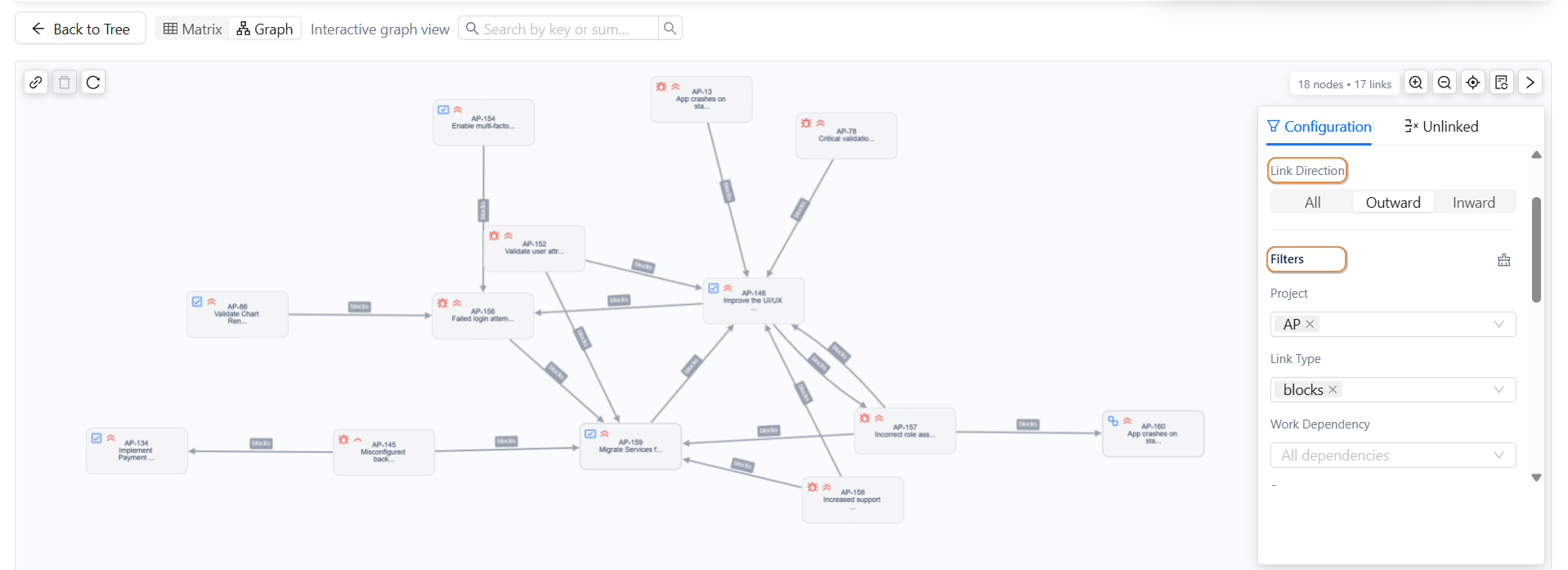
Users can filter links based on their direction:
-
All : Displays all links connected to the issues.
-
Outward : Shows links going from the issue to other issues.
-
Inward : Shows links coming from other issues to the selected issue.
Additional Filters
The graph can also be refined using the following filters:
-
Project
-
Link Type
-
Work Dependency
-
Status
-
Work Type
-
Priority
-
Assignee
-
Reporter
-
Labels
-
Components
-
Fix Versions
These filters help narrow down the graph view to specific sets of issues and dependencies.
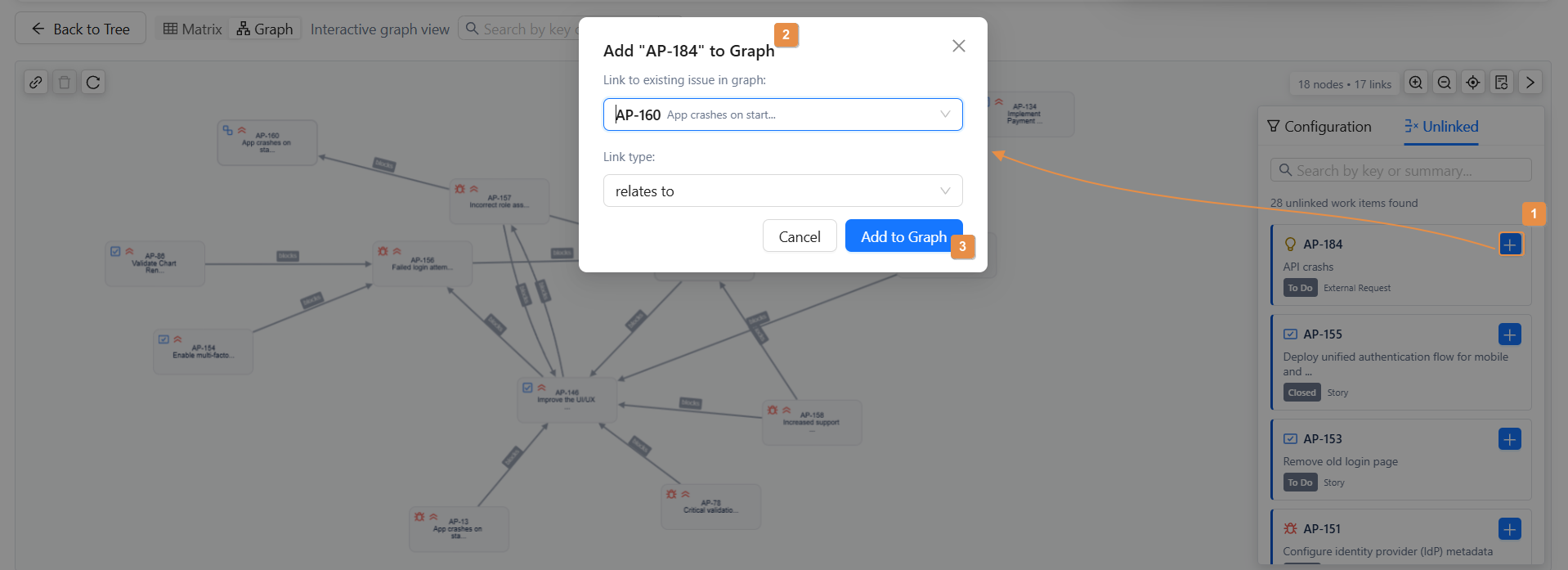
Viewing and Adding Unlinked Issues
The graph also allows users to identify issues that currently do not have any links.
From the Unlinked Issues list, users can:
-
Select an issue from the list.
-
Click Add to Graph.
-
A popup window will appear.
-
Choose a target issue already present in the graph.
-
Select the link type.
-
Click Save.
The selected issue will then be added to the graph and connected to the chosen issue.
Creating Links Directly in the Graph
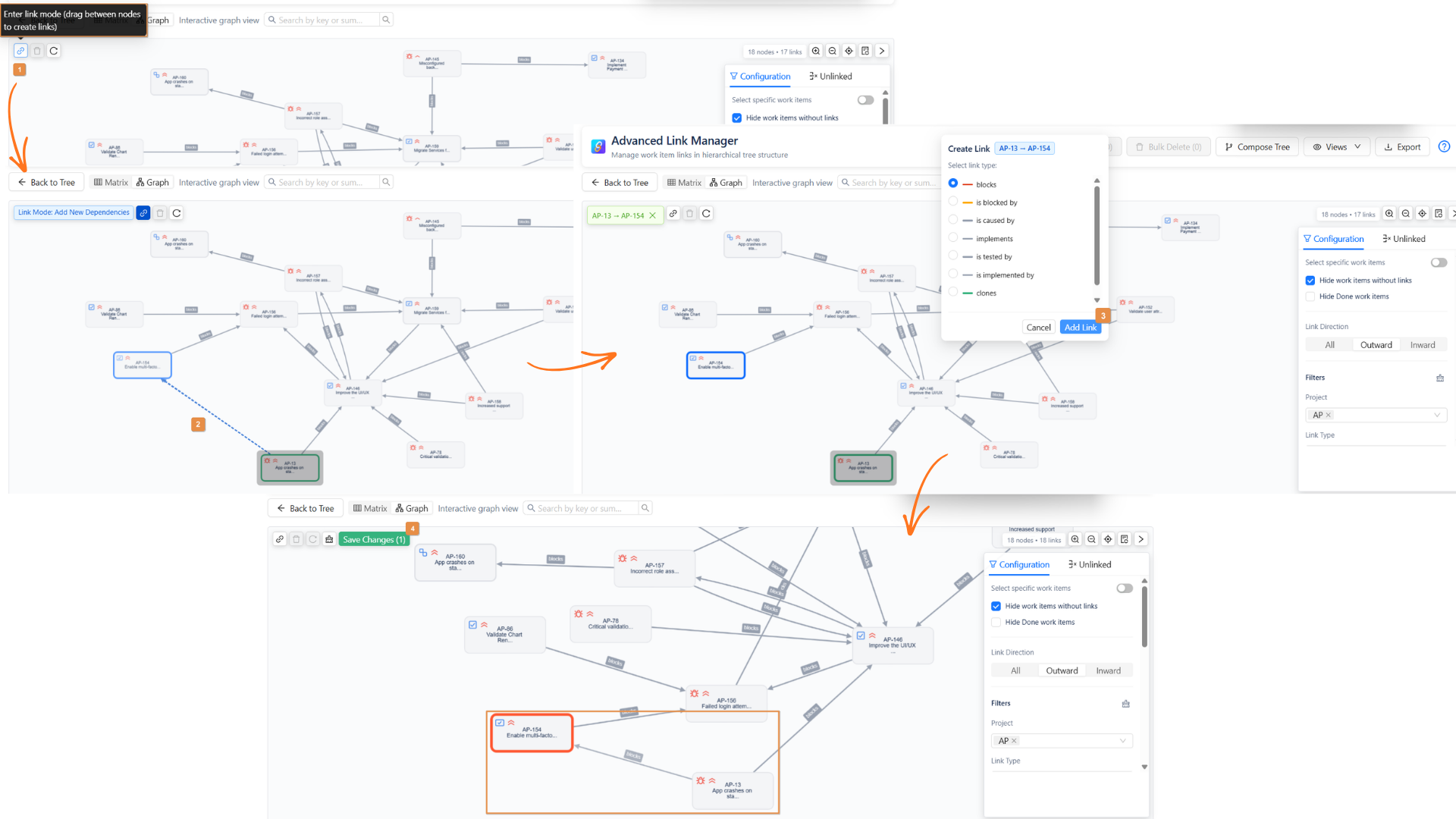
Users can visually create dependencies between issues directly in the graph using Link Mode.
Steps:
-
Click the Link Mode button.
-
Select the source issue in the graph.
-
An arrow will appear to the target issue.
-
A popup will display the available link types.
-
Select the desired link type.
-
Click Add Link, then Save.
If you do not want to apply the modification, click Reset to cancel the change.
Removing Existing Links
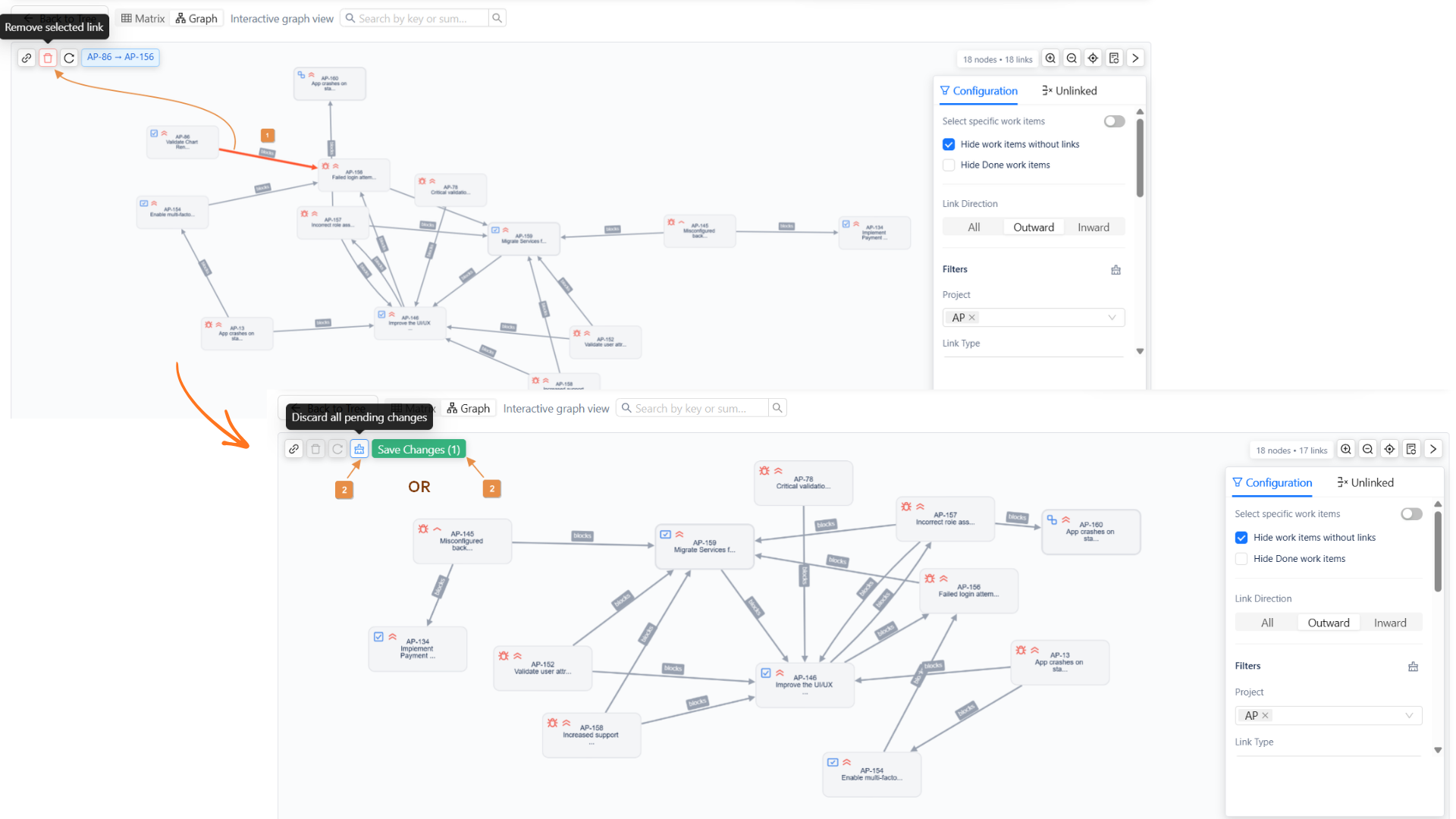
Existing dependencies can also be removed directly from the graph.
Steps:
-
Click on the link (arrow) between two issues.
-
Select Remove Link.
-
Click Save Changes to confirm.
If you do not want to apply the modification, click Reset to cancel the change.
Graph Navigation and Layout Controls
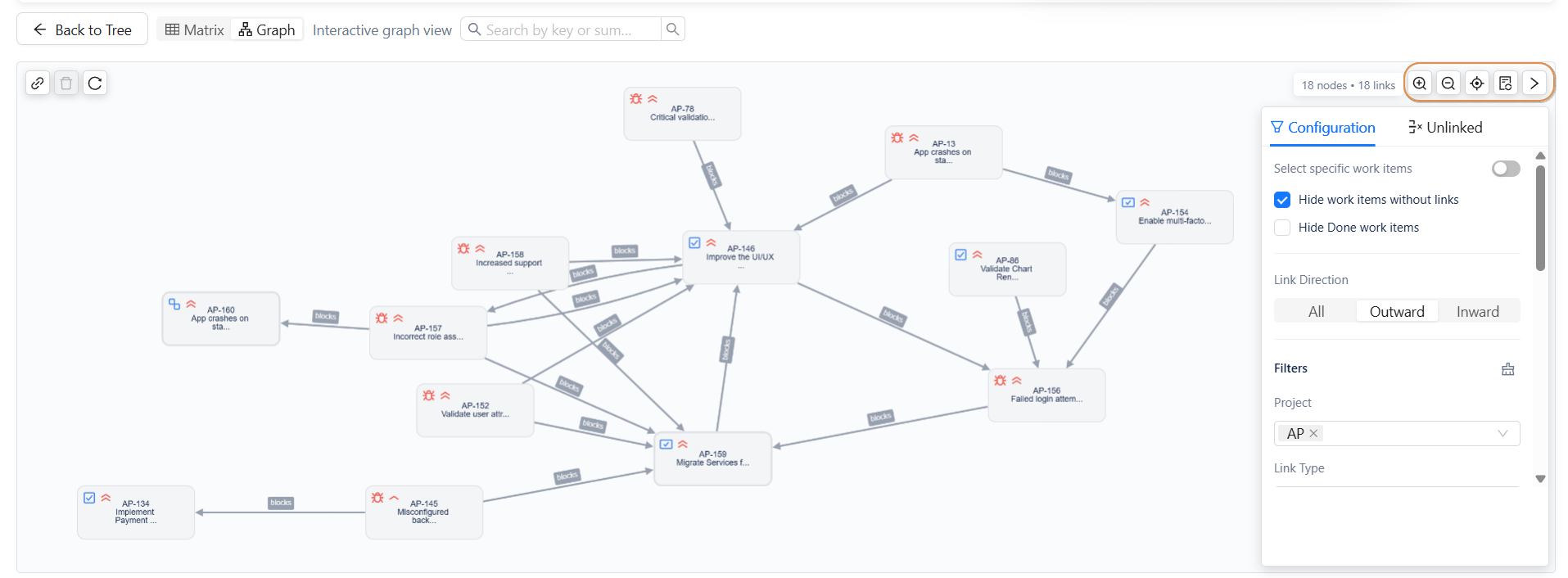
The graph includes several controls that help users navigate and adjust the visualization.
-
Zoom In / Zoom Out : Adjust the zoom level to view more or fewer details.
-
Fit to Screen : Automatically center and adjust the graph to fit the screen.
-
Refresh Layout : Reorganize the graph structure to generate a clearer layout.
Each time the Refresh Layout button is used, the graph is rearranged to provide a new visual structure that may improve readability and understanding of issue relationships.
Conclusion
The Global Interactive Graph provides a powerful and intuitive way to visualize and manage Jira issue dependencies across projects. By combining advanced filtering, interactive linking, and flexible navigation tools, it allows users to better understand relationships between work items and manage dependencies more efficiently.
Need help?
🤝 We're here for you! If you have any questions, suggestions, or feature requests, feel free to reach out — we typically respond within 4 hours.