
The Global Matrix Summary extends the Matrix feature to the Global Page, giving you a centralized overview of linked Work items across one or multiple Jira projects.
It helps you analyze dependency distribution, progress levels, and relationship structures at scale all in one organized matrix view.
What Is the Global Matrix Summary?
-
The Global Matrix Summary provides a high-level overview of linked Work items across selected projects.
-
Unlike the Work item-level matrix (which focuses on one Work item), this version allows you to analyze relationships globally, making it ideal for Cross-project dependency tracking
How to Access the Global Matrix Summary
-
Open Advanced Link Manager
-
Navigate to the Global Page
-
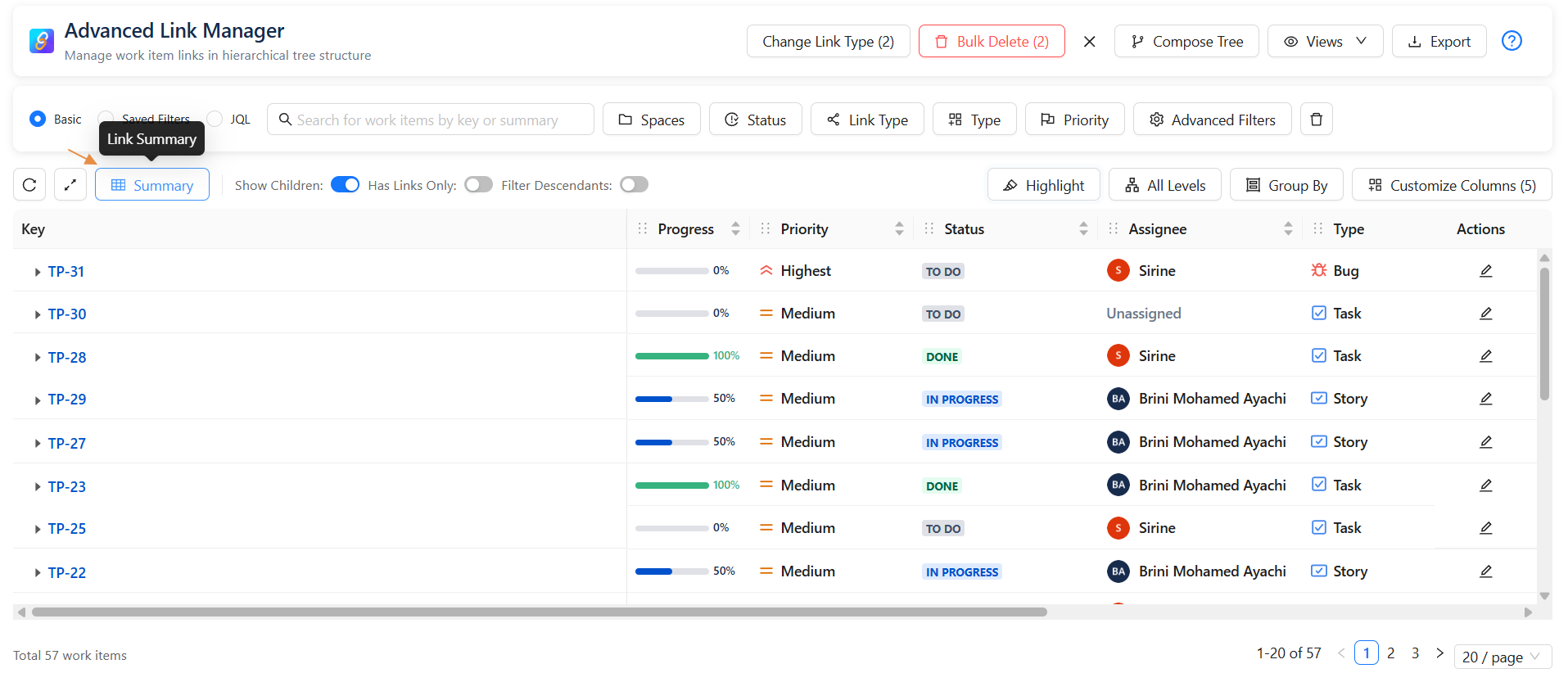
Click Link Summary
The matrix automatically generates a structured table summarizing link relationships across your selected scope.
What the Global Matrix Summary Shows
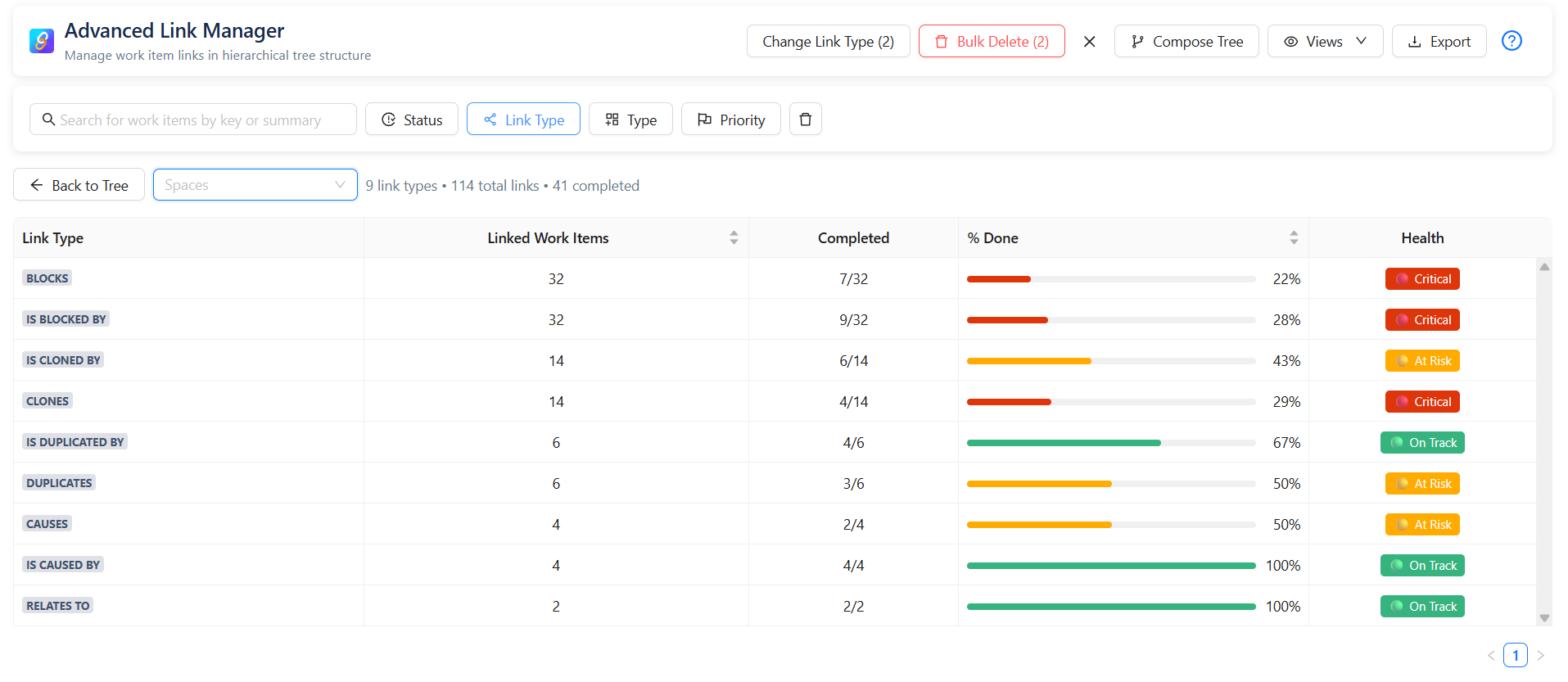
The Matrix displays a table including:
-
Link Type : Relationship type (blocks, is blocked by, relates to, clones, etc.)
-
Linked Work Items : Total linked Work items under each relationship
-
Completed : Completed vs total linked items
-
% Done : Progress percentage
-
Health : Color-coded progress indicator
This gives you an immediate understanding of dependency completion levels across projects.
Advanced Table Filters
-
You can refine your Global Matrix results using powerful filters:
Space Filter :
-
Display linked Work items only from selected Jira Spaces.Useful when analyzing Software, Service, Product, or Business projects separately.
Status Filter :
Two filtering modes:
-
By specific Status (In Progress, QA, Waiting for Customer, To Do…)
-
By Status Category (To Do / In Progress / Done)
Work item Type Filter : Filter by work item type: Bug, Story, Task, Epic, Sub-task, or any custom Work item type.
Priority Filter : Display only selected priority levels: Highest, High, Medium, Low, Lowest.
Refresh Button : The Refresh button reloads the current Matrix View tab and updates the displayed data. Click it to ensure all recent changes are reflected instantly.
Clear Filters : The Clear Filters button removes all selected filters and resets the Matrix View to its default state. Click it to quickly remove all applied filters and display the full, unfiltered data.
Show Only Warnings (Important Behavior)
-
The Show Only Warnings option does not filter or hide links. All links remain visible in the Matrix View.
-
For each link, you can identify whether it is:
-
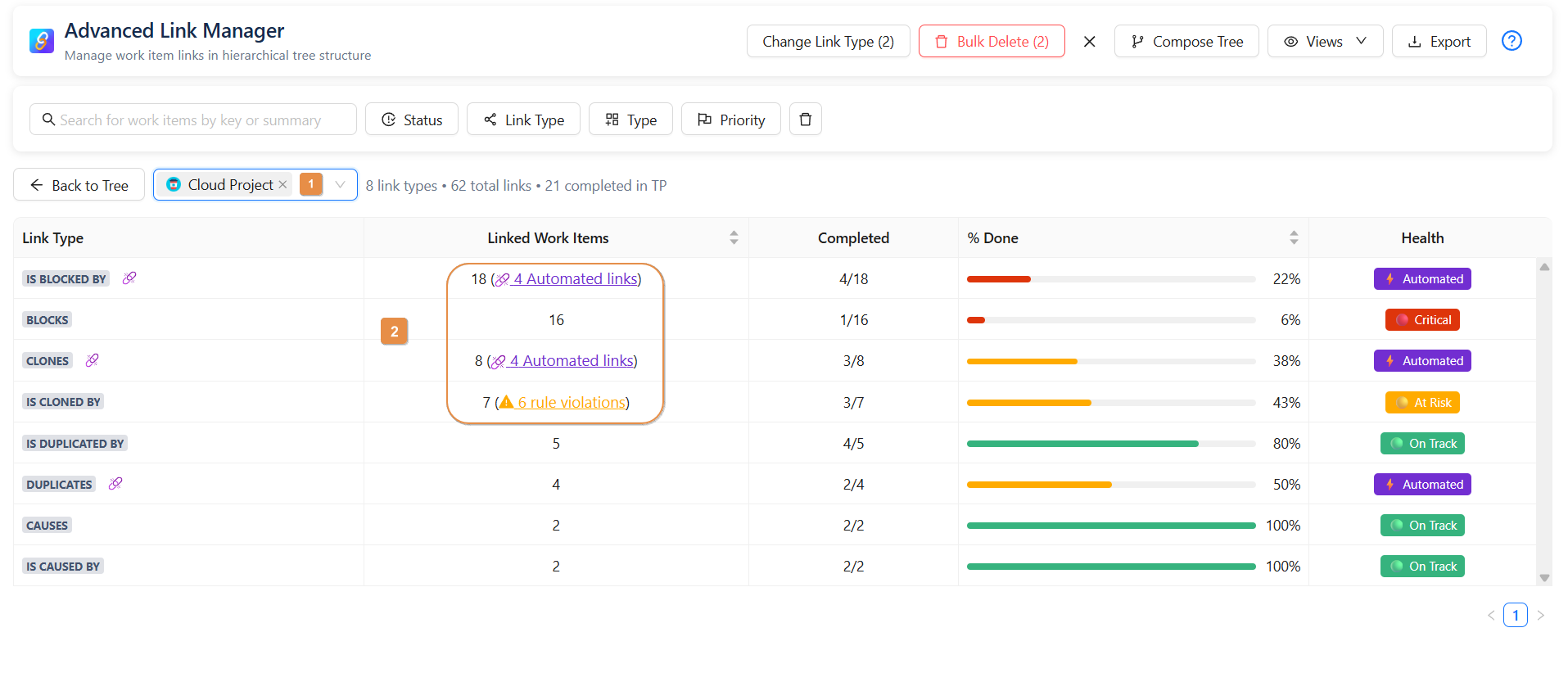
Automated : The work item was created automatically by an external tool (such as an external app or an automation rule).
-
Disabled : The link type is disabled in the project-level configuration.
-
Marked with a Warning : The link violates a configured rule.
-
For example, if the link configuration is updated to allow only Bug Work item types, but existing linked Work items include Task types, those Task Work items will display a warning because they no longer comply with the rule.
-
-
The Show Only Warnings option works differently at the Global level:
-
✅ When one single project is selected → Warnings are fully supported and displayed correctly.
-
❌ When multiple projects are selected → Warnings are not displayed.
Global vs Work item-Level Matrix
|
Work item-Level Matrix |
Global Matrix |
|---|---|
|
Focuses on one Work item |
Covers one or multiple projects |
|
Full warning support |
Warnings only for single-project view |
Conclusion
The Global Matrix Summary gives you a structured, cross-project view of Jira linked Work items.
With this feature, you can:
-
Analyze relationship health across teams
-
Monitor large-scale dependency progress
-
Filter and refine your analysis easily
-
Improve visibility and coordination
It’s the smartest way to understand dependency health beyond a single Work item.
Need help?
💡 We're here for you! If you have questions or need to report a bug, visit our Help Center and raise a support ticket. Our team is ready to assist you