
Make your workflow faster and more efficient by saving your custom views!
Whether you've applied filters, changed table layouts, or added highlights you can save, reuse, and manage your configurations anytime.
Here’s how to make the most of Saved Views in Advanced Link manager 👇
Save View
Once you've customized your table and applied filters or highlights, you can save the view for later use:
-
Click on Save View
-
Define View Visibility:
-
🔓 Public : Visible to all users
-
🔐 Private : Only visible to you
-
👥 Custom Access : Share with selected users or groups
-
-
In the Save View dialog, choose options:
-
Include Highlights (optional)
-
-
Click Save View
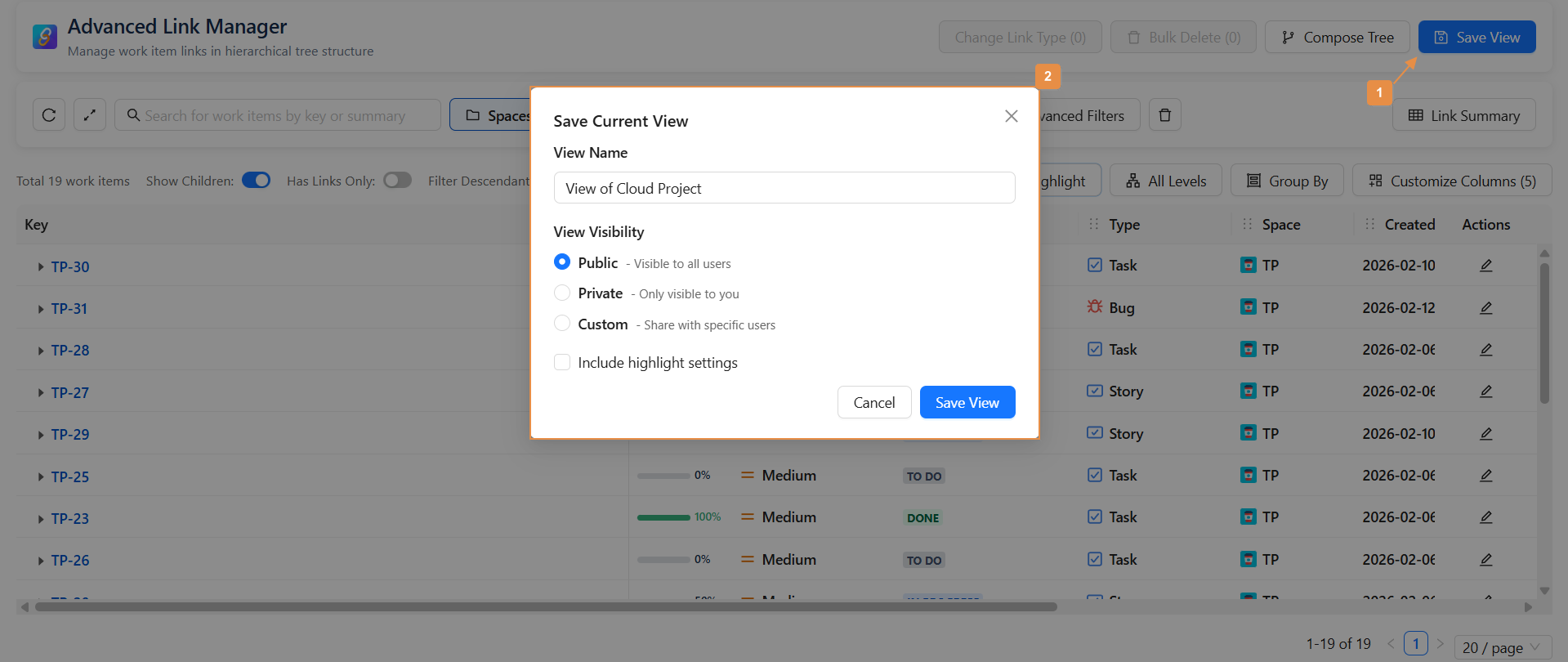
This makes it easy to return to personalized views without redoing your configuration.
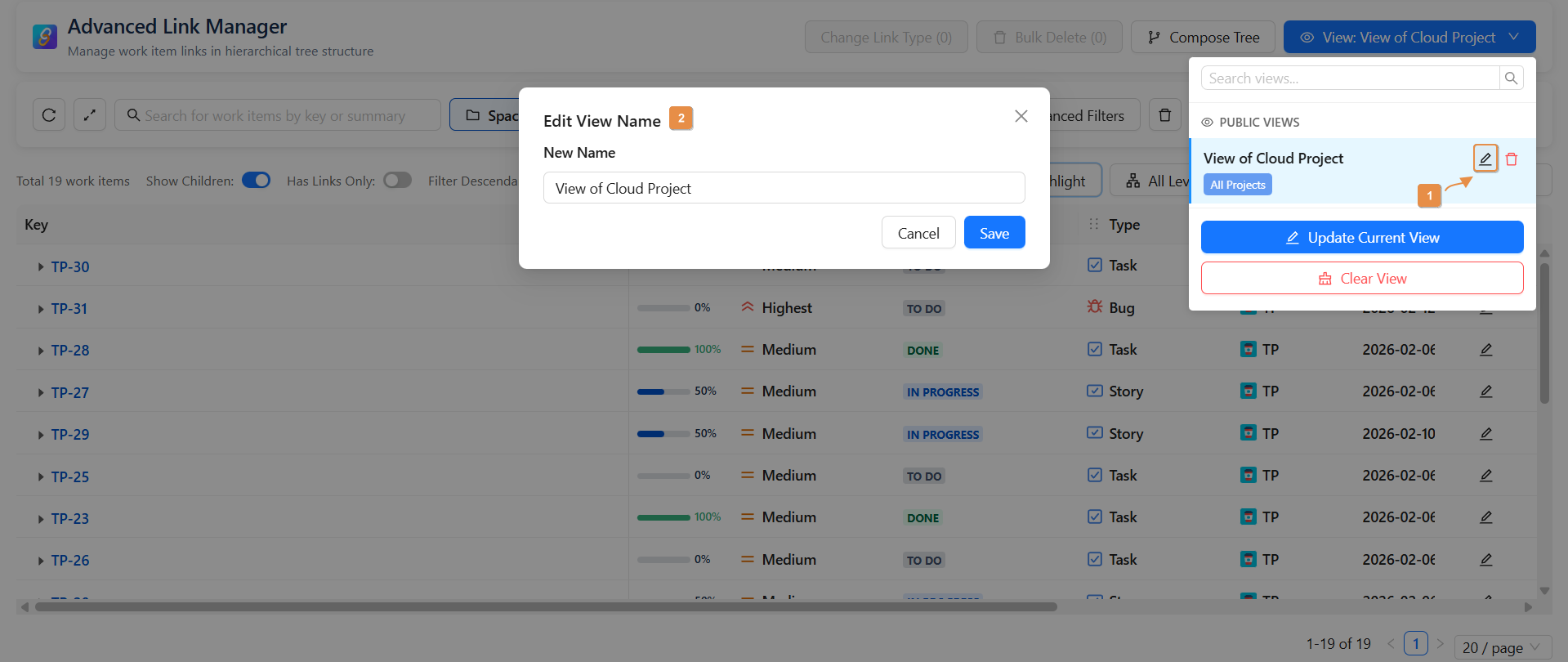
How to Edit a Saved View – Step by Step:
-
Click on the pencil icon next to the view name.
-
A popup window will appear showing the current name.
-
Edit the name directly in the input field.
-
Once done, click the "Save" button to apply the changes.
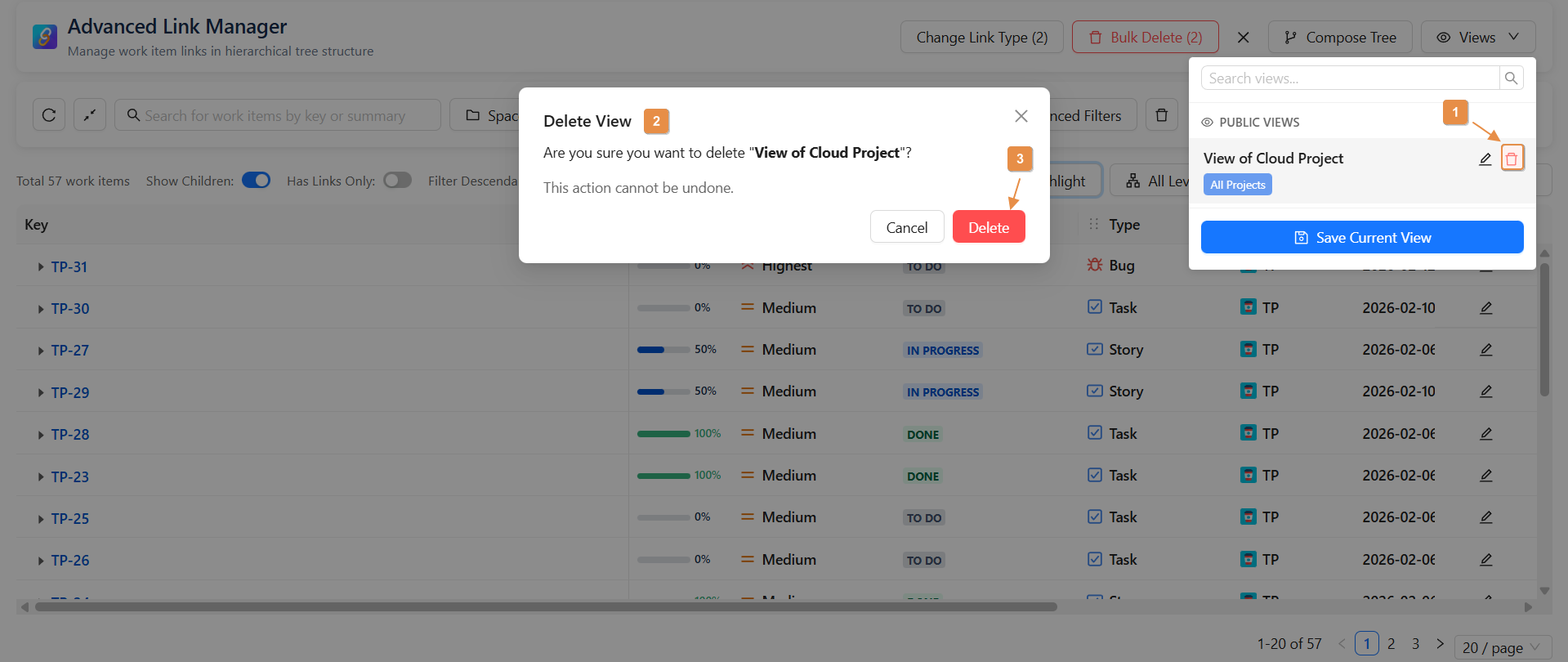
How to Delete a Saved View – Step by Step:
-
Click on the icon of delete next to the view name.
-
A popup window will appear to comfirm the deletion.
-
Click delete
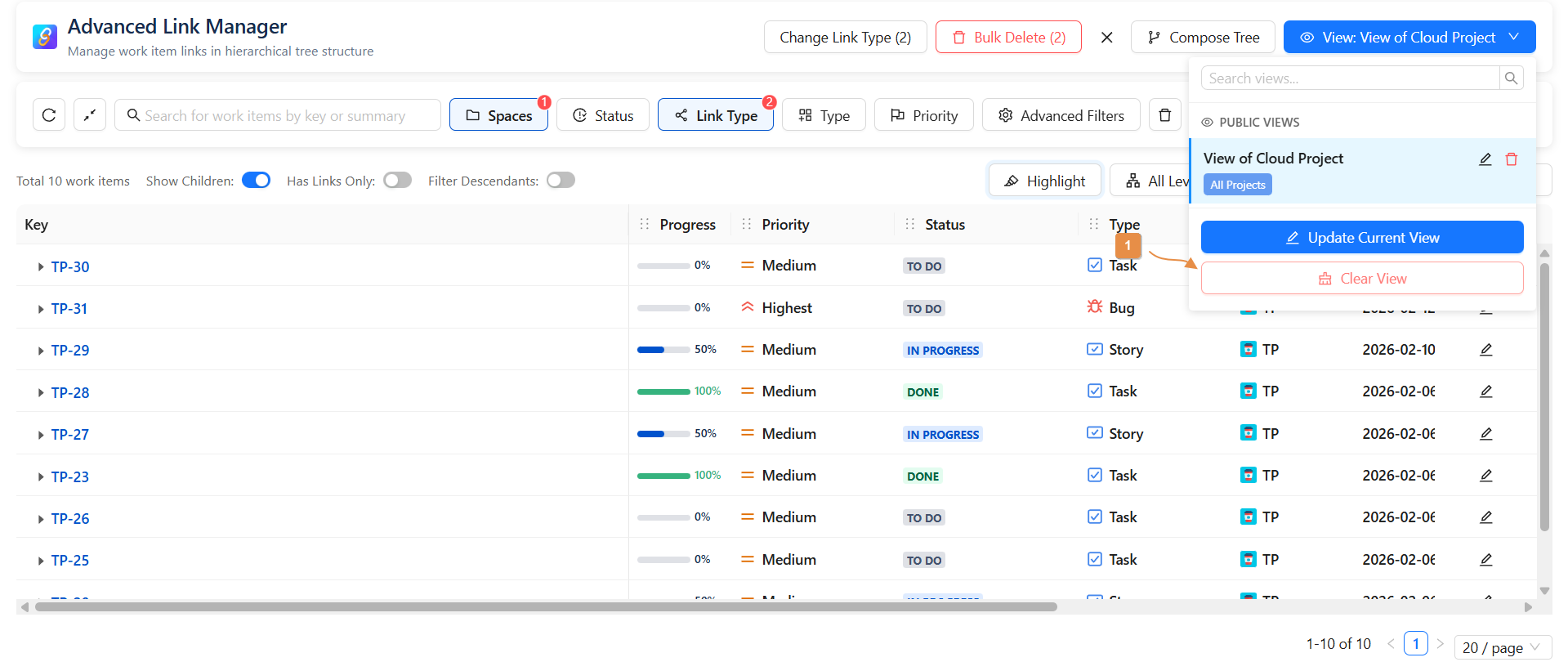
How to Clear a Selected View – Step by Step:
-
Click on a view to load it. The screen will display the saved filters and settings.
-
To return to a clean/default view:
-
Click on "View" again.
-
Then click "Clear View".
-
How to Update a Selected View – Step by Step:
-
To update a selected view :
-
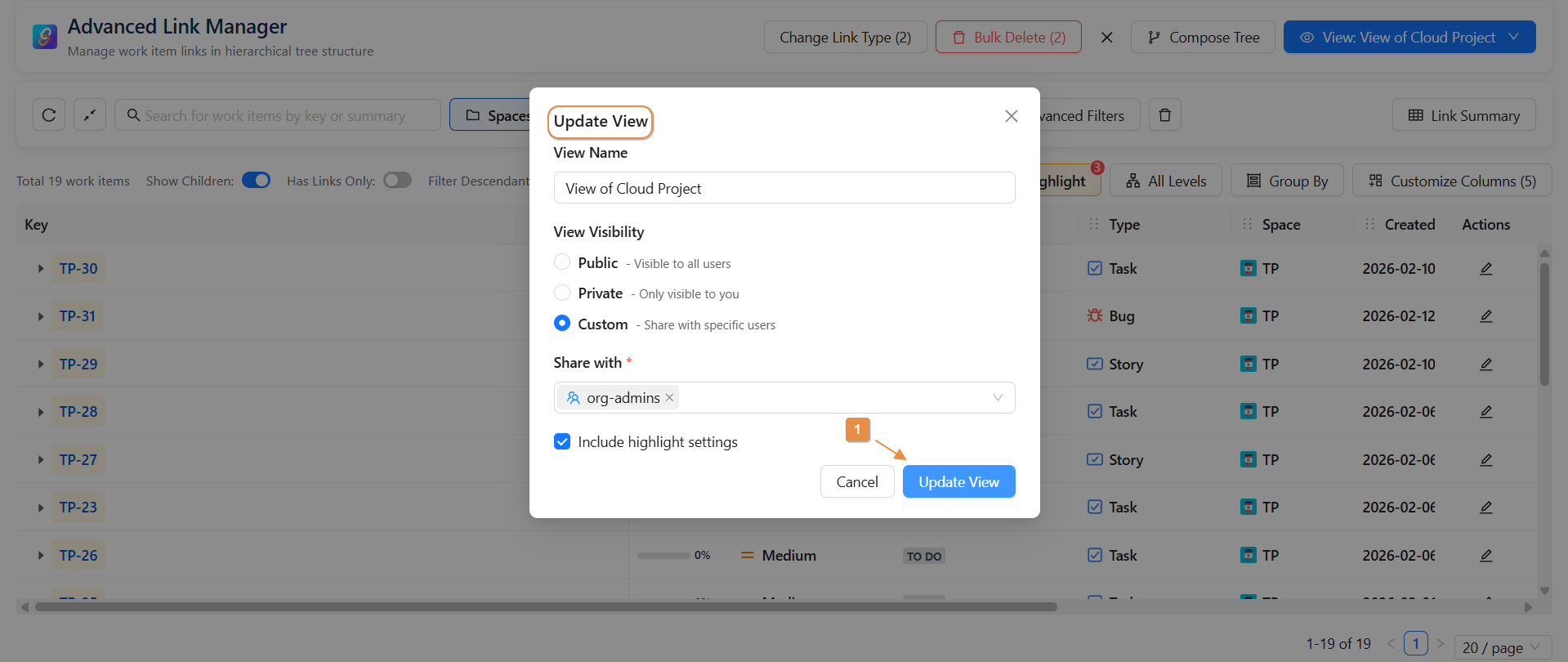
click on "Update Current View" : A pop-up window will appear showing the name of the view, along with options to adjust highlights and visibility settings.
-
Make the necessary change then: click "Update View" to save your modifications.
Conclusion
-
The Saved Views feature in Advanced Link Manager empowers you to work smarter and more efficiently by preserving your customized configurations.
-
Instead of repeatedly applying filters, adjusting layouts, or redefining highlights, you can save your preferred setup and access it instantly whenever needed.
Need help?
🤝 We're here for you! If you have any questions, suggestions, or feature requests, feel free to reach out — we typically respond within 4 hours.