
Help: Get Answers Directly from the App
-
Help is an in-app documentation assistant powered by the Advanced Cost Optimizer documentation.
-
Instead of searching through documentation manually, simply ask a question in natural language. Help explains how to use or configure the app, provides clear guidance, and can redirect you to the relevant documentation page when you need more detailed information.
What can you ask Help?
You can ask questions such as:
How do I set up automatic license suspension?
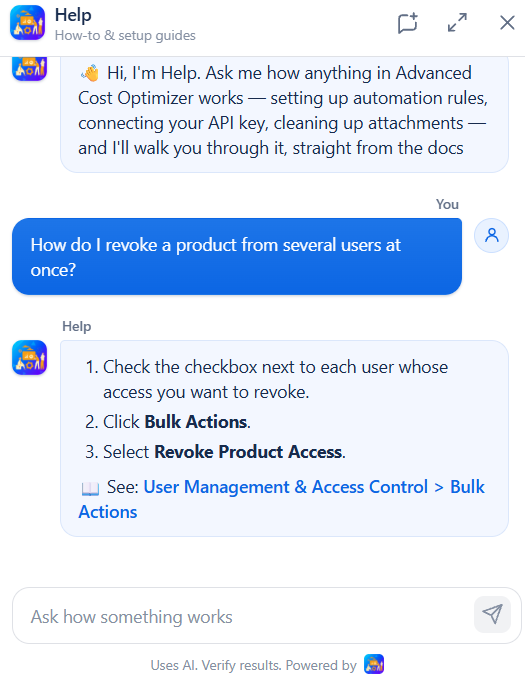
How do I revoke a product from several users at once?
Where can I find the largest attachments?
How do I configure an automation rule?
Help is designed to give you the information you need without requiring you to search through multiple documentation pages.
How to use Help
-
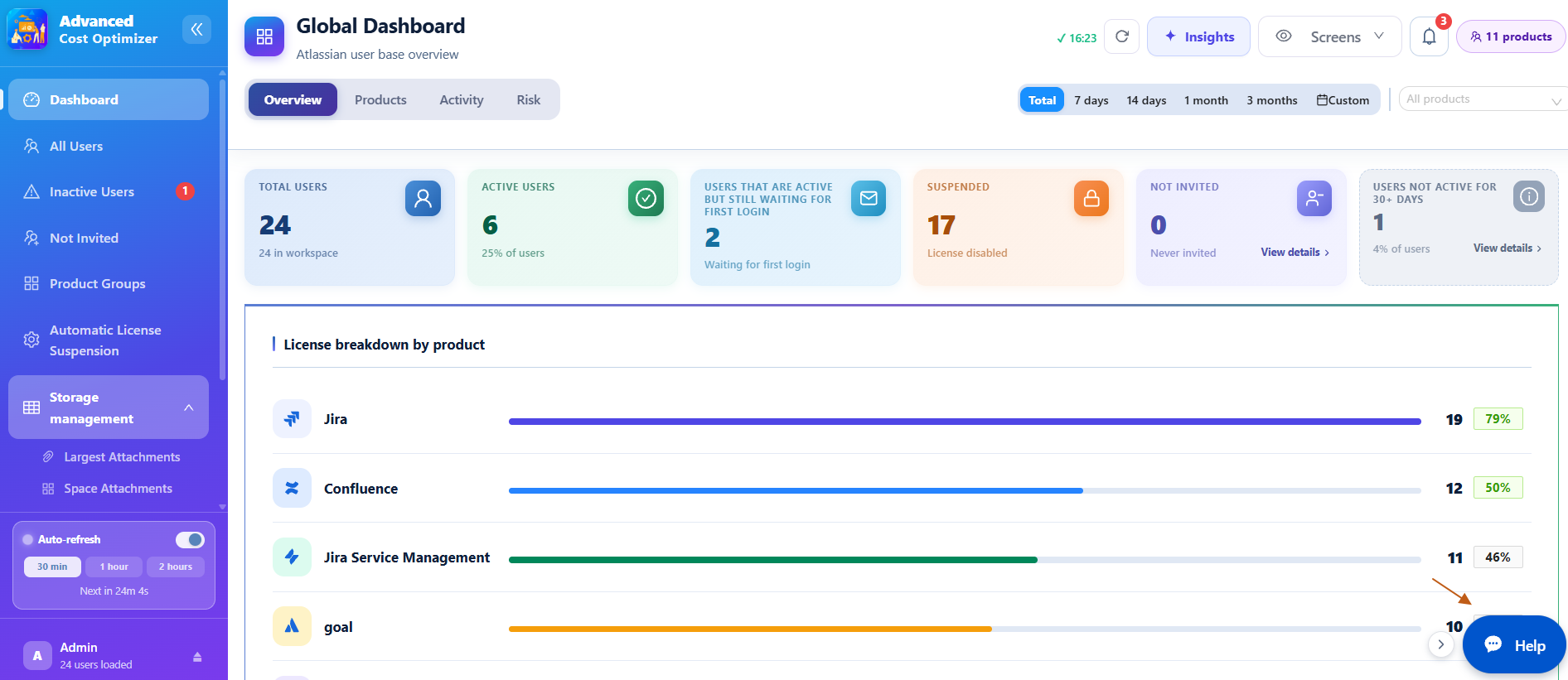
Open Advanced Cost Optimizer for Jira.
-
Click Help.
-
Enter your question in natural language.
-
Help provides the steps to complete the task.
-
Use the suggested documentation link when you need additional details.
Ask a question, follow the guidance, and go directly to the documentation when you need more information.
Insights: Understand Your Jira Data with AI
-
The Insights feature provides AI-generated analysis directly on supported pages of the application.
-
Click Insights on a page to get a contextual summary of the information currently displayed, including key metrics, findings, recommendations, and suggested next steps.
The generated analysis is based on the data available on that page.
After generating an insight, you can:
-
Copy the result.
-
Regenerate the analysis to get another version.
-
Close the insight panel.
Dashboard Insights
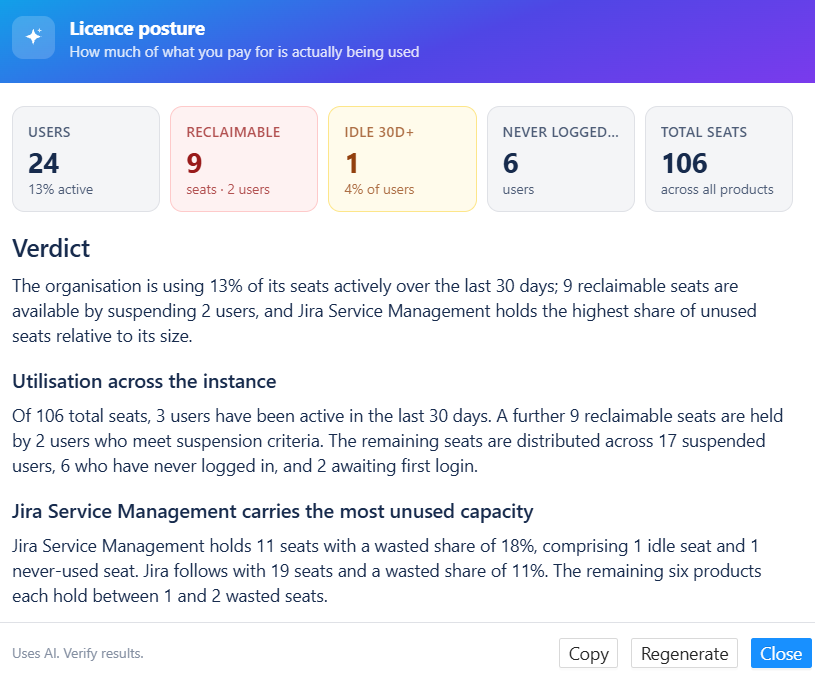
On the Dashboard page, Insights provides an overall view of your organization's license posture.
It can summarize:
-
Active users and overall utilization
-
Reclaimable seats
-
Users inactive for 30+ days
-
Users who have never logged in
-
Total seats across products
Example analysis
All Users Insights
On the All Users page, Insights provides a Seat Audit focused on users and their assigned licenses.
It can highlight:
-
Total users in the current view
-
Reclaimable seats
-
Idle users
-
Never-logged-in users
-
Suspended users
Example analysis
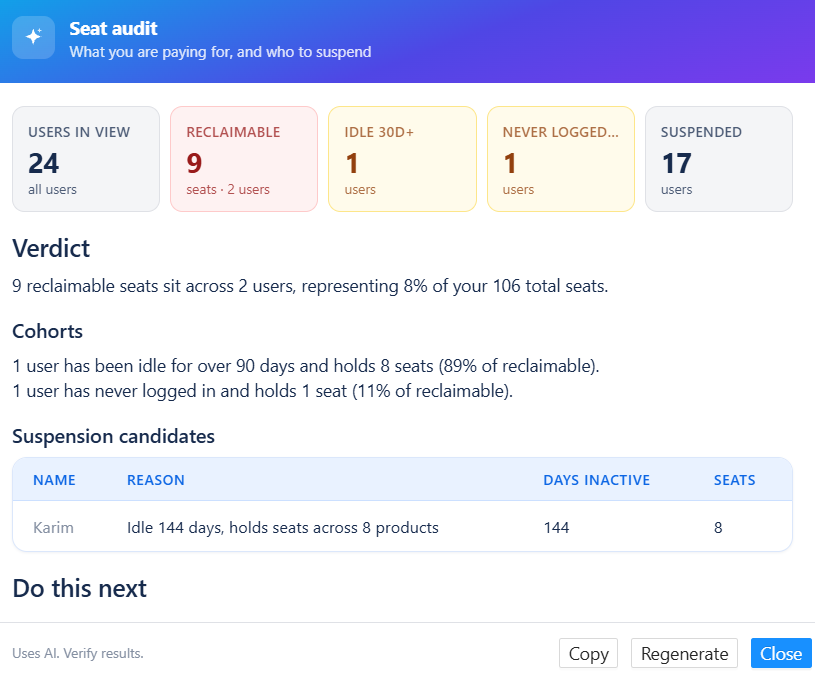
This makes it easier to identify users who may require action without manually checking each account.
Inactive Users Insights
The Inactive Users page provides a Reclaim Plan to help identify which inactive users should be reviewed first.
Insights can show:
-
Number of inactive users in the current view
-
Reclaimable seats
-
Users who have been inactive for 90+ days
The analysis can identify specific suspension candidates and explain how many seats would be freed.
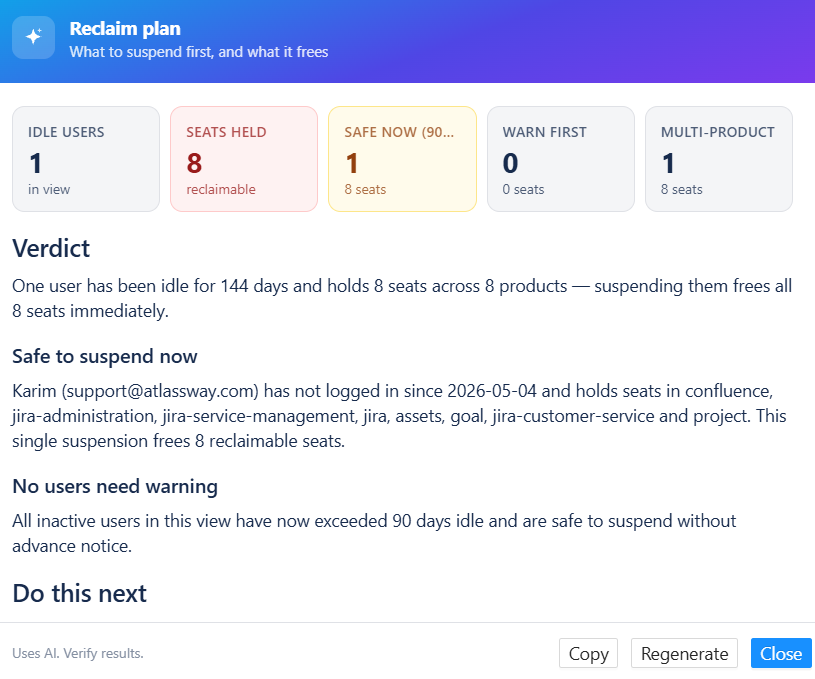
It also provides suggested actions, such as reviewing a user's account before suspending their license.
Product Groups Insights
On the Product Groups page, Insights analyzes how product access is granted through groups.
The Access Paths analysis can identify:
-
Groups that grant products
-
Empty groups that still grant product access
-
Products available through multiple groups
-
Products granted through three or more groups
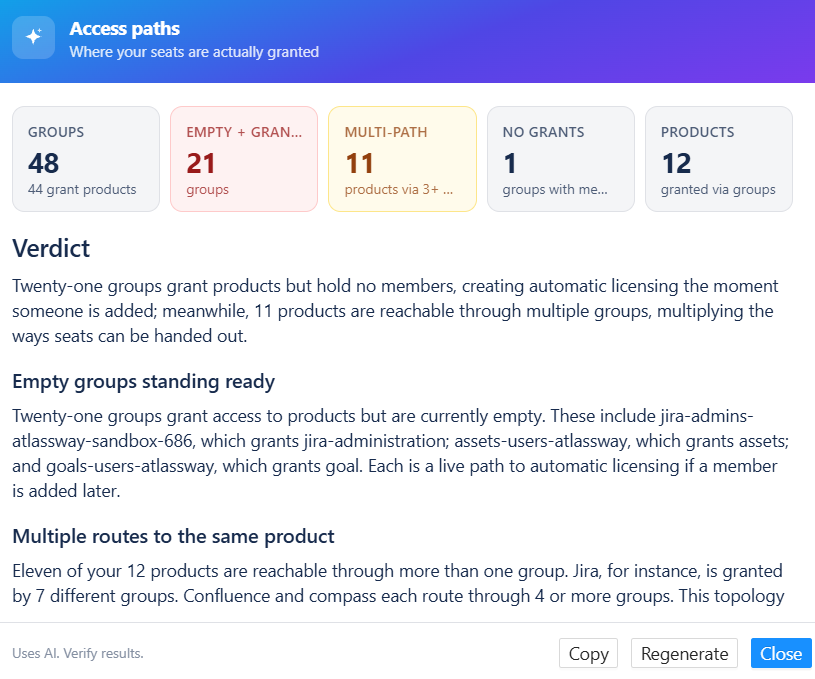
The recommendations help administrators identify unnecessary groups, multiple access paths, and opportunities to simplify product provisioning.
Automatic License Suspension Insights
On the Automatic License Suspension page, Insights provides a Rule Coverage analysis.
It can show:
-
Users covered by enabled rules
-
Users not covered by automation
-
Seats targeted by automation
-
Dry-run rules
-
Disabled rules
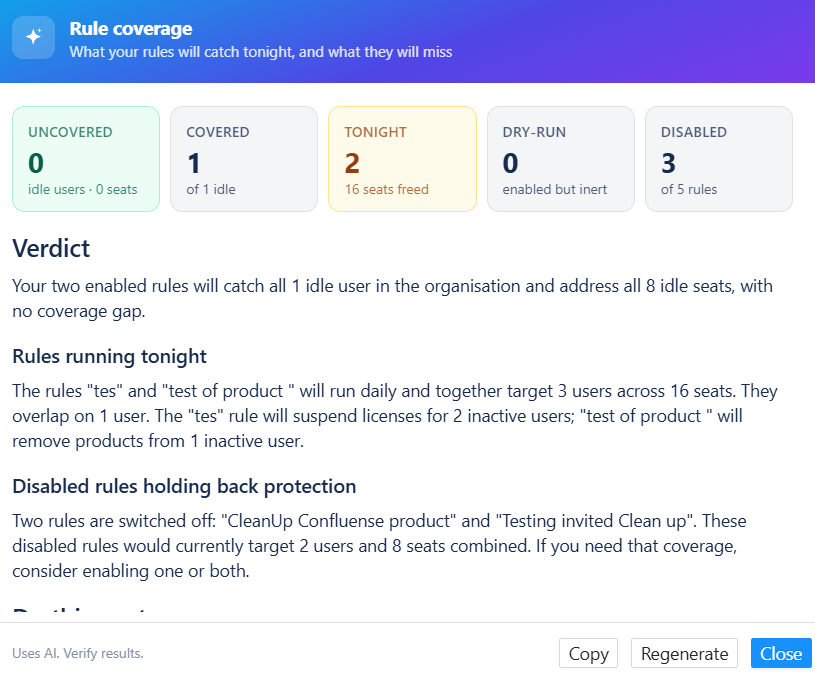
The analysis can explain what your active rules are expected to catch and identify rules that may currently be preventing full coverage.
Largest Attachments Insights
On the Largest Attachments page, Insights provides a Cleanup Candidates analysis focused on attachment storage.
It can identify:
-
Total attachments in the current view
-
Storage that may be recoverable
-
Attachments linked to finished work
-
Attachments still associated with open work
-
The largest work items by attachment size
-
Projects contributing the most storage
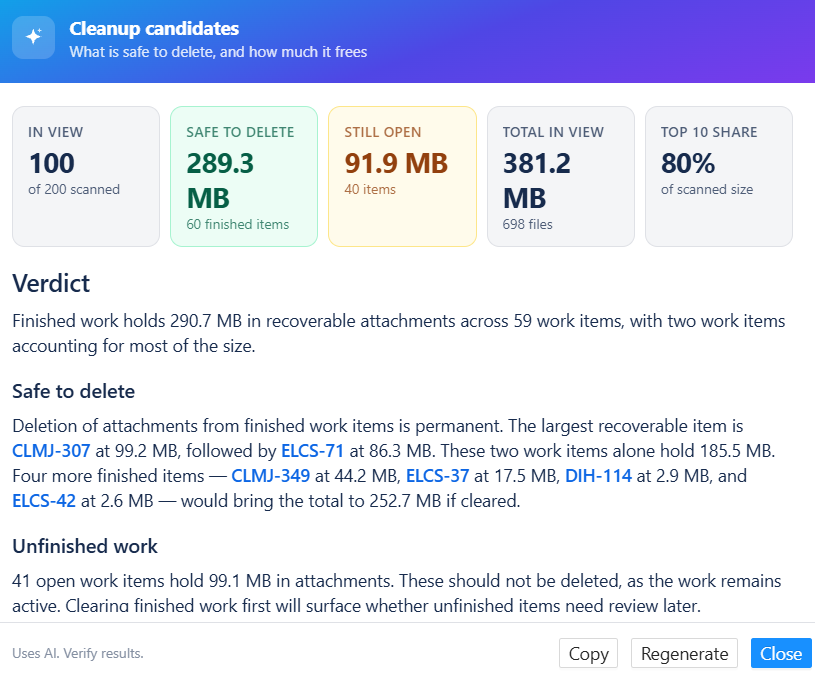
The analysis can also identify specific work items with large attachments and suggest which ones to review first.
Space Attachments Insights
The Space Attachments page provides a Query Review to help you understand the current attachment selection before taking action.
Insights can summarize:
-
Number of matching work items
-
Number of loaded work items
-
Total attachment size
-
Finished versus open work items
-
The largest work items in the current selection
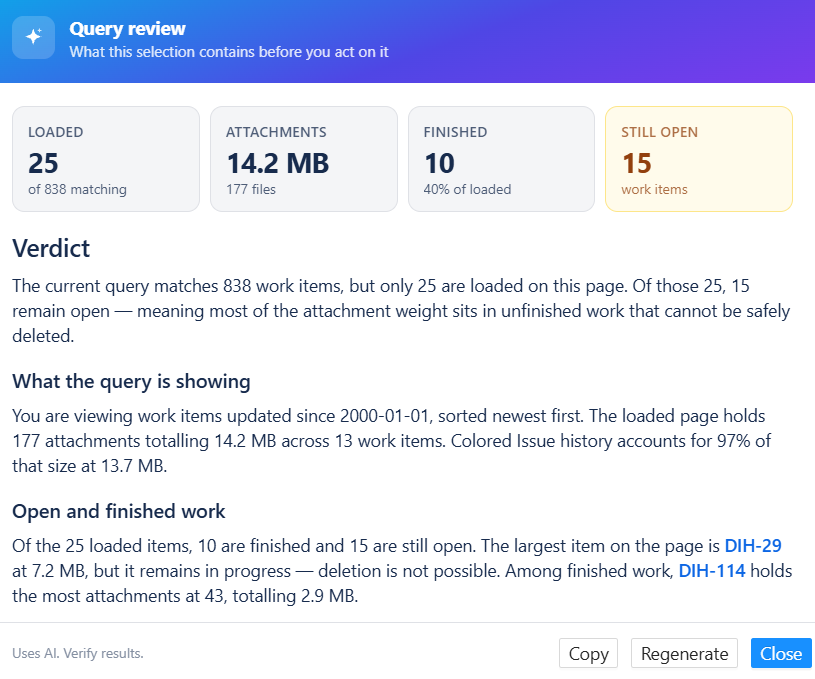
It can also suggest filtering the results further, such as focusing on finished work, before deleting attachments.
This provides additional context before making changes to attachment data.
Storage Reports Insights
On the Storage Reports page, Insights provides a Capacity Outlook for your attachment storage.
It can show:
-
Total storage used
-
Percentage of storage capacity used
-
Remaining capacity
-
Number of projects with attachments
-
Number of work items containing attachments
-
Projects responsible for most of the storage
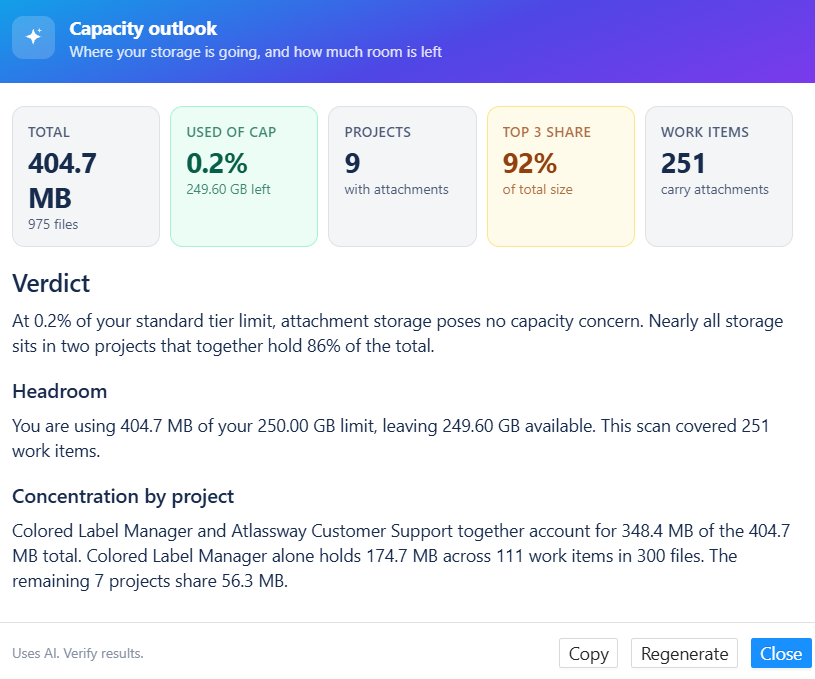
The analysis can identify where storage is concentrated and suggest areas to review for better attachment management.
Help vs. Insights
The two features serve different purposes:
|
Feature |
Purpose |
|---|---|
|
Help |
Answers how-to questions and guides you through using the app |
|
Insights |
Analyzes the data on the current page and highlights findings and next steps |
A simpler way to use Advanced Cost Optimizer
Need to know how to do something? → Ask Help.
Want to understand your current data? → Click Insights.
Need more details? → Follow the documentation link provided by Help.
Conclusion
With Help and Insights, Advanced Cost Optimizer for Jira makes it easier to understand the application, analyze your data, and take the next step without spending time manually searching or reviewing everything yourself.