
Welcome to License Optimizer 👋
After installing the app, this guide will help you complete the initial setup and start managing your Atlassian organization efficiently. The onboarding process is simple and secure, designed to give you access to your organization data in just a few steps.
Step Authentication
-
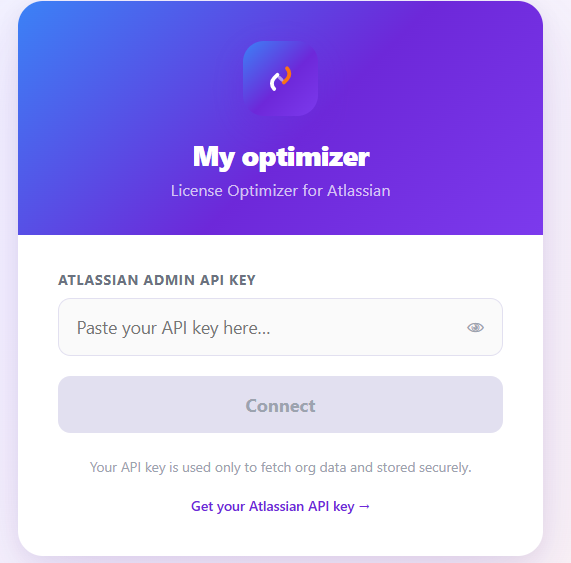
License Optimizer connects to your Atlassian organization using an Admin API Key.
-
This key is required to securely access and manage your organization data, including users, groups, and product licenses. It is stored securely in Forge encrypted storage and is never shared or exposed.
How to Generate Your API Key
To connect your organization, follow these steps:
-
Go to admin.atlassian.com
-
Select your organization
-
Navigate to Settings → API Keys
-
Click Create API Key
-
Give it a name and set an expiry date
-
Copy the generated key
-
Paste it into the authentication field in License Optimizer
Keep your API key safe.
It will only be shown once and cannot be retrieved again after leaving the page.
Step 2 – First Login Behavior
Once you successfully log in using your API key:
-
Your authentication session will be securely saved
-
You will not need to log in again every time
-
The system will remember your organization automatically
-
You will be directly taken to the dashboard on future visits
This ensures a smooth experience with one-time login setup only.
What Happens After Login
After authentication, you will have access to:
-
Dashboard (organization overview)
-
Users management
-
Inactive users monitoring
-
Product groups
-
Automation rules
-
Jira Sheets
Conclusion
Once setup is complete, License Optimizer runs seamlessly in the background, giving you full visibility and control over your Atlassian users and licenses with minimal effort.
You are now ready to start optimizing your organization
Need help?
💡 We're here for you! If you have questions or need to report a bug, visit our Help Center and raise a support ticket. Our team is ready to assist you!