
The Inactive Users page helps administrators quickly identify users who have not been active for a defined period. It is designed to support license optimization by highlighting accounts that may no longer require access, allowing organizations to reduce unnecessary costs and improve license efficiency.
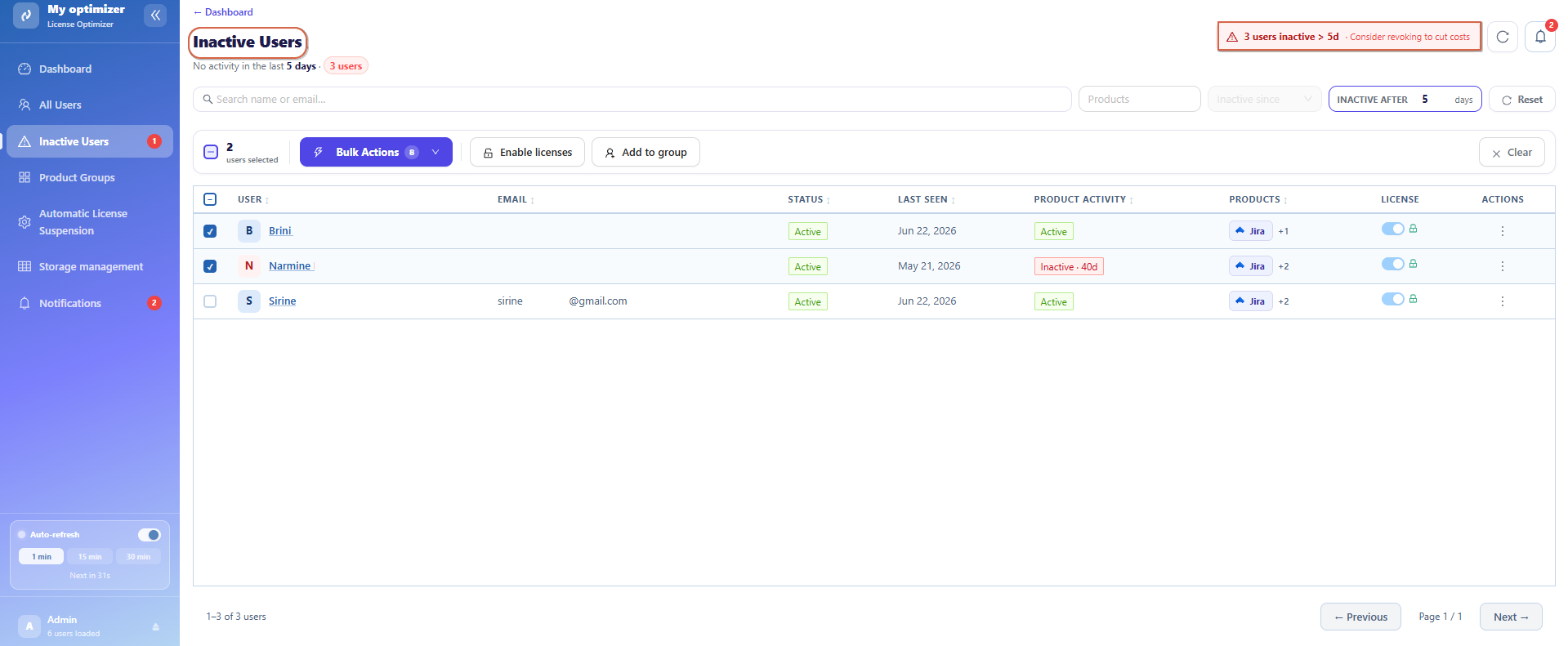
Inactivity Summary
At the top of the page, a clear summary highlights the current inactive user status:
-
Inactive Users
-
Inactive After
A message indicates:
3 users inactive > 5d· Consider revoking to cut costs
This provides immediate insight into potential optimization opportunities.
Filters and Analysis
The page includes filtering options to refine inactive user analysis.
Product Filter: Filter inactive users by product access:
-
Jira
-
Confluence
-
Jira Service Management
-
Assets
-
Other Atlassian products
Last Active Filter: Define the time of las activity
Inactive After (Days): Set the inactivity rule used to classify users:
-
Default: 30 days
-
Custom value
This allows administrators to adapt inactivity detection based on internal policies.
Inactive Users Table
Each user entry provides detailed information:
-
User name
-
Email address
-
Status
-
Last seen date
-
Product activity status
-
Assigned products
-
License usage state
-
Action menu
User Actions menu
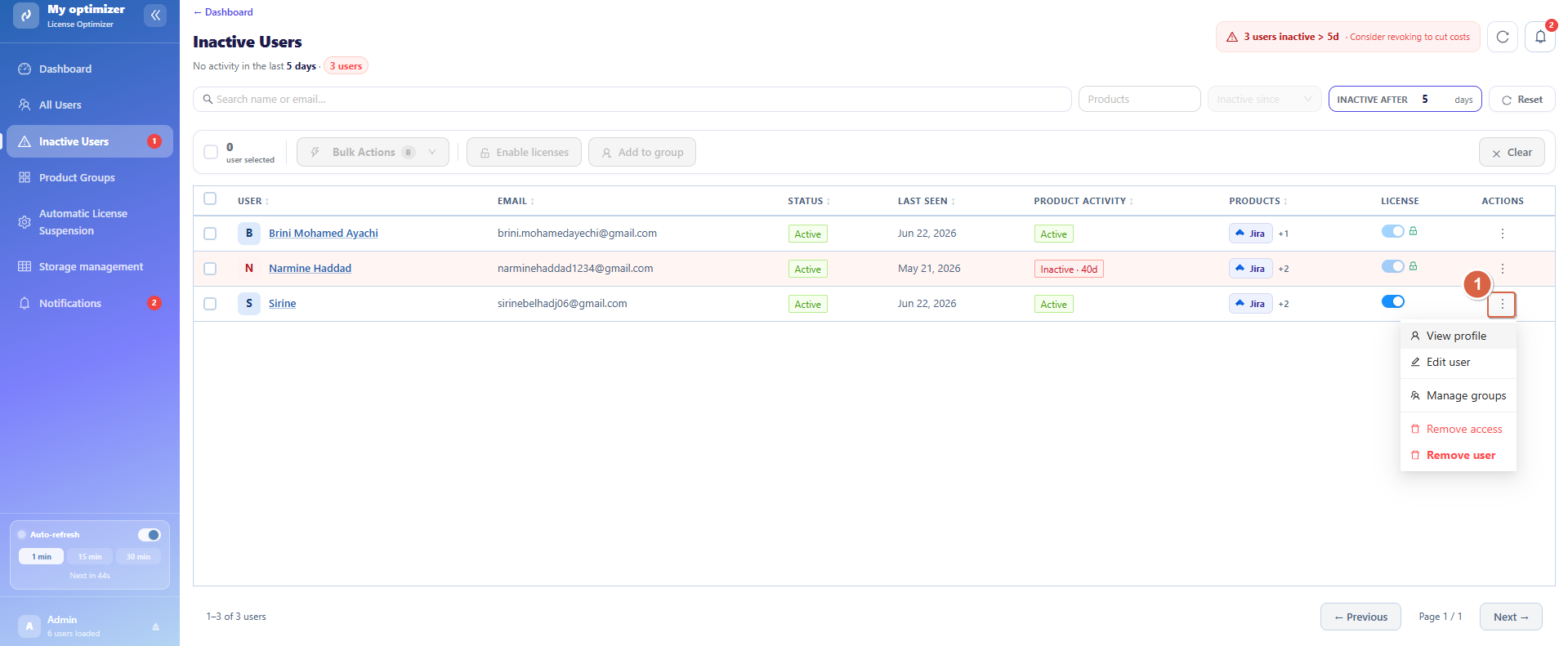
Each inactive user includes an individual action menu for quick management.
Available Actions
-
View Profile : open detailed user information
-
Edit User : update user details
-
Manage Groups : modify group membership
-
Remove Access : revoke product access
These actions allow targeted intervention without affecting other users.
Bulk Actions
To streamline management, bulk actions can be applied to multiple inactive users at once.
Steps:
-
Check the checkbox next to each user you want to select
-
The bulk action bar appears showing the number of selected groups
-
Click Bulk Actions
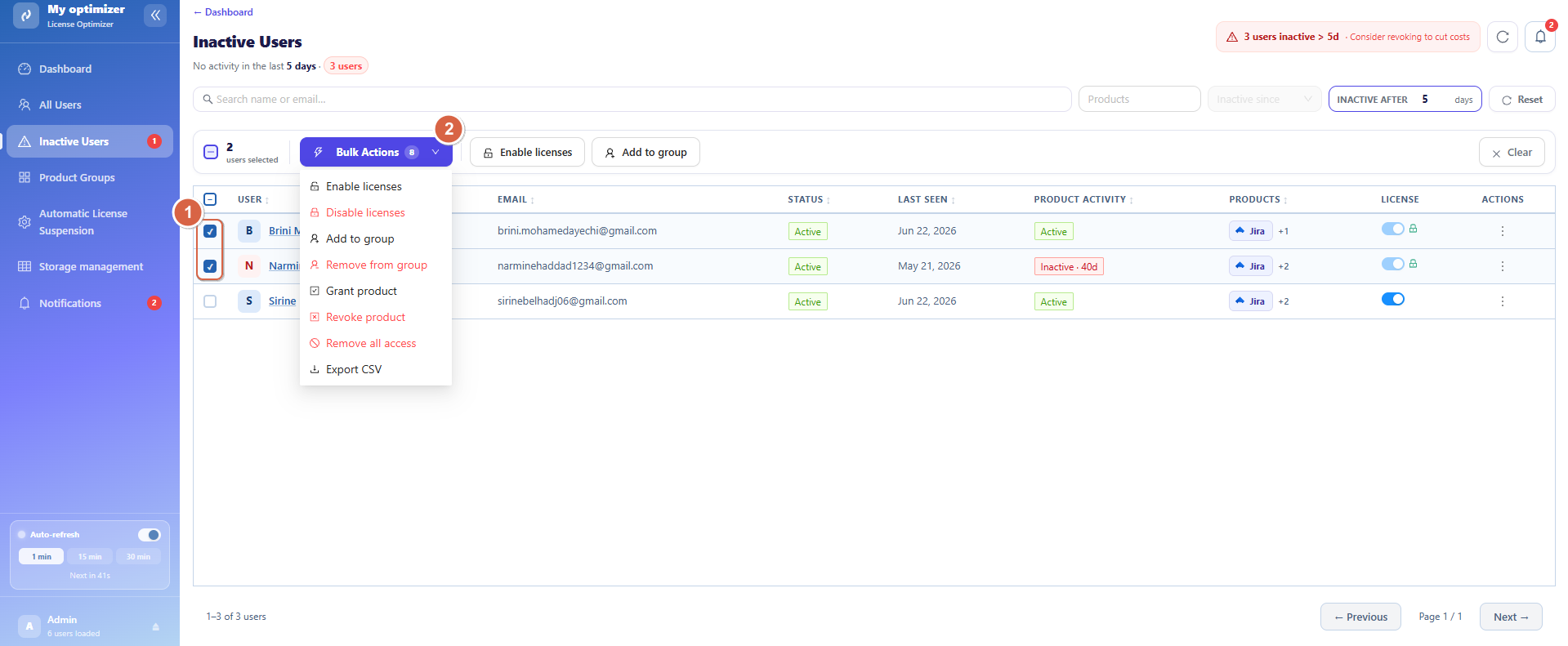
List of actions displayed , you can :
-
Enable Licenses
-
Disable Licenses
-
Add to Group
-
Remove from Group
-
Grant Product Access
-
Revoke Product Access
-
Remove All Access
-
Export CSV
Why This Page Matters
The Inactive Users page is essential for:
-
Reducing unnecessary license costs
-
Improving Atlassian license efficiency
-
Supporting periodic access reviews
Conclusion
-
The Inactive Users page is a critical component of License Optimizer. It enables administrators to quickly detect inactivity, take corrective actions, and ensure that licenses are only used by active contributors. By combining clear filters, detailed user insights, and powerful bulk actions, it significantly simplifies license optimization and cost control.
Need help?
💡 We're here for you! If you have questions or need to report a bug, visit our Help Center and raise a support ticket. Our team is ready to assist you!