
The Notifications section allows you to track all automation activities directly inside the app. It provides in-app alerts for every execution, including successes, warnings, and errors, so you can easily monitor what happened and take action if needed.
Access the Notifications Page
To open notifications:
-
Go to the main menu of the application
-
Click on Notifications
-
The History view opens by default
You will see a list of all automation executions.
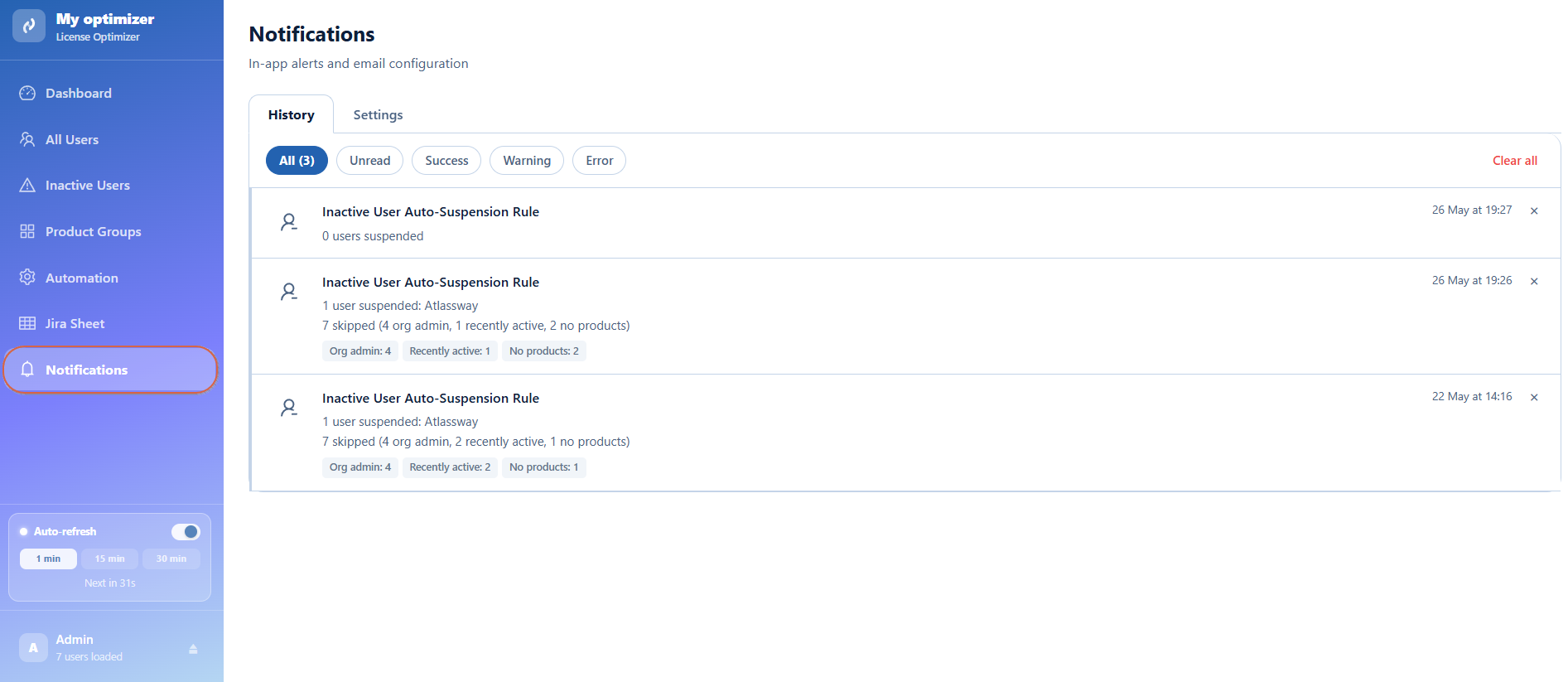
Understand the History List
Each entry in the History represents one automation run.
For each notification, you can see:
-
Automation name (example: Inactive User Auto-Suspension Rule)
-
Execution date and time
-
Number of users affected
-
Users suspended (if any)
-
Users skipped with reasons
Example:
-
0 or more users suspended
-
Skipped users grouped by:
-
Org admin
-
Recently active
-
No products
-
Excluded users
-
Filter Notifications
At the top of the History page, you can filter notifications:
-
Click on a filter tab:
-
All → shows all notifications
-
Unread → shows only new notifications
-
Success → successful executions
-
Warning → skipped users
-
Error → failed executions
-
Clear Notifications
To remove all history entries:
-
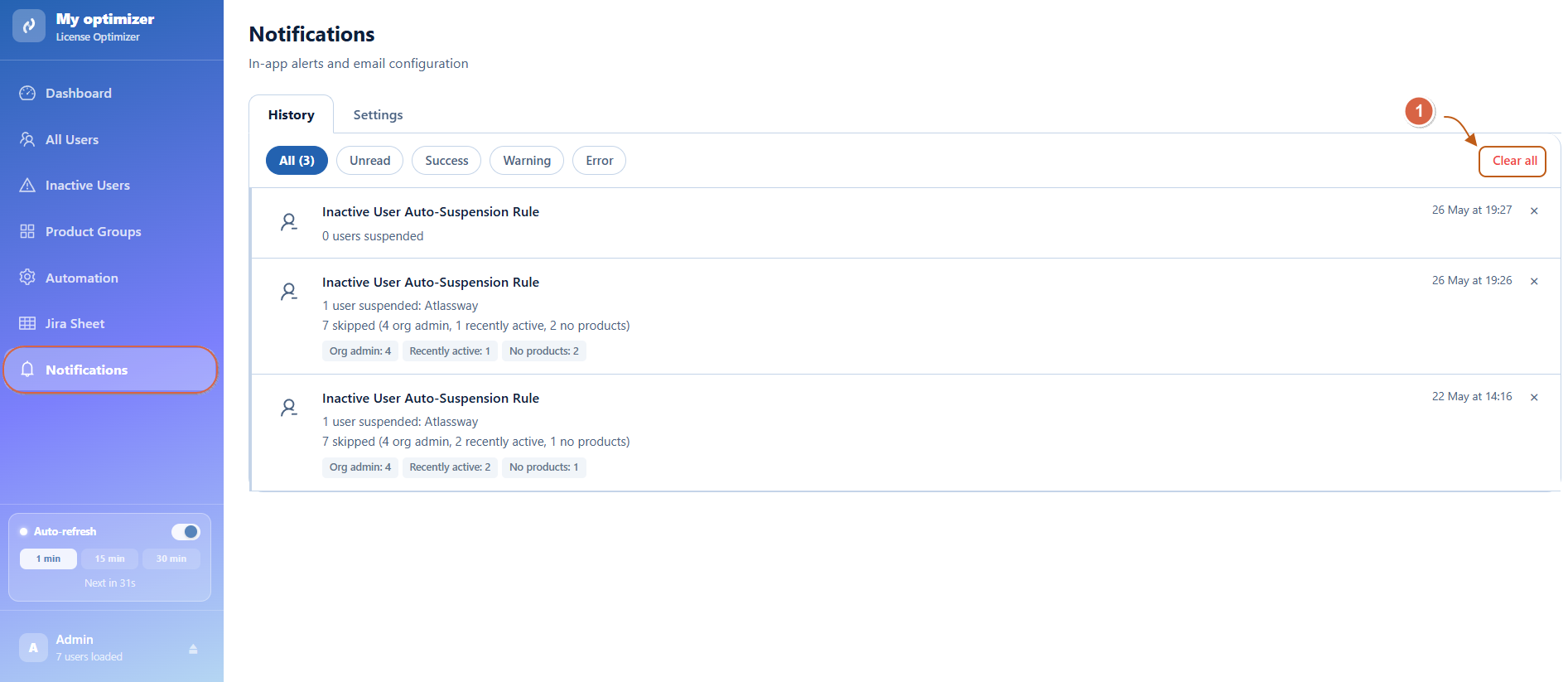
Click Clear all at the top of the History page
-
All notifications will be removed from the list
Configure Notification Settings
To customize alerts:
-
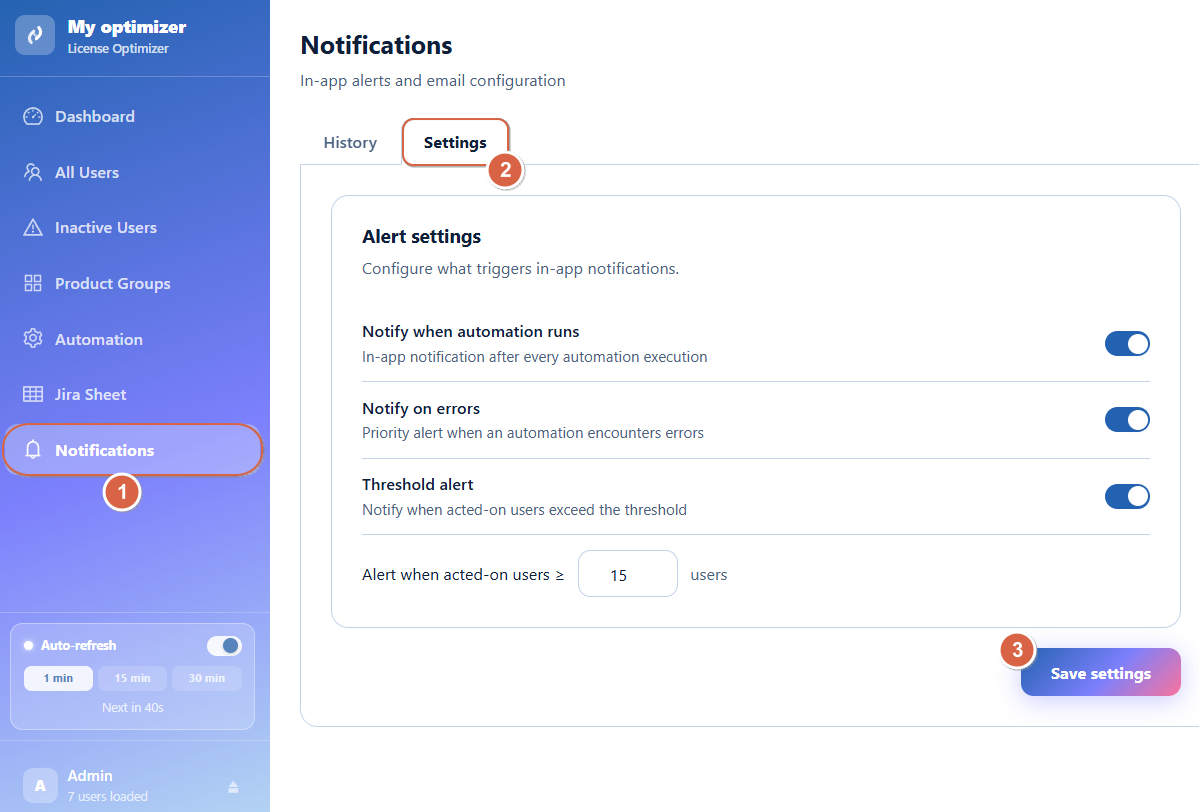
Go to Settings inside Notifications
Enable/Disable Notifications
You can toggle the following options:
Notify when automation runs
-
Switch toggle ON/OFF
-
When ON → you receive a notification after every automation execution
Notify on errors
-
Switch toggle ON/OFF
-
When ON → you receive an alert if an automation fails or encounters an error
Threshold alert
-
Switch toggle ON/OFF
-
When ON → you receive a notification when a large number of users are affected
-
Set threshold value:
-
Example: Alert when acted-on users ≥ 15
-
Conclusion
The Notifications page helps you easily track all automation executions, understand user impact, and quickly detect issues. By combining History tracking with configurable alert settings, you can maintain full visibility and control over your automation activities.
Need help?
💡 We're here for you! If you have questions or need to report a bug, visit our Help Center and raise a support ticket. Our team is ready to assist you!