
The User Management page in License Cost Optimizer for Jira provides a complete view of all users in your Atlassian organization. It allows administrators to monitor user status, track activity, manage product access, and perform bulk operations efficiently from a single interface.
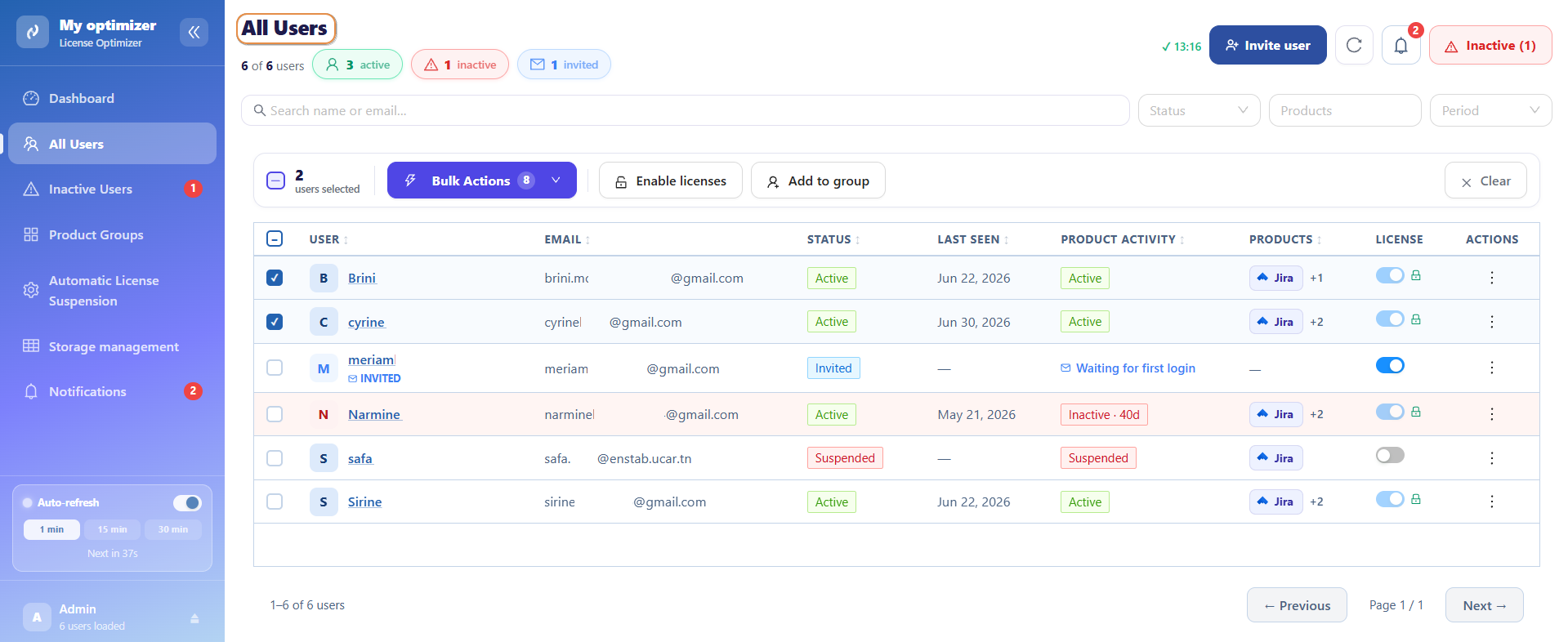
User Summary Overview
At the top of the page, a quick summary displays the current state of your user base:
-
Total Users
-
Active Users
-
Inactive Users
-
Invited Users
This summary gives an immediate understanding of user engagement and onboarding status.
Filters and Search
To help administrators quickly find and analyze users, the page includes flexible filtering options.
Search : Search users by:
-
Name
-
Email
Status Filter: Filter users by:
-
All
-
Active
-
Suspended
-
Invited
Product Filter Filter users based on product access:
-
Jira
-
Confluence
-
Jira Service Management
-
Assets
-
Other connected products
Time Period Filter: Analyze user activity over time:
-
All time
-
Last 7 days
-
Last 30 days
-
Last 90 days
-
Custom range
These filters help you quickly identify inactive users, unused licenses, or recently active accounts.
User Table Overview
Each user is displayed with detailed information:
-
User name
-
Email address
-
Status (Active / Inactive / Invited)
-
Last seen date
-
Product activity status
-
Assigned products
-
License usage duration
-
Quick actions menu
This structure provides full visibility into user behavior and license consumption.
Refresh Data
The page supports manual refresh to ensure you always work with the latest data.
-
Click Refresh to reload the user list
-
Updates include activity status, license changes, and group modifications
This ensures administrators always have real-time information.
User Actions
Each user has an Actions menu for direct management.
Available options:
-
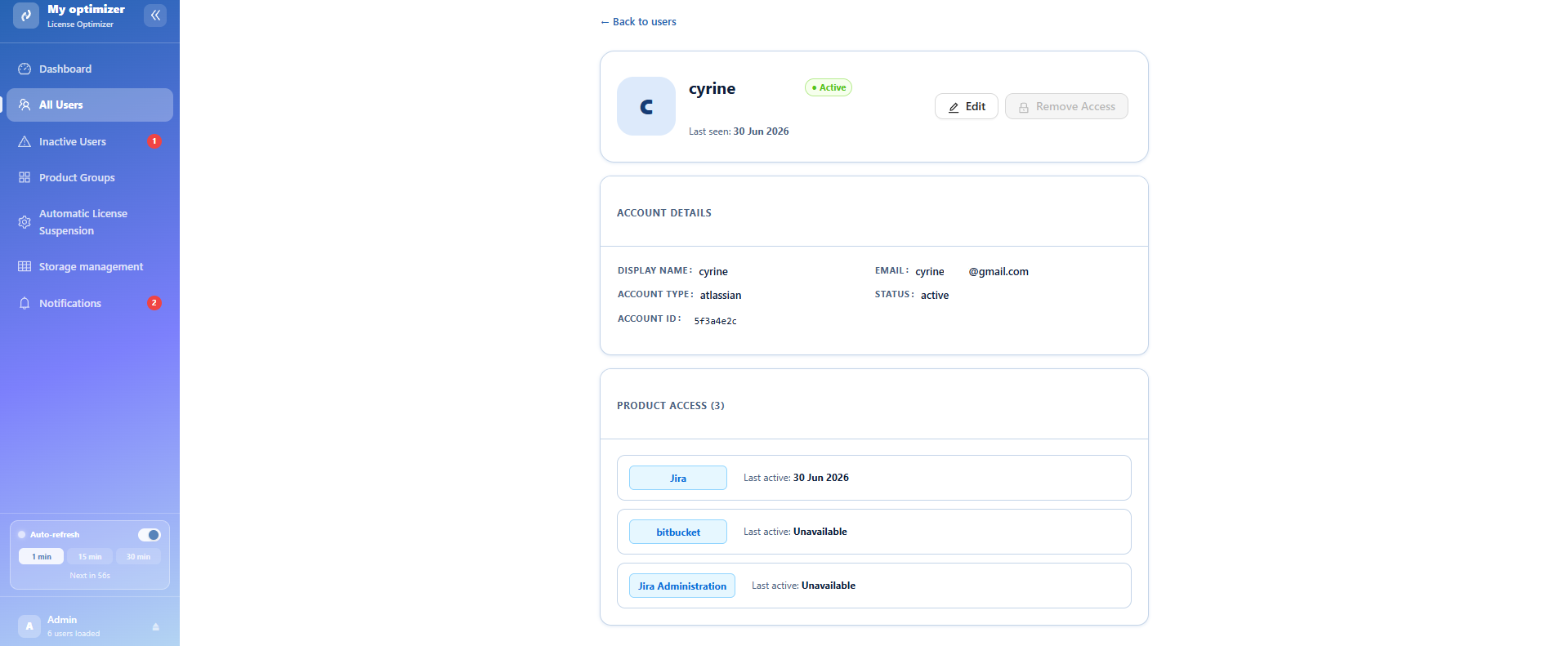
View Profile : open detailed user information
-
Edit User : modify user details
-
Manage Groups : assign or remove group memberships
-
Remove Access : revoke product access
-
Remove User : delete user from the organization
These actions allow quick user-level administration without navigating away from the page.
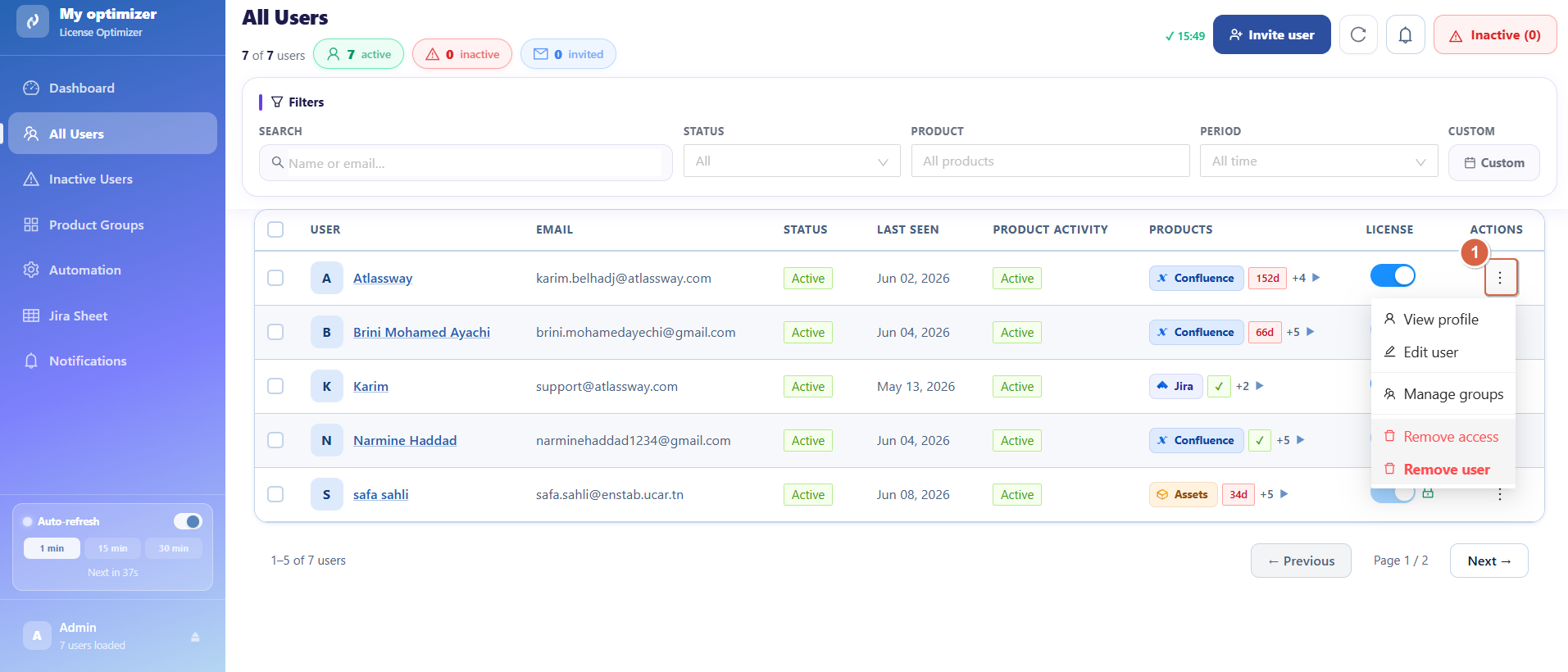
Example :
-
Click view profile and vizualise the details of the user :
Bulk Actions
When selecting one or more users, bulk actions become available to simplify large-scale management.
Steps:
-
Check the checkbox next to each user you want to select
-
The bulk action bar appears showing the number of selected groups
-
Click Bulk Actions
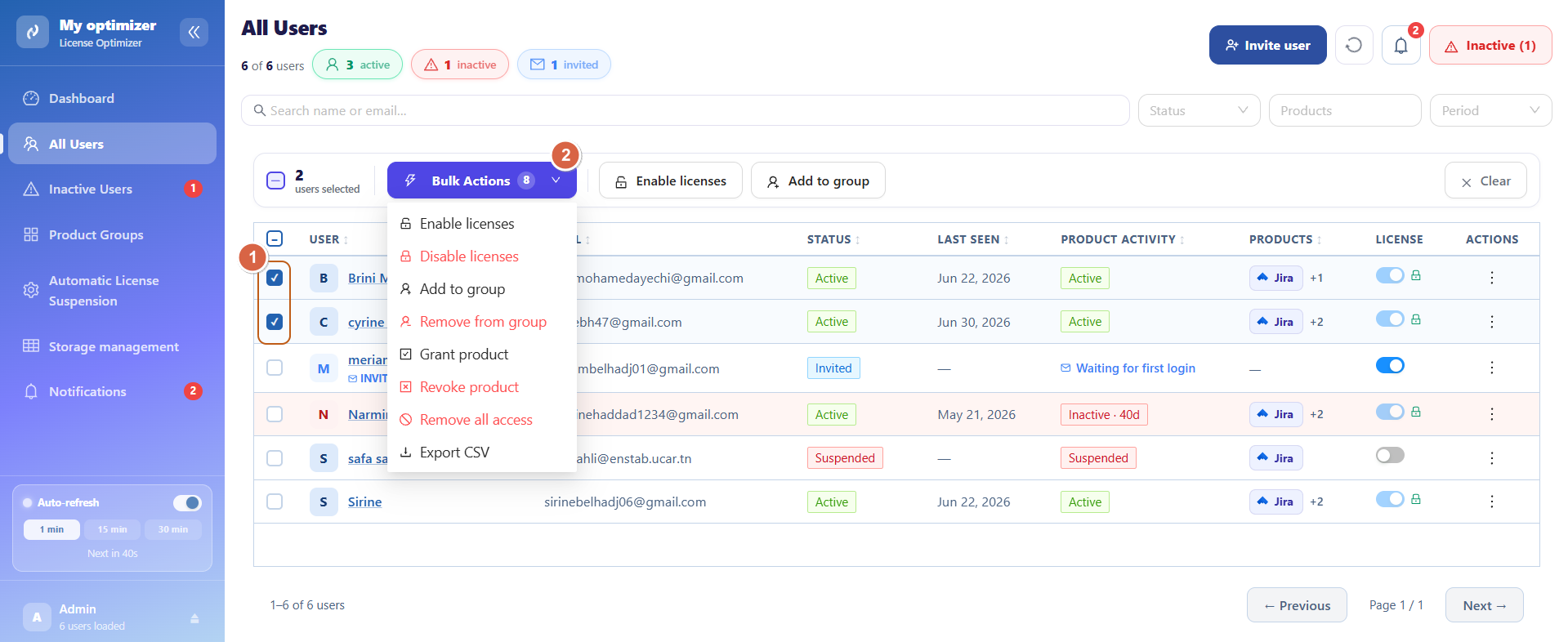
Actions :
-
Enable Licenses
-
Disable Licenses
-
Add to Group
-
Remove from Group
-
Grant Product Access
-
Revoke Product Access
-
Remove All Access
-
Export CSV
Bulk actions significantly reduce manual effort when managing multiple users.
Why This Page Matters
The User Management page is essential for:
-
Monitoring user activity in real time
-
Identifying inactive or unused accounts
-
Managing product licenses efficiently
-
Controlling group access at scale
-
Reducing unnecessary license costs
Conclusion
The User Management page gives administrators full control over user access and license distribution. With powerful filtering, detailed user insights, and flexible bulk actions, it enables efficient governance of your Atlassian environment while helping optimize costs and improve visibility across the organization.
-
Ready to manage Atlassian users more efficiently? Install License Cost Optimizer for Jira to monitor user activity, manage product access, and optimize license usage from one convenient interface.
Need help?
💡 We're here for you! If you have questions or need to report a bug, visit our Help Center and raise a support ticket. Our team is ready to assist you!