
The Attachment Storage Management feature provides administrators with comprehensive visibility into attachment usage across Jira. It helps identify large attachments, monitor storage consumption, and efficiently manage attachment-related storage.
Overview
The feature consists of three main sections:
-
Most Sized Attachments
-
Storage Management
-
Storage Reports
Together, these pages provide detailed insights into attachment storage usage and help administrators optimize storage consumption.
Most Sized Attachments
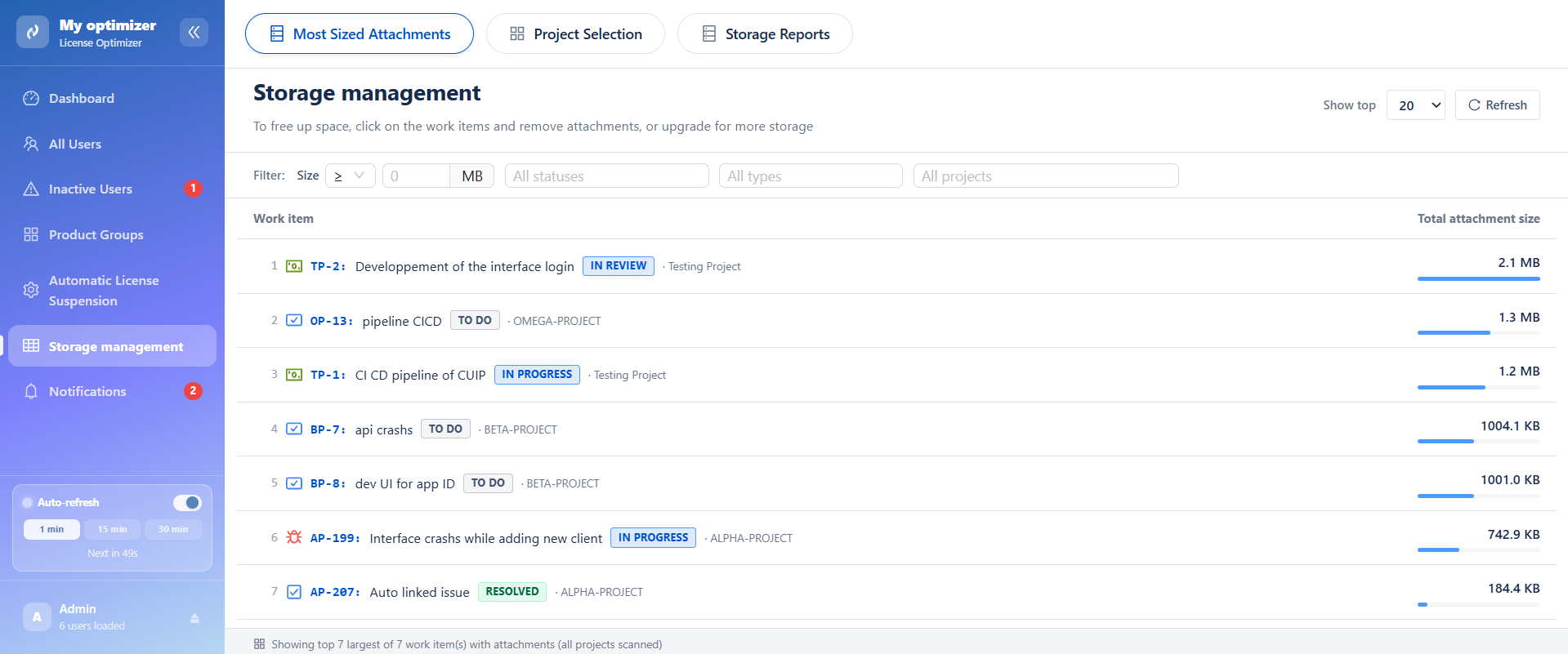
The Most Sized Attachments page displays the work items containing the largest amount of attachment data.
This page enables administrators to quickly identify attachments consuming significant storage space and take appropriate actions to free up storage.
Features
Top Attachment Consumers
The table lists work items ordered by their total attachment size, allowing administrators to quickly identify storage-intensive work items.
For each work item, the following information is displayed:
-
Work item type
-
Work item key
-
Summary
-
Status
-
Project
-
Total attachment size
Storage Management Recommendations
A dedicated information panel provides guidance on storage optimization.
Administrators can:
-
Open work items.
-
Review attached files.
-
Remove unnecessary attachments.
-
Upgrade storage capacity when additional space is required.
Filtering Options
Administrators can refine the displayed results using the following filters:
-
Size unit selector: Display sizes in MB and allow users to specify values using <= or >=.
-
Status filter : Filter work items by status.
-
work item type filter : Filter by work item type.
-
Project filter : Restrict results to specific projects.
Refresh Data
Click Refresh to reload attachment information and ensure the displayed data reflects the latest changes.
Project selection
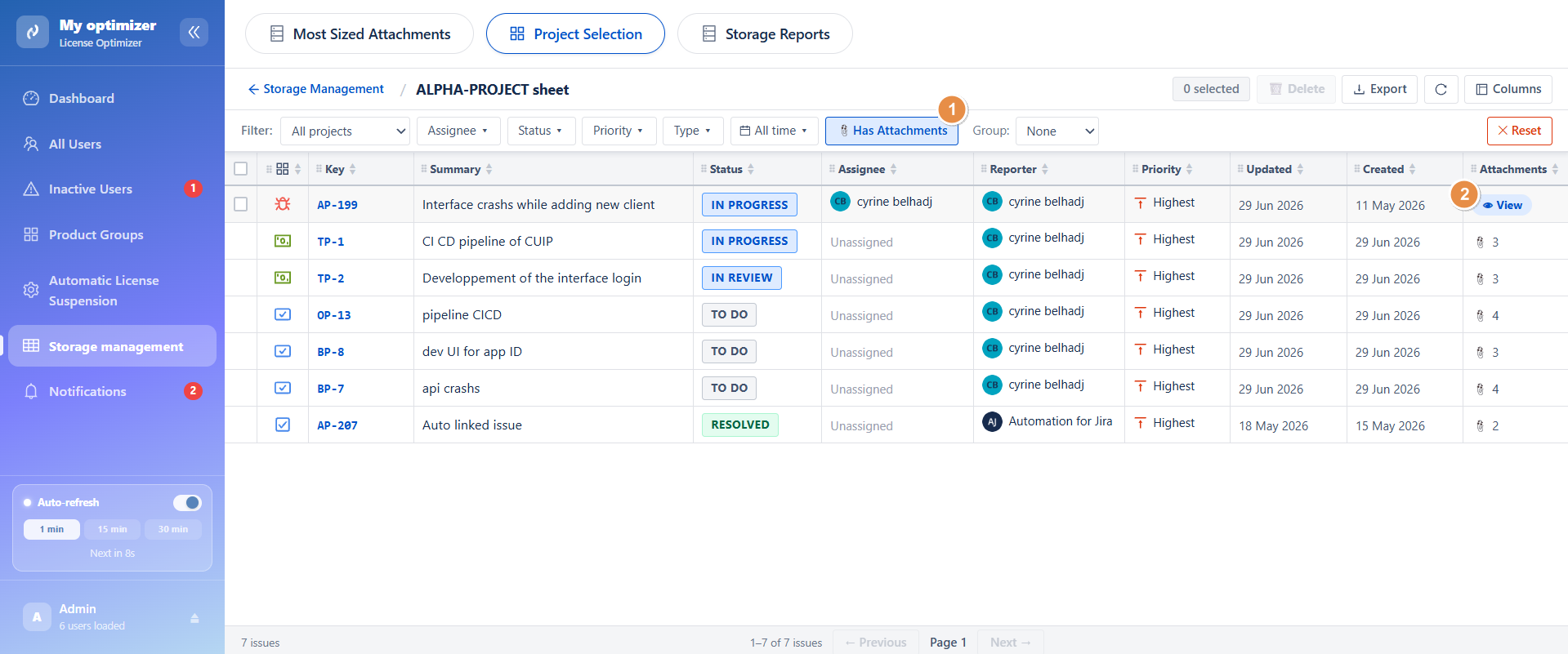
Project selection page displays work items in a structured table format, similar to a spreadsheet.
Each row represents a Jira work item with key details such as:
-
work item type (Story, Task, Sub-task, etc.)
-
work item key
-
Summary
-
Status (To Do, In Progress, Done)
-
Assignee
-
Priority
-
Dates (created / updated)
This format allows quick scanning and large-scale management of work items.
Filters
To help narrow down results, multiple filters are available:
-
Project filter : Filters work items based on the selected Jira project
-
Assignee filter : Shows work items assigned to a specific user
-
Status filter : Filters work items by their current workflow state
-
Priority filter : Displays work items based on urgency level
-
work item type filter : Filters work items by type such as Story, Task
-
Time filter : Limits work items based on time
These filters help quickly identify relevant work items for cleanup or analysis.
Column Customization
The sheet allows full customization of visible columns.
Administrators can:
-
Add or remove columns
-
Display additional metadata (attachment size)
Attachment Insights
A dedicated Attachments column helps identify:
-
work items with attachments
-
Large file sizes
-
Storage-heavy work items
This is especially useful for detecting storage consumption sources.
Steps to clean attachment
-
Select the attachment(s) you want to remove.
-
Click View attachments of the work item
-
Click Delete Attachment to permanently delete the selected attachment(s).
-
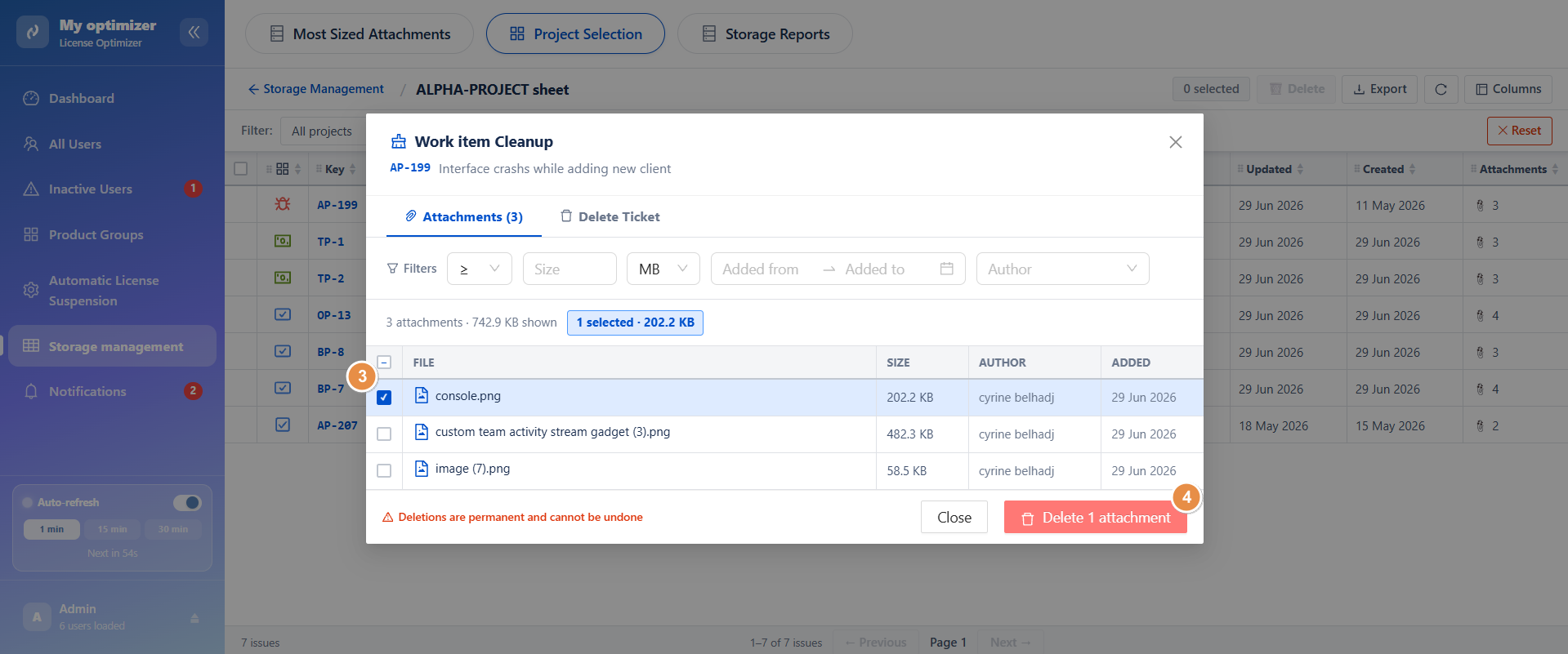
Select the attachment(s) you want to remove.
-
Click Delete Attachment to permanently delete the selected attachment(s).
Bulk Actions
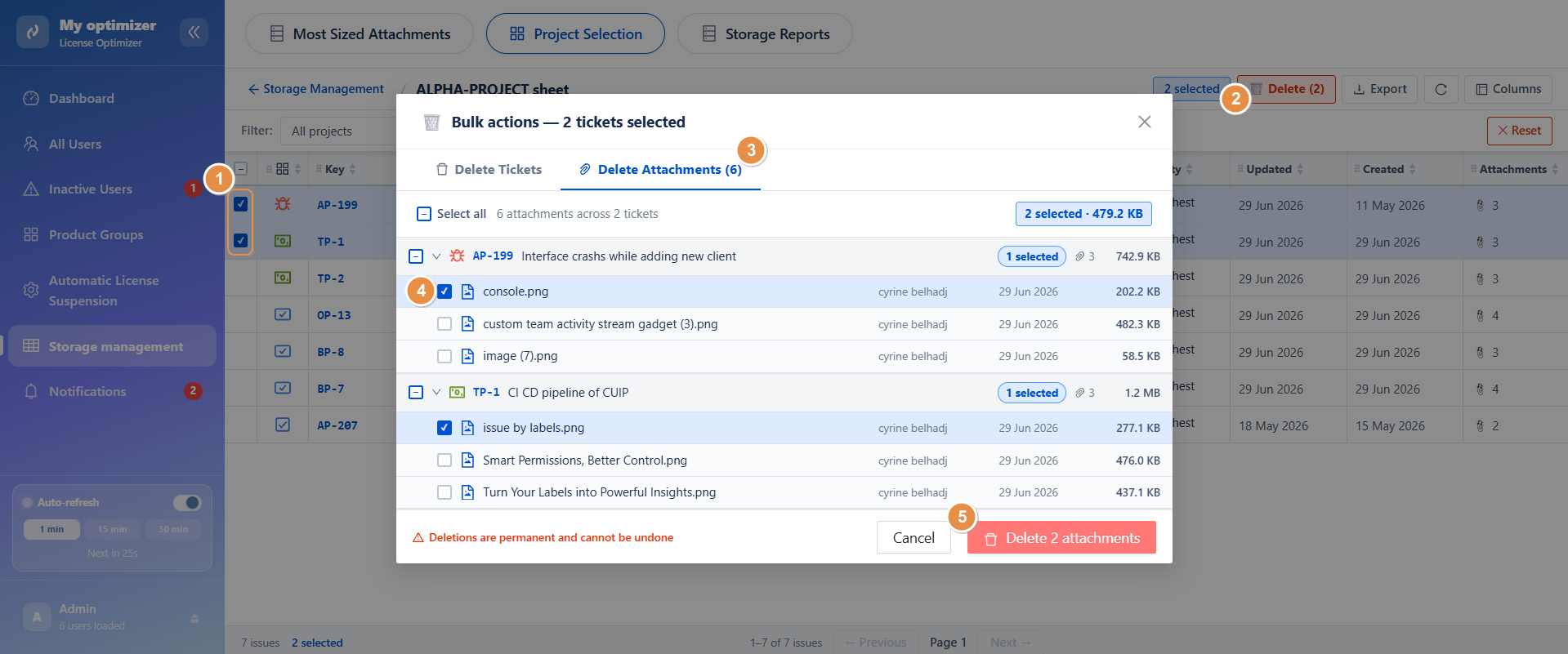
Project selection supports powerful bulk operations for multiple work items.
Bulk Delete Selected Work Items
Select the work items you want to manage. You can either delete the selected work items or remove their attachments.
-
Delete Work Items: Click Delete to permanently remove the selected work items.
-
Delete Attachments: Click Delete Attachments, select the attachments you want to remove, then click Delete to confirm.
Storage reports
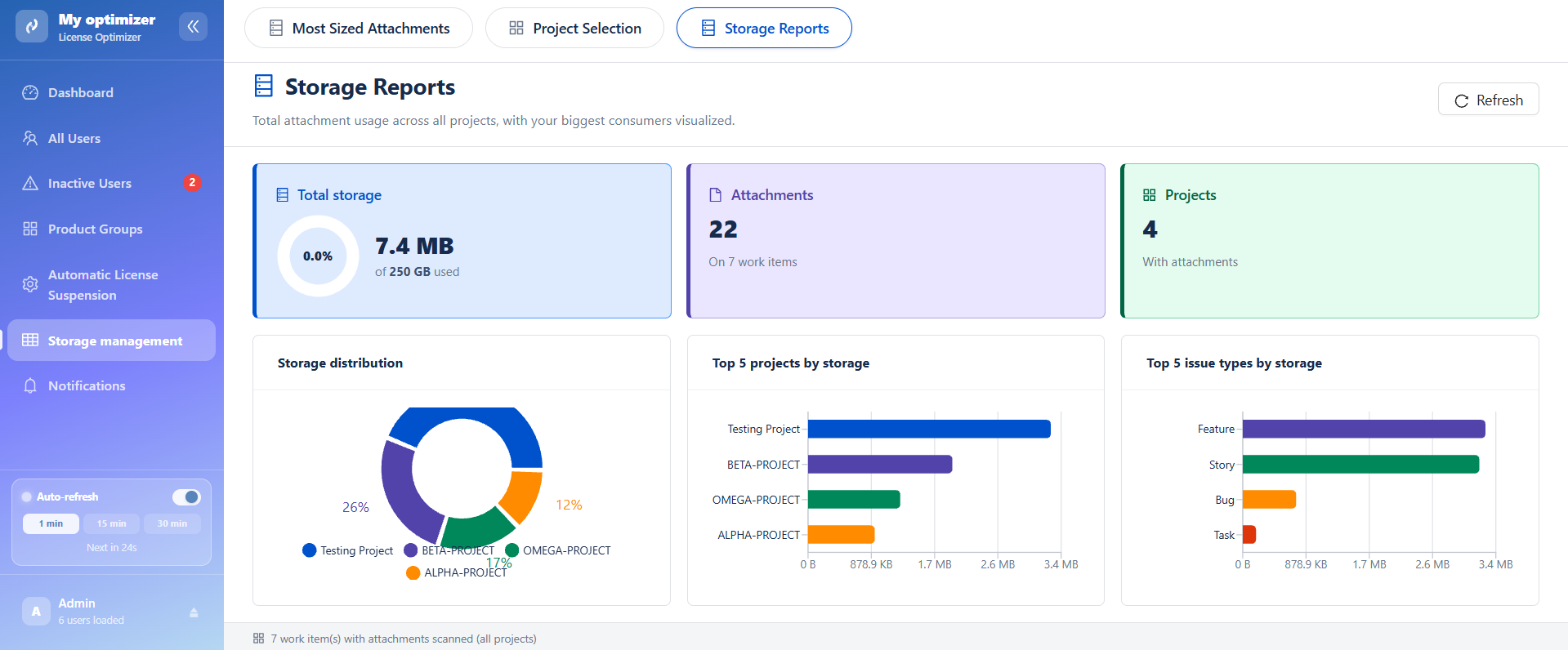
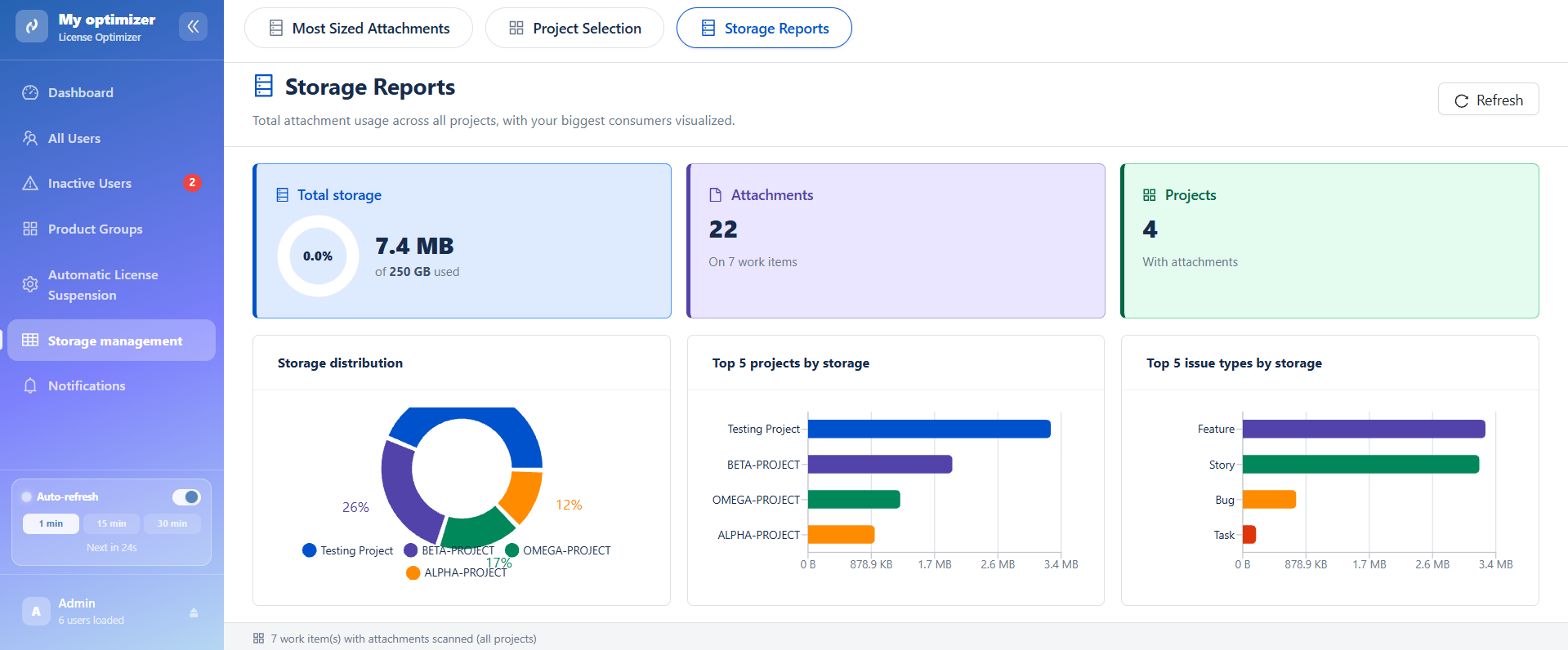
The Storage Reports page provides a global overview of attachment storage usage across all projects.
The dashboard helps administrators monitor storage consumption and identify the largest storage consumers.
Summary Metrics
The dashboard displays the following key metrics:
Total Storage
Shows:
-
Percentage of storage used.
-
Amount of used storage.
-
Total available storage capacity.
Attachments
Displays:
-
Total number of attachments stored.
-
Number of work items containing attachments.
Projects
Displays the total number of projects containing attachments.
Storage Distribution
The Storage Distribution chart provides a visual representation of storage allocation among projects.
Administrators can:
-
Identify projects consuming the most storage.
-
Analyze storage distribution patterns.
Top 5 Projects by Storage
This chart highlights the projects consuming the highest amount of storage.
Benefits include:
-
Quickly identifying the largest storage consumers.
-
Monitoring storage growth.
Top 5 Issue Types by Storage
This report displays the issue types generating the highest storage consumption.
This information helps administrators understand attachment usage patterns and optimize storage management strategies.
Best Practices
To optimize attachment storage usage, it is recommended to:
-
Regularly review attachment reports.
-
Remove obsolete or duplicate attachments.
-
Archive completed projects when appropriate.
-
Monitor projects with high storage consumption.
-
Periodically export storage reports for auditing purposes.
Conclusion
The Storage Management feature helps administrators monitor storage usage, identify large attachment consumers, and efficiently manage attachments across Jira projects, ensuring optimized storage utilization and improved system maintenance.
Need help?
💡 We're here for you! If you have questions or need to report a bug, visit our Help Center and raise a support ticket. Our team is ready to assist you!