
Advanced Work Item Templates for Jira makes it easy to manage and maintain your templates as your team's needs evolve. You can edit existing templates, duplicate them to create new variations, or delete templates that are no longer needed. This guide walks you through these actions and explains important considerations when updating your templates.
How to Create a Template
-
Navigate to Apps → Advanced Work Item Templates for Jira .
-
Click + Create Template.
Step 1 : Choose a Starting Point
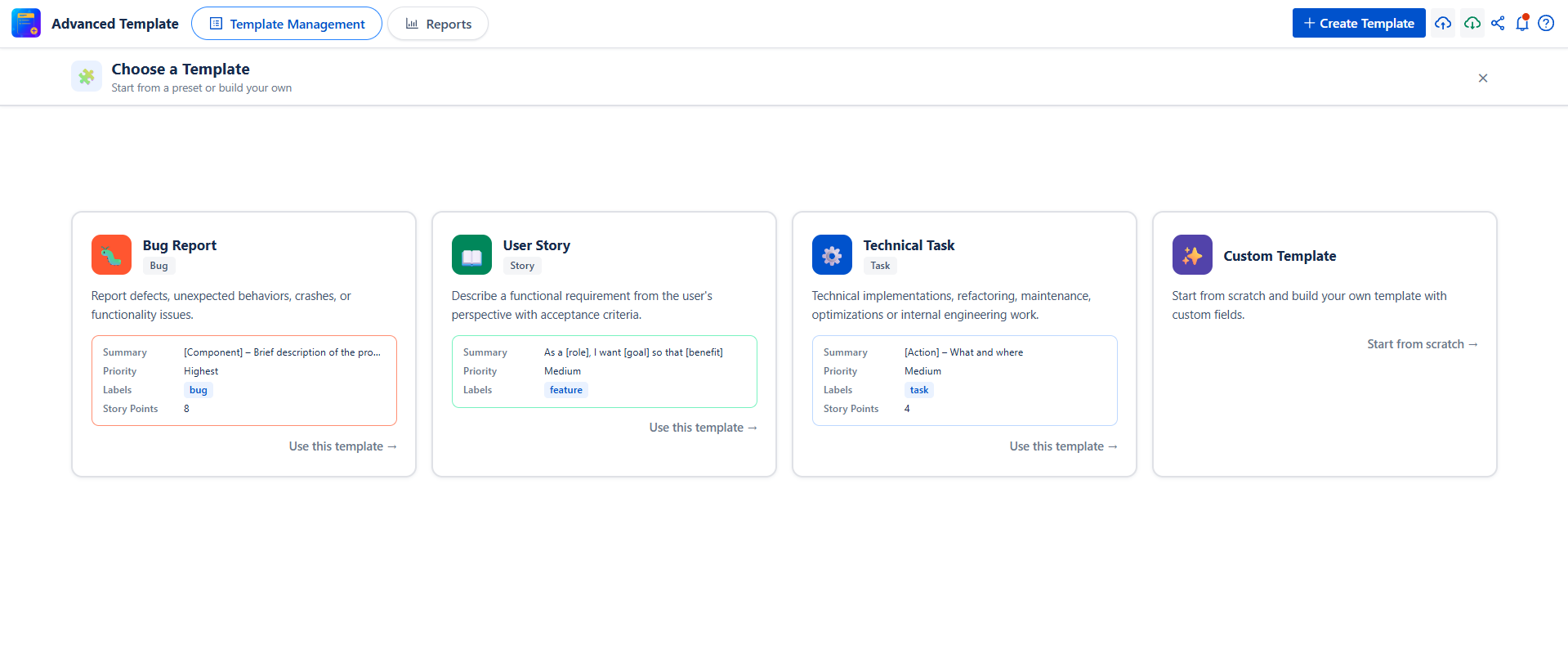
Now, you are first invited to choose how you want to build your template:
Option 1: Start from an option:
Choose one of the 3 ready-to-use reference templates:
-
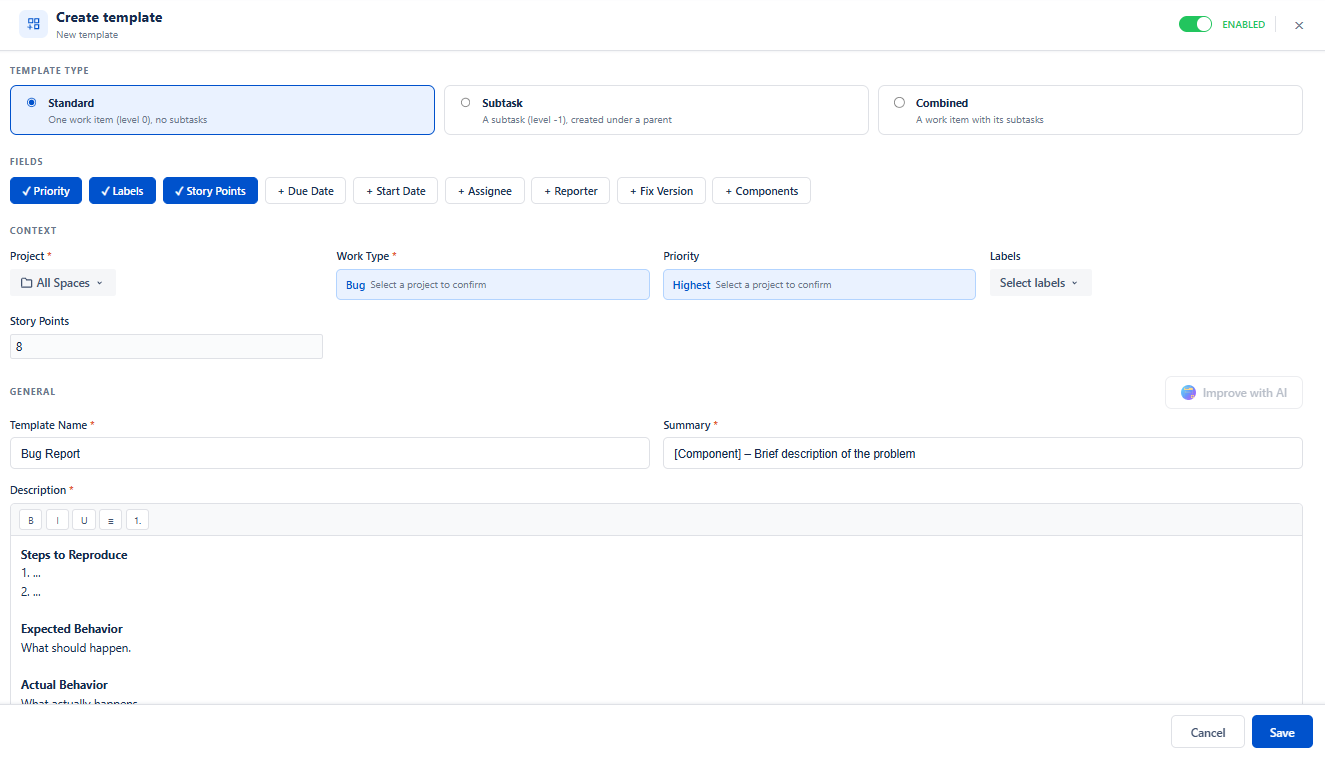
🐛 Bug Report: pre-filled for reporting defects and unexpected behaviors
-
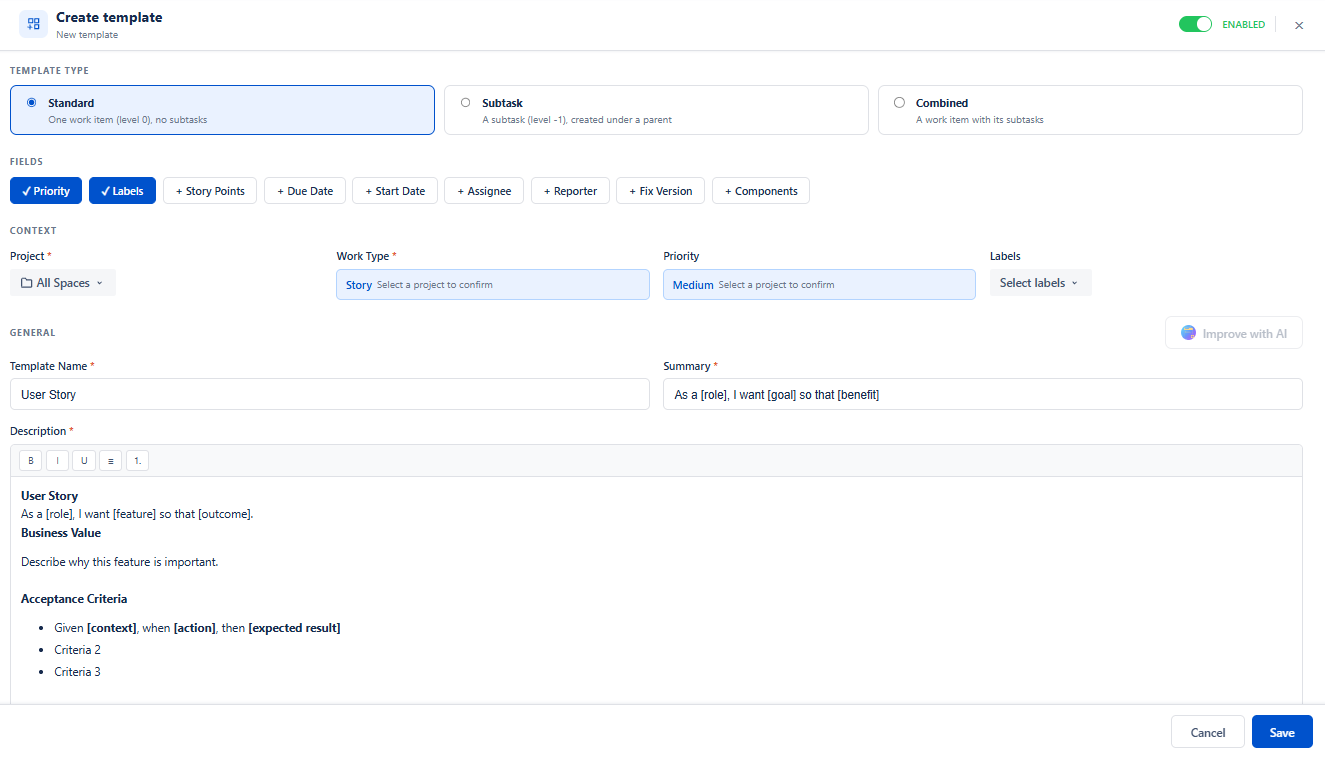
📖 User Story: structured around the standard As a [role], I want [goal] format
-
⚙️ Technical Task: designed for technical implementations and engineering work
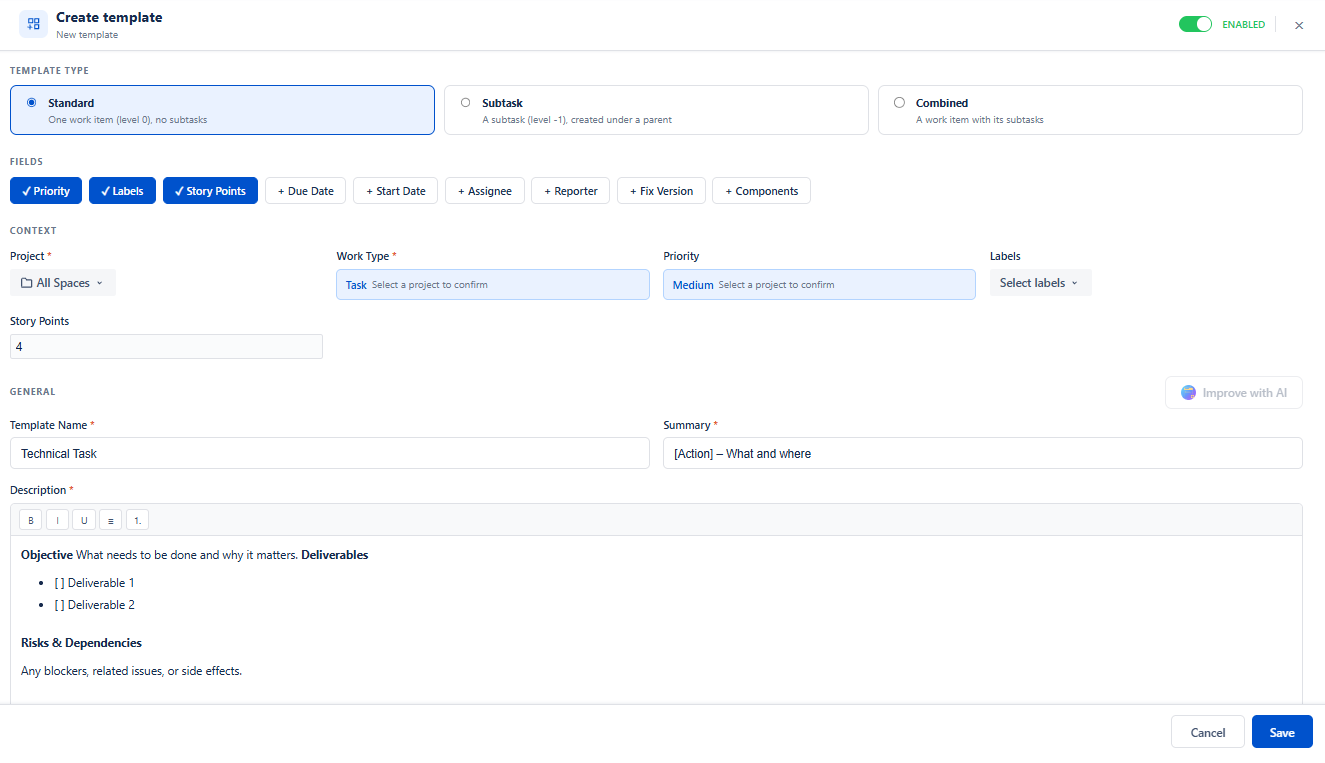
Each option comes with pre-filled fields such as Summary, Priority, Labels, and Description, helping you save time during setup.
Option 2: Custom Template
-
Choose Custom Template to create a template from scratch, defining the fields and structure that best fit your needs.
-
Click Start from scratch → to open a blank template creation form.
Fill in the Template Details
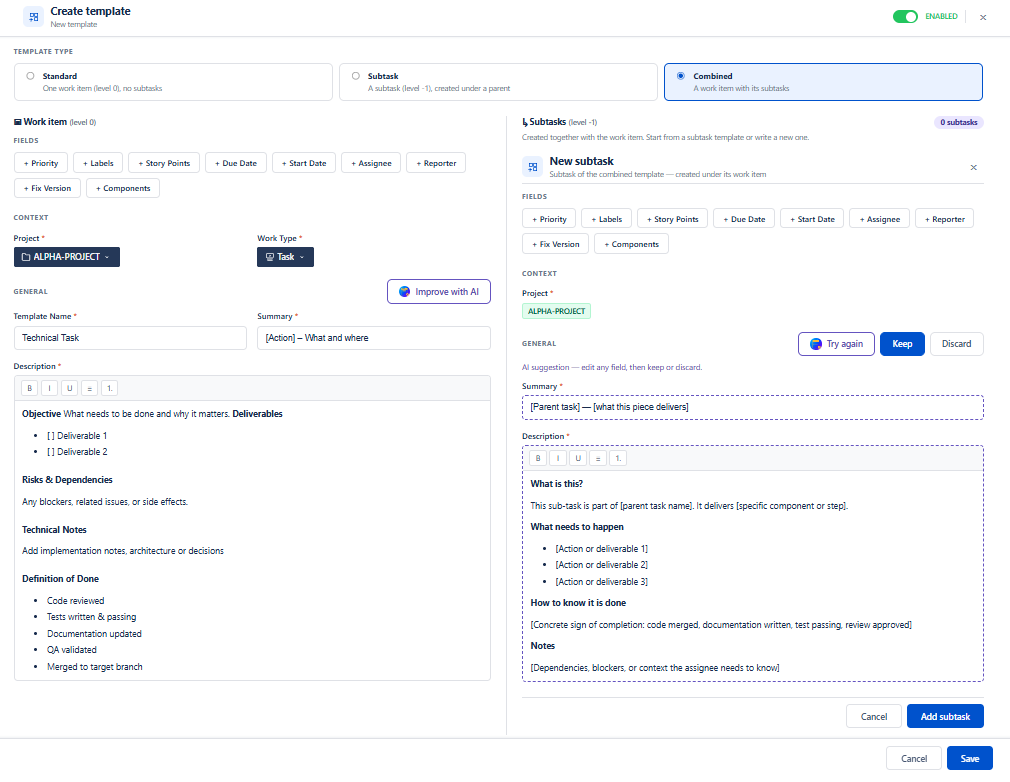
Once the form opens, configure the following sections:
1. Template Type
Select the type of template you want to create:
-
Standard: For regular work items, such as Bugs, Stories, and Tasks.
-
Sub-task: For creating sub-task templates.
-
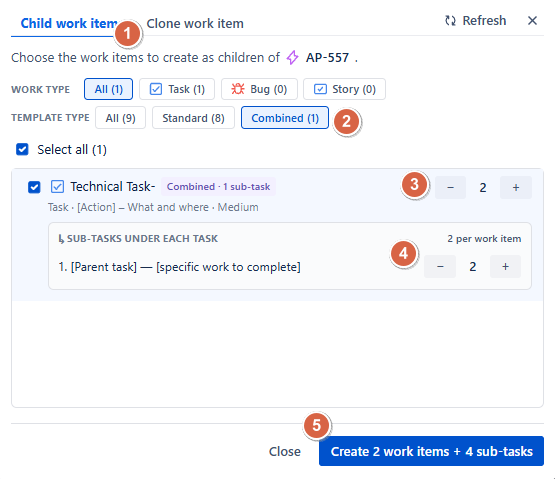
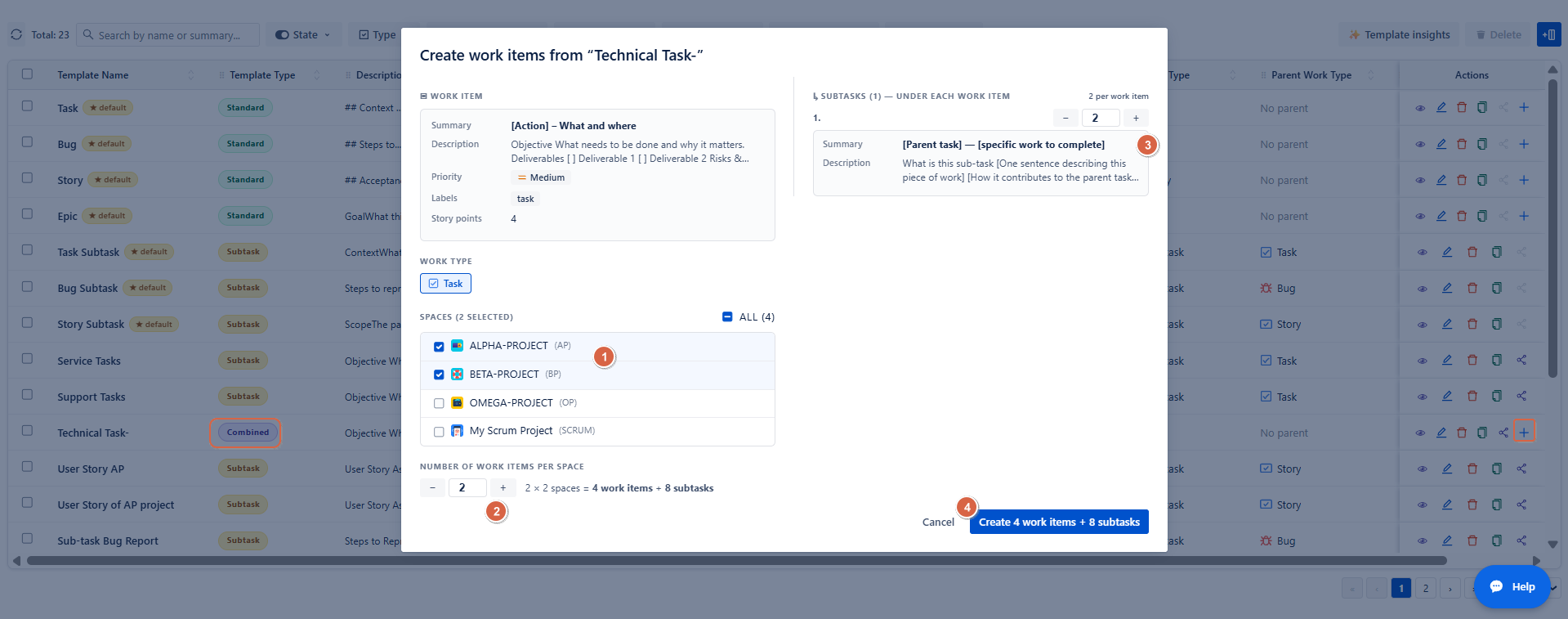
Combined: For templates that include both a parent work item and its sub-tasks. These templates can be used in two ways:
-
When creating work items under an Epic: Select a Combined template to create a child work item along with its predefined sub-tasks and specify the number of parent work items and the number of sub-tasks to create for each one.
-
Directly from the app: Click the + button next to the template to select the project or projects where you want to create the work items, specify the number of parent work items to create, and define the number of sub-tasks for each parent work item.
-
2. Required Fields
Configure the following fields to define the context in which the template can be used:
-
Project: Select the project where the template will be available.
-
Work Type: Select the work item type the template applies to, such as Bug, Story, or Task.
Both fields are required.
3. Optional Fields
Click a field button to add it to your template. Each selected field will appear in the form for you to configure its value.
Available fields:
-
Priority
-
Labels
-
Story Points
-
Due Date
-
Start Date
-
Assignee
-
Reporter
-
Fix Version
-
Components
To remove a field from the template, click its button again.
4. General Information
Complete the following required fields:
-
Template Name: Enter a clear, descriptive name to identify your template.
-
Summary: Provide a short summary for the work item.
-
Description: Add a detailed description using the rich text editor, which supports formatting options such as bold, italic, underline, and lists.
You can click Suggest Content to automatically generate a template name, summary, and description, or fill in these fields manually according to your preferences.
-
Save Your Template
Once all required fields are configured:
-
Review the Enabled toggle at the top right set it to ON to make the template immediately active
-
Click Save
Your template is now saved and ready to use!
Template Scope
A template is linked to specific Projects and Work Item Types. It is only applied when both conditions match during work item creation.
👉 Example: A template associated with the Cloud Project and Bug issue type will only be available when creating a Bug in that project.
To create templates, you need the appropriate permissions set by your Jira administrator. If you don't have permission:
-
You'll see an error message: "You don't have permission to perform create "
-
Contact your Jira administrator to request template creation access
How to Edit a Template
-
Navigate to Apps → Advanced Work Item Templates for Jira .
-
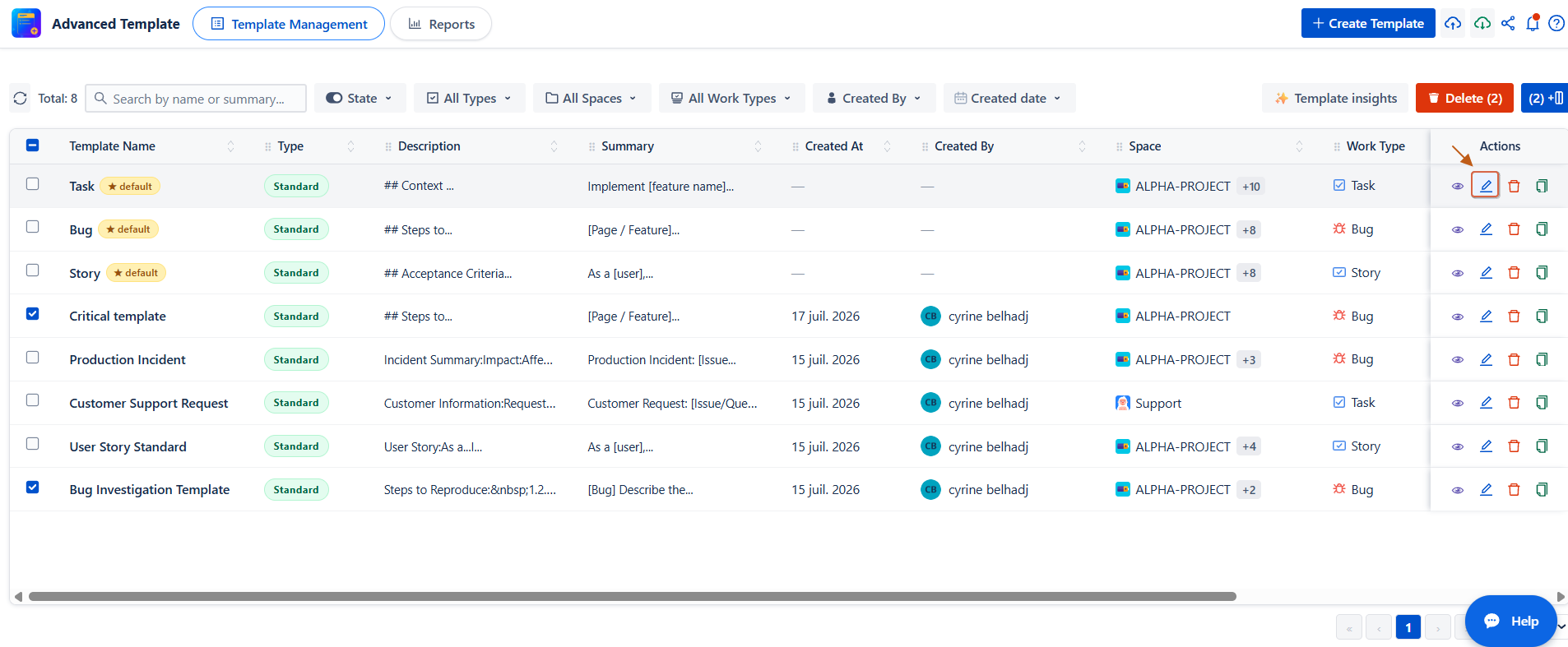
In the template list, select the template you want to modify.
-
Click the Edit Template button (pencil icon) to open the editor.
Edit Template Form
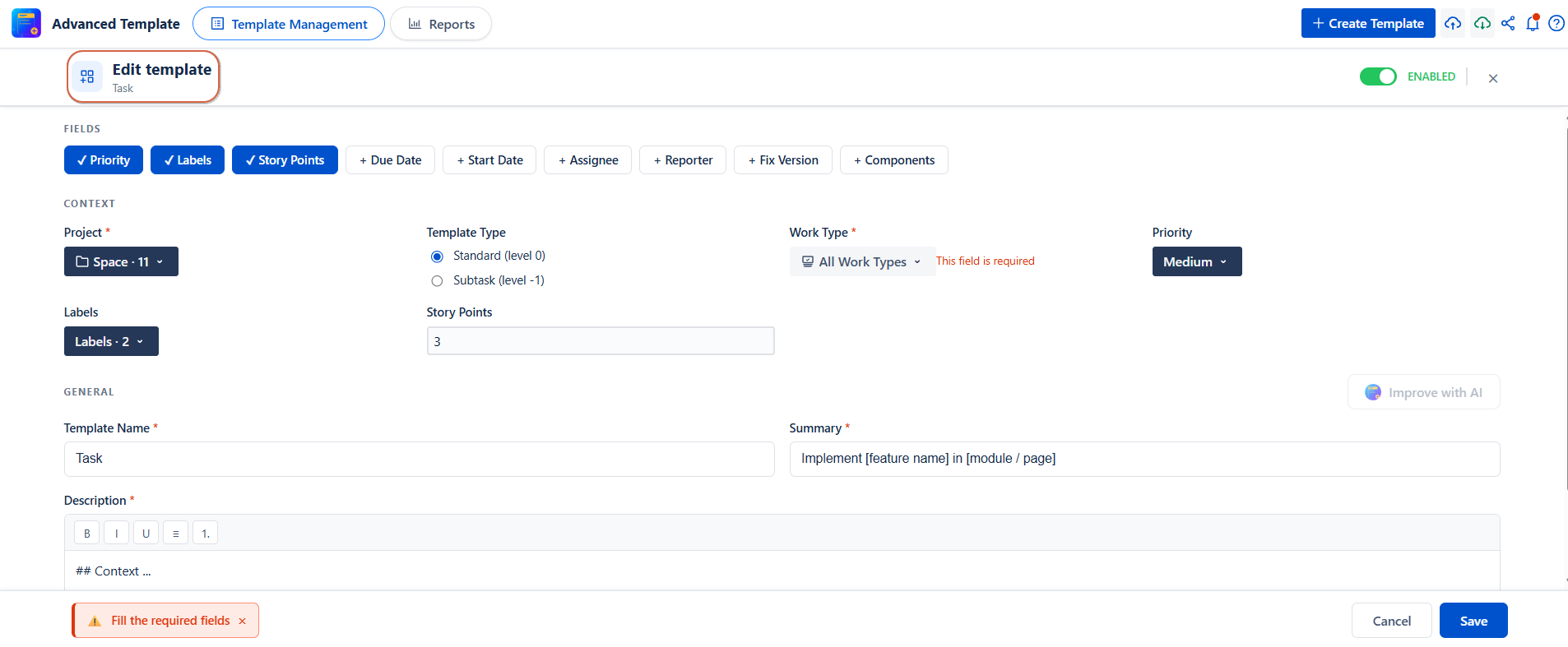
When you open an existing template for editing, the form displays the template's current configuration, allowing you to update its details, modify its fields, and adjust its settings as needed.
1. Template Type
Review the template type. The available types are:
-
Standard: For regular work items, such as Bugs, Stories, and Tasks.
-
Sub-task: For templates designed to create sub-tasks.
-
Combined: For templates that include both a parent work item and its sub-tasks.
2. Required Fields
Update the project and work item type associated with the template:
-
Project: Select the project where the template will be available.
-
Work Type: Select the work item type the template applies to, such as Bug, Story, or Task.
Both fields are required.
3. Optional Fields
Add or remove optional fields to customize the template. Click a field button to add it to the form or click it again to remove it.
Available fields:
-
Priority
-
Labels
-
Story Points
-
Due Date
-
Start Date
-
Assignee
-
Reporter
-
Fix Version
-
Components
You can also update the values of the selected fields to reflect your requirements.
4. General Information
Edit the template's general information:
-
Template Name: Update the name to clearly identify the template.
-
Summary: Modify the summary used for the work item.
-
Description: Update the work item description using the rich text editor, which supports bold, italic, underline, and list formatting.
Once you've made your changes, save the template to apply the updated configuration..
Important Notes When Editing
Multi-Project Templates
When your template is linked to multiple projects:
-
Only fields with common values across all projects are shown
-
For example, if Project A has versions v1.0 and v2.0, but Project B only has v2.0, only v2.0 will appear in the Fix Version dropdown
Field Validation
Required fields are clearly marked. If validation errors occur:
-
Fields with errors display a red border and red background
-
All errors must be resolved before the template can be saved
Saving Your Changes
Once you've made all necessary edits:
-
Review your changes to ensure accuracy
-
Click the Save Changes button
-
A success notification will confirm your template has been updated
How to Duplicate a Template
Follow these steps to create a copy of an existing template:
-
Navigate to Apps → Advanced Work Item Templates for Jira.
-
In the template list, locate the template you want to duplicate.
-
Click Duplicate next to the selected template.
-
A copy of the template will be created and added to the template list.
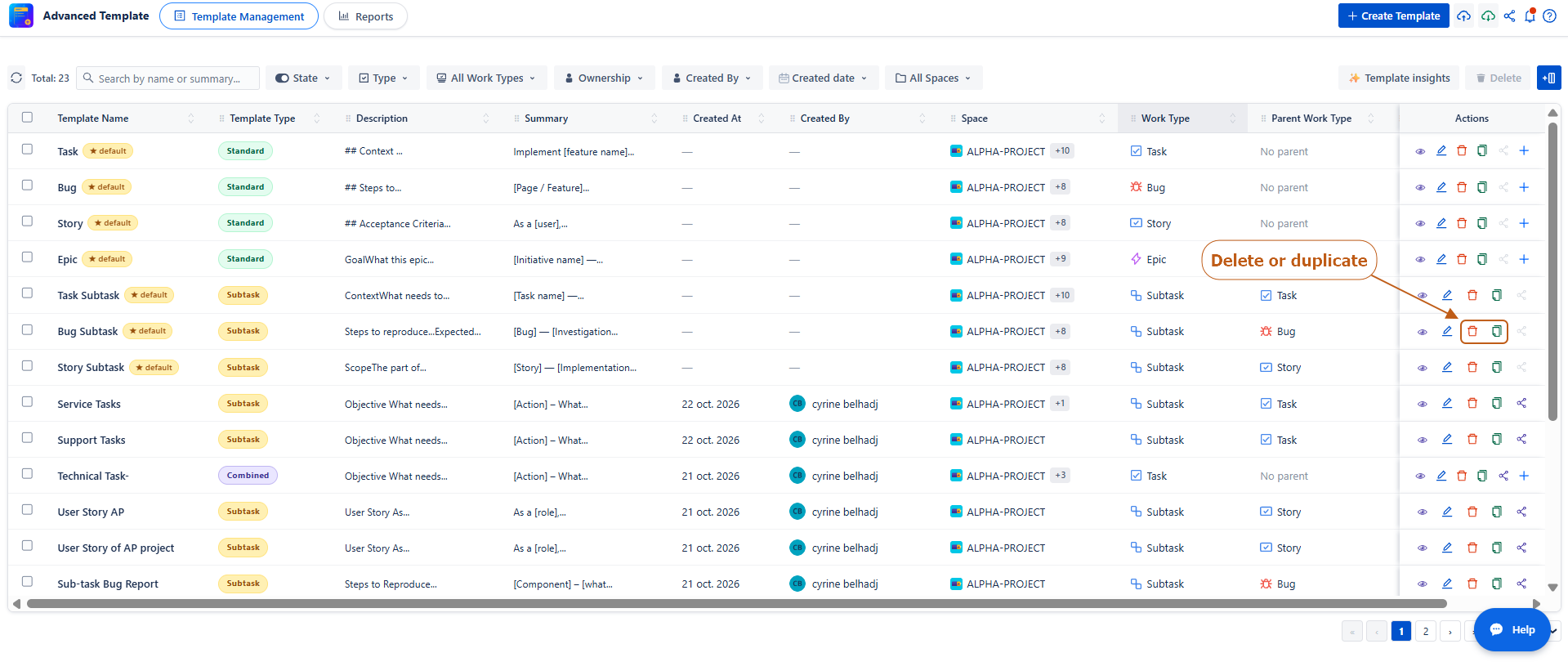
How to Delete a Template
Follow these steps to permanently delete a template:
-
Navigate to Apps → Advanced Work Item Templates for Jira.
-
In the template list, locate the template you want to delete.
-
Click Delete next to the selected template.
-
A confirmation dialog will appear.
-
Click Delete to confirm and permanently remove the template.
To manage templates, you need the appropriate permissions set by your Jira administrator. If you don't have permission:
-
You'll see an error message: "You don't have permission to edit templates"
-
Contact your Jira administrator to request template editing access
Conclusion
With Advanced Work Item Templates for Jira, you can keep your templates organized, up-to-date, and aligned with your team's requirements. Whether you're modifying existing configurations, creating copies, or removing outdated templates, these tools help you manage your templates efficiently and maintain consistency when creating work items.
Need help?
💡 We're here for you! If you have questions or need to report a bug, visit our Help Center and raise a support ticket. Our team is ready to assist you!