
Advanced Work Item Templates for Jira provides two convenient ways to create and manage related work items: creating child work items and sub-tasks from predefined templates, and cloning existing work items.
1. Accessing Work Item Templates
To access the available features:
-
Open the Jira work item you want to use.
-
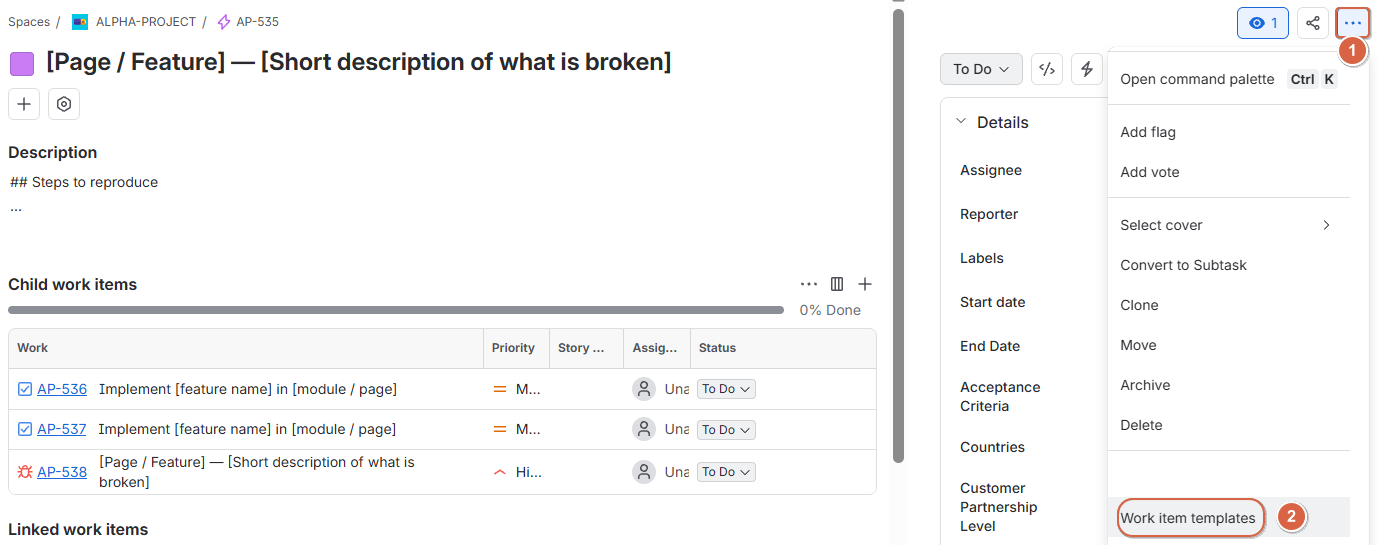
Click the More actions (•••) menu in the upper-right corner.
-
Select Work Item Templates.
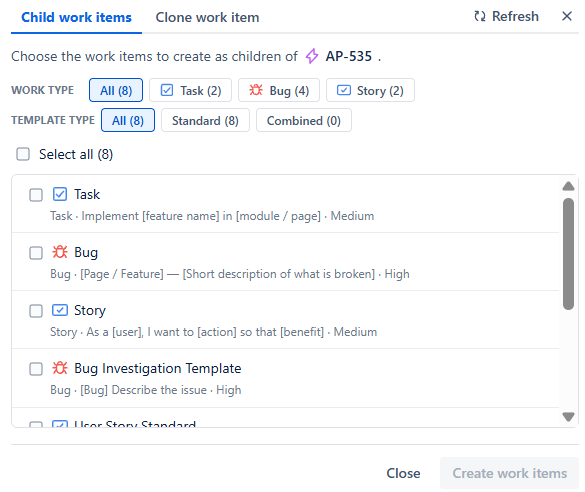
A dialog opens with the available actions. For an Epic hierarchy level 1, the options include:
-
Child work items: Create child work items from predefined templates.
-
Clone work item: Create copies of the current work item, with options to copy related work items and links.
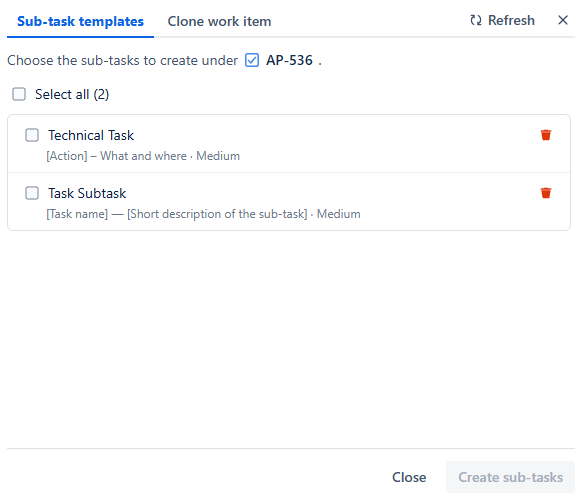
A dialog opens with the available actions. For work item with hierarchy level 0 , the options include:
-
Sub-task templates : Create subtasks work items from predefined templates .
-
Clone work item: Create copies of the current work item, with options to copy related work items and links.
The available actions vary depending on the type and hierarchy level of the selected work item.
2. Creating Child Work Items and Sub-tasks
The Child work items and subtasks feature allows you to create one or multiple work items from predefined templates. The available templates depend on the selected parent work item and its hierarchy level.
2.1. Creating Child Work Items Under an Epic
An Epic is at hierarchy level 1 and can contain compatible child work items, such as Tasks, Bugs, and Stories.
Step 1: Open the Epic
-
Navigate to the Epic under which you want to create child work items.
Step 2: Open Child Work Items
-
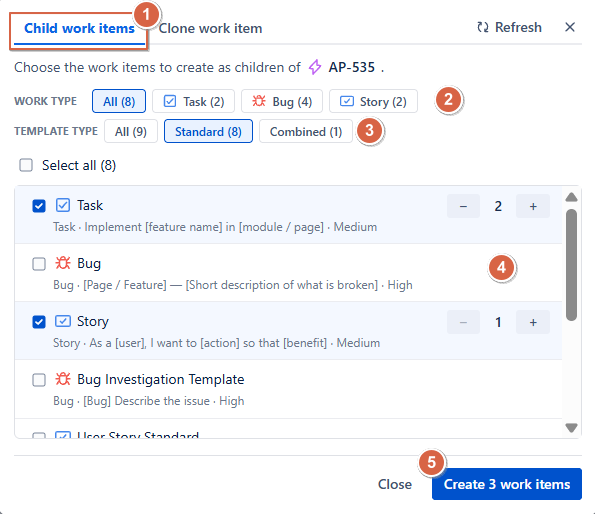
Click the More actions (•••) menu, select Work Item Templates, and choose Child work items.
Step 3: Filter and Select Templates
Use the available filters to find the appropriate templates:
-
Work type: Filter templates by work item type, such as Task, Bug, or Story.
-
Template type: Filter templates by category, such as Standard or Combined.
-
Select : Select all templates displayed in the list.
Select one or more templates according to the work items you want to create.
Step 4: Specify the Number of Child Work Items
-
For each selected template, specify the number of child work items to create. You can create multiple work items from the same template or select different templates to generate various types of children in one operation.
Step 5: Create the Child Work Items
-
Click Create to generate the selected work items.
The new work items are created under the selected Epic using the chosen templates and specified quantities.
2.2. Creating Sub-tasks Under a Work Item
-
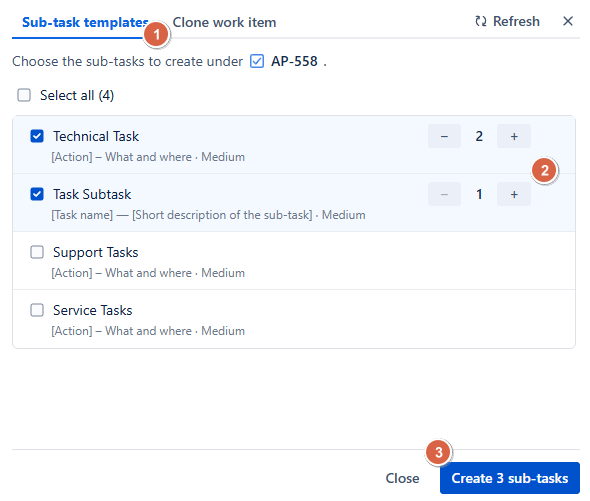
For work items at hierarchy level 0, such as Bugs, Tasks, and Stories, the feature allows you to create sub-tasks using compatible sub-task templates.
Step 1: Open the Parent Work Item
Navigate to the Bug, Task, Story, or other supported work item under which you want to create sub-tasks.
Step 2: Open the Sub-task Templates
Click the More actions (•••) menu, select Work Item Templates, and open the sub-task creation option.
The dialog displays the sub-task templates compatible with the selected parent work item. The available templates are determined by the parent work item type, ensuring that the resulting sub-tasks can be created under the selected parent.
Step 3: Select Templates and Specify Quantities
Select one or more compatible templates and specify the number of sub-tasks to create from each template.
Step 4: Create the Sub-tasks
Click Create to generate the sub-tasks.
3. Cloning Work Items
-
The Clone work item feature allows you to create one or multiple copies of an existing Jira work item. Depending on the source work item type, you can choose whether to copy its links, child work items, and sub-tasks, as well as specify where the cloned work items should be created within the hierarchy.
3.1. Cloning an Epic
-
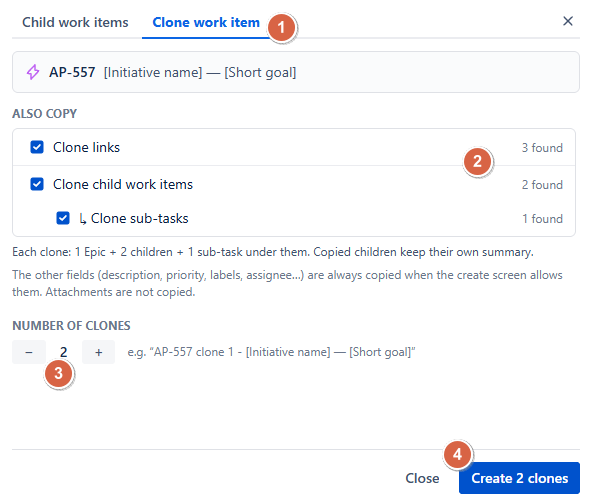
When cloning an Epic at hierarchy level 1, the dialog provides options for copying related work items.
Step 1: Open the Epic
-
Navigate to the Epic you want to duplicate.
Step 2: Open the Cloning Dialog
-
Click the More actions (•••) menu, select Work Item Templates, and choose Clone work item.
-
The dialog displays the source Epic and the available cloning options.
Step 3: Configure the Cloning Options
Under Also copy, you can configure the following options:
-
Clone links: Copy the links associated with the original Epic.
-
Clone child work items: Copy the child work items associated with the original Epic.
Step 4: Specify the Number of Clones
Under Number of clones, use the − and + controls to specify how many copies you want to create.
Step 5: Create the Clones
Review your selections and click Create.
3.2. Cloning Bugs, Tasks, Stories, and Other Work Items
-
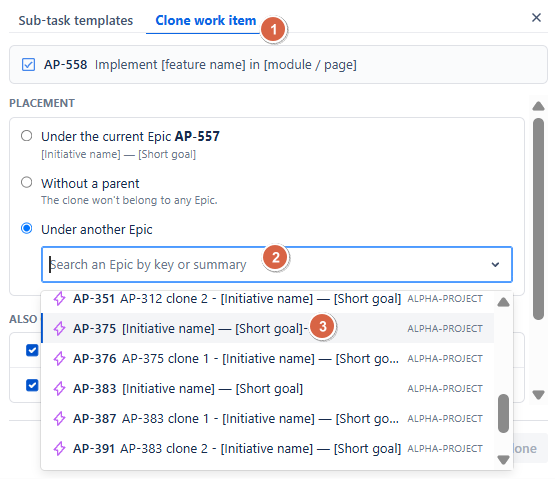
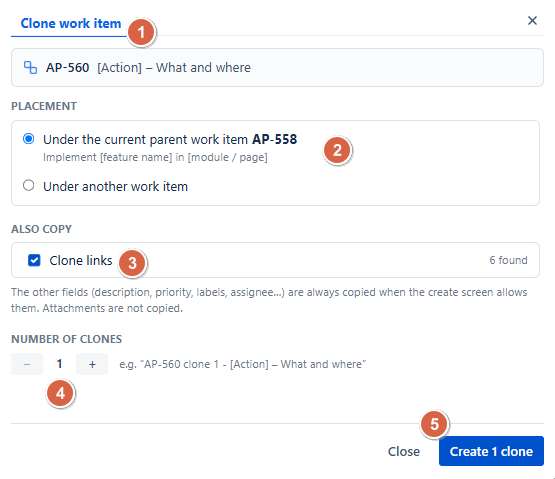
When cloning a work item at hierarchy level 0, such as a Bug, Task, or Story, the dialog provides options for copying related items and selecting the parent of the cloned work item.
Step 1: Open the Work Item
Navigate to the work item you want to clone.
Step 2: Open the Cloning Dialog
Click the More actions (•••) menu, select Work Item Templates, and choose Clone work item.
Step 3: Configure the Cloning Options
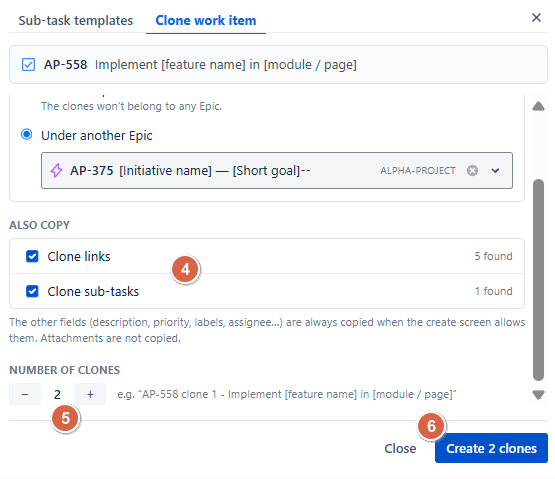
Under Also copy, review the available options:
-
Clone links: Copy the links associated with the original work item.
-
Clone sub-tasks: Copy the existing sub-tasks associated with the original work item.
The dialog indicates whether links or sub-tasks are available to copy. For example, if the work item has no links, the dialog displays that no links are available.
Step 4: Choose the Parent of the Cloned Work Item
The available parent options depend on whether the original work item already has a parent.
-
If the original work item has a parent:
-
Clone under the current parent.
-
Clone under another parent.
-
Clone without a parent.
-
-
If the original work item does not have a parent:
-
Clone under a parent by selecting an available Epic.
-
Clone without a parent.
-
Step 5: Specify the Number of Clones
Use the − and + controls under Number of clones to select how many copies to create.
Step 6: Create the Clones
Review the selected cloning options and parent configuration, then click Create.
3.3. Cloning Sub-tasks
When the source work item is itself a sub-task, the cloning dialog provides options for choosing the parent of the cloned sub-task.
You can choose to:
-
Clone under the current parent: Keep the cloned sub-task under the same parent as the original.
-
Clone under another parent: Select another compatible work item as the parent.
After selecting the desired parent, specify the number of clones and click Create.
Need help?
🤝 We're here for you! If you have any questions, suggestions, or feature requests, feel free to reach out — we typically respond within 4 hours.
Conclusion
Advanced Work Item Templates for Jira makes work item creation faster and more flexible by combining template-based creation with cloning capabilities.
Together, these features reduce repetitive manual work, improve consistency, and help teams organize their Jira work more efficiently.