
The Permissions section enables Jira administrators to manage access to Advanced Work Item Templates for Jira by defining who can perform specific actions. Permissions can be assigned at both user and group level, ensuring precise and secure control over feature access.
🔒 Admin Only: This section is exclusively accessible to Jira Administrators.
How to Access
-
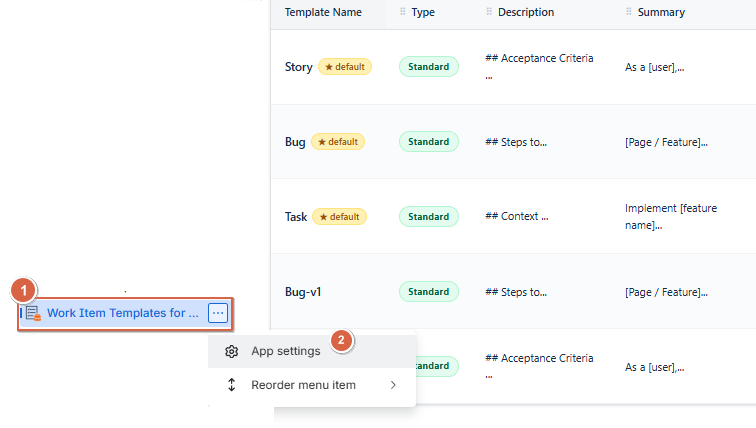
Navigate to Apps → Advanced Work Item Templates for Jira
-
Click on the ⋯ (three dots) on the right
-
Click on App Settings
-
Click on the Permissions tab
Available Permissions
The following permissions can be assigned:
|
Permission |
Description |
|---|---|
|
Create |
Allows users to create new templates. |
|
Edit |
Allows users to modify existing templates. |
|
Delete |
Allows users to remove templates. |
|
Duplicate |
Allows users to create copies of existing templates. |
|
View Statistics |
Allows users to access template usage statistics and analytics. |
Users Tab
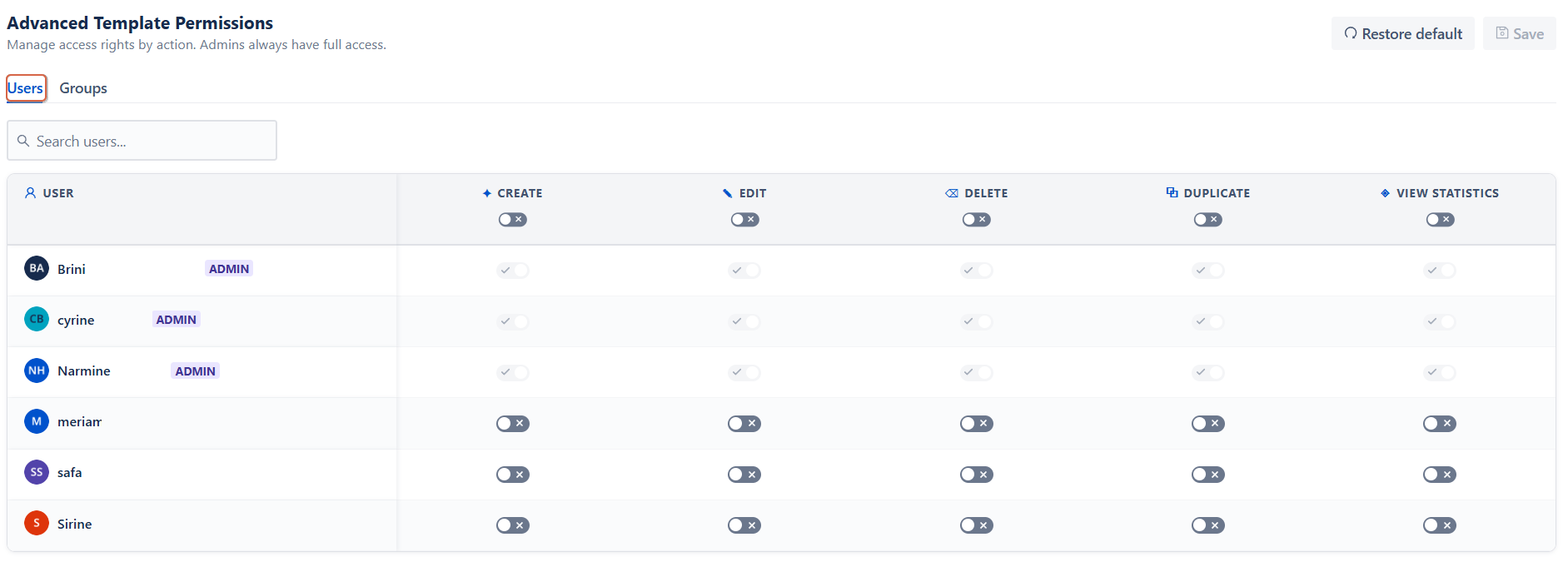
The Users tab displays all users who can be granted permissions individually.
Managing User Permissions
-
Open the Users tab.
-
Use the search bar to find a specific user.
-
Enable or disable the desired permission by toggling the corresponding column.
-
Click Save to apply the changes.
You can configure permissions separately for each user, allowing precise control over who can create, edit, delete, duplicate templates, or view statistics.
Groups Tab
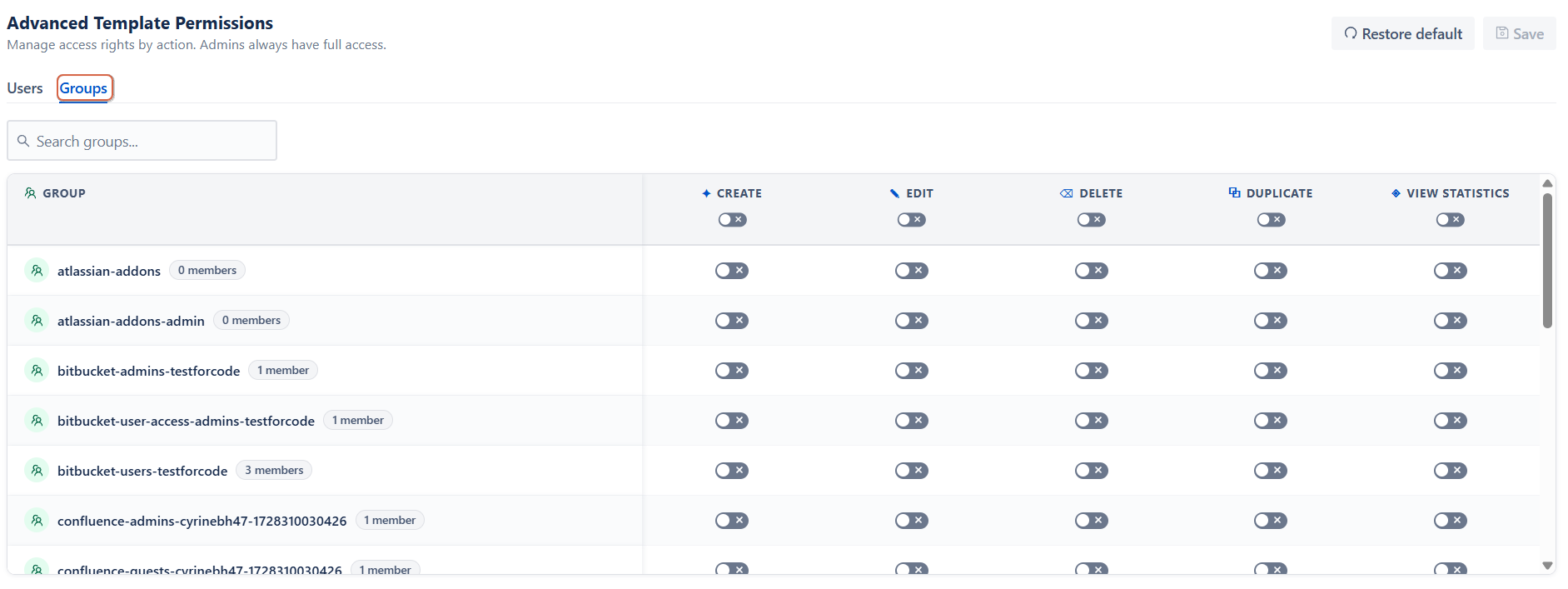
The Groups tab allows administrators to assign permissions to entire Jira groups.
Managing Group Permissions
-
Open the Groups tab.
-
Use the search bar to find a specific group.
-
Enable or disable permissions for the group using the corresponding toggles.
-
Click Save to apply the changes.
All members of a group inherit the permissions assigned to that group, making it easier to manage access for multiple users at once.
Additional Actions
Restore Default
Click Restore Default to reset all permission settings to their default configuration.
Save
Click Save to apply and store any permission changes made in the Users or Groups tabs.
Note: Jira administrators always retain full access to all template actions, regardless of the configured permissions.
Conclusion
The Permissions section gives Jira administrators full control over access to Advanced Work Item Templates for Jira. By managing user and group-level permissions, you can ensure that each feature is securely assigned to the right people, maintaining both flexibility and governance across your organization.
Need help?
🤝 We're here for you! If you have any questions, suggestions, or feature requests, feel free to reach out — we typically respond within 4 hours.