
Atlassway brings AI-powered assistance directly into Advanced Work Item Templates for Jira. Ask Help how to use the app, analyze your templates with Template Insights, or use AI to create and improve template content. Get quick guidance, useful recommendations, and links to detailed documentation all without spending time searching manually.
Help & Template Insights AI-Powered Assistance
Ask Help How to Use Advanced Work Item Templates for Jira
-
Help is the in-app documentation assistant for Advanced Work Item Templates for Jira. Instead of searching through documentation manually, you can simply ask Help what you want to do.
-
Help answers questions using the product documentation and guides you through the required steps.
What can Help do?
-
Help can guide you through the main features of the application, including:
|
Area |
What Help can explain |
|---|---|
|
Templates |
Create, edit, duplicate, delete, and scope templates |
|
Defaults |
Configure templates to be applied automatically |
|
Permissions |
Understand who can create, edit, delete templates, and access statistics |
|
History |
Find template changes and application history |
|
Reports |
Understand template usage statistics and reports |
How to use Help
-
Open Advanced Work Item Templates for Jira.
-
Click Help.
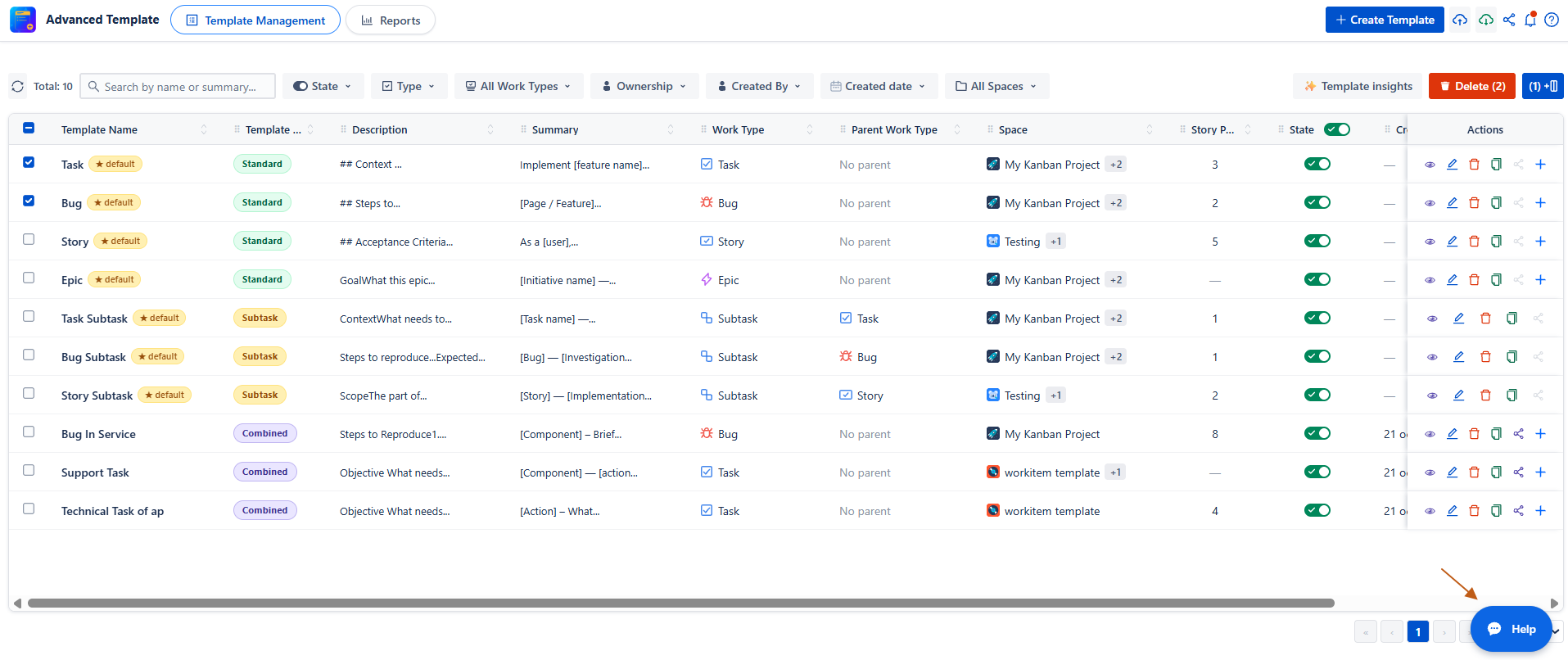
-
Ask your question in natural language.
-
Help provides the steps required to complete the task.
-
When detailed information is useful, Help can direct you to the relevant documentation page.
For example, instead of searching the documentation for instructions, you can simply ask:
How do I create a template?
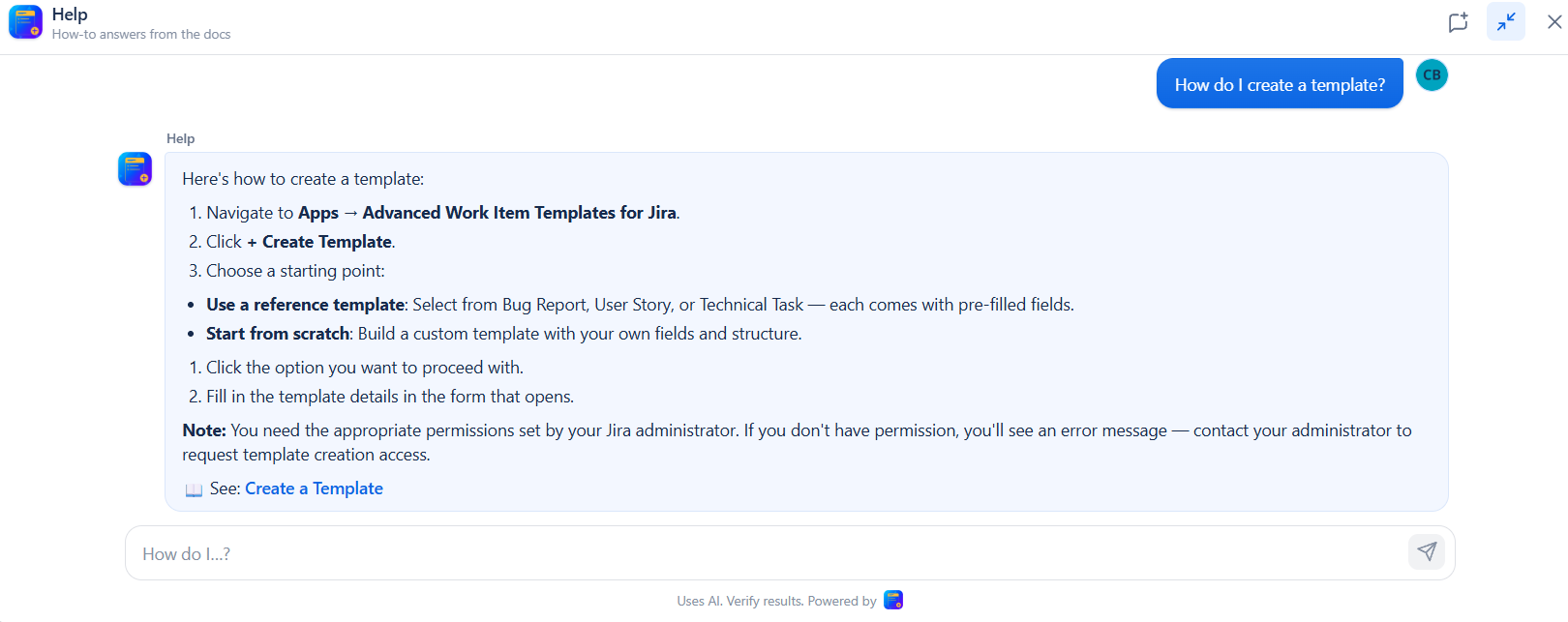
The goal is simple: ask what you want to do, and Help guides you through how to do it.
Template Insights
-
Template Insights helps administrators understand and improve their templates using AI.
-
The assistant analyzes your existing templates and provides recommendations and insights. Nothing is changed automatically the feature only analyzes your templates and provides guidance.
Template Insights includes three capabilities:
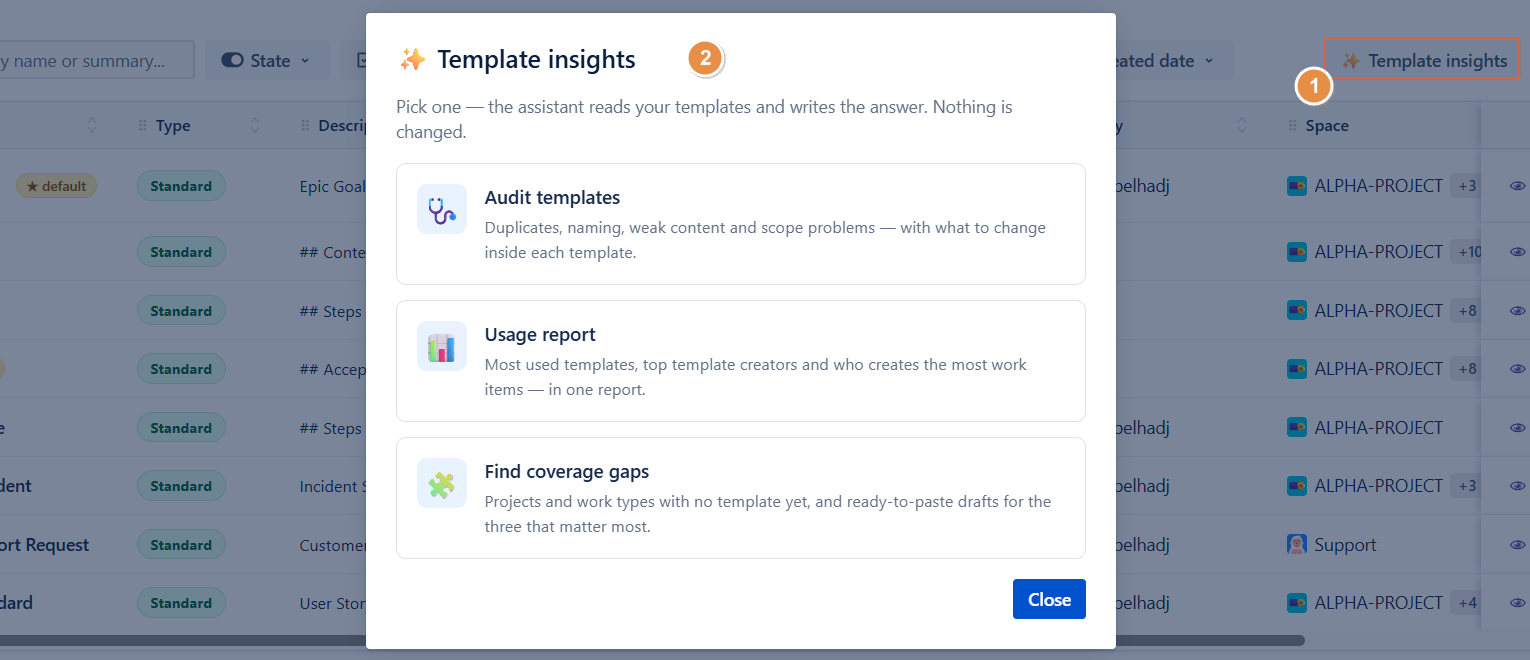
🩺 Audit Templates
Use Audit Templates to review the quality and configuration of your existing templates.
The audit can identify areas such as:
-
Naming inconsistencies
-
Weak or incomplete template content
-
Duplicate or very similar templates
-
Templates that may need improvement
-
Recommendations for what should be changed
How to use it
-
Open Advanced Work Item Templates for Jira.
-
Go to Template Insights.
-
Select Audit Templates.
-
The assistant analyzes your templates.
-
Review the audit results and recommendations.
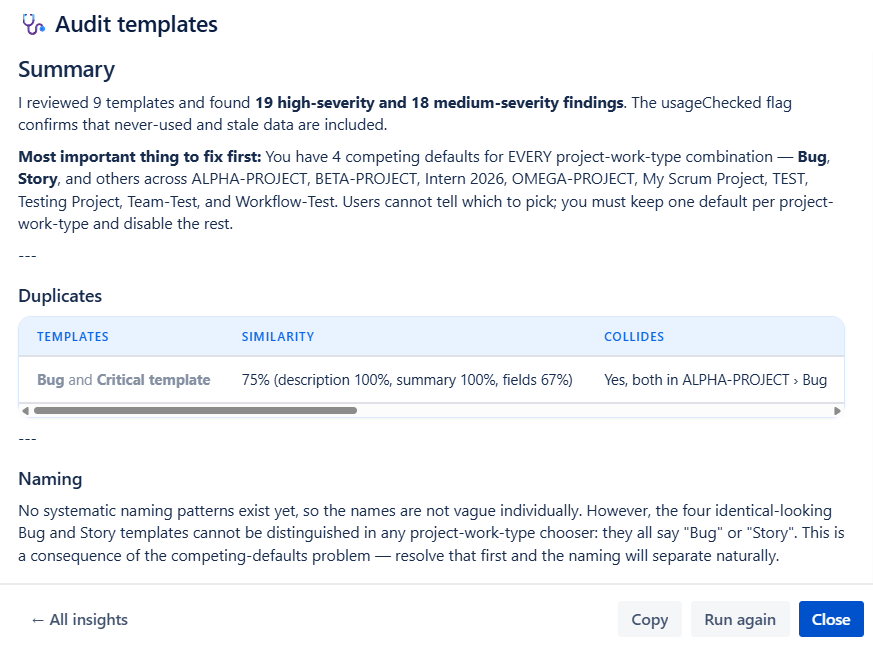
The results help you understand which templates need attention and what you can improve inside each template.
📊 Usage Report
The Usage Report gives you an AI-generated overview of how your templates are being used.
It can provide insights such as:
-
Most-used templates
-
Top template creators
-
Users creating the most work items through templates
-
Overall template usage patterns
How to use it
-
Open Template Insights.
-
Select Usage Report.
-
The assistant analyzes the available template usage data.
-
Review the generated report and insights.
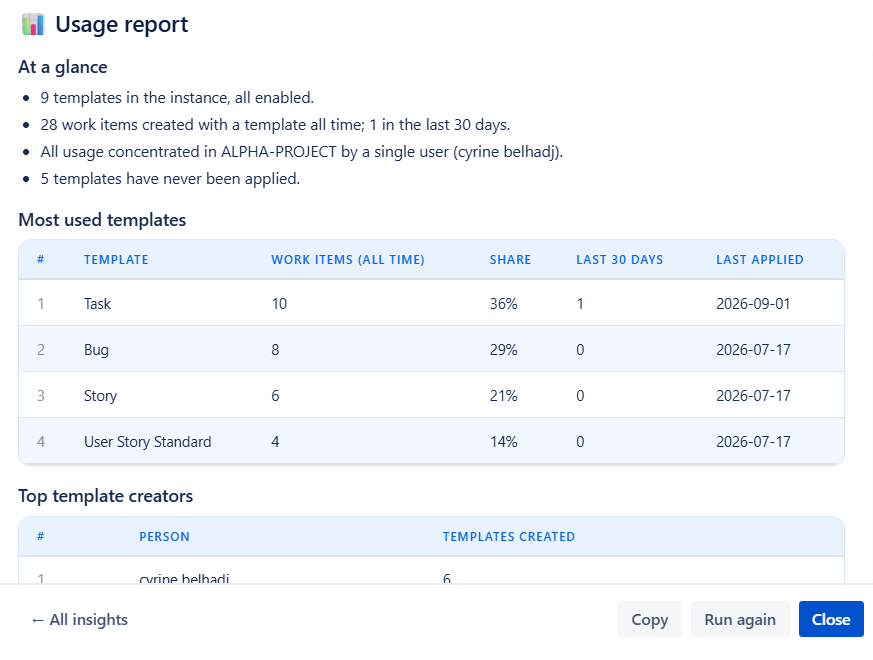
This helps you understand which templates are actually being used and how your team is using them.
🧩 Find Coverage Gaps
Find Coverage Gaps helps identify areas where templates are missing.
The assistant analyzes your projects and work item types to identify combinations that do not have a template yet.
It can provide:
-
Projects without templates
-
Work item types without templates
-
Template coverage gaps
-
Recommendations for areas that could benefit from a template
-
Ready-to-paste template drafts for the three most relevant gaps
How to use it
-
Open Template Insights.
-
Select Find Coverage Gaps.
-
The assistant analyzes your existing template coverage.
-
Review the identified gaps.
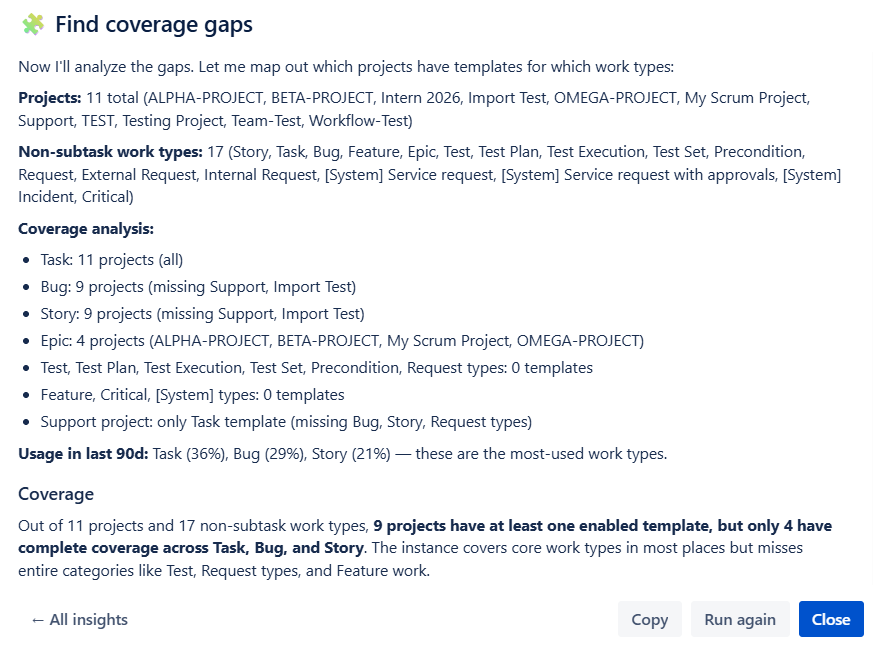
This makes it easier to identify where your team is still creating work items from scratch and where a reusable template could help.
A simpler way to work with the app
-
Instead of spending time searching documentation or manually reviewing templates, you can use the AI features directly inside the application:
-
Need to know how to do something? → Ask Help.
-
Want to check your templates? → Run Audit Templates.
-
Want to understand usage? → Run Usage Report.
-
Want to find missing templates? → Find Coverage Gaps.
-
All of these features are designed to reduce the time spent searching, reviewing, and understanding the application while keeping you in control of the final decisions.
Improve Work Items with AI
-
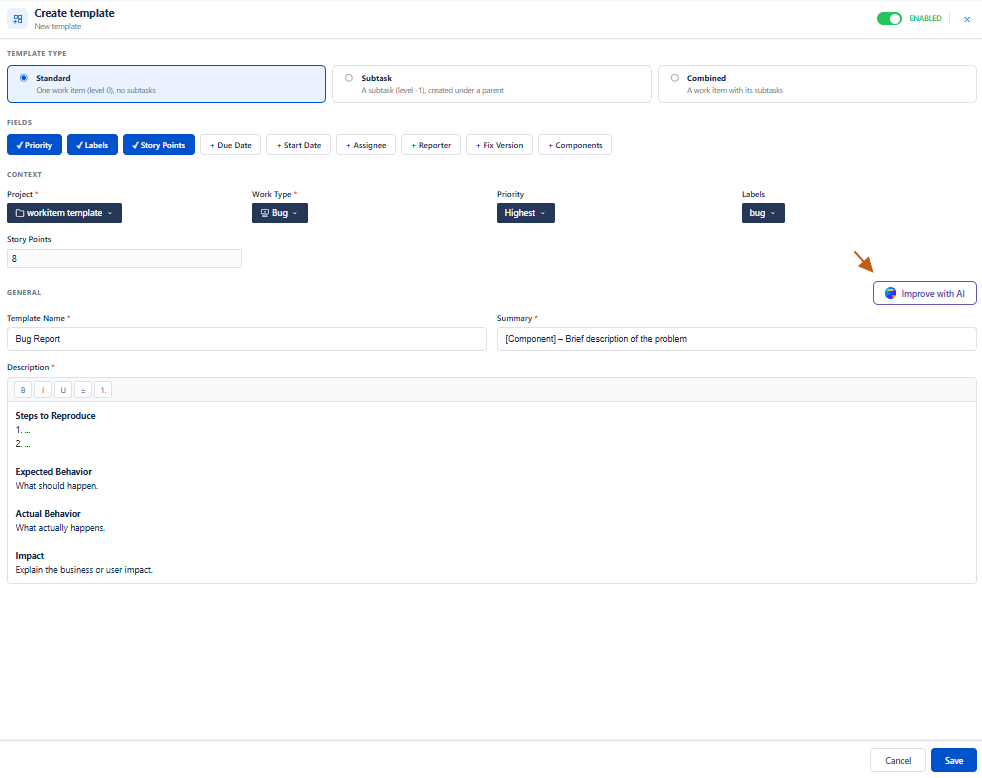
Improve with AI helps you quickly enhance the content of your work items using AI. It can improve the Description, Template Name and Summary , making it clearer, more complete, and easier to understand.
How to Use Improve with AI
To improve a work item:
-
Open Advanced Template Manager for Jira and navigate to Create Templates.
-
Select a template.
-
Select the Project and Work Item Type.
-
Click Improve with AI.
-
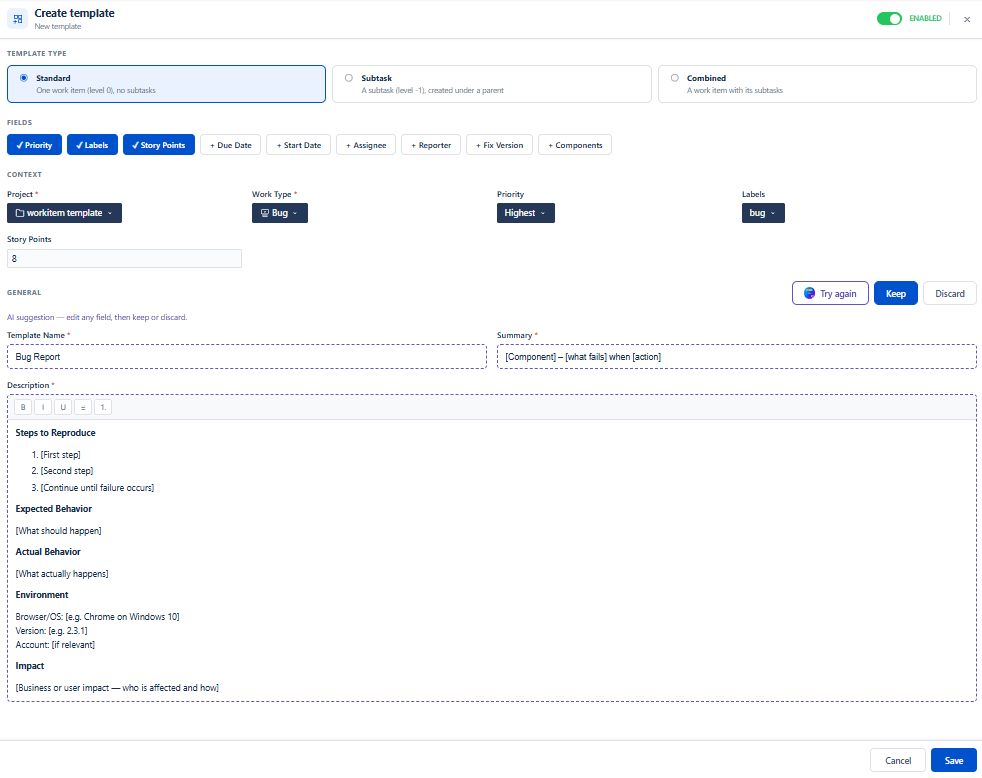
The AI analyzes the existing Template name , Summary and Description and suggests improved content.
-
After the AI generates an improved version, you have three options:
-
Try Again : Generate a different version if you are not satisfied with the suggestion.
-
Discard : Remove the AI-generated content and keep the default template content.
-
Keep & Save : Keep the improved content and save the updated template.
-
-
Review the generated content and apply the changes if they meet your needs.
What AI Improves
The Improve with AI feature can help you:
-
Improve the Description, Template Name and Summary with better structure and wording.
-
Add clarity and useful details to existing content.
-
Reduce the time spent manually rewriting work-item content.
The Improve with AI feature is currently available for default templates. To enable the Improve with AI button, you must first select both a Project and a Work Item Type.
Suggest Content with AI
Suggest Content helps you quickly create a relevant description for a new template using AI. The suggested content is generated based on the selected project and work item type, helping you create templates faster without starting from scratch.
How to Use Suggest Content
To generate content for a new template:
-
Open Advanced Template Manager for Jira and navigate to Templates.
-
Click Create Template.
-
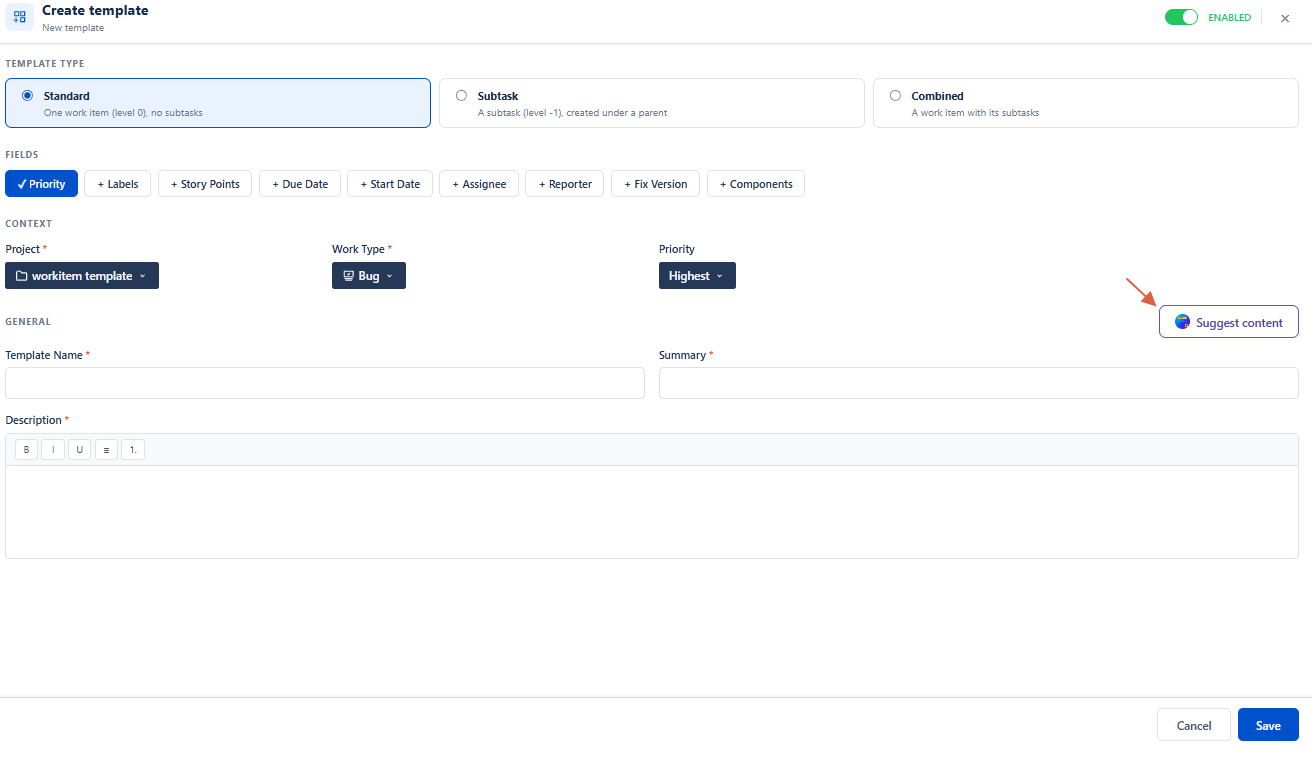
Select Custom Template.
-
Select the Project and Work Item Type for your template.
-
Once both are selected, the Suggest Content button becomes available.
-
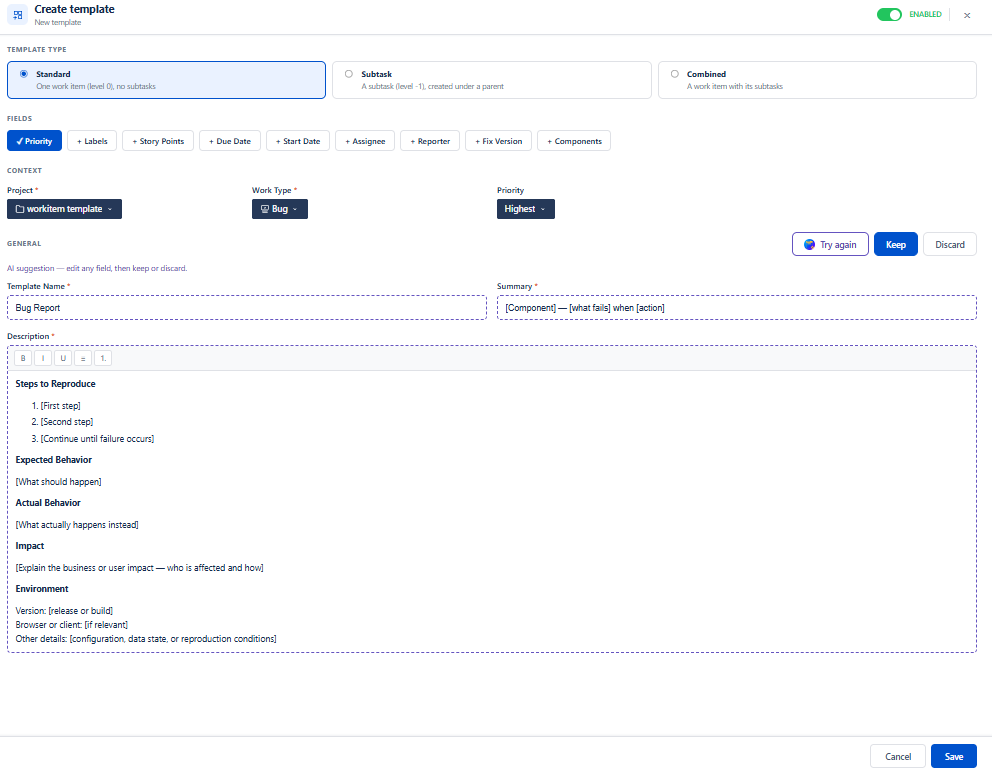
Click Suggest Content to generate an AI-powered description based on your selected project and work item type.
-
Review the generated content and apply the changes if they meet your needs.
-
After the AI generates the Description, Template Name and Summary , you have three options:
-
Try Again : Generate another suggestion if you want a different version.
-
Discard : Remove the AI-generated content and return to the empty/default description.
-
Keep and Save : Keep the suggested content and save it as part of your template.
-
The Suggest Content feature is available only when creating a Custom Template from scratch. You must first select both a Project and a Work Item Type for the Suggest Content button to become available.
With Suggest Content, you can create relevant and structured template content in just a few clicks, saving time and reducing the effort of writing descriptions from scratch.
Ready to get started with AI? Install Advanced Work Item Templates for Jira and start using Atlassway Agent to get instant guidance, discover template insights, and create or improve your templates with AI.
Conclusion
With Atlassway Agent, managing Jira templates becomes simpler and faster. Whether you need help using the app, reviewing templates, finding gaps, or creating content, AI provides guidance and practical suggestions while keeping you in control.