
The project-level view of Advanced Work Item Templates for Jira allows you to manage templates in the context of a specific Jira project. It provides an overview of the templates associated with the project, along with tools to search, filter, customize, and manage them efficiently.
The interface includes the same core management features as the global overview, with an additional Space Scope filter that controls which templates are displayed.
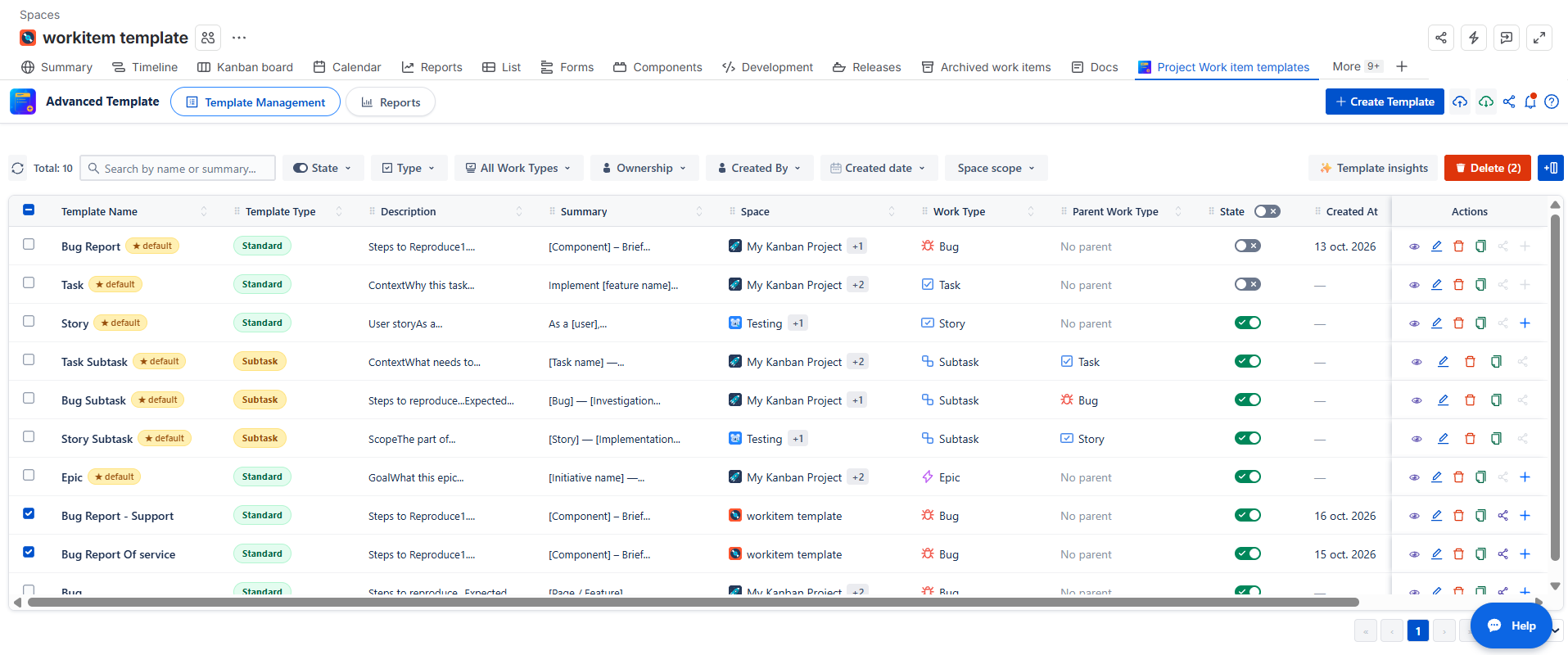
Page Structure
The table provides an overview of the available templates and their configurations, including:
-
Template Name
-
Template Type (Standard, Sub-task, or Combined)
-
Description
-
Summary
-
Project
-
Work Type (Bug, Task, Story, etc.)
-
Parent Work Type
-
Priority
-
Enabled Status
-
Actions
Available Features
Search and Filter Templates
Use the search bar to quickly find a specific template by name. You can further refine the results using the available filters:
-
State: Filter templates by status (Enabled or Disabled).
-
Template Type: Filter by Standard, Sub-task, or Combined templates.
-
All Work Type: Filter by work item type, such as Bug, Task, Story, or Sub-task.
-
All Parent Work Types: Filter templates by their parent work item type.
-
Ownership: View your own templates or templates shared with you.
-
Created By: Filter templates by the user who created them.
-
Created Date: Filter templates by their creation date.
-
Space Scope: Choose which templates to display within the project context.
Click Clean Filters to reset all filters at once.
The Space Scope filter offers two options:
-
Current Space Templates: Displays only the templates associated with the current project.
-
Cross Spaces: Displays templates associated with multiple projects, including templates that the current project is part of.
Parent Work Type Filter
The Parent Work Type filter appears in either of the following cases:
-
When Sub-task is selected as the template type.
-
When Sub-task is selected in the Work Type filter.
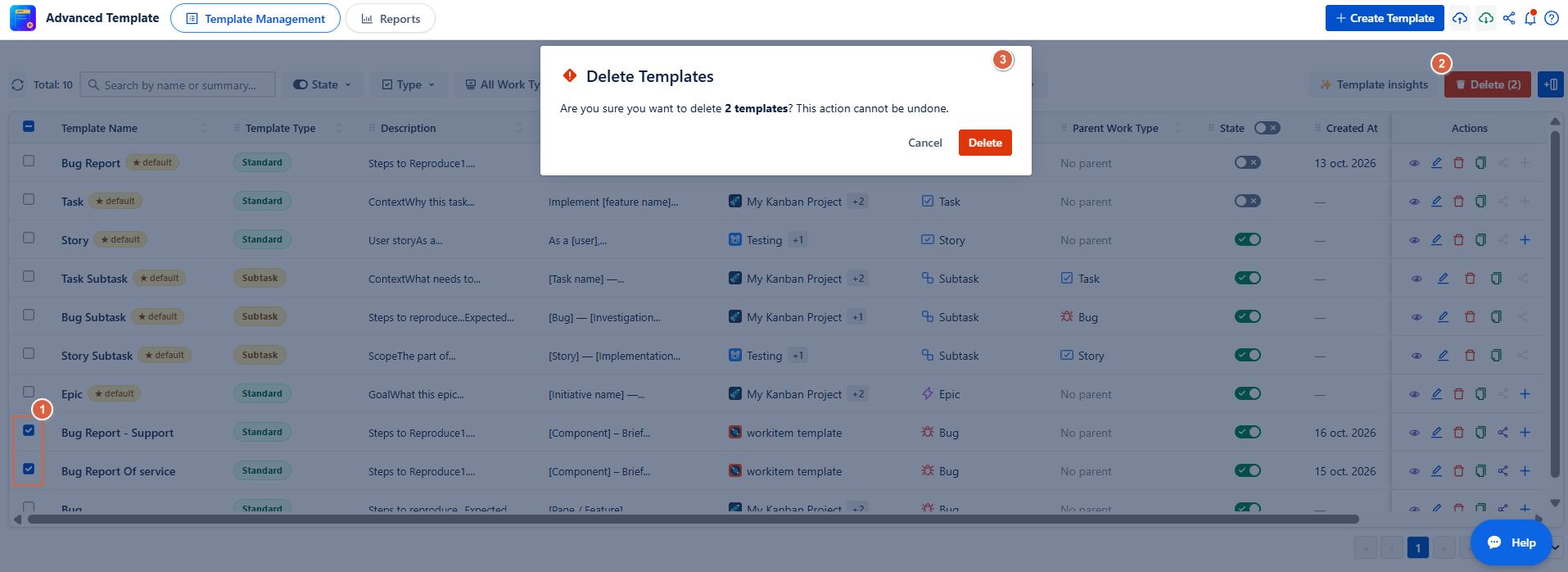
Bulk Delete
Use Bulk Delete to remove multiple templates in a single operation.
-
Click Bulk Delete.
-
Select one or more templates from the list.
-
Click Delete.
-
Confirm the deletion to permanently remove the selected templates.
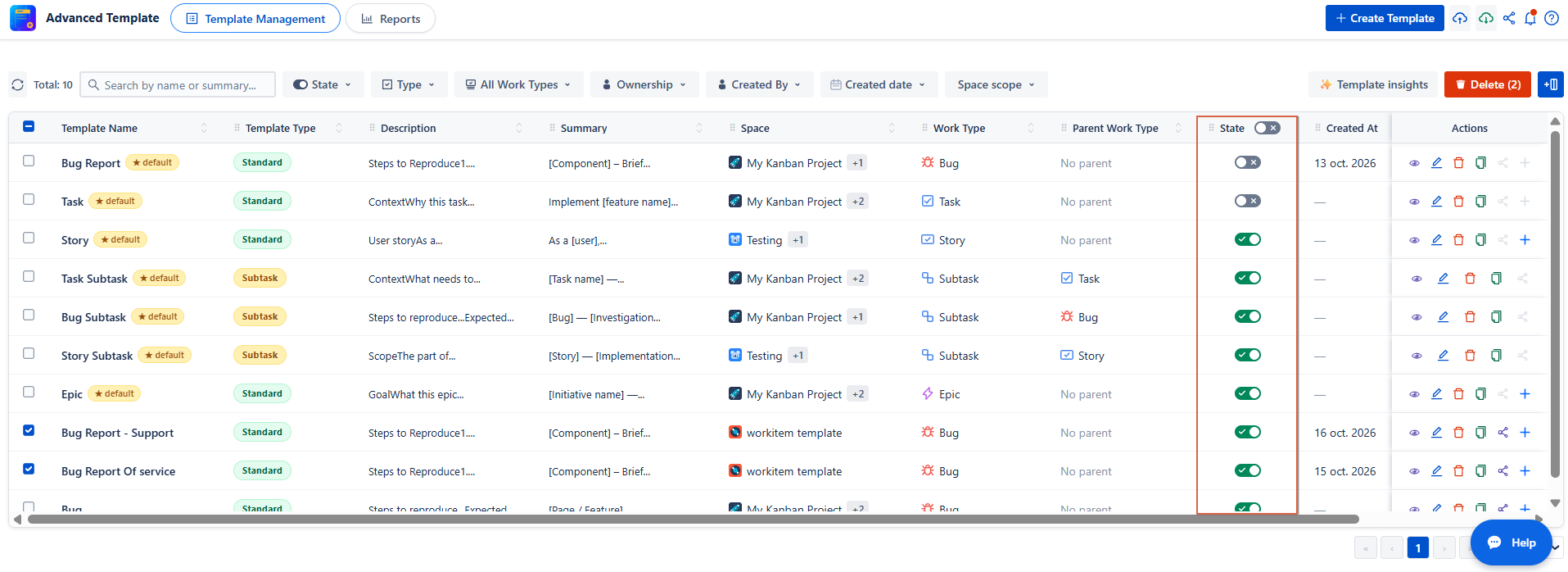
Enable or Disable Templates
Each template has an individual toggle that allows you to activate or deactivate it.
-
ON: The template is enabled and available for use according to its configuration.
-
OFF: The template is disabled and will not be applied.
You can also use the toggle in the Enabled column header to enable or disable all templates at once.
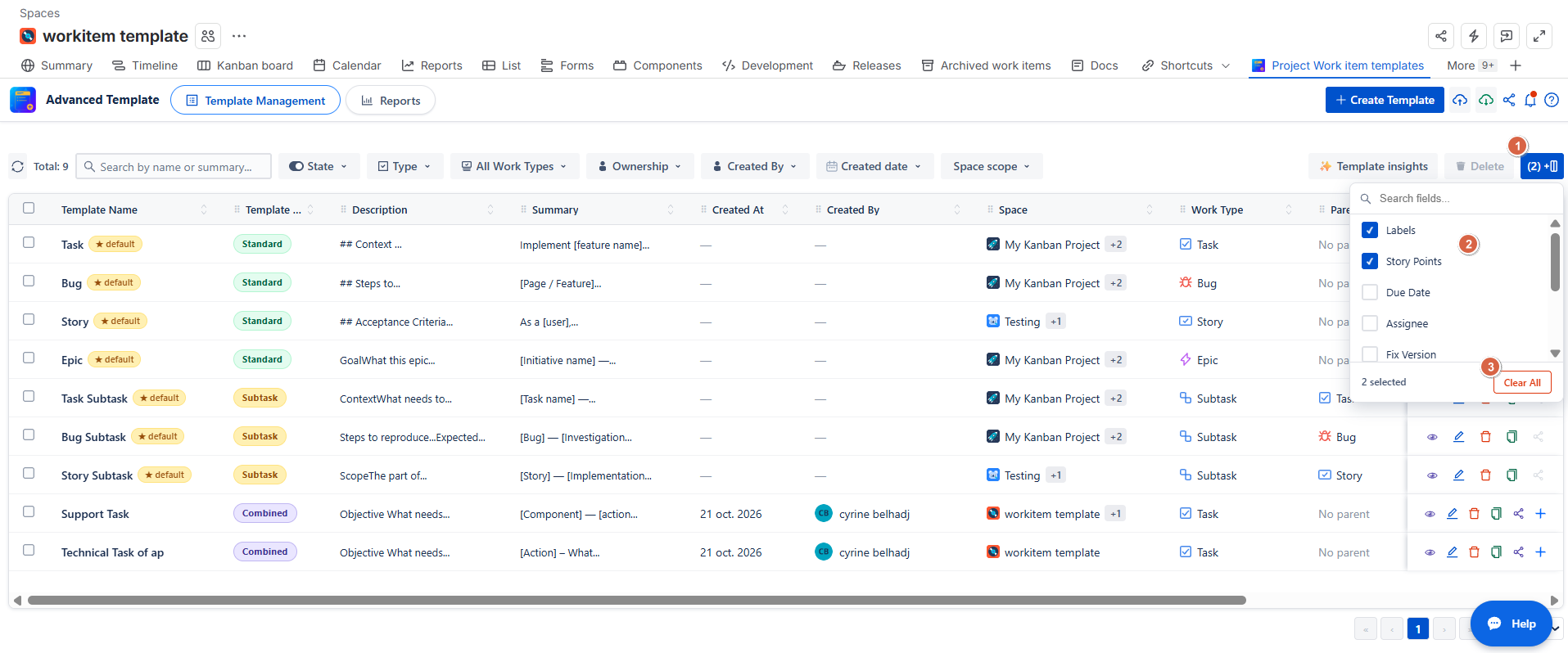
Customize Table View
Customize the table to display the information most relevant to your needs.
-
Click Fields.
-
Select the additional columns you want to display, such as Labels, Story Points, Due Date, Assignee, and Fix Version.
-
To restore the default table view, click Fields, then select Clear All.
Export and Import Templates
The app supports exporting templates in two formats:
-
PNG: Exports a visual representation of the template, suitable for sharing or printing.
-
JSON: Exports template data in a structured format that can be used for importing templates or further processing.
Import Templates
Templates can be imported using JSON files.
-
Click Import.
-
Select your JSON file.
-
Click Import to complete the process.
Best Practices
-
Use Space Scope to switch between project-specific templates and templates shared across projects.
-
Use search and filters to locate templates quickly, especially when managing a large number of templates.
-
Review a template's configuration and enable it when it is ready for use.
-
Export templates in JSON format regularly to maintain backups.
Conclusion
The project-level overview in Advanced Work Item Templates for Jira makes it easier to manage templates directly within a Jira project. With flexible filtering through Space Scope, bulk actions, customizable table views, and import/export capabilities, you can efficiently manage project-specific templates while maintaining visibility into templates shared across projects.
Ready to Get Started?
Use Advanced Work Item Templates for Jira to simplify work item creation and maintain consistent configurations across your projects with reusable, customizable templates.
Need Help?
If you have questions or need to report a bug, visit our Help Center and raise a support ticket. Our team will be happy to assist you.