
Once the app is installed, you're ready to go no additional setup or configuration is required.
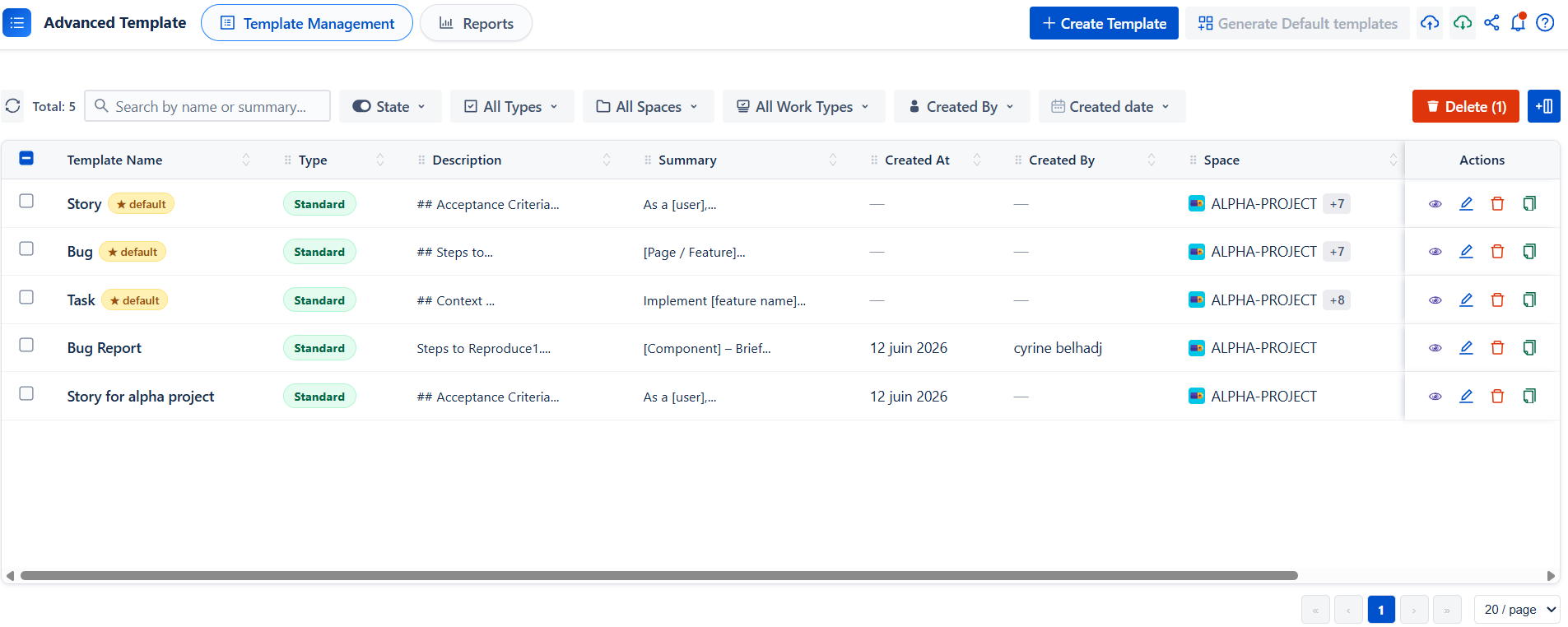
Out of the box, Advanced Work Item Templates for Jira includes three default templates covering the most common work item types. You can use them as they are, customize them to match your needs, or create new templates from scratch.
If you delete the default templates, whether by mistake or because they are no longer needed, you can restore them at any time.
Simply click Generate Default Templates, and all default templates will be recreated and added back to the Templates list.

Page Structure
The table displays:
-
Template Name
-
Type (Standard or Sub-task)
-
Description
-
Summary
-
Project
-
Work Type (Bug, Task, Story…)
-
Priority
-
Enabled status
-
Actions
Available Features
-
Search & Filter Templates
The search bar allows you to quickly find a specific template by name. You can also refine results using filters:
-
Status → Enabled or Disabled
-
Type → Standard or Sub-task
-
Project → Filter by linked project
-
Work Type → Bug, Task, Story ..
-
Priority → Filter by priority level
Click Clean Filters to reset all filters at once.
-
Bulk Delete
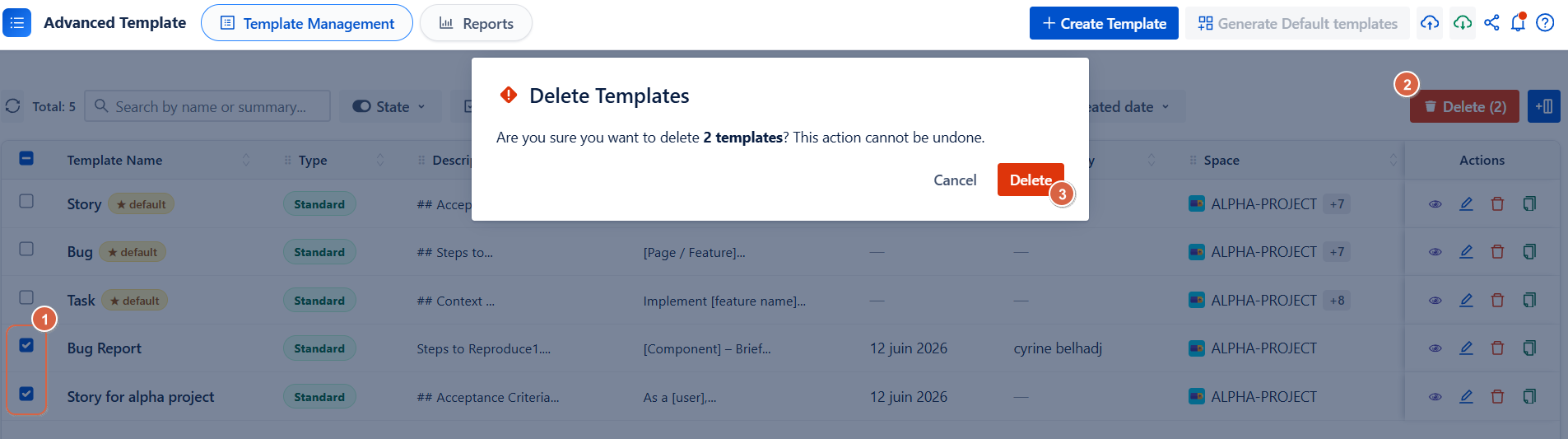
This feature allows you to delete multiple templates at once.
Steps:
-
Click Bulk Delete
-
Select one or more templates from the list.
-
Click Delete
-
Confirm the deletion to permanently remove the selected templates.
-
Per-Template Enable / Disable Toggle
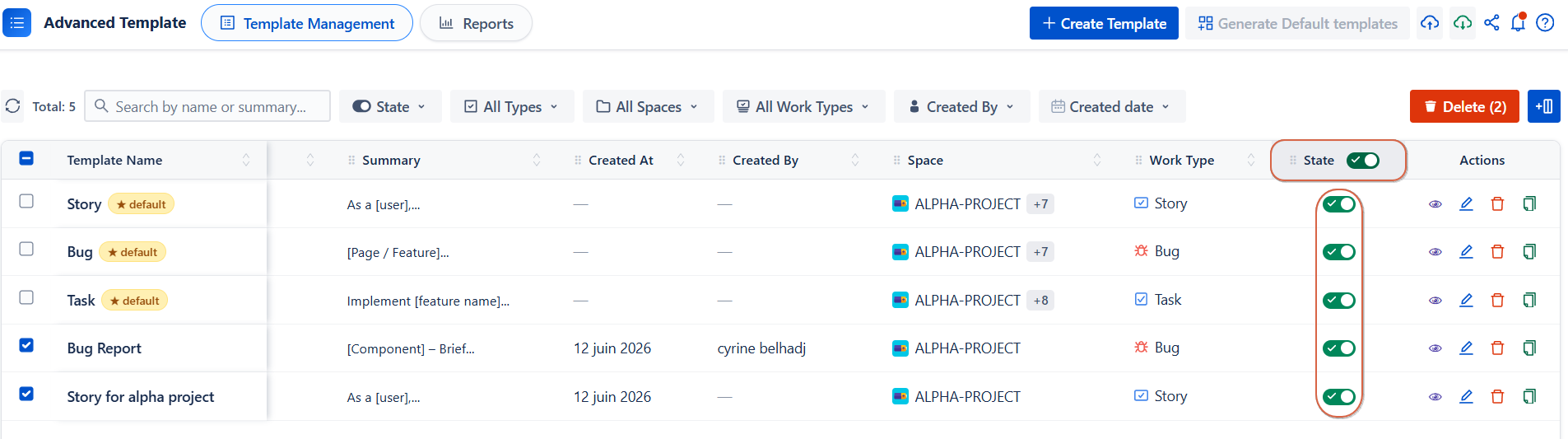
Each template can be individually activated or deactivated using a simple toggle.
-
ON → The template is active and will be applied automatically.
-
OFF → The template is inactive and will not be applied.
You can also use the Enabled column toggle at the top of the table to enable or disable all templates at once.
-
Customize Table View
Click Fields to customize your table by adding additional columns.
You can choose from the following fields:
-
Labels
-
Story Points
-
Due Date
-
Assignee
-
Fix Version
-
Components
-
Start Date
-
Reporter
-
Created At
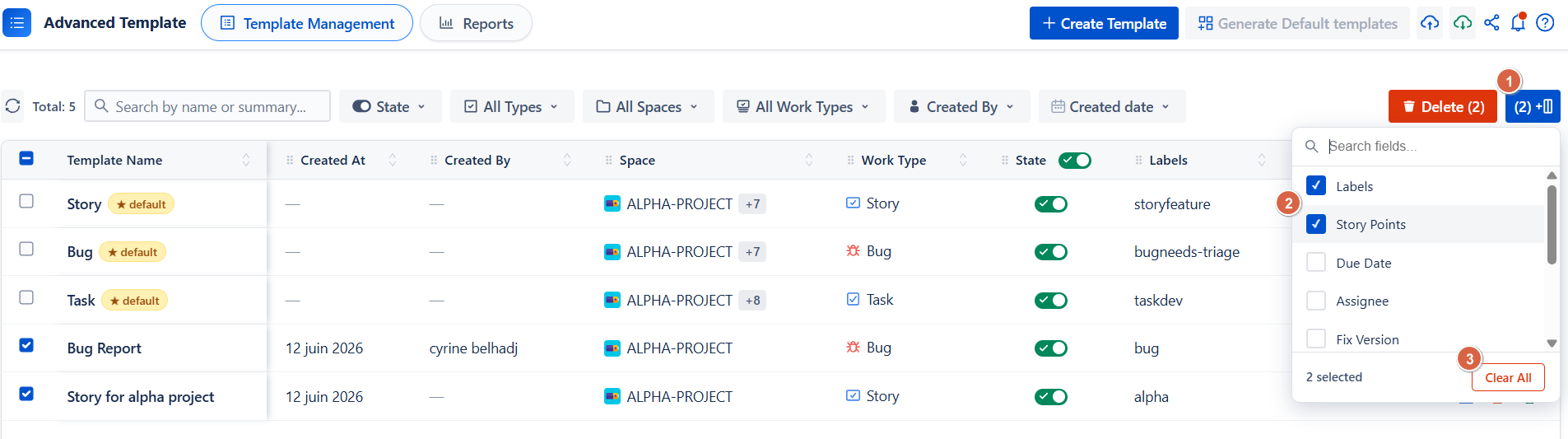
To reset the table to its default view, click Fields and then select Clear All.
-
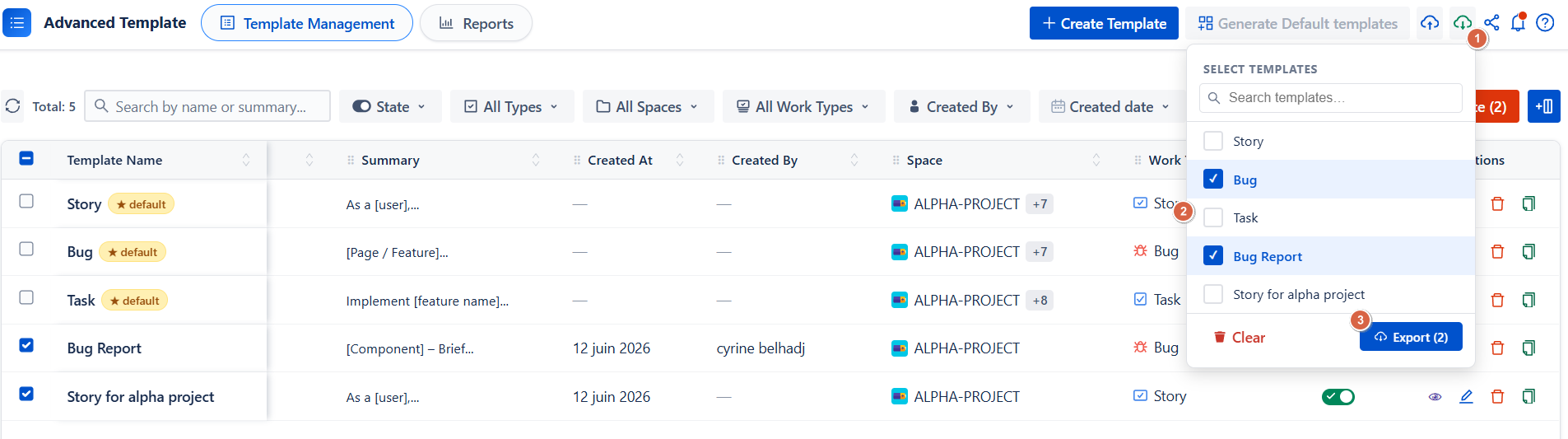
Export & Import Templates
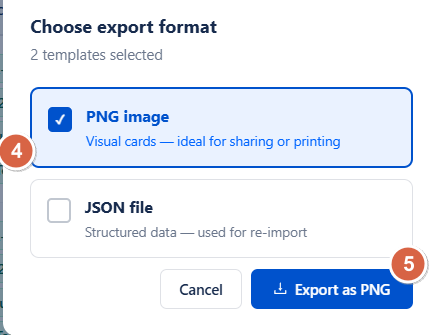
You can export your data in two formats:
-
PNG → A visual card format, ideal for sharing or printing.
-
JSON → Structured data format, used for re-import or further processing.
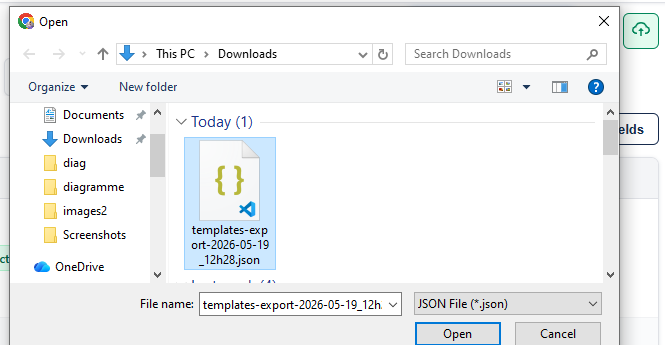
Import: JSON format only:
-
Click Import.
-
Select your JSON file.
-
Click Import to complete the process
Best Practices
-
Use Bulk Delete for large-scale cleanup of templates.
-
Use Search & Filters to easily manage and locate templates when working with many items.
-
Always enable a template after creation to make it active and usable.
-
Regularly use Export (JSON) to back up your templates and prevent data loss.
Conclusion
Advanced Work Item Templates for Jira for Jira provides a simple and efficient way to create, organize, and manage work item templates at scale. With features like search and filters, bulk actions, customizable table views, and import/export options, it helps teams maintain consistency and improve productivity across projects.
Need help?
💡 We're here for you! If you have questions or need to report a bug, visit our Help Center and raise a support ticket. Our team is ready to assist you!