
Duplicating a template in Advanced Work Item Templates for Jira is a quick way to create a new template based on an existing one. This feature saves time by copying all settings from the original template, allowing you to make adjustments and create variations for different use cases without starting from scratch.
How to Duplicate a Template
-
Navigate to Apps → Advanced Work Item Templates for Jira .
-
In the template list, locate the template you want to duplicate.
-
Click the Duplicate button next to the template.
-
A new template form will be added in the tablle of templates
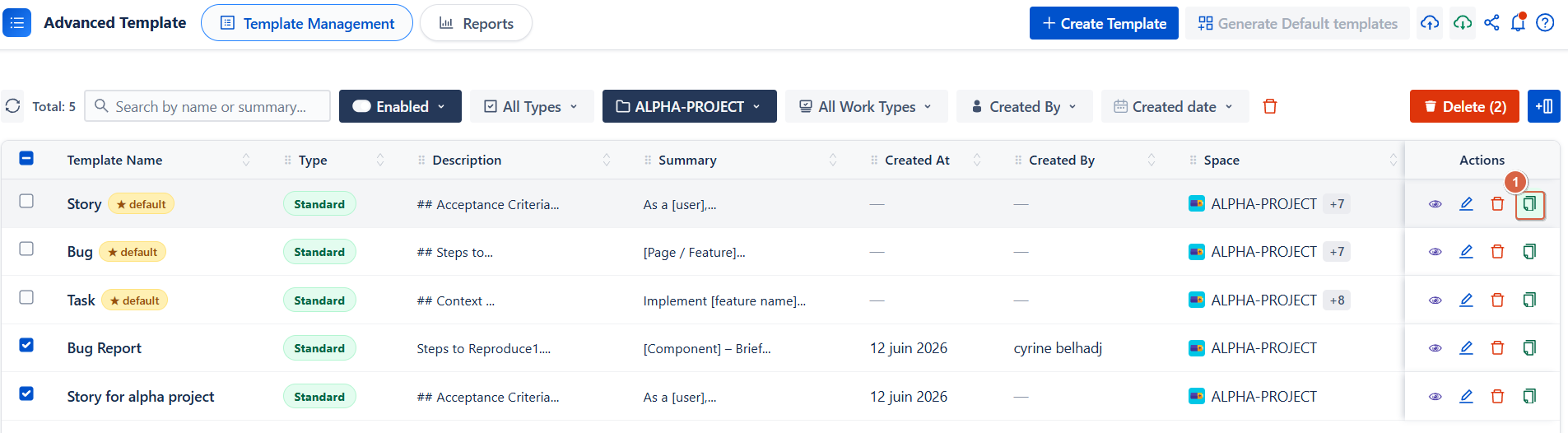
Duplicate Template Form
After you duplicate a template, a new template added with all the original settings already filled in.
You can then adjust the following fields by editing them :
General
-
Template Name: Pre-filled from the original. Update it to a unique and clear name.
-
Summary: Copied from the original. Edit it to match the new template’s purpose.
-
Description: Fully duplicated, including formatting. You can modify it if needed.
Context
-
Project: Select one or more projects for the new template.
When multiple projects are selected, only fields common to all selected projects will be available.
-
Work Item Type: Choose the work item type(s) such as Bug, Task, Story, etc.
Available options depend on the selected projects.
Fields (Optional)
You can add new fields or remove existing ones when duplicating a template.
The fields below are inherited from the original template, but you can update them as needed:
-
Priority: Set or change the default priority level
-
Labels: Update pre-filled labels (based on selected projects)
-
Story Points: Adjust the estimated effort
-
Start Date: Set or modify the default start date
-
Due Date: Set or modify the default due date
-
Assignee: Change the default assignee
-
Reporter: Update the issue reporter
-
Fix Version: Select or update the target release version (Options depend on selected projects)
-
Components: Update related components (Options depend on selected projects)
To duplicate templates, you need the appropriate permissions set by your Jira administrator. If you don't have permission:
-
You'll see an error message: "You don't have permission to duplicate templates"
-
Contact your Jira administrator to request template duplicating access
Common Use Cases for Duplicating Templates
-
Create project-specific variants: Duplicate a template and customize it for different projects
-
Build template variations: Create similar templates for different work item types ( Bug Report vs. Bug Fix)
-
Reuse across teams: Duplicate a well-designed template from another team and adapt it for your needs
-
Archive and update: Duplicate an existing template, make improvements, and use the new version while keeping the original as a reference
Best Practices for Duplicating Templates
Rename immediately: Always give the duplicate a unique name that reflects its purpose or variation
Review all fields: After duplication, verify that all field values make sense for the new template's context
Update projects: Ensure the duplicate is linked to the correct projects
Test before using: After saving, test the duplicate template by creating a work item to ensure all fields populate correctly
Changes won't save?
-
Ensure all required fields are filled in
-
Check that there are no validation errors (red-bordered fields)
Conclusion
Duplicating a template in Advanced Work Item Templates for Jira is an efficient way to quickly create new templates based on existing ones. It allows you to reuse configurations, adjust fields, and adapt templates for different projects or use cases without starting from scratch.
Need help?
💡 We're here for you! If you have questions or need to report a bug, visit our Help Center and raise a support ticket. Our team is ready to assist you!