
The Filters & Controls section gives you full control over your data, making it easy to focus on what matters most.
With 🔎 flexible filters, 📤 export options, 🔄 real-time refresh, and 🧭 seamless navigation, you can explore, analyze, and share reports and work items efficiently.
Whether you’re tracking project progress, auditing updates, or keeping your team aligned, these tools help you stay organized, save time, and make smarter, data-driven decisions.
Filters and Controls
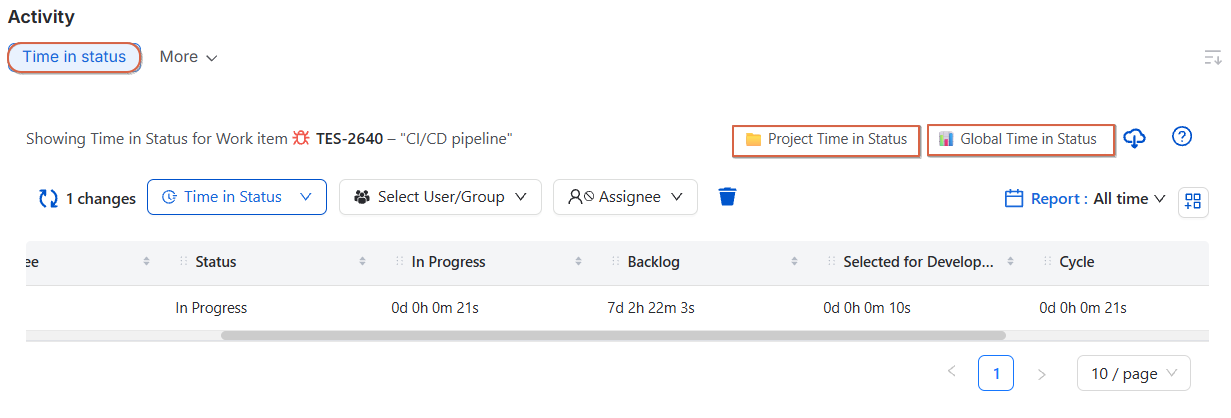
Easily customize your view with flexible filters to focus on the metrics that matter most.
Available filters:
-
Report Type : Show specific types of reports, such as Time Spent, Assignee Time, Transition Count, or Transition Date.
-
Select User/Group : Focus on reports related to a specific user or group.
-
Exclude assignee : Hide data for assignee .
-
Report Period : Choose the timeframe for your report, e.g., All Time.
-
Clear Filters Instantly remove all filters and return to the default view.
Export Options
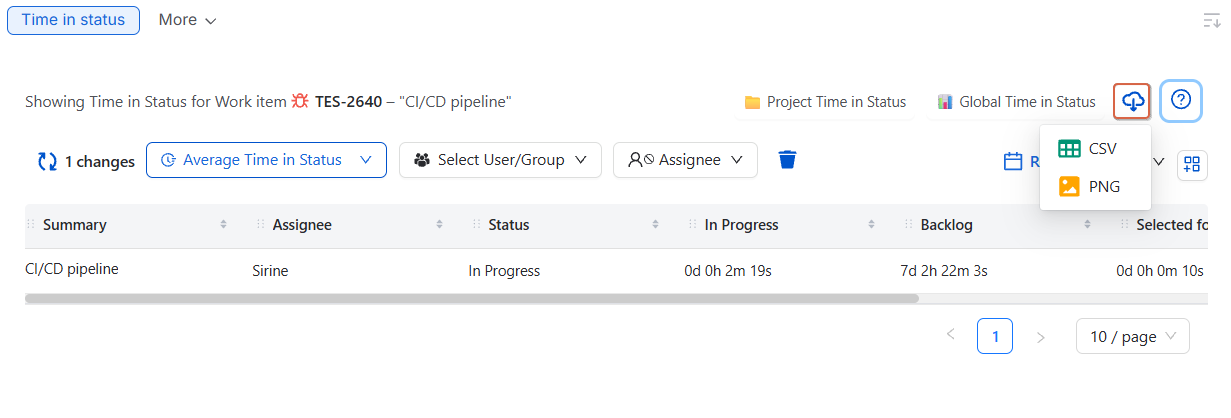
Easily export your table data to use it outside the app or share with your team:
-
📄 CSV : Download the data in a spreadsheet-friendly format for further analysis.
-
🖼️ PNG : Save a snapshot of the table as an image, perfect for reports or presentations.
Refresh Button
Keep your table up-to-date with the latest data :
-
Click the Refresh button to instantly fetch the most recent data.
-
Perfect for live tracking and ensuring your view reflects all recent changes.
Navigation & Utilities
Quickly access key tools and support resources directly from the Help Menu (?):
-
Documentation : Step-by-step guides and detailed explanations about the app.
-
Getting Started Guide : Learn the basics quickly if you’re new.
-
Contact Support : Reach our team for questions or issues; responses typically within 4 hours.
-
Feature Request : Suggest improvements or new features to help enhance the app.
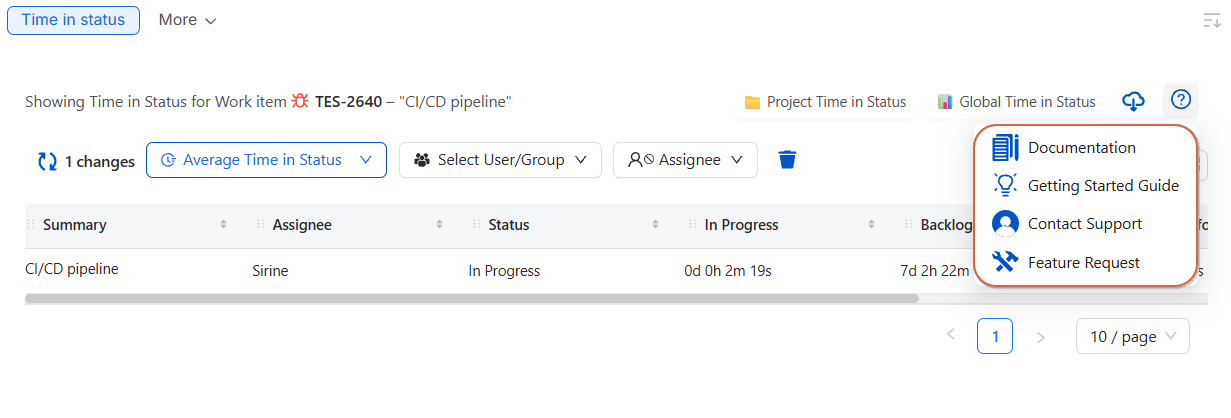
✅ Tip: The Help Menu is always accessible, so assistance is just a click away.
Navigation Buttons – Project & Global Views
Easily switch between different activity scopes to stay organized and focused:
-
📁 Project Colored Time In Status Button : Navigate to the Project-Level Page for a detailed view of work items within the current project.
-
🌐 Global Colored Time In Status Button : Jump to the Global Page to see all projects.
Conclusion
-
This page provides a centralized view of your reports and activity, helping you quickly understand what’s happening, identify trends, and make informed decisions.
-
With everything organized in one place, you can focus on the insights that matter most and take action confidently.
Need help?
🤝 We're here for you! If you have any questions, suggestions, or feature requests, feel free to reach out — we typically respond within 4 hours.