
Access Admin Settings
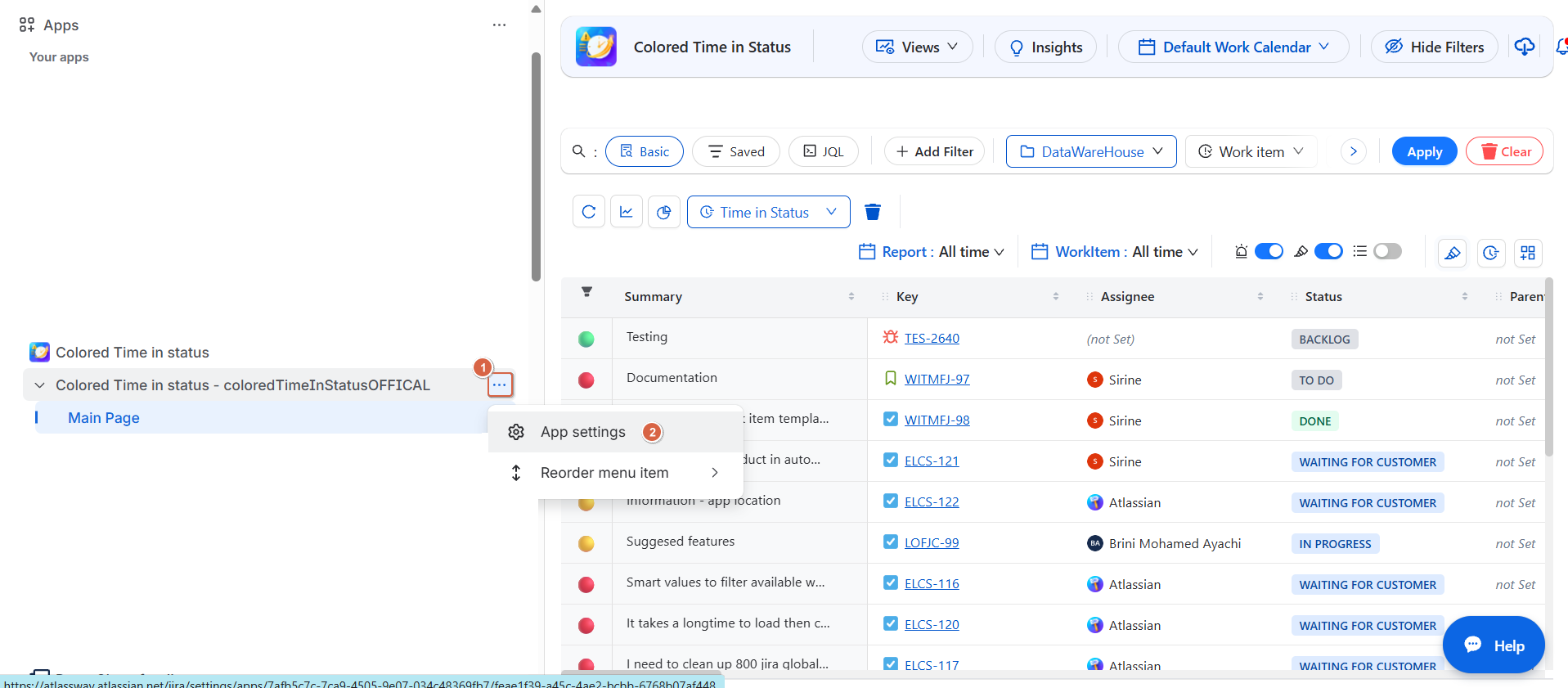
To open the configuration:
-
Open the app in Jira.
-
Click the ••• menu in the top-right corner.
-
Select App settings.
-
Open the Admin page.
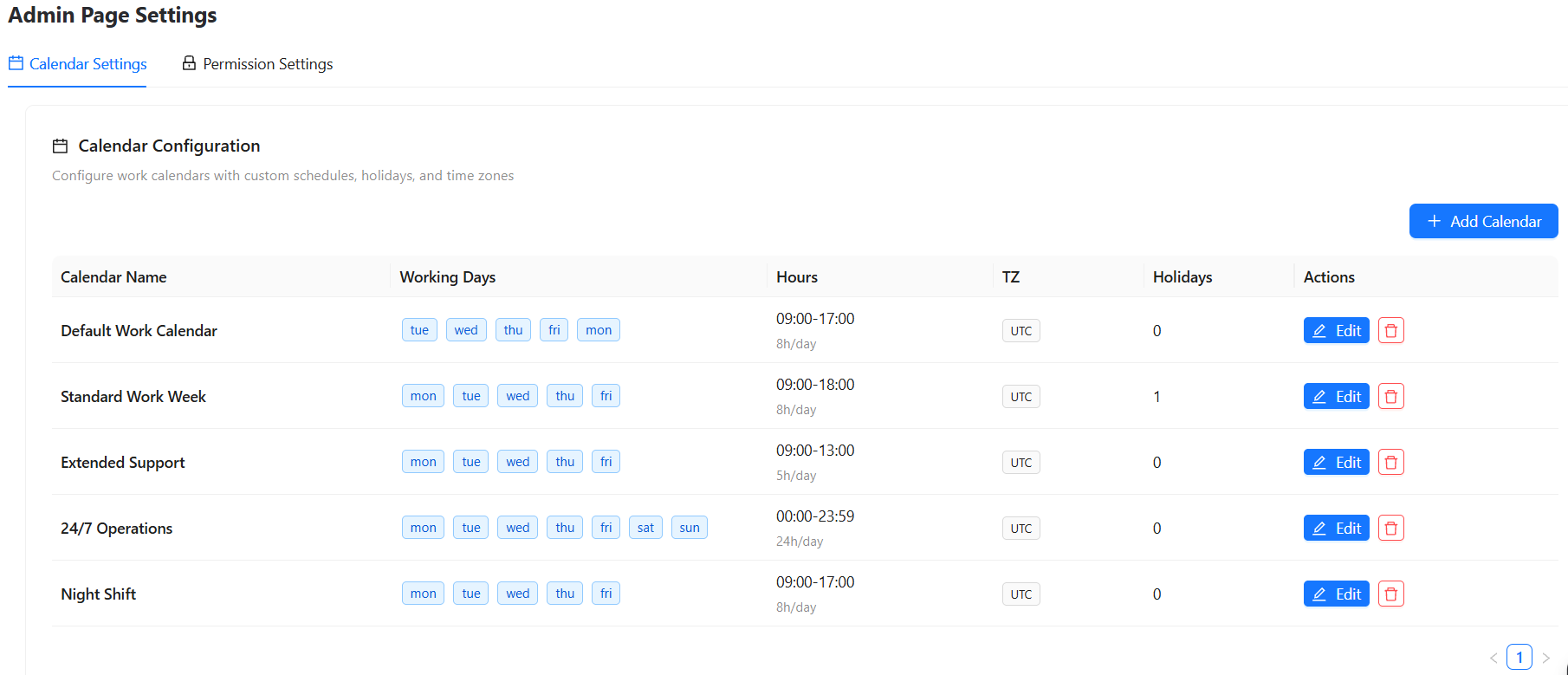
The Admin page contains two main settings areas:
-
Calendar Settings
-
Permission Settings
1. Calendar Settings
Calendar Settings allow administrators to configure the working calendars used by the app.
A calendar can define:
-
Working days
-
Working hours
-
Time zone
-
Hours per day
-
Holidays
These settings help ensure that work-time calculations are based on your organization's actual working schedule.
Create a Calendar
-
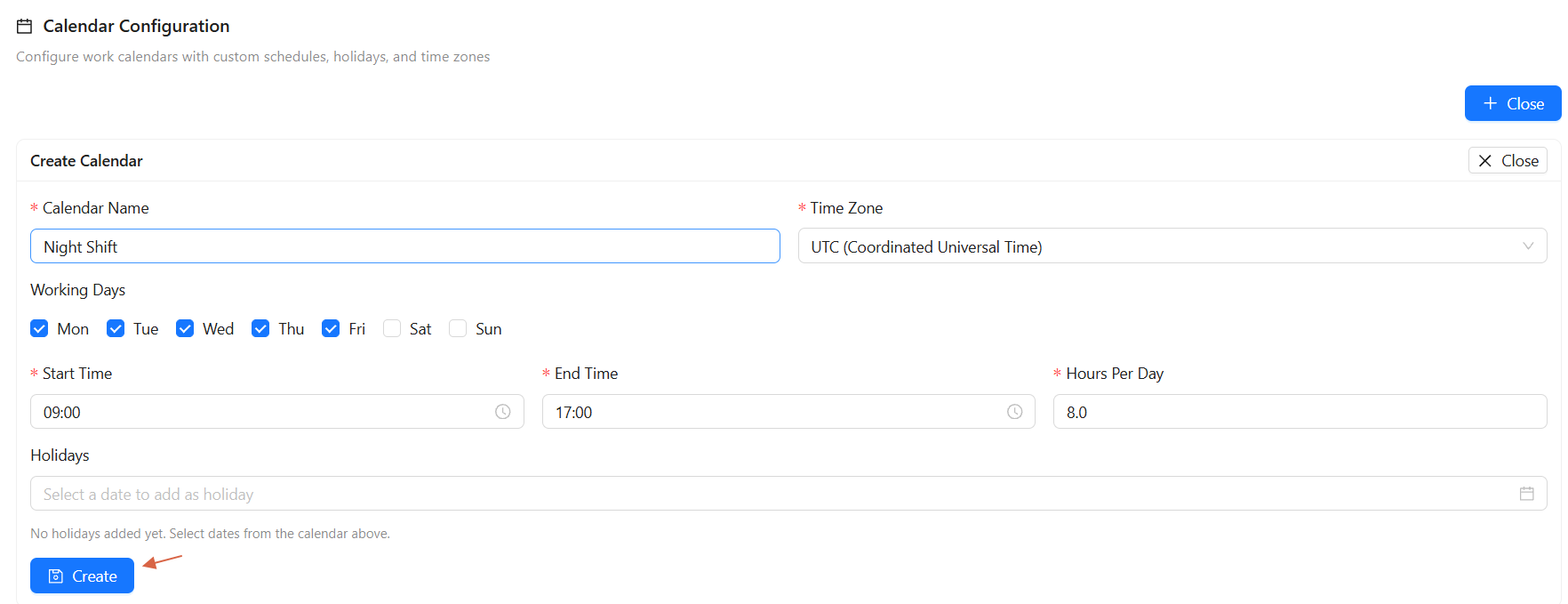
Click Create Calendar to create a new work calendar.
Configure the following:
-
Calendar Name : Enter a name that clearly identifies the calendar.
-
Time Zone : Select the time zone used for the calendar.
-
Working Days: Select the days considered working days
-
Start Time / End Time : Define the daily working hours.
-
Hours Per Day : Specify the number of working hours per day.
-
Holidays : Add holidays by selecting dates from the calendar.
After configuring the calendar, create it to make it available for use.
2. Permission Settings
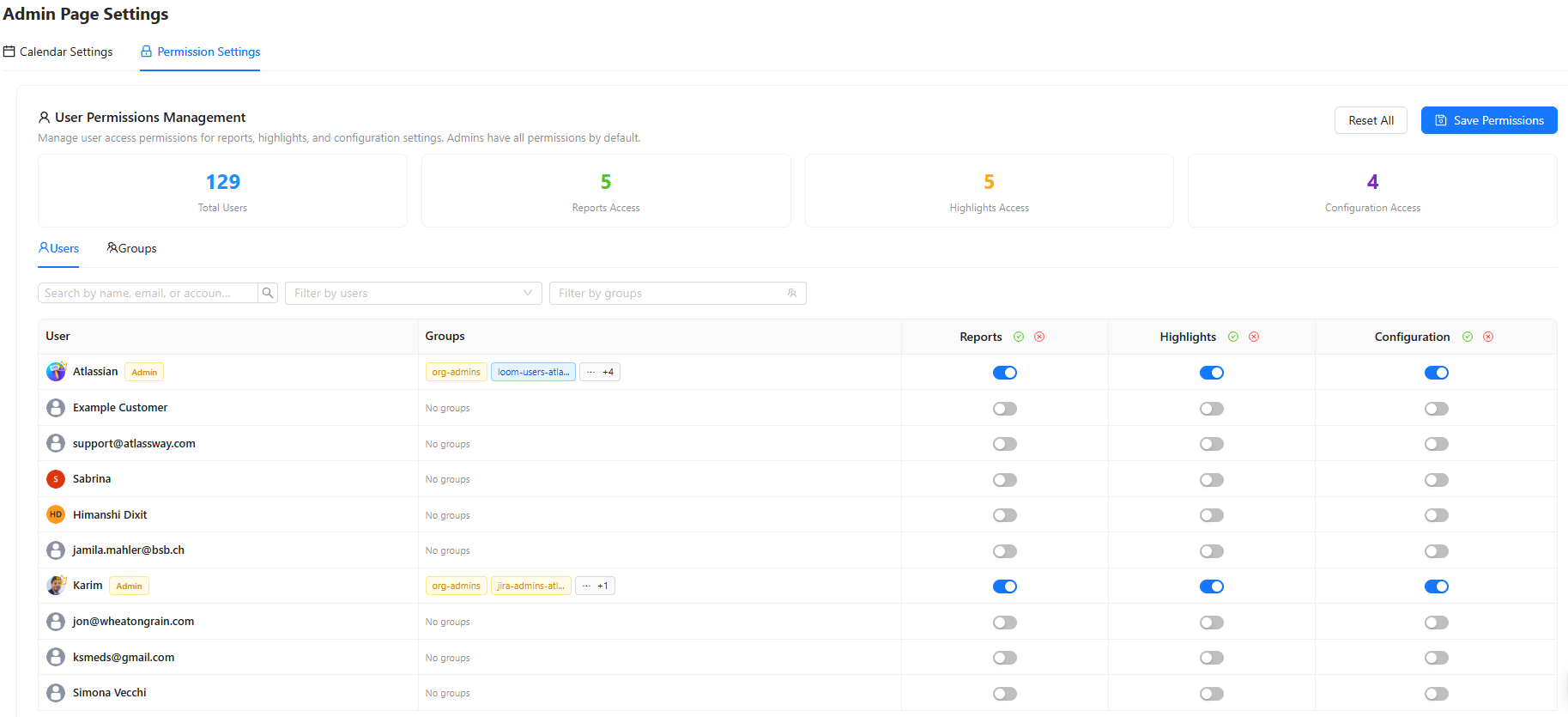
Permission Settings allow administrators to control which users can access specific app features.
You can manage permissions for:
-
Reports
-
Highlights
-
Configuration
Administrators have all permissions by default.
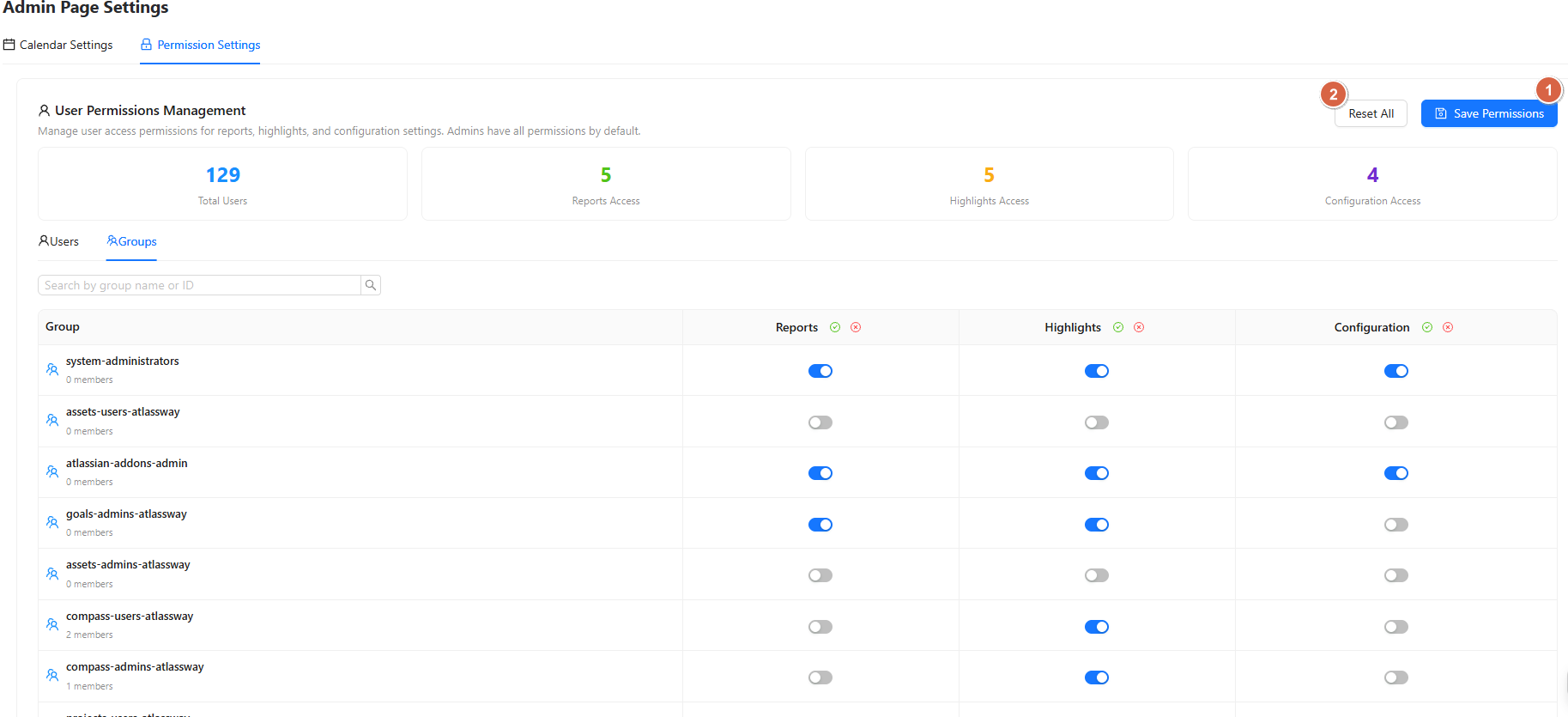
User Permissions Management
-
The permission page provides an overview of the configured access and allows administrators to manage permissions for individual users or groups.
You can switch between:
-
Users
-
Groups
Use the filters to quickly find a specific user or group.
Manage Permissions
For each user or group, you can enable or disable access using the available toggle switches.
Available permissions include:
|
Permission |
Description |
|---|---|
|
Reports |
Allows access to reports |
|
Highlights |
Allows access to highlights |
|
Configuration |
Allows access to configuration settings |
-
Turn a permission ON to grant access or OFF to disable it.
-
After making changes, click Save to apply the updated permissions.
Reset Default Permissions
-
If you want to return to the default permission configuration, click Reset.
-
This restores the default permission settings instead of requiring you to manually change each permission.
Conclusion
The Admin Settings page gives administrators centralized control over the app's working calendars and feature access.
Use Calendar Settings to define accurate working schedules, holidays, and time zones, and use Permission Settings to control which users or groups can access reports, highlights, and configuration features.