
Time in Status includes AI-powered features to help you understand the app and analyze your work items faster.
With Help, you can ask questions about how to use Time in Status and get guided answers directly from the product documentation. With Insights, you can generate ready-made reports that analyze your work items and highlight areas that may need attention.
Help Ask How to Use the App
Help is an AI-powered assistant based on the Time in Status documentation.
Instead of searching through documentation, simply ask a question such as:
-
How do I create a Cycle Time?
-
How can I customize my report columns?
-
How do I save a view?
-
How can I configure highlights?
The assistant provides:
-
Step-by-step guidance on how to use the feature.
-
A link to the relevant documentation page for more details.
How to Use Help
-
Open Help.
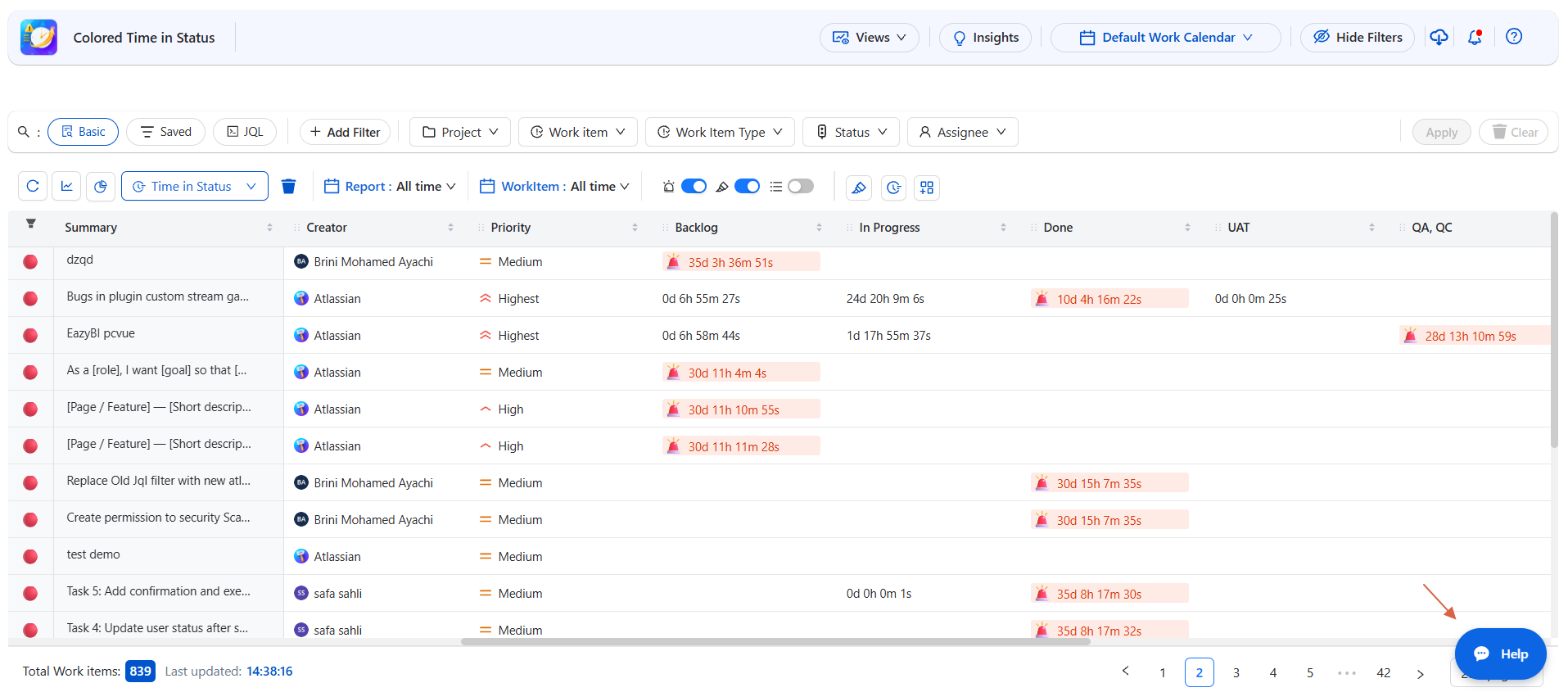
-
Enter your question.
-
Review the answer and follow the suggested steps.
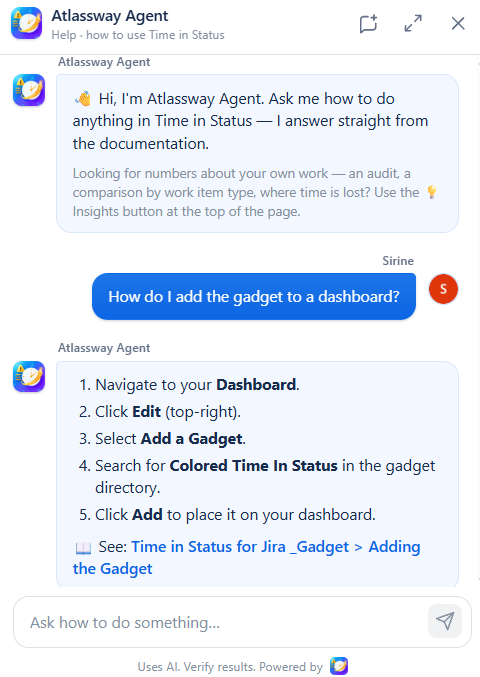
-
Open the provided documentation link if you need more details.
Tip: Ask Help in your own words. You don't need to know the exact name of a feature to get guidance.
Insights — AI-Powered Work Analysis
Insights provides ready-made AI reports based on your work items and the data currently displayed in Time in Status.
Click Insights to open three analysis options:
1. Audit Work Items
Provides a complete health check of your work items, including:
-
Where work items are currently sitting.
-
How long they have been in each status.
-
Workflow bottlenecks.
-
Work distribution by assignee.
-
Work items that have been stuck for a long time.
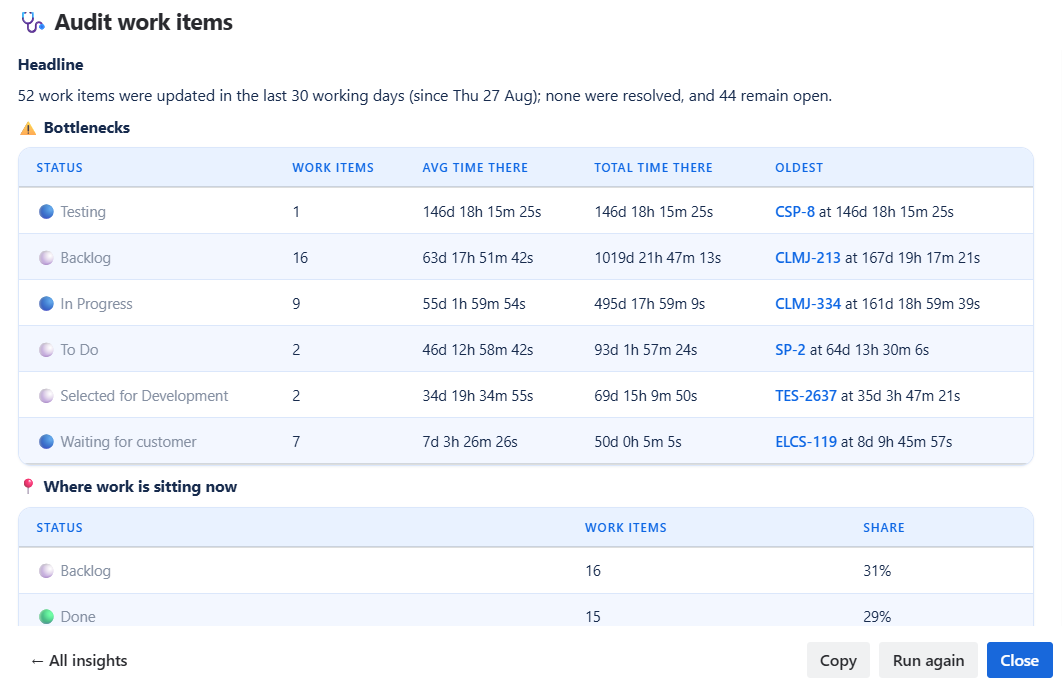
The report also highlights important findings and identifies work items that may require attention.
2. Compare by Work Item Type
Compares different work item types, such as Bugs, Stories, Tasks, and Epics.
The report shows:
-
Number of work items by type.
-
Open and finished work.
-
Average time spent in the current status.
-
Where each type of open work is currently sitting.
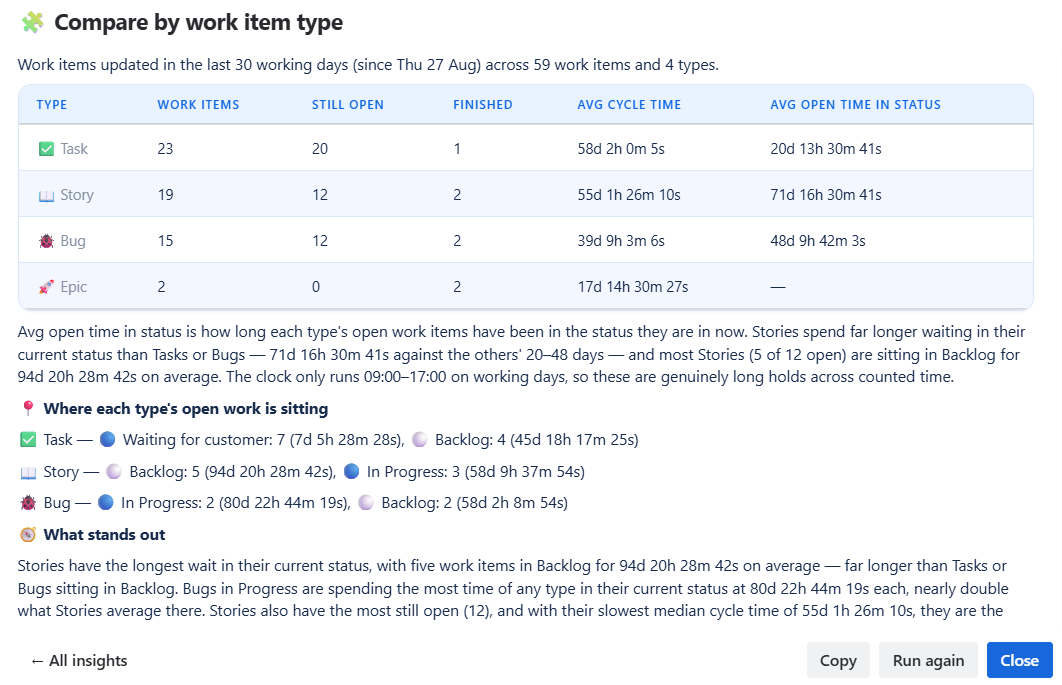
This makes it easier to identify whether certain types of work are taking longer than others.
3. Where Is Time Being Lost?
Identifies where open work is spending the most time.
The report shows:
-
Number of work items in each status.
-
Percentage of open work by status.
-
Average time spent in each status.
-
Total time accumulated in each status.
-
The oldest work item in each status.
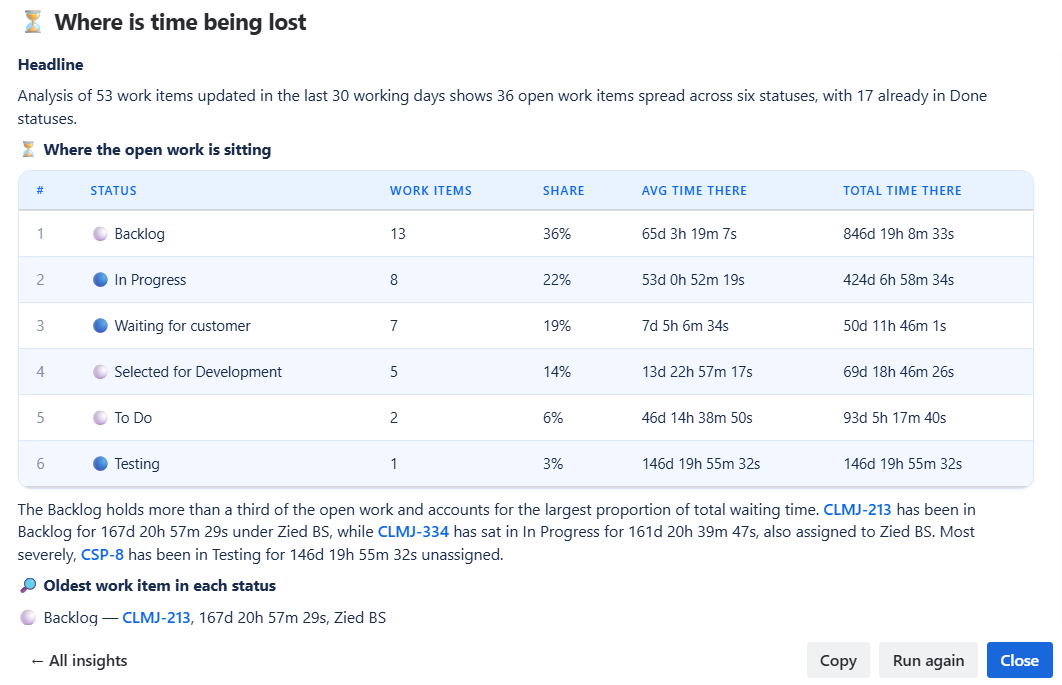
It also highlights the main bottlenecks and explains where attention may be needed.
Generate an Insight
-
Click Insights.
-
Choose one of the three available analyses.
-
Wait while the assistant analyzes the current work item data.
-
Review the generated report.
The analysis is based on the same data and measurements used by the Time in Status table.
Insights only analyzes your data. Nothing is changed in Jira automatically.
After the Analysis
Once the report is generated, you can:
-
Copy the generated analysis.
-
Run Again to generate the analysis again.
-
Close the results window.
AI-generated results should be reviewed and verified before taking action.
Conclusion
AI-powered Help and Insights make Time in Status easier to use and understand.
Use Help when you need to know how to use a feature, without searching through documentation. Use Insights when you want to understand what is happening with your work items, identify bottlenecks, and discover areas that may need attention.