
Managing Jira labels can become difficult as the number of labels, fields, and work items grows. Colored Label Manager includes AI-powered features that help users understand the application, analyze their label configuration, and identify areas that may need attention.
1. AI Help - Ask How to Use the Application
-
The Help feature is an AI assistant powered by the Colored Label Manager documentation.
-
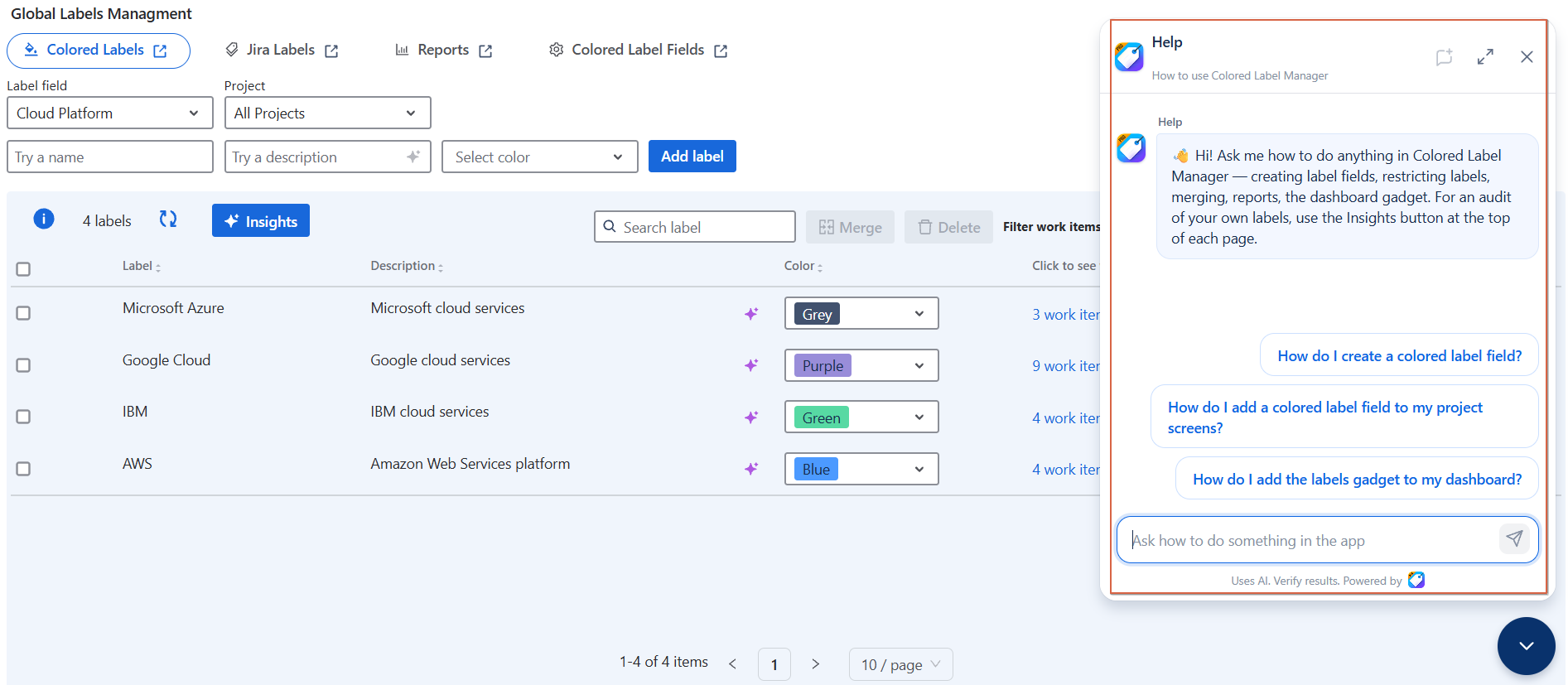
Instead of searching through documentation manually, you can ask questions in natural language and get guidance on how to perform tasks in the application.
How to access Help
-
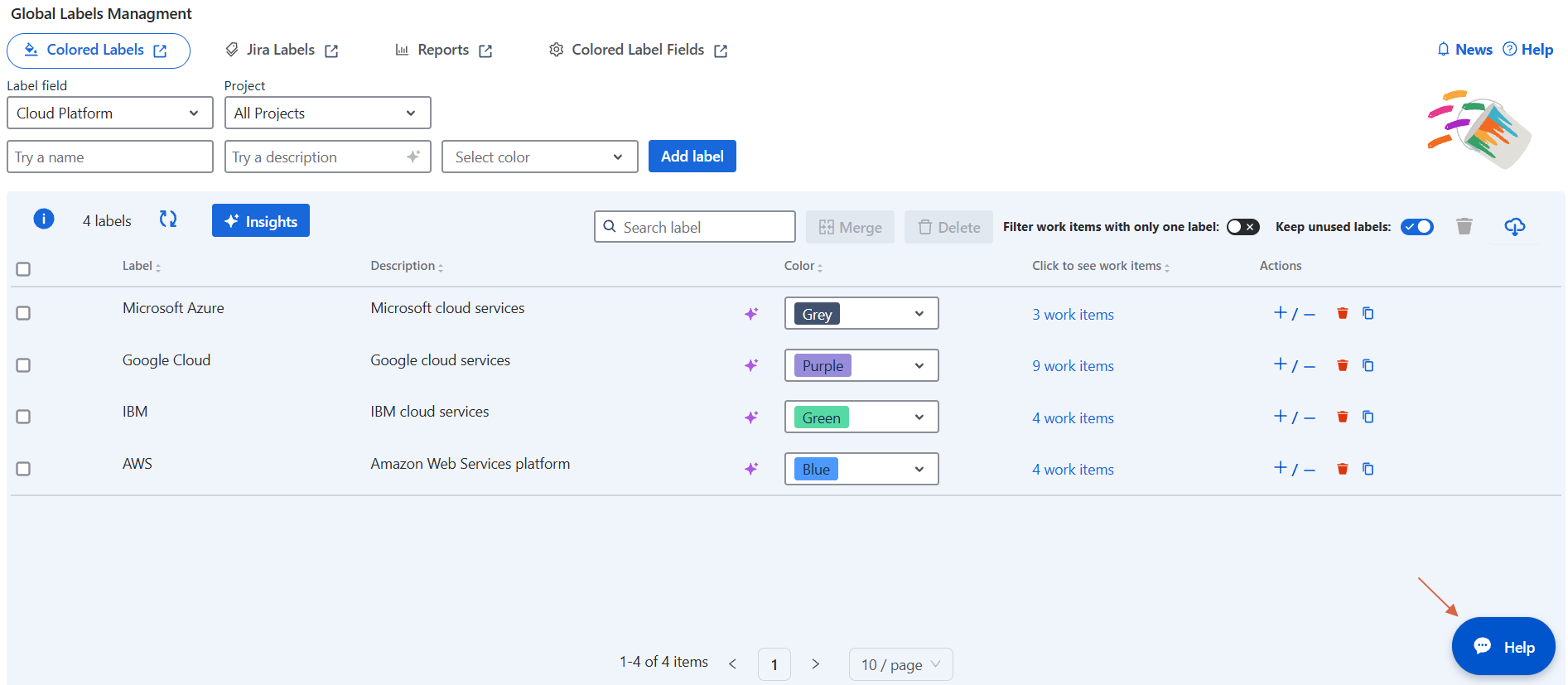
Open Colored Label Manager.
-
Click Help.
-
Enter your question.
-
Review the answer and follow the suggested steps.
For example, you can ask:
-
How do I create a colored label field?
-
How do I add a colored label field to my project screens?
-
How do I add the labels gadget to my dashboard?
Get detailed documentation
-
When more information is needed, the AI assistant can provide the exact documentation page related to your question.
-
This allows you to move directly from an AI answer to the relevant documentation and explore the feature in more detail.
Example
Question:
How do I add a colored label field to my project screens?
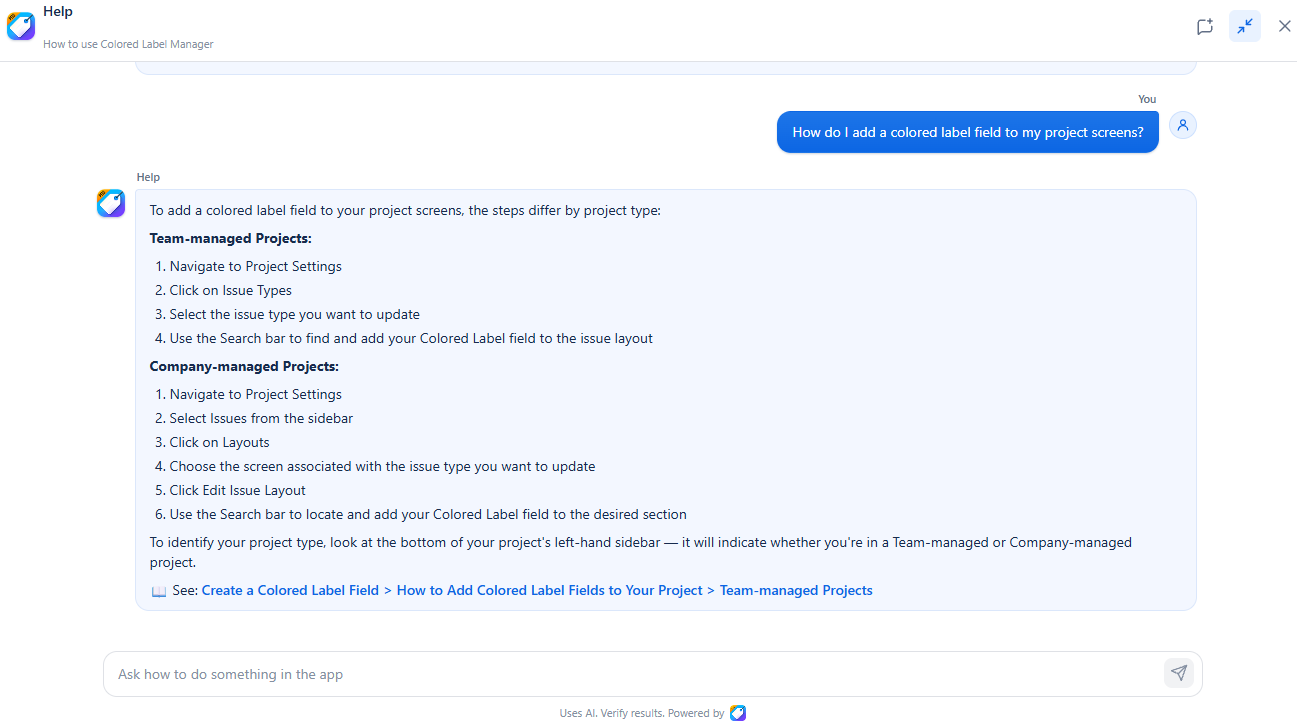
The assistant guides you through the required steps and can provide the relevant documentation page for additional details.
2. AI Insights — Analyze Your Jira Configuration
-
The Insights feature analyzes your Jira data and generates a summary of potential areas for improvement.
-
The available analysis depends on the page where you open Insights.
Insights can identify:
-
Unused labels
-
Abandoned labels
-
Duplicate labels
-
Naming inconsistencies
-
Missing descriptions
-
Labels that may need to be merged or cleaned up
-
Unused label fields
-
Label adoption and coverage
-
Potential catch-all labels
To generate an analysis:
-
Open the relevant Colored Label Manager page.
-
Click Insights.
-
Wait for the analysis to complete.
-
Review the generated results.
-
Use the recommendations as a starting point for your cleanup or configuration review.
2.1 Colored Labels Insights
-
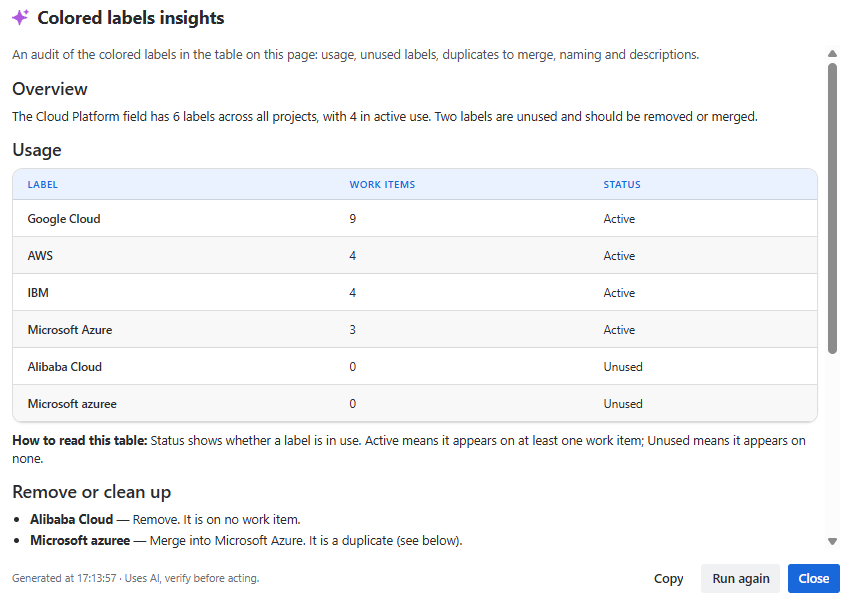
On the Colored Labels page, Insights analyzes the labels configured in your colored label fields.
The analysis can provide:
-
Overview : A summary of the number of labels, fields, unused labels, and potential cleanup areas.
-
Usage : Shows how frequently labels are used and identifies their current status.
-
Remove or Clean Up : Identifies labels that may be candidates for removal, archiving, or review.
-
Duplicates and Merges : Highlights labels that may represent the same concept.
-
Naming : Identifies inconsistent naming and suggests clearer alternatives.
-
Descriptions : Identifies labels without descriptions and can suggest descriptions to make them easier to understand.
2.2 Jira Labels Insights
-
On the Jira Labels page, Insights analyzes the standard Jira labels used across work items.
It can provide:
-
Label usage statistics
-
Abandoned and one-off labels
-
Potential duplicates
-
Unclear or malformed labels
-
Naming recommendations
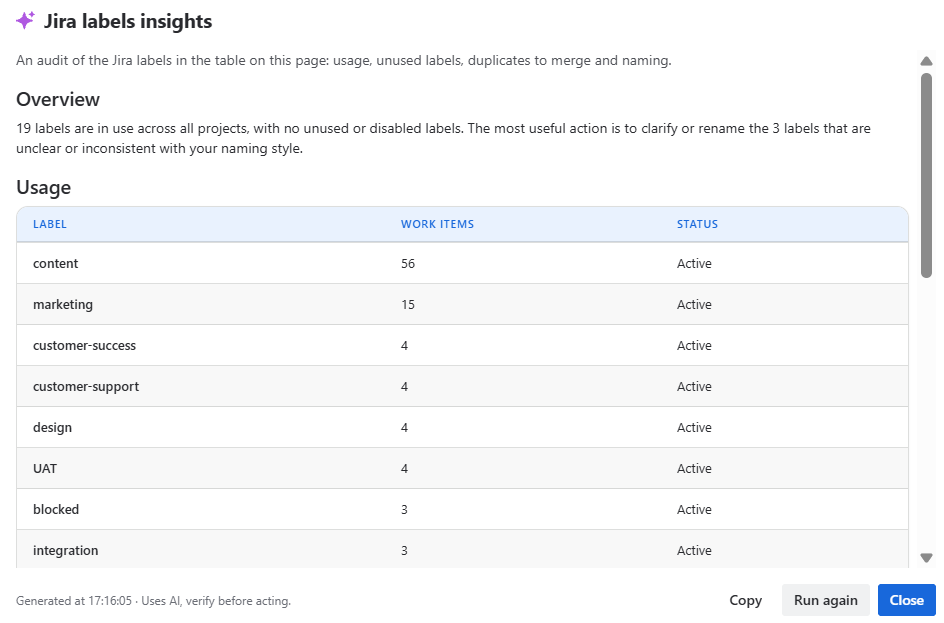
Insights can then suggest whether these labels should be reviewed, removed, renamed, or consolidated.
2.3 Report Insights
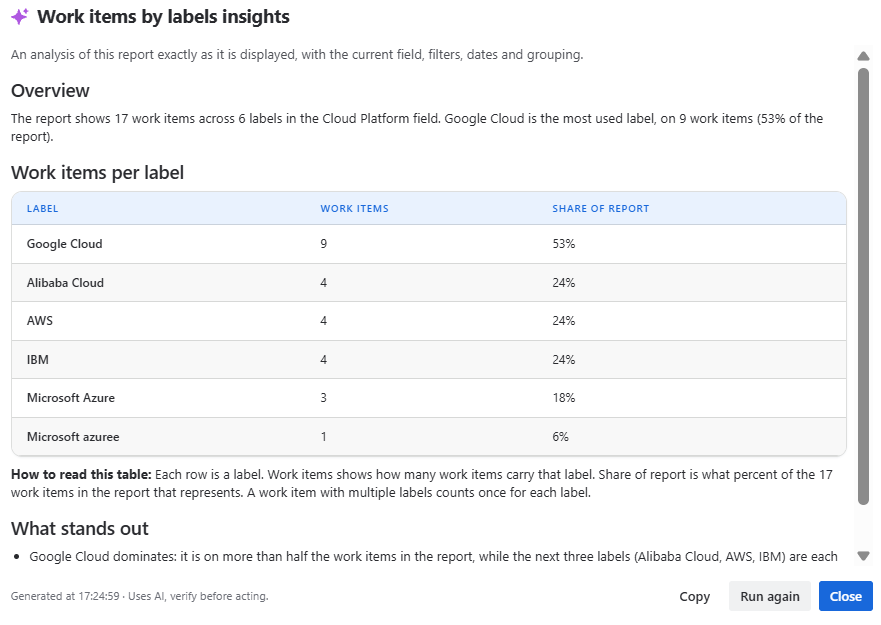
The Insights feature provides an AI-generated analysis of a saved report. It helps you quickly understand the main trends, rankings, and patterns in your report without manually analyzing the data.
How to Access Insights
-
Open the Reports page.
-
Open a saved report.
-
Click Insights.
-
The system analyzes the report using the current field, filters, date range, and grouping.
-
The generated insights are displayed directly in the report.
What Insights Provides
The Insights analysis can include:
-
Overview : A summary of the main finding from the report.
-
Ranking : A ranked list of the most-used labels or values, with their work item count and share.
-
Concentration : Highlights how usage is distributed across the most common values.
-
What stands out : Key observations and notable patterns identified in the report.
2.4 Colored Label Fields Insights
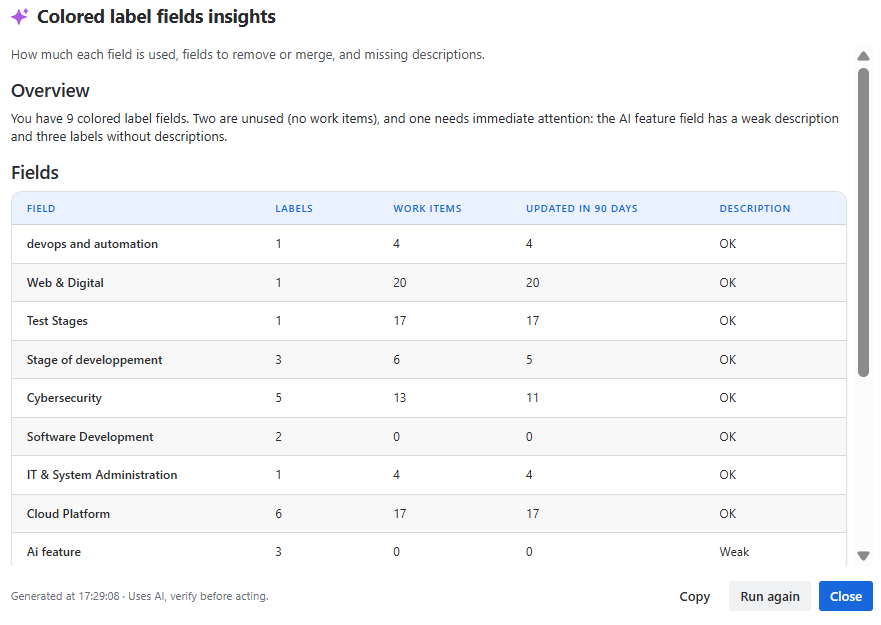
On the Colored Label Fields page, Insights focuses specifically on the configured label fields.
It provides information such as:
-
Number of labels per field
-
Number of work items using each field
-
Recent activity
-
Field descriptions
-
Unused fields
-
Fields that may require cleanup
Working With AI Results
After generating an Insights report, you can use the available actions:
-
Copy : Copy the generated analysis for use in documentation, reports, or team discussions.
-
Run again : Generate a new analysis using the current data.
-
Close : Close the Insights result and return to the page.
These actions are available after generating Insights on the supported pages.
Help and Insights Together
The two AI features address different needs:
|
Feature |
Main Purpose |
|---|---|
|
Help |
Learn how to use Colored Label Manager |
|
Colored Labels Insights |
Analyze colored labels and identify cleanup opportunities |
|
Jira Labels Insights |
Analyze standard Jira labels |
|
Labeling Health Insights |
Understand labeling adoption and health across projects |
|
Colored Label Fields Insights |
Review the usage and configuration of label fields |
Use Help when you need to know : “How can I do this ?”
Use Insights when you need to know: “What should I review or improve ?”
Conclusion
-
With AI Help and Insights, Colored Label Manager makes label management easier to understand and maintain.
-
Help provides documentation-based guidance and directs you to the exact documentation page when more detail is needed.
-
Insights analyzes your Jira labeling configuration and highlights potential issues such as unused labels, duplicates, inconsistent naming, missing descriptions, unused fields, and adoption gaps.