
Automate Your Colored Label Fields with Jira Automation 🤖
Tired of manually updating labels in Jira? With Automation Rules, you can dynamically manage and update your Colored Label Fields based on issue transitions, field changes, or other triggers.
-
Let’s explore how to set this up with a practical example.
Example Use Case: Automation with Colored Label Field
Scenario
-
When an issue’s status changes from “In Progress” to “Done”, We want to:
-
Add the label “100% worked”.
-
Clear the existing data in the “Progressing” field.
-
Steps to Create the Automation Rule
-
Navigate to Automation Settings
-
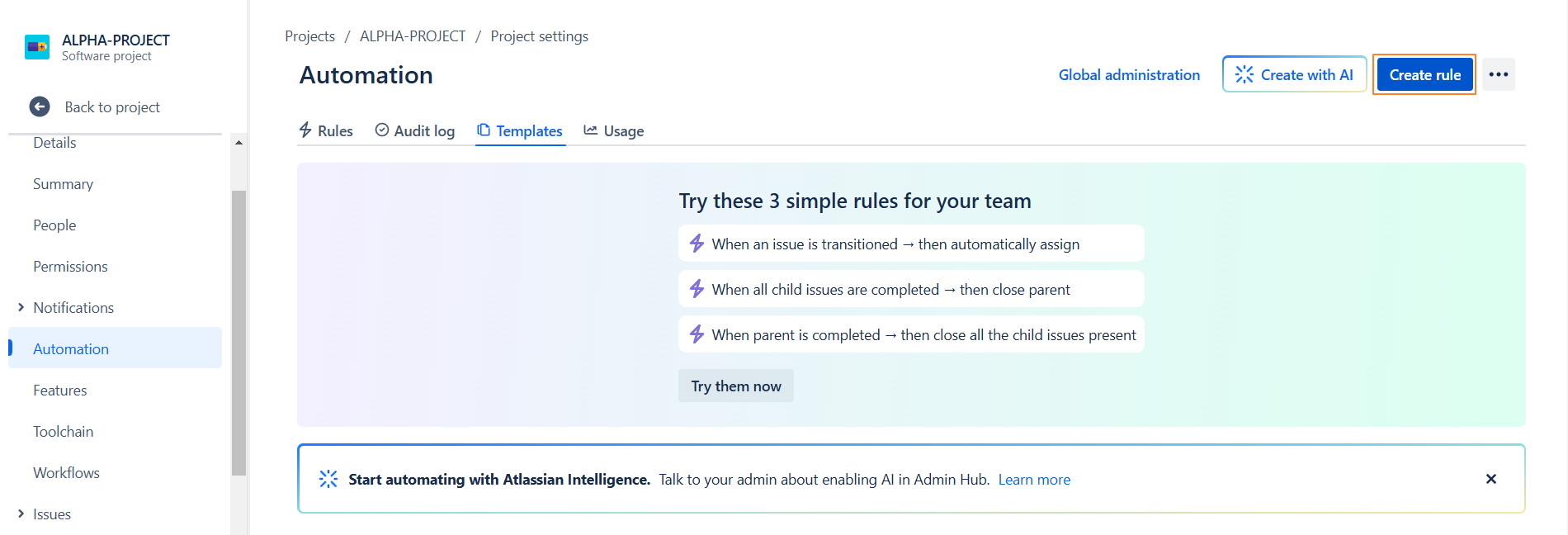
Click on Project settings → Click on Automation → Click Create rule.
-
-
Select the Trigger
-
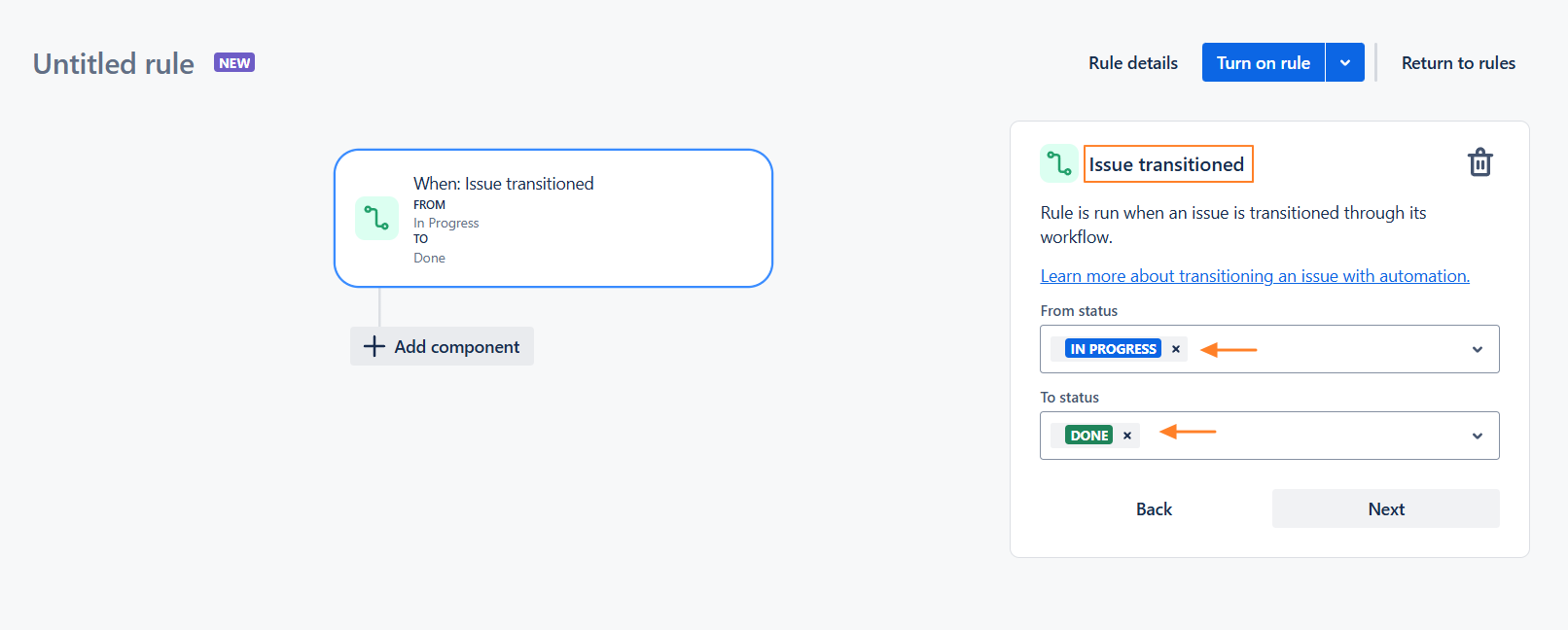
Choose Issue Transitioned as the trigger.
-
Set From: In Progress → To: Done, then click Next.
-
Add an Action
-
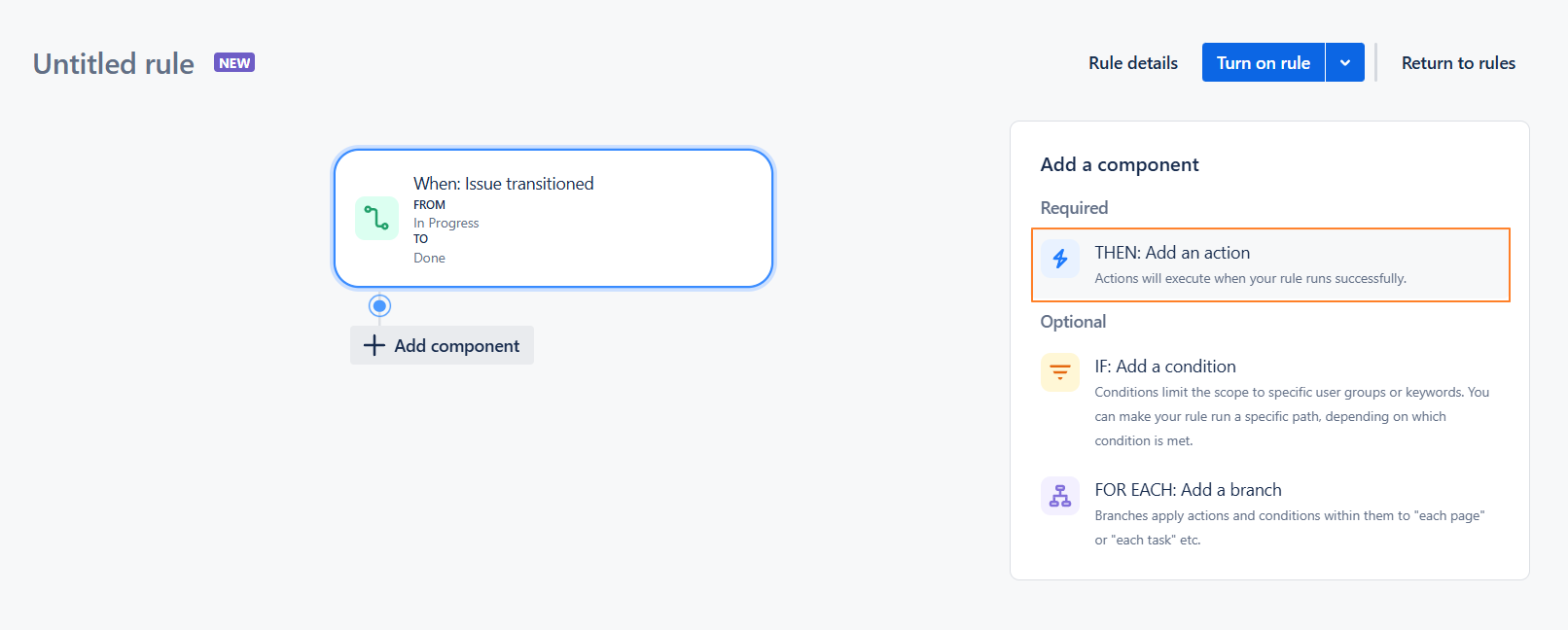
Click Add an action.
-
Select Edit Issue.
-
Modify the Field Data
-
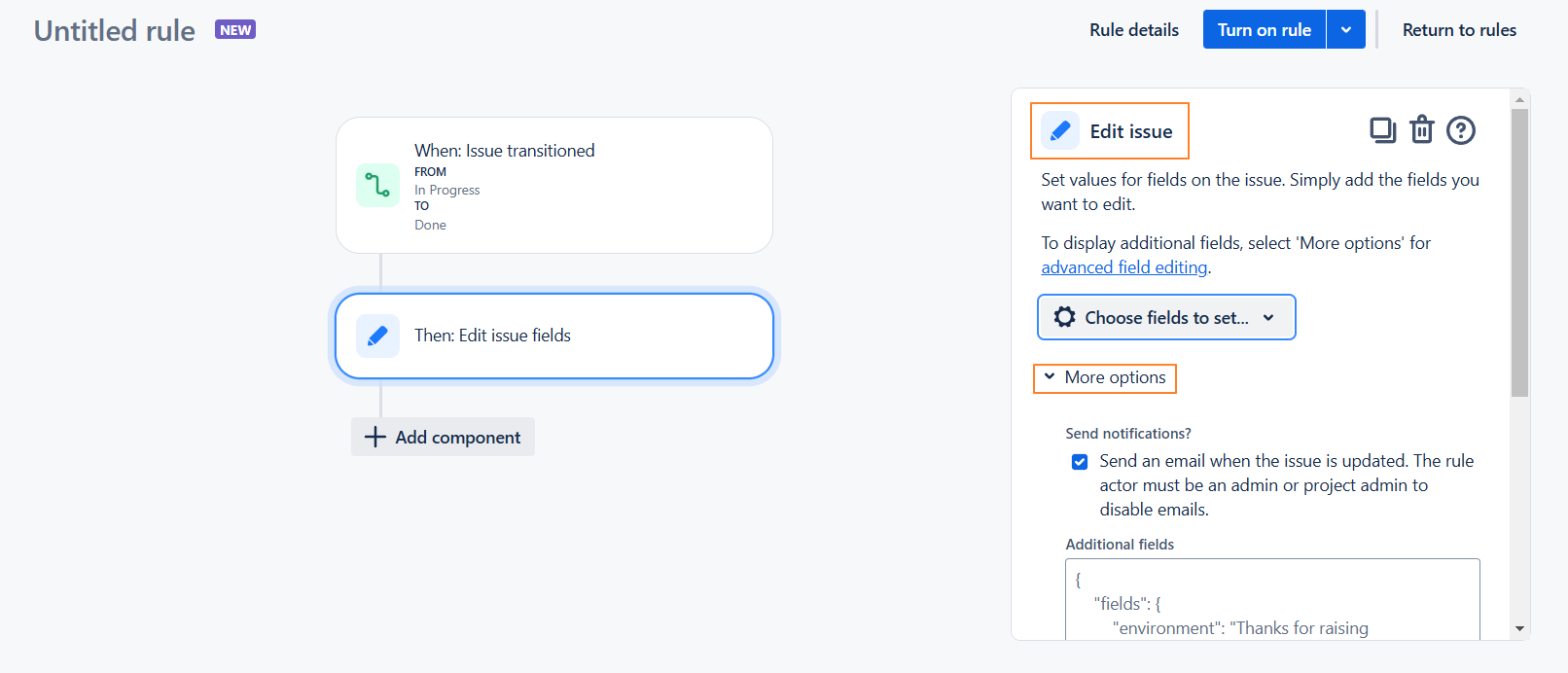
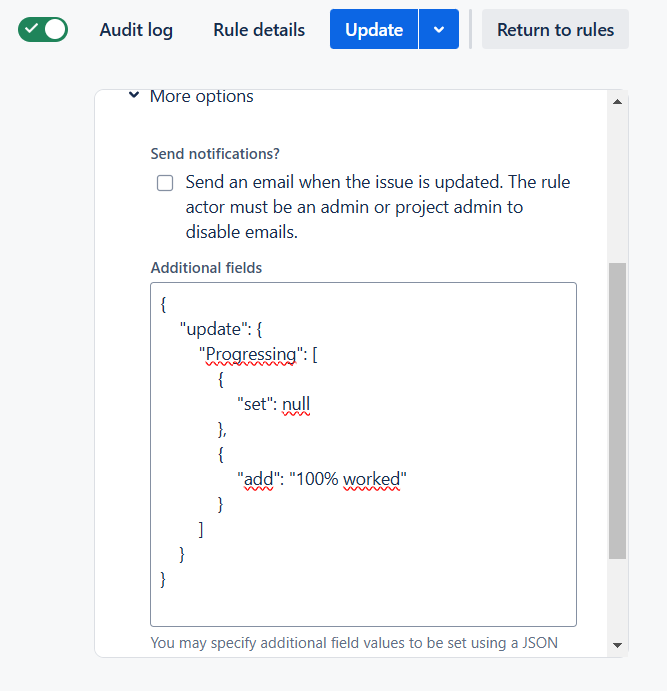
Click Use ‘More options’.
-
Add the following JSON code into the field to replace the data in Progressing with "100% worked":
{
    "update": {
        "Progressing": [
            {
                "set": null
            },
            {
                "add": "100% worked"
            }
        ]
    }
}
-
Click update
Testing the Rule
-
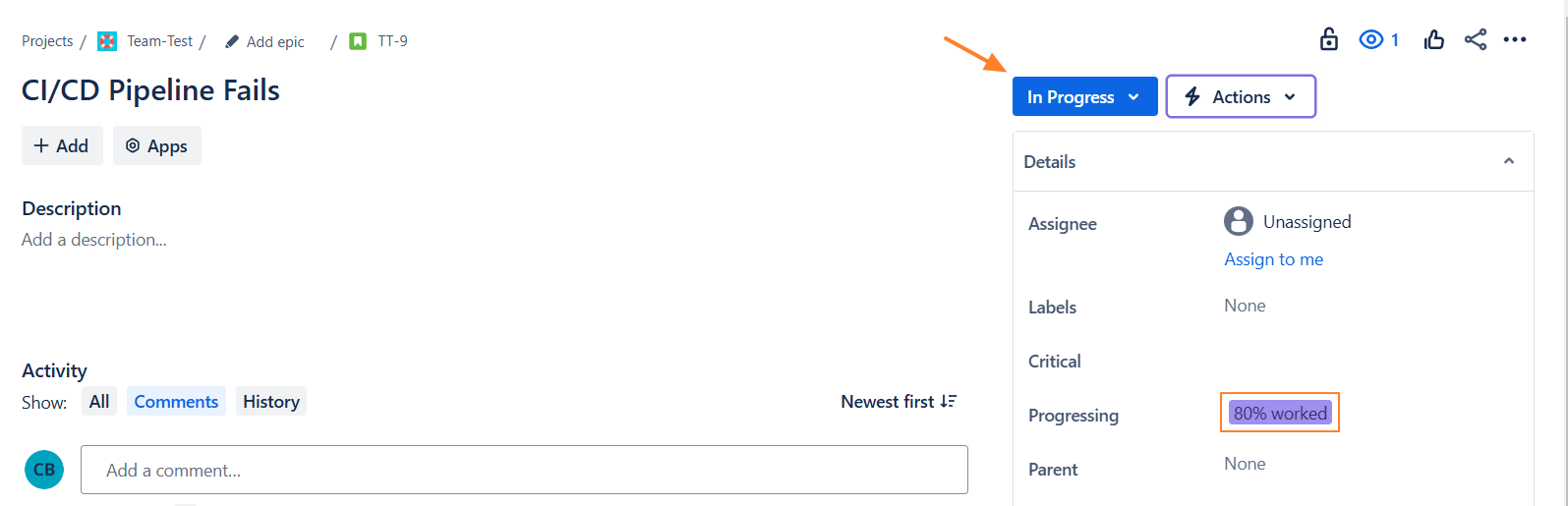
Create an issue and set any value in the Colored Label field "Progressing" Then Set the status to “In progress” .
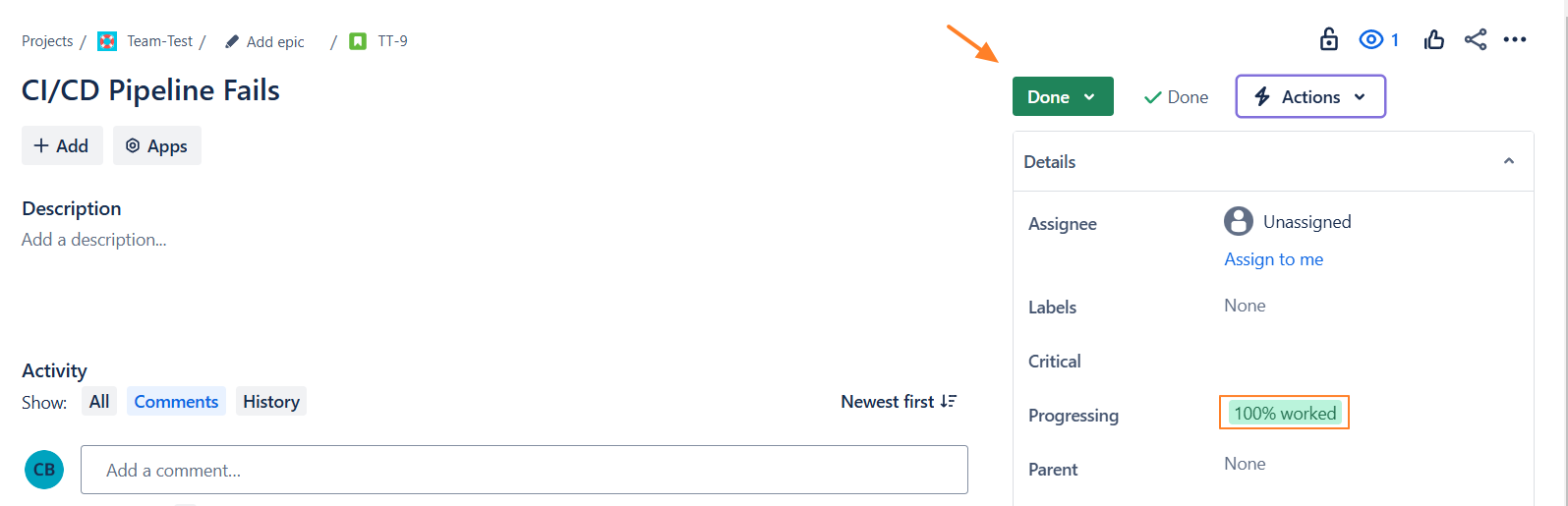
2. Change the status of the issue to Done.
-
Once the issue is marked Done, the Progressing field will be updated to "100% worked".
Need help?
💡 We're here for you! If you have questions or need to report a bug, visit our Help Center and raise a support ticket. Our team is ready to assist you!