
The Security Check feature helps identify sensitive information exposed in Jira work items, such as passwords, API keys, credentials, and personal data. It enables teams to quickly detect security risks, filter findings, and take action to protect sensitive information.
Accessing Security Check
-
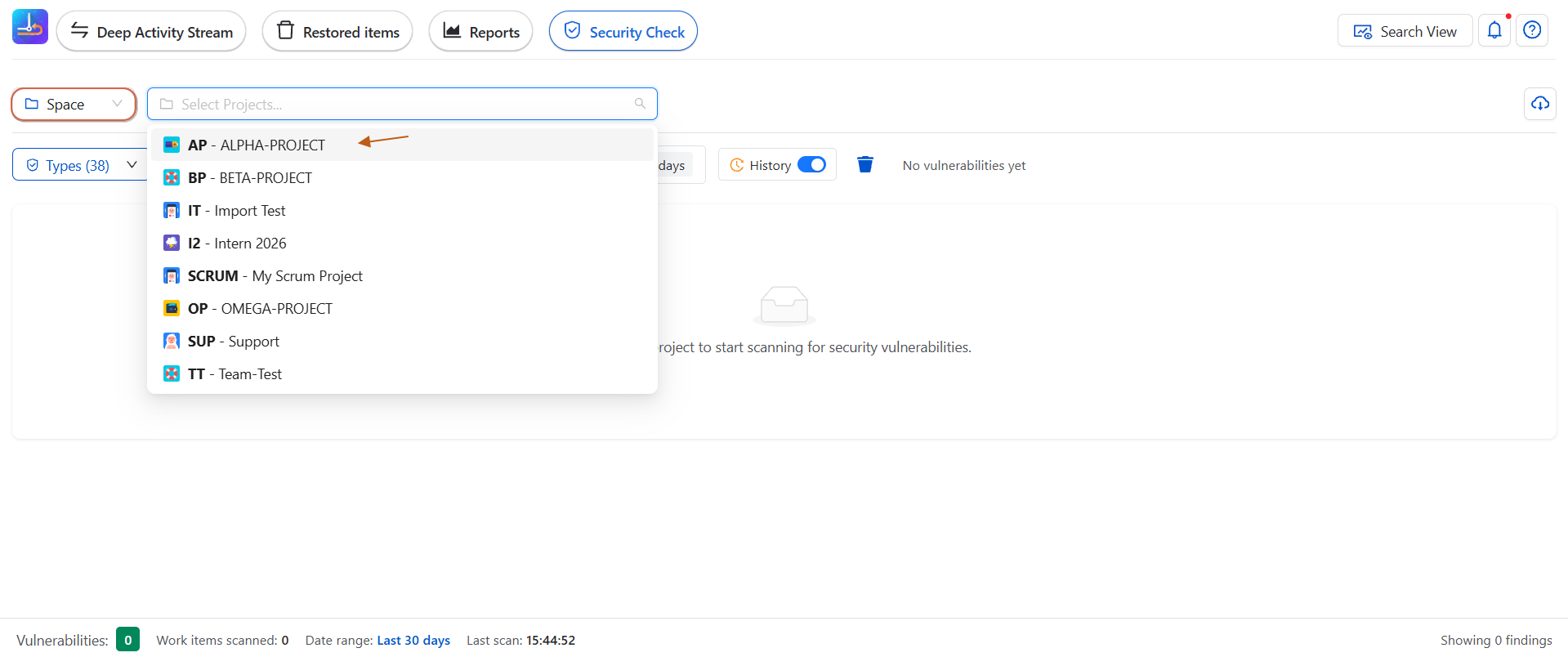
Navigate to Security Check from the application menu.
-
Before scanning, select a project.
-
Once a project is selected, the page loads all available security findings .
Available Filters
Security Check provides several filters to help you quickly locate specific vulnerabilities.
Filter by Finding Type
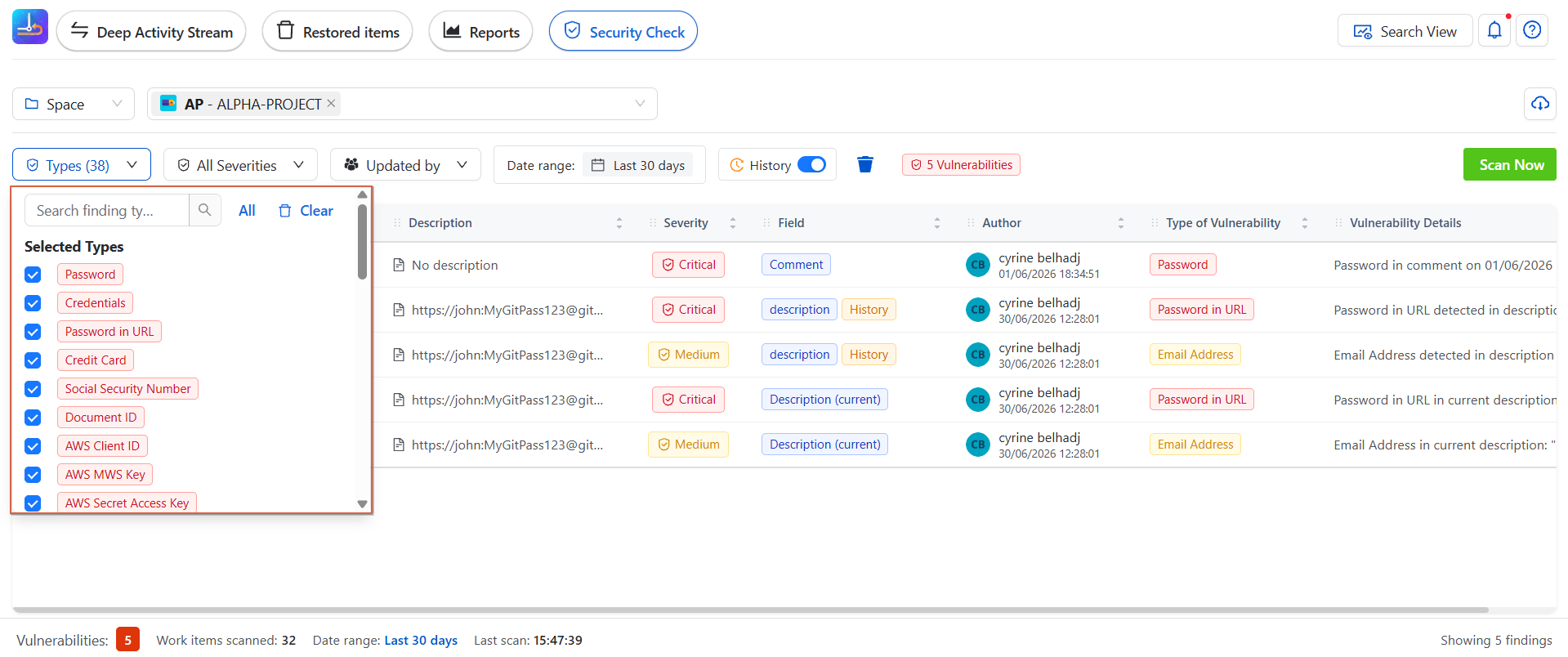
You can display only specific categories of detected sensitive data.
Supported finding types include:
-
Password
-
Credentials
-
Password in URL
-
Credit Card
-
Social Security Number
-
Document ID
-
AWS Client ID and more …
You can also select All Finding Types to display every detected vulnerability.
Filter by Severity
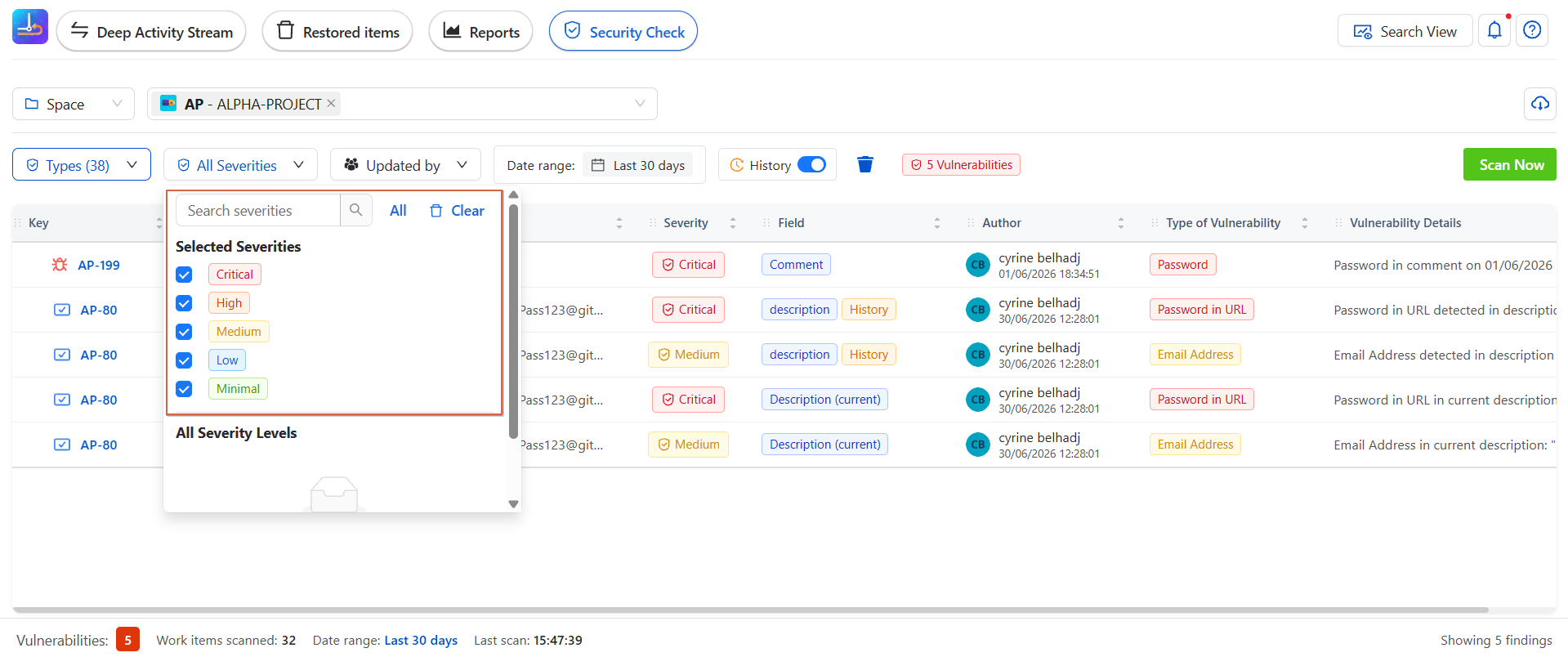
Filter results according to their security impact:
-
Critical
-
High
-
Medium
-
Low
-
Minimal
This helps prioritize the most important security issues first.
Filter by Updated By
Display findings based on the user who introduced or modified the detected information.
Filter by Date Range
Limit results to a specific time period.
For example:
-
Last 30 Days
-
Custom date range
History
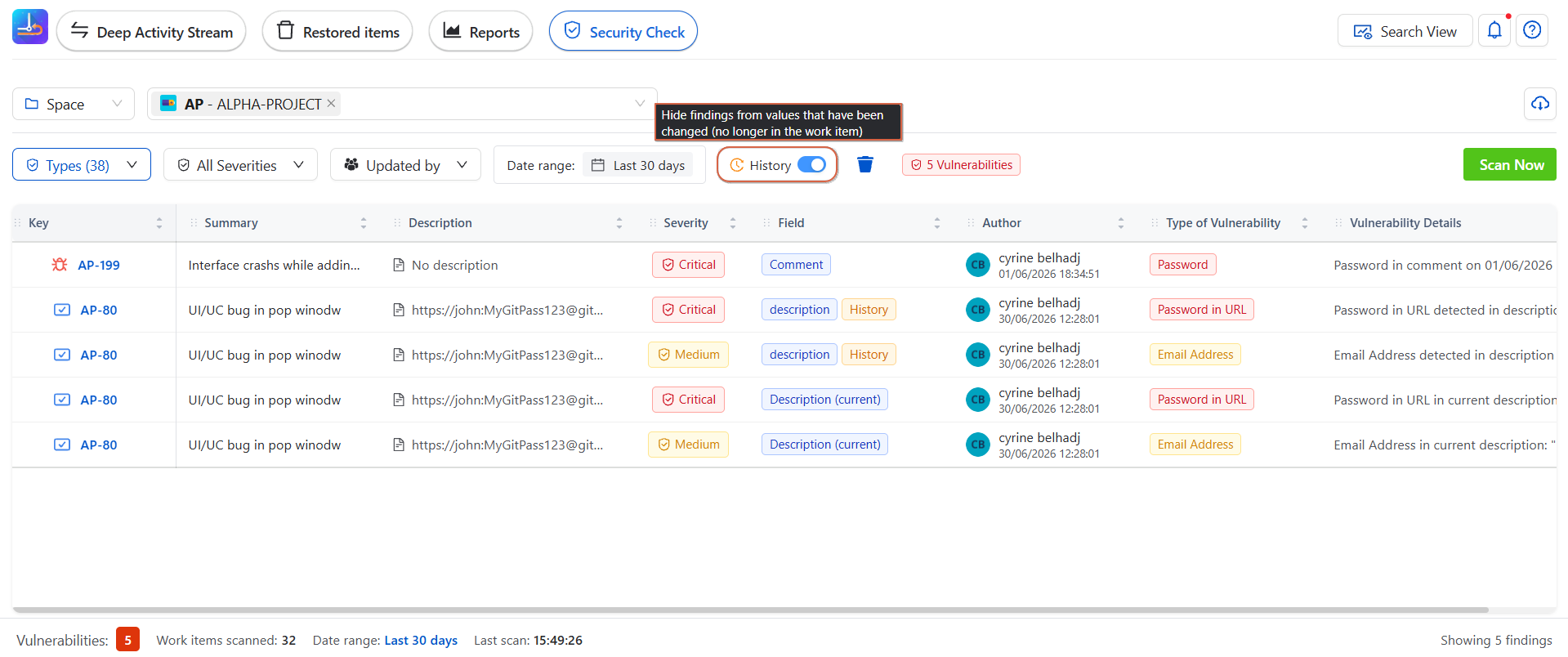
The History toggle allows you to control whether historical findings are included in the results.
-
When enabled, Security Check displays findings detected in both the current work item content and its change history.
-
When disabled, findings originating from values that have already been removed or modified are hidden.
Detection Locations
Security Check can detect sensitive information in multiple locations, including:
-
Description
-
Current Description
-
Comments
-
Work Item History
This allows teams to identify both current and historical security risks.
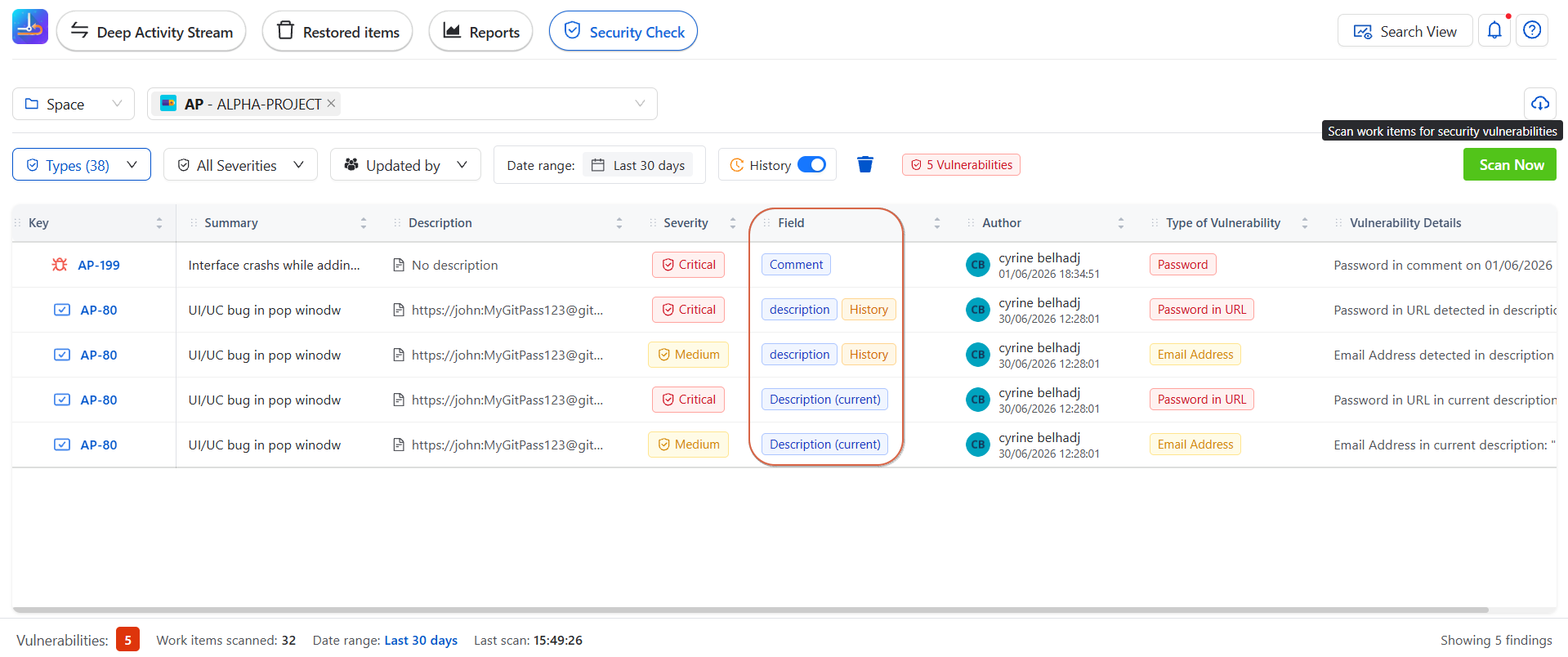
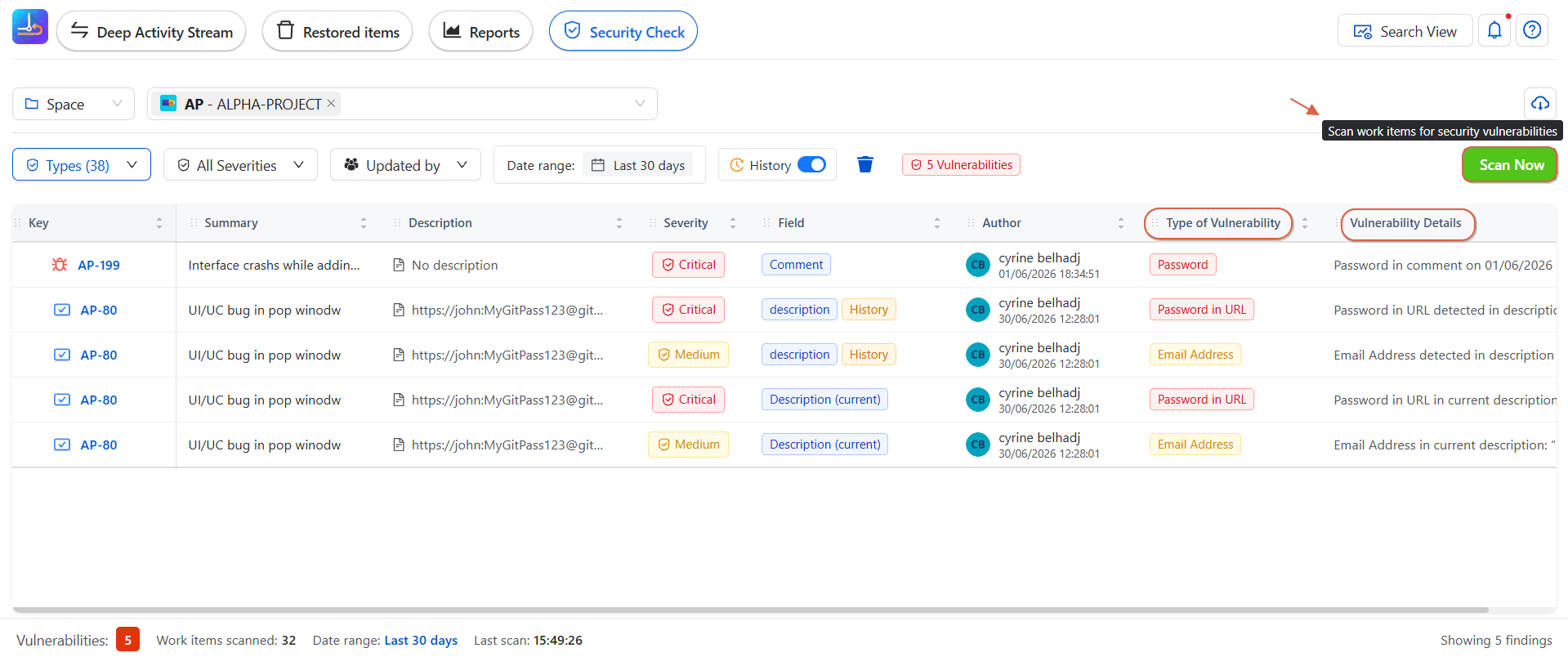
Scan Now
Click Scan Now to immediately perform a new security scan for the selected project.
The scan analyzes supported work item content and refreshes the results with the latest findings.
Export Results
Security findings can be exported for reporting, auditing, or further analysis.
Supported export formats:
-
PNG : Export the current report as an image.
-
CSV : Export all displayed findings as a spreadsheet for further processing.
Best Practices
-
Run security scans regularly.
-
Review Critical and High severity findings first.
-
Remove or replace exposed secrets immediately.
-
Use exported reports for security audits and compliance reviews.
Conclusion
The Security Check feature provides a simple and efficient way to detect, review, and manage sensitive data across your projects. By regularly scanning work items and addressing detected vulnerabilities, teams can improve security, reduce the risk of data exposure, and maintain a safer Jira environment.