
Work Item History includes AI-powered features that make it easier to understand the application, analyze activity, and identify security risks.
Two AI capabilities are available:
-
Help : Ask questions about how to use Work Item History and get answers directly from the product documentation.
-
Insights : Turn activity and security data into clear summaries, findings, and recommended actions.
1. AI Help
-
The Help assistant is an AI-powered guide based on the Work Item History documentation.
-
Instead of manually searching through documentation, you can simply ask the assistant how to perform a task in the application.
How to access Help
-
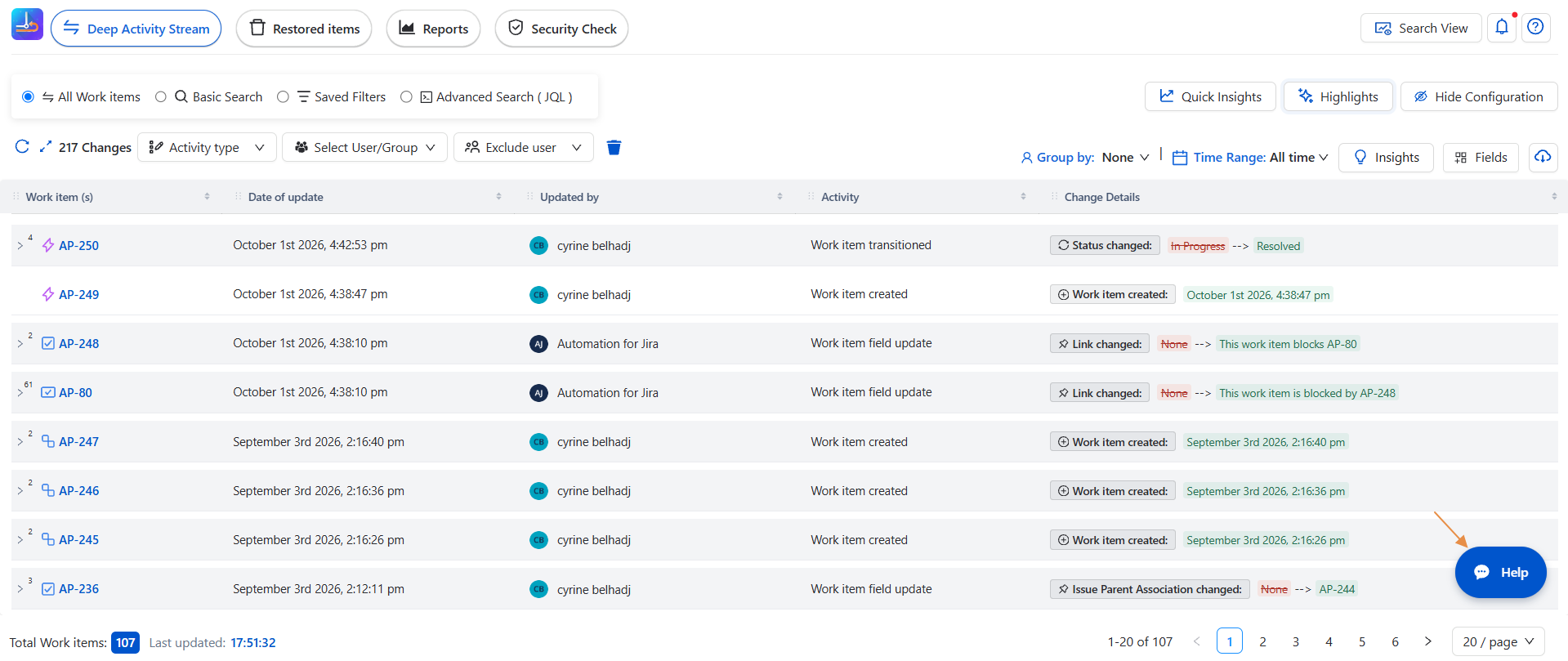
Open Work Item History.
-
Click Help.
-
Ask your question in natural language.
-
Review the answer and follow the suggested steps.
You can ask questions such as:
-
How do I restore a deleted work item?
-
How do I save a view?
-
How do I set up highlight rules?
-
How do I use the Deep Activity Stream?
The assistant provides guidance based on the product documentation and can also direct you to the exact documentation page where you can find more detailed information.
2. AI Insights
-
The Insights feature uses AI to analyze information already available in the application and generate a readable summary.
Insights are available in different areas of Work Item History, including:
-
Deep Activity Stream
-
Security Check
The available reports depend on the page you are using.
3. Activity Insights
-
In the Deep Activity Stream page, click Insights to access AI-powered activity analysis.
You can choose from three reports:
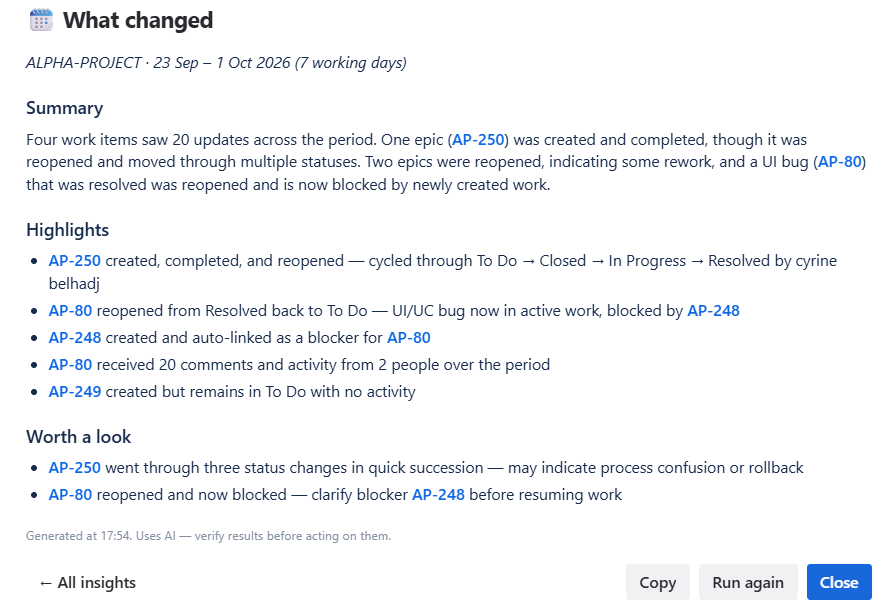
What Changed
Provides a summary of recent activity across your projects.
It can highlight:
-
Work items that were created or completed
-
Reopened work items
-
Reassignments
-
Status changes
-
Bugs and significant rework
-
Work items that may require attention
The analysis covers the last 7 working days.
Audit Changes
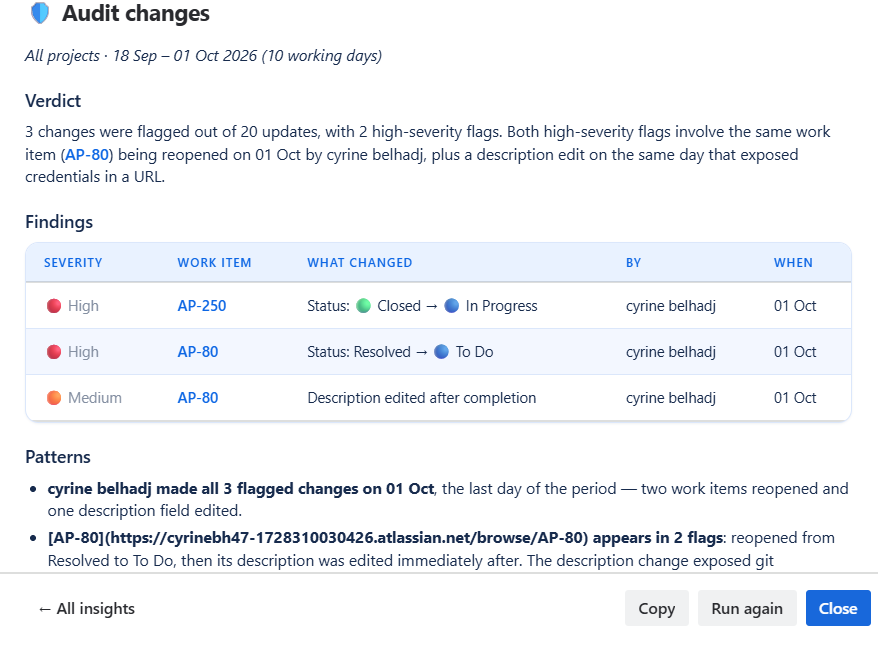
Focuses on potentially important or unusual changes.
It can identify:
-
Work items reopened after completion
-
Project moves
-
Edits made after completion
-
Other changes that may require review
Findings are presented with information such as severity, work item, change, user, and date.
The analysis covers the last 10 working days.
Team Activity
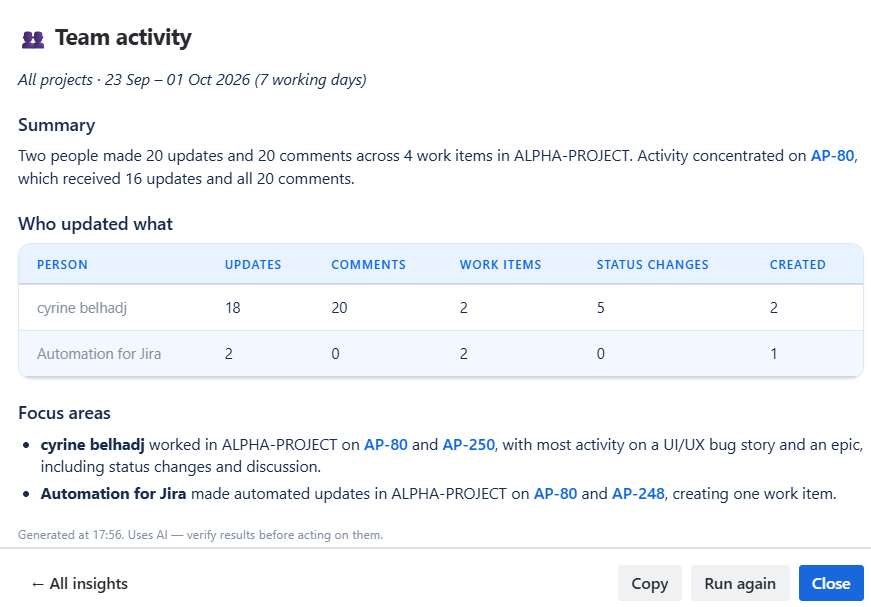
Provides an overview of recent team activity.
It can show:
-
Who updated work items
-
Number of updates and comments
-
Work items each person worked on
-
Status changes
-
Created work items
-
Areas where activity is concentrated
The analysis covers the last 7 working days.
4. Security Insights
On the Security Check page, click Insights to analyze the security findings currently displayed.
The assistant provides three reports:
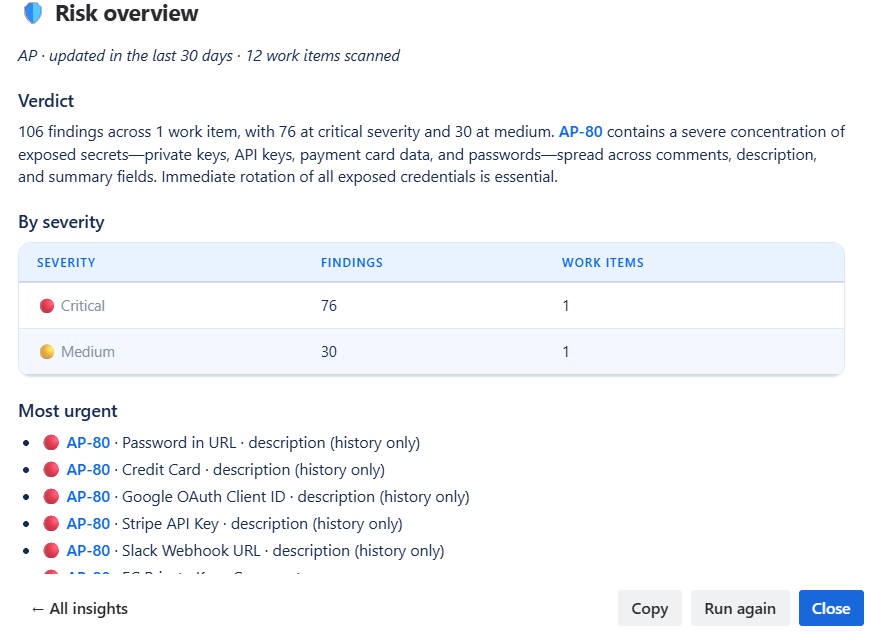
Risk Overview
Provides a high-level view of the detected security exposure.
It can summarize:
-
Total findings
-
Findings by severity
-
Most urgent work items
-
Types of detected sensitive information
-
Whether findings are located in current fields or historical data
This gives administrators a quick understanding of the security findings that require review.
Fix Plan
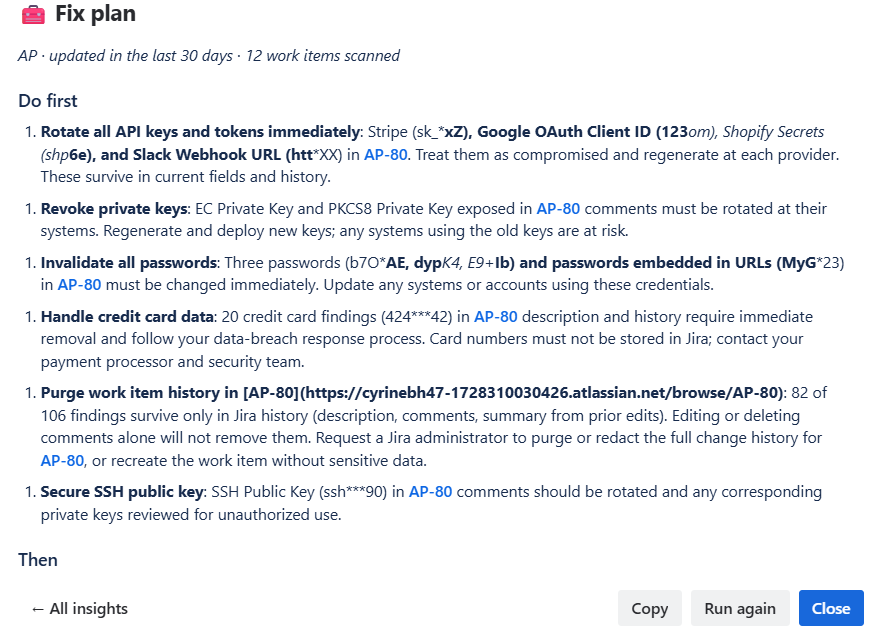
Provides actionable recommendations based on the findings.
For example, it can organize remediation steps such as:
-
Rotate exposed API keys and credentials
-
Revoke or replace private keys
-
Reset exposed passwords
-
Remove sensitive payment information
-
Review exposed historical data
-
Address lower-risk personal or infrastructure information
-
Introduce practices to prevent future exposure
The Fix Plan helps transform security findings into a structured remediation checklist.
Exposure Map
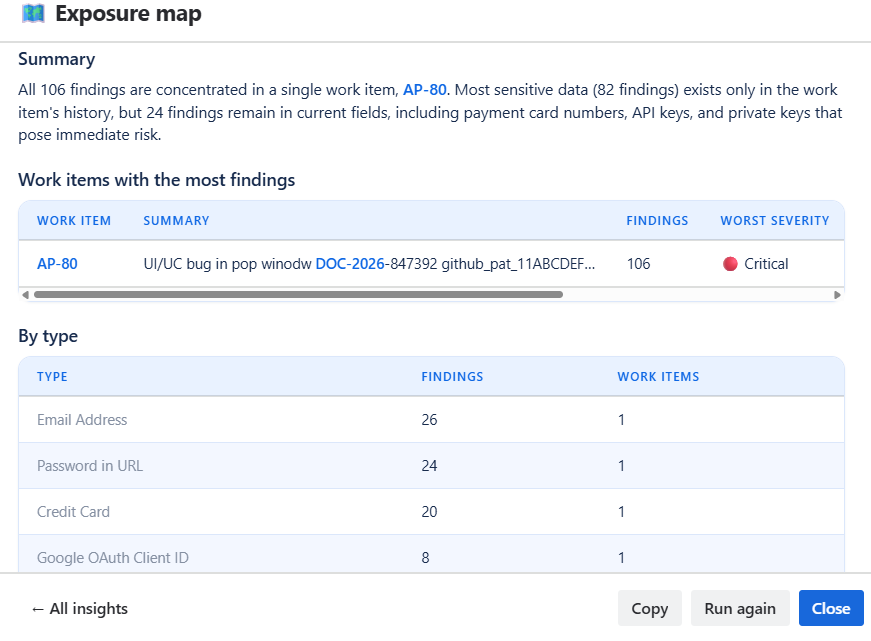
Shows where the detected findings are concentrated.
It can identify:
-
Work items with the most findings
-
Types of sensitive data detected
-
Severity levels
-
People associated with the findings
-
Fields or areas where exposure exists
This helps teams understand where to start their investigation.
5. Working With AI Results
After generating any Insights report, three actions are available:
Copy : Copy the generated analysis so it can be shared, documented, or reviewed elsewhere.
Run again : Generate the analysis again using the latest available data.
Close : Close the generated report and return to the application.
Use Help when you want to know: "How do I use this feature?"
Use Insights when you want to know: "What is happening in my Jira data, and what should I review?"
Conclusion
AI-powered Help and Insights make Work Item History easier to use and understand.
Help provides documentation-based guidance and takes you directly to the relevant documentation when you need more detail. Insights turns activity and security data into structured summaries, findings, and recommended next steps.
Together, these features help teams find answers faster, understand Jira activity, investigate important changes, and identify security risks more efficiently while keeping users in control of the final decisions.