
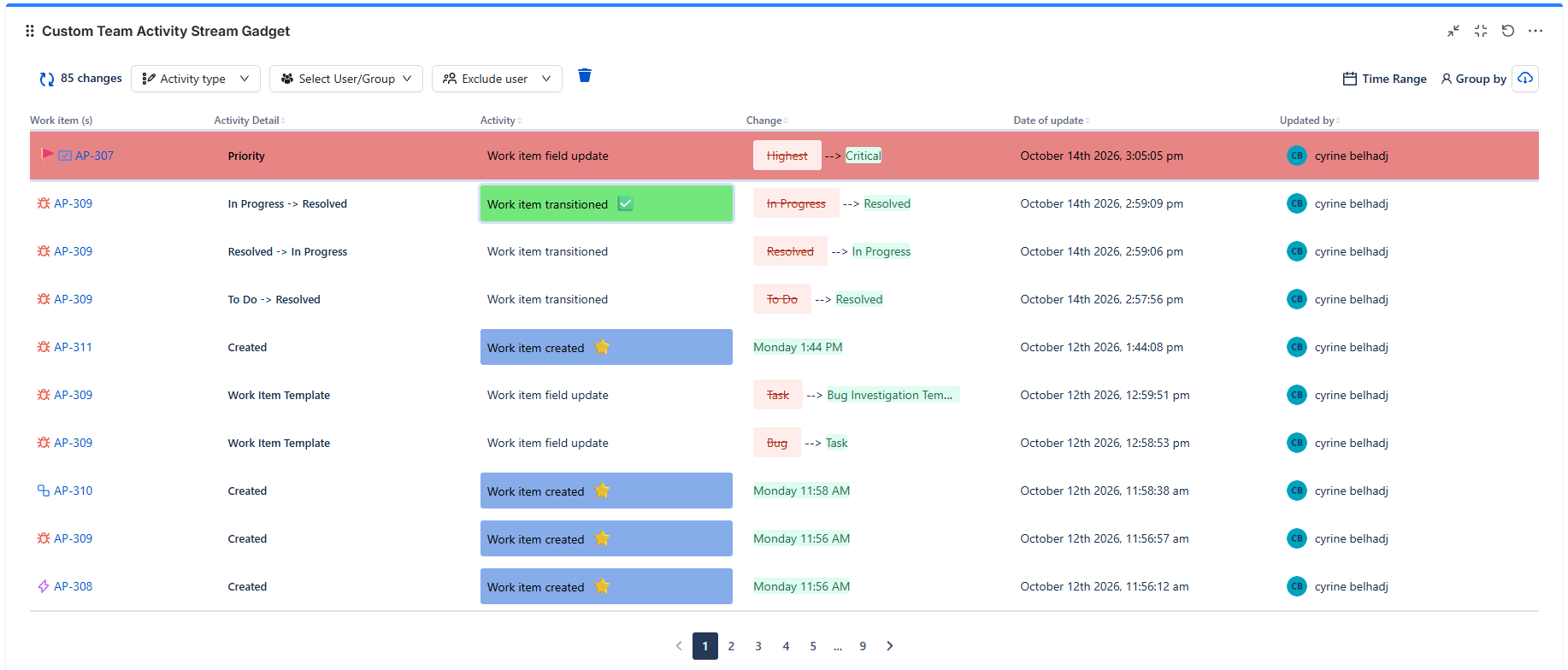
The Custom Team Activity Stream Gadget is a powerful and customizable gadget designed to help you monitor key activity changes in your Jira instance directly from your dashboard.
Whether you're tracking updates across projects, monitoring specific changes, or highlighting trends in your workflows, this dashboard gives you a centralized, visual overview of what's happening.
This guide walks you through the steps to add, configure, and customize the Custom Team Activity Stream Gadget, ensuring you make the most of its advanced filtering, search, and highlighting capabilities.
Adding the Custom Team Activity Stream Gadget
To start using the Custom Team Activity Stream Gadget on your Jira dashboard:
-
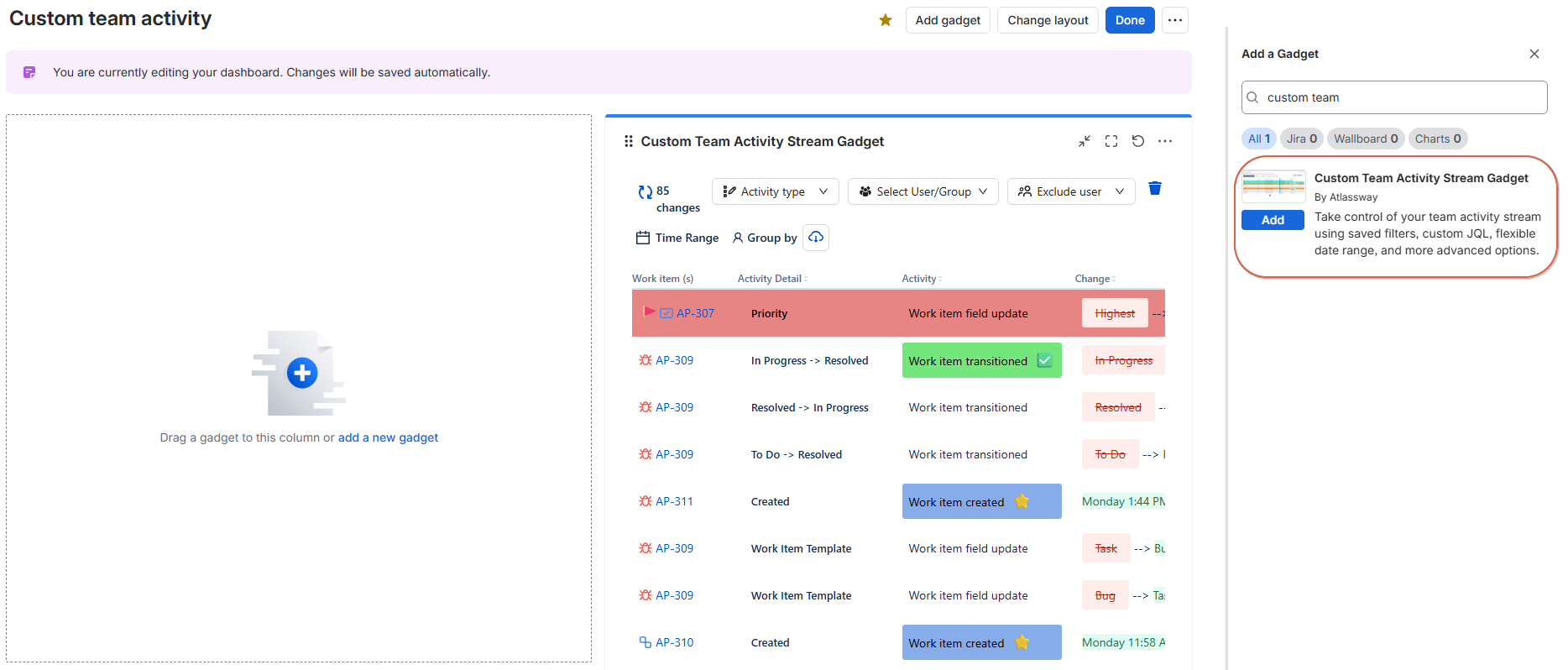
Navigate to your Dashboard.
-
Click the Edit button (top-right).
-
Click Add a Gadget.
-
In the gadget directory, search for Custom Team activity.
-
Select and add the gadget to your dashboard.
Once added, you’ll be able to configure the gadget according to your needs.
Configuration Fields
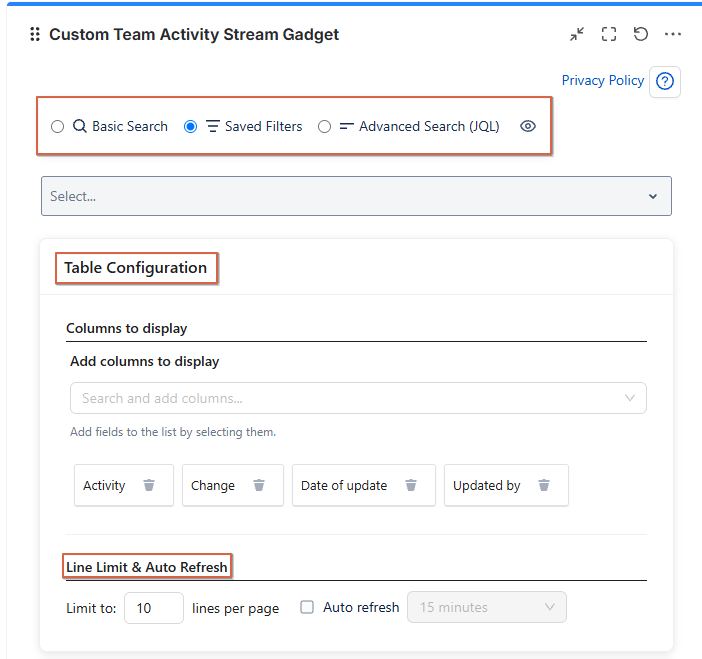
Once the gadget is selected, you'll be presented with multiple configuration options:
Search & Filtering Options
-
Advanced Search (JQL)
Write custom JQL queries to filter the data precisely. -
Basic Search
Use simplified fields for quick filtering without JQL. -
Saved Filters
Apply existing Jira filters you’ve saved.
Table Configuration
Customize the table content to display the most relevant data:
-
Columns to Display
Add or remove columns to tailor the view. Available fields include:-
Activity -
Activity Detail -
Date of update -
Updated by -
Change
-
-
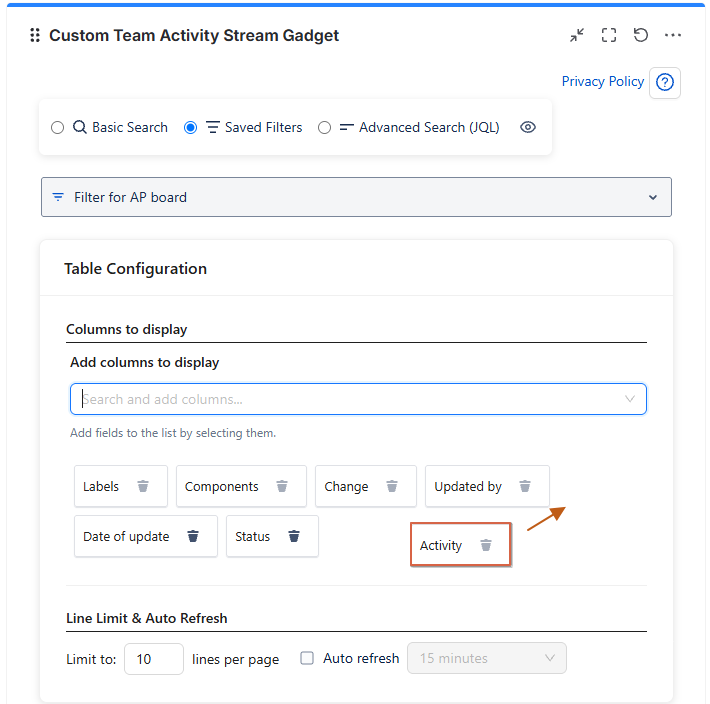
Add Columns to Display
Start typing to search and add new fields. -
Modify the order of columns
You can change the order of the columns by simply dragging and dropping them into your preferred arrangement.
Line Limit & Auto Refresh
-
Limit to [X] lines per page
Define how many activity lines are displayed at once (10 lines). -
Auto Refresh
Enable the dashboard to refresh automatically to keep your data up to date.
Example of configuration :
Highlights
Emphasize important activities visually with highlight rules.
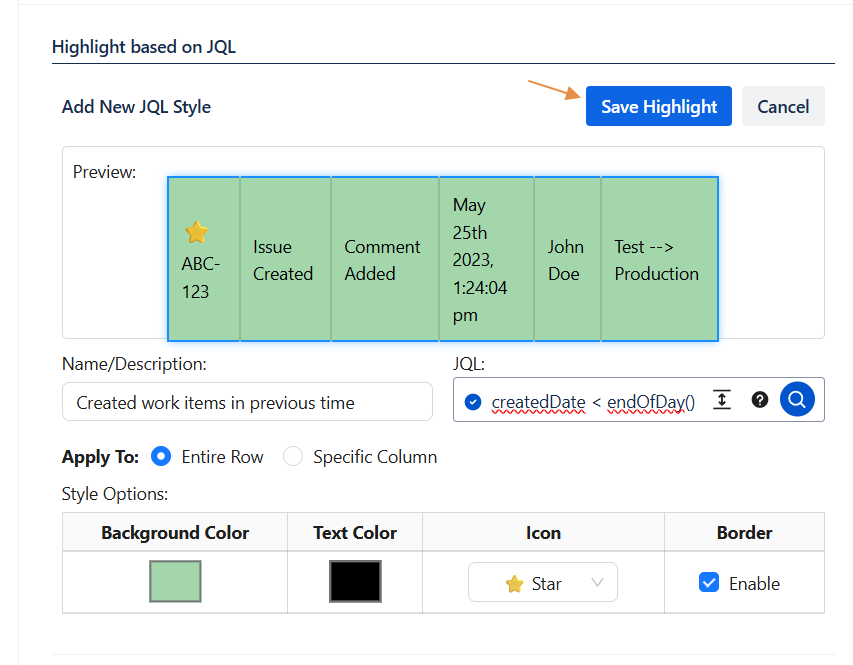
Highlight Based on JQL
Create custom highlight rules using JQL expressions:
-
Name/Description
-
JQL (to define the condition)
-
Target (which field to highlight)
-
Style Preview (color, icon, etc.)
Then Click on Save highlight
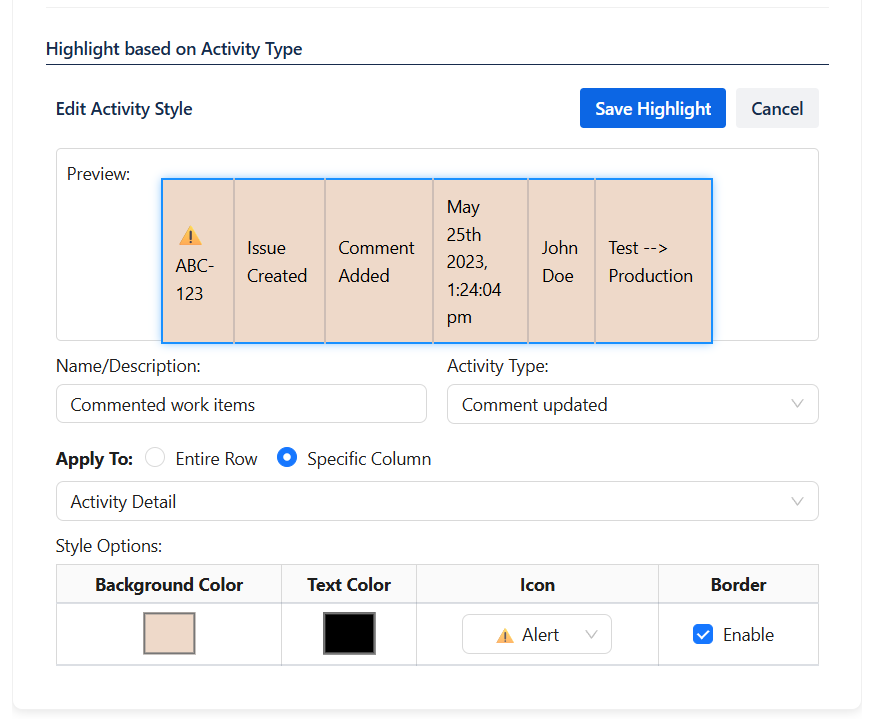
Highlight Based on Activity Type
Highlight based on predefined activity types:
-
Name/Description
-
Activity (comment added, status changed)
-
Target
-
Style Preview
Then Click on Save highlight
📌 You can add multiple highlight rules to visually prioritize what matters most.
Final Step: Save & Preview
After finishing your configuration:
-
Click Save to apply your settings.
-
The gadget will now load based on your selected filters and configurations.
-
You can always return to edit and adjust the gadget as needed.
Rename Gadget
To rename a gadget:
-
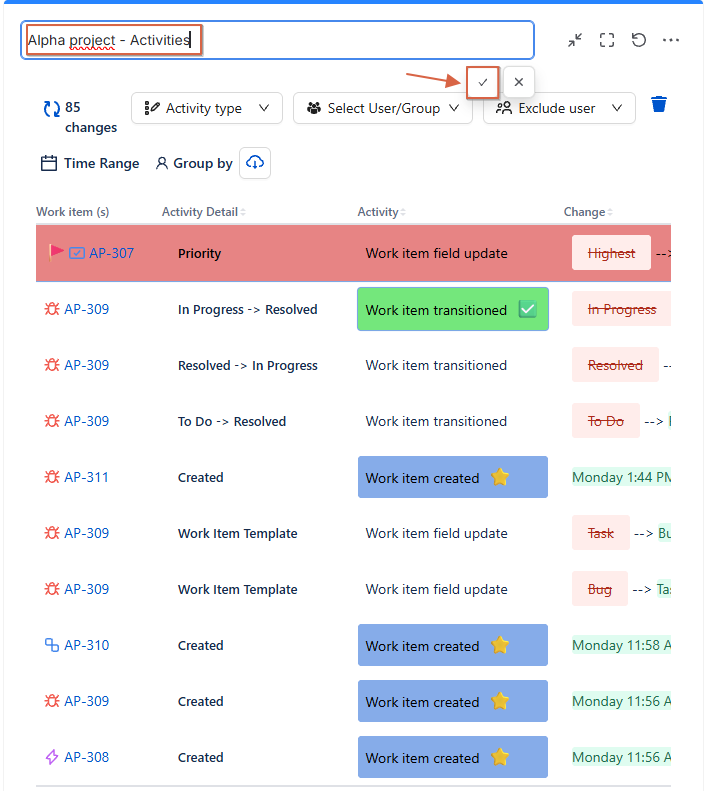
Click directly on the gadget's title.
-
Edit the name as desired.
-
Once you're done, click the ✔️ check icon to save your changes.
Your new title will be applied immediately.
⚙️ Reconfigure a Gadget
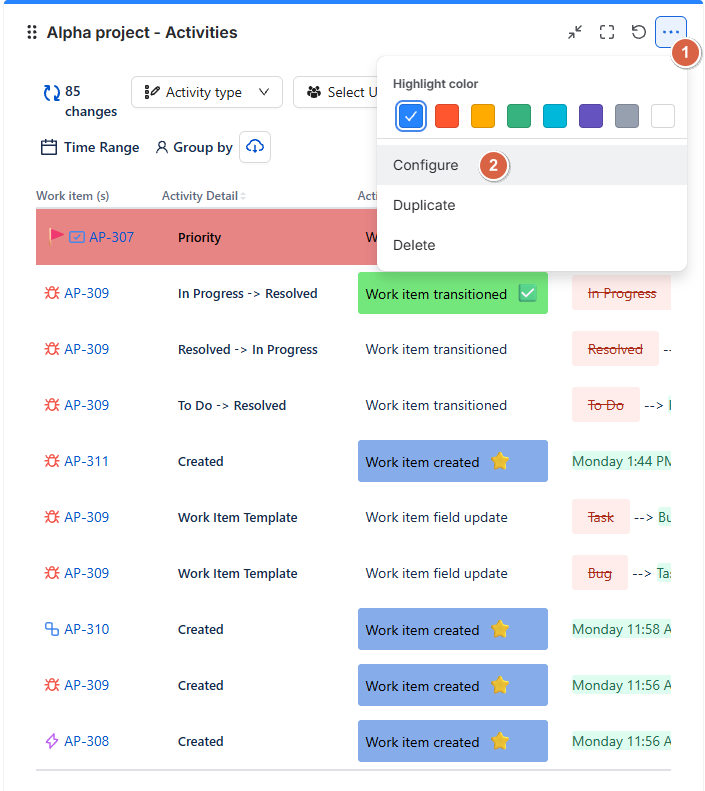
If you want to update the settings of a gadget after it’s been added:
-
Click on the “⋯” (More) icon in the top-right corner of the gadget.
-
Select Configure from the dropdown menu.
-
Adjust the configuration based on your needs.
-
Click Save to apply the changes.
Your gadget will be updated immediately with the new settings.
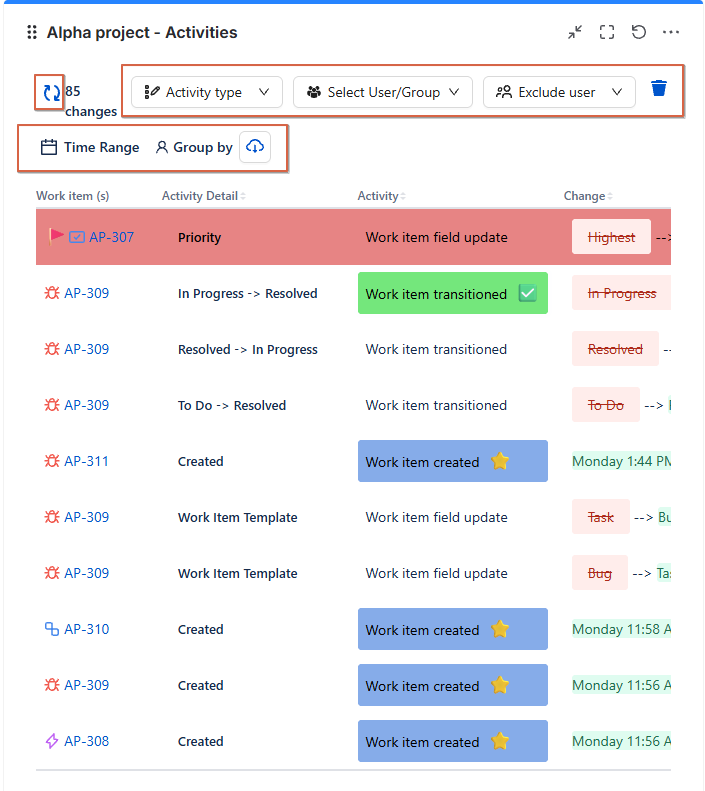
Using Filters and Actions in a Saved Gadget
Once a gadget is saved, several filters and actions become available to help you customize your view:
🧩 Available Filters:
-
Activity Type :Filter by specific activities (comments, status changes).
-
User/Group Selection : Focus the view on specific users or groups.
-
Exclude Users : Omit selected users from the activity stream.
-
Time Range : Define the period you want to analyze.
-
Group By : Organize results by activity type, date and user
📤 Additional Actions:
-
Export : Export the current view as a
.CSVfile or.PNGimage. -
Refresh : Click the Refresh button to apply new changes and reload the data.
-
Delete Filter : To remove a specific filter (Activity Type, User/Group, or Exclude), click the trash bin icon.
These controls give you flexibility to explore your data and focus on the insights that matter most.
Customer Use Cases
Discover how teams can use Custom Team Activity Stream Gadget to monitor Jira activity and stay informed about important updates.
📌 Track Daily Updates
“I want to see which work items were created, updated, or resolved today.”
The gadget helps teams follow daily activity and quickly identify recent changes without checking each work item individually.
👥 Monitor Team Activity
“I want to know who updated a work item and what they changed.”
Team leaders and project managers can follow team contributions, review updates, and understand how work items evolve over time.
🔎 Follow Specific Projects
“I only want to see activity from the projects I’m responsible for.”
Use search options and saved filters to focus on relevant projects and avoid unnecessary information.
📝 Track Important Field Changes
“I want to see when important work item details are updated.”
Monitor field changes to help ensure that key information stays up to date and identify work items that may need attention.
💬 Keep Track of Comments and Updates
“I want to follow recent discussions and updates without opening every work item.”
Use the activity stream to review available activity details and stay informed about ongoing work.
📊 Monitor Multiple Projects in One Place
“I work across several projects and want one dashboard to follow their activity.”
Create a filtered activity view that brings relevant updates together, making it easier to monitor work across multiple projects.
You're Ready!
The Custom Team activity Dashboard offers a flexible and powerful way to track Jira activity in real-time. Whether you're a project manager, admin, or team member, this gadget ensures you're always informed and in control of what's happening.
Need help?
🤝 We're here for you! If you have any questions, suggestions, or feature requests, feel free to reach out — we typically respond within 4 hours.